All About Testing: App Store Screenshots That Get More Downloads
Watch Sammy build, localize and test a screenshot set in AppScreens. See what other app teams learned from their tests, then check whether your own screenshots make the benefit clear.

Guides for app store screenshots, ASO creative strategy, screenshot tools, templates, localization, and the release workflow around them.
Start with a template
Pick a responsive template, add your app screens, and export the sizes each store needs.
32 articles on app screenshots, ASO, tools, and release workflows.

Watch Sammy build, localize and test a screenshot set in AppScreens. See what other app teams learned from their tests, then check whether your own screenshots make the benefit clear.

Sammy shares how the screenshot work behind CookBook led us to build AppScreens. Watch her App Masters interview for practical advice on captions, localization and getting your next screenshot set into the stores.

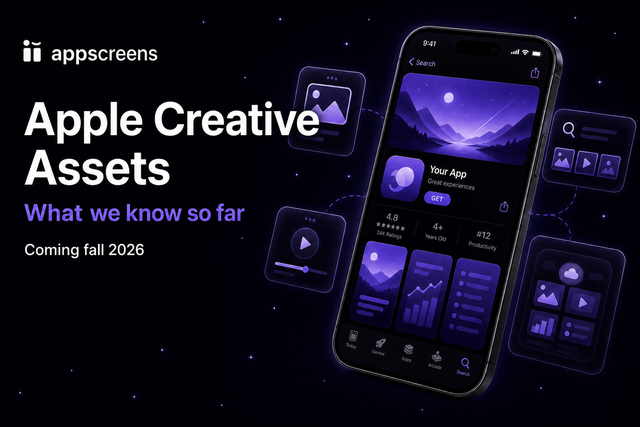
Apple Creative Assets add new places to show what makes your app worth downloading. Learn the header, search results and Universal formats, then start your artwork in AppScreens.

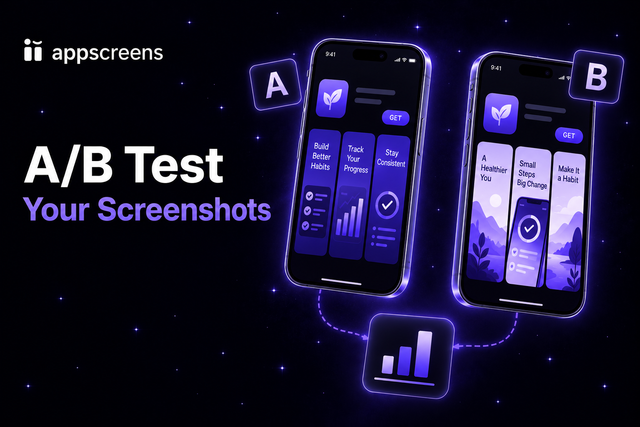
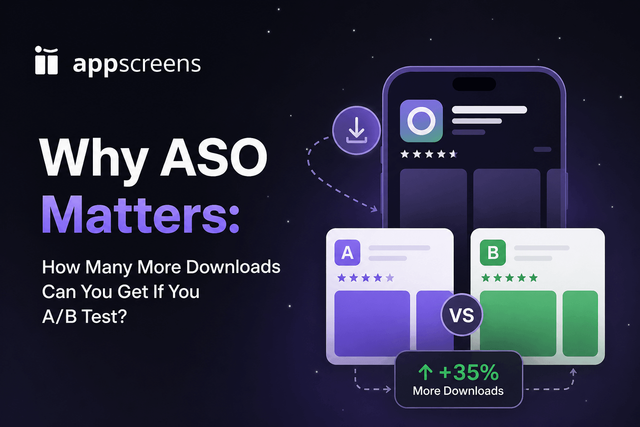
Find out which store creative earns more installs. Learn from named ASO tests, model the value of a conversion change and build your next screenshot variant in AppScreens.

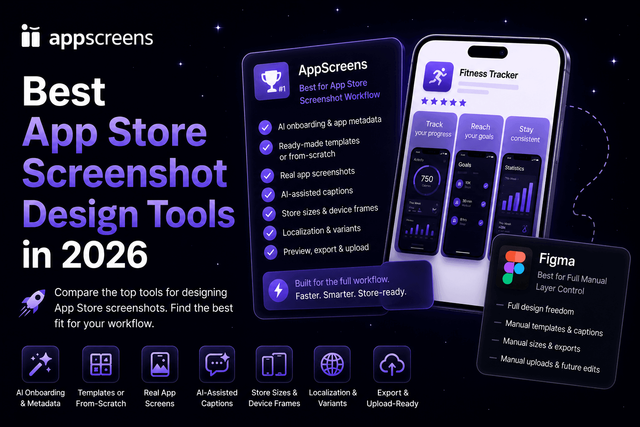
AppScreens is our pick for App Store and Google Play screenshots. Compare the tools on the work that matters after design: store sizes, localization, uploads and the next release.
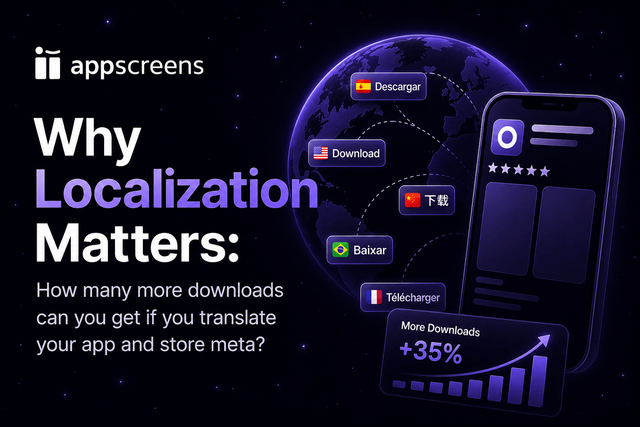
Give the next market a reason to install in its own language. See what localization campaigns achieved, choose where to start and use AppScreens to create the screenshot set without rebuilding every device size.

AppScreens keeps one screenshot design connected across store sizes and languages. See how that changes the work of editing captions, preparing a release and uploading the finished set.

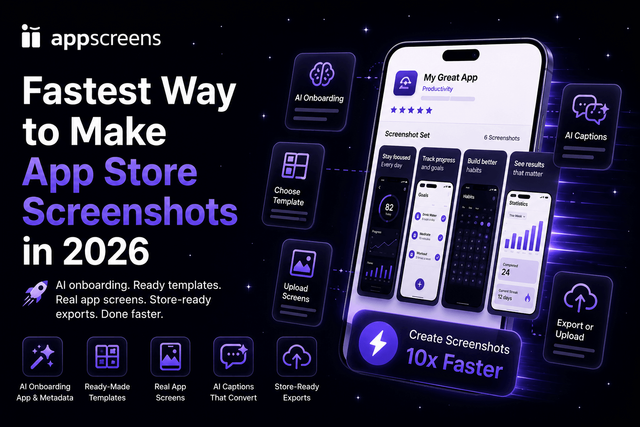
Follow six steps from clean app captures to a finished screenshot set. AppScreens handles the repeated sizing work so you can spend your time on the message.

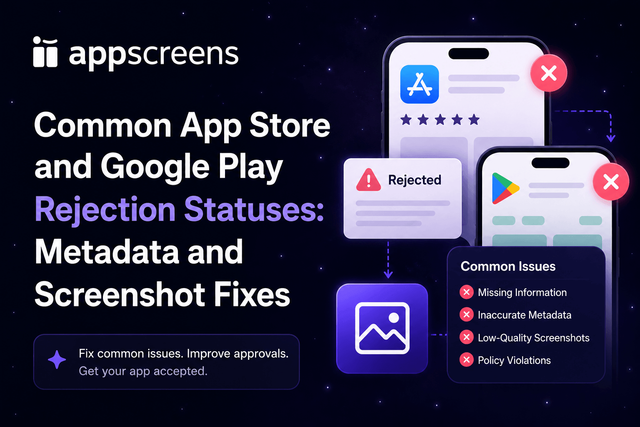
Find the asset behind a screenshot or metadata rejection. Fix the app promise, size or locale, then update the complete set in AppScreens before resubmitting.

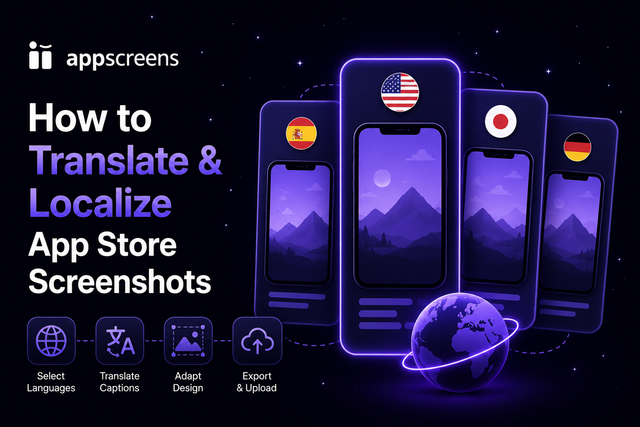
Translate your captions, fit the longer text and choose the right app captures for each market. AppScreens keeps those changes in the same project, ready for localized exports and direct store uploads.

Find why downloads are low after launch: check availability, missing analytics, discovery, audience fit and store conversion, then choose the right next action.

Make your first screenshots explain why the app is worth installing. Use this playbook to sharpen the captions, show the right app detail and create a stronger test variant in AppScreens.

Build a screenshot set that looks like your app and makes its value clear. See a real CookBook project, then apply the same design decisions to your own AppScreens set.

Start with the screenshot that introduces your app. Test its benefit, caption or image before redesigning the whole gallery, and use AppScreens to create a clear alternative.

Give each campaign a screenshot story that matches its promise. Learn when to use Custom Product Pages and how to create focused variants in AppScreens.

Save one AppScreens project with up to five designs and export essential store sizes free. Learn what you can finish for your first launch and which jobs call for a paid plan.

Your screenshots have seconds to explain why someone should install. Spot the captions, layouts and opening screens that hide the benefit, then build a clearer version in AppScreens.

Use Fastlane for repeatable app captures and AppScreens for the finished store presentation. See how the two fit together, from real UI to captions, localized designs and publishing.

Figma gives you a canvas. AppScreens carries the screenshot set through device sizes, languages and store uploads. See why we choose a purpose-built workflow for app releases.

AppScreens is our choice for store screenshots that need to work across devices and markets. Design the set once, keep it editable and take the finished assets straight to the stores.

Choose AppScreens when the job includes more than a mockup. Keep the design, localized assets and store uploads together, ready for the next app release.

Capture the screens that show your app at its best, add captions that sell the benefit and export the right store sizes. Follow the AppScreens workflow from your first capture to a finished screenshot set.

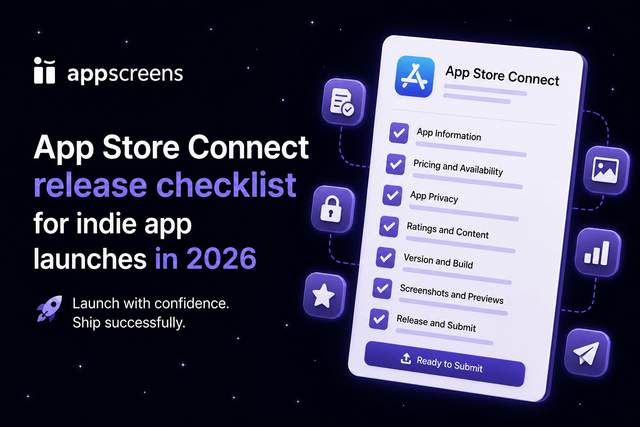
Run through the build, store assets and review details before you submit. Catch missing screenshots, privacy answers and demo access while you still have time to fix them.

Put your next screenshot idea in front of real Play Store visitors. Choose one change, build the challenger in AppScreens and use the experiment result to decide what goes live.

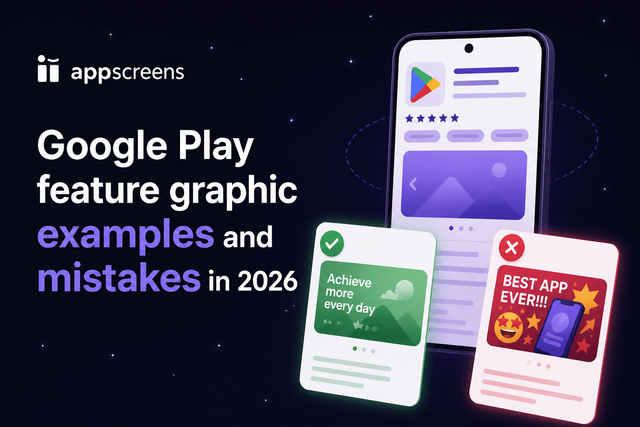
Make one app promise clear in a 1024 x 500 graphic. Learn what to show, what to leave out and how to create the finished Google Play asset in AppScreens.

Use this checklist to take a screenshot set into a new market: choose the locale, translate captions, check the app captures and layout, then export the right files.

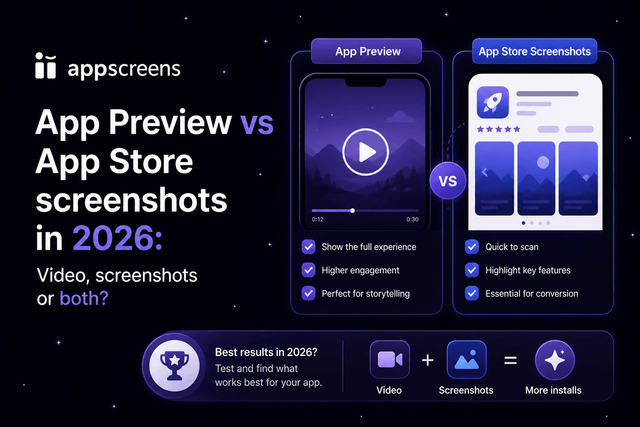
Start with screenshots that explain the benefit. Add an app preview when seeing the app in motion makes the value clearer, then test whether it earns its place on the page.

Check the pixel dimensions first, then use View All Sizes to find the matching display section. When the files need changing, export the correct size from AppScreens.

Use AI to get to a stronger screenshot idea faster. Keep the real app UI accurate, make the benefit clear and finish the set in AppScreens with editable captions and the store sizes you need.

Learn how to take App Store screenshots from Xcode Simulator and real devices, clean the UI before capture, standardize status bar and dark mode, and turn raw screenshots into store graphics.

Use QuickTime with a real iPhone for the simplest clean 9:41 screenshot workflow, or use Xcode Simulator status bar overrides when you need repeatable captures across devices, locales, and variants before importing into AppScreens templates.

Choose AppScreens for screenshots that stay connected across devices, languages and releases. Compare the editing, localization and publishing work that matters after the first design.
Use the guides, then make the screenshot set. Start from a responsive AppScreens template, localize captions, and export store-ready sizes from one design.

© 2026 AppScreens, a registered business name of Salty Bytes Pty Ltd. All rights reserved | v1.1.250