Figma alternative for app screenshots
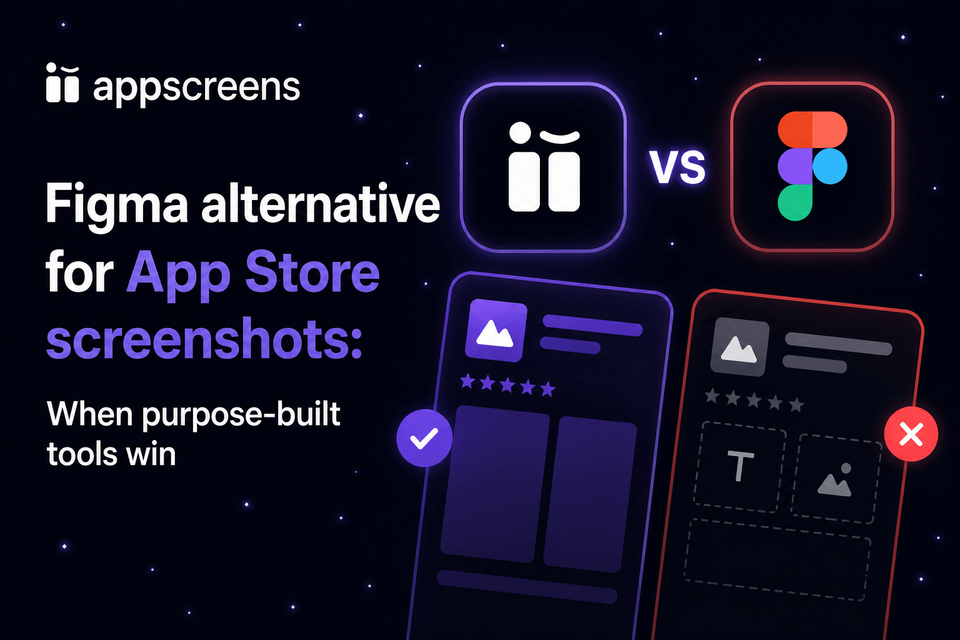
Figma Alternative for App Store Screenshots: When Purpose-Built Tools Win
We love Figma for product UI, prototypes, design systems, and custom visual direction. But if your job is App Store and Google Play screenshots, AppScreens is the faster way to turn real app screens into polished, localized, test-ready, store-ready assets.
Raw screenshots show the interface, but they rarely sell the outcome, explain the benefit, create visual hierarchy, or give visitors a strong reason to install. AppScreens adds templates, AI-assisted captions, device frames, brand styling, localization, variants, App Store Connect upload, Google Play workflows, and organized exports. Better screenshot creative can turn the same store traffic into more installs, which is why ASO screenshot workflows matter.
Use Figma while the app UI or creative system is still being invented. Move the screenshot release work into AppScreens when captions, sizes, localized layouts, per-language assets, variants, and upload files would otherwise need to be rebuilt by hand.
Quick Take
Quick take: Figma is best for product UI, prototypes, design systems, and bespoke manual art direction. AppScreens is the better Figma alternative when the deliverable is store-ready App Store or Google Play screenshots.
- Use Figma to create the app or visual system. Use AppScreens to turn real app screens into polished screenshots with templates, captions, device sizes, localization, variants, exports, and upload-ready assets.
- Use AppScreens for one fast launch set or future updates. The workflow starts closer to the screenshot job than a blank design canvas.
- Main tradeoff: Figma gives full manual layer control. AppScreens keeps captions, sizes, localization, variants, exports, and uploads in one editable project.
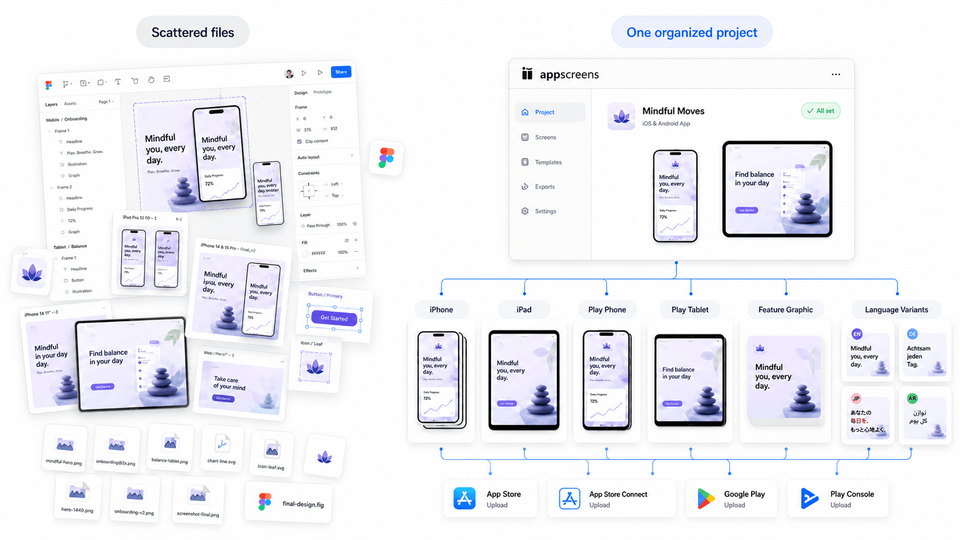
Fast workflow: from real app screens to store-ready screenshots
Use Figma while the app UI or bespoke creative system is still being designed. Use AppScreens when real app screens need to become polished App Store and Google Play screenshots quickly.
Step 1: Start with your app and clean screens
Use AI onboarding to find the app and metadata, then upload simulator captures, real-device captures, QA builds, automation output, or final exported screen assets. If you need source screens first, use the guide to take App Store screenshots from Simulator and devices.
Step 2: Choose a template or start from scratch
Start fast with an App Store screenshot template, or build a custom layout when creative control matters.
Step 3: Add captions, devices, and brand styling
Add AI-assisted captions, apply device frames, adjust text, images, colors, and layout, then keep the project editable.
Step 4: Localize, resize, and create variants
Use AI translation, 80+ localizations, RTL support, automatic text resizing, per-language screenshot changes, CPP variants, PPO variants, and Google Play experiment workflows without managing duplicated Figma frame systems.
Step 5: Export or upload store-ready assets
Generate high-resolution PNG files for iPhone and iPad screenshots, Google Play screenshots, feature graphics, custom sizes, App Store Connect upload, and Google Play workflows.
A screenshot set multiplies quickly once captions, store sizes, languages, variants, exports, uploads, and QA are involved. Five screens across 4 sizes, 6 languages, and 3 variants becomes 360 screenshot assets before the next caption change, localized screen swap, or upload check. AppScreens keeps that work in one editable project with text fitting, per-language assets, store-ready exports, uploads, variants, and future updates.
AppScreens is free to start: create one project, use AI mode, export up to 5 screenshots, and manually upload them to App Store Connect or Google Play. Upgrade when you need more projects, uploads, localization, variants, team workflows, or client work.
This is not just production polish. Better screenshot creative can affect downloads because screenshots are one of the first selling surfaces users see in the store. Screenshot updates have been cited around +6% downloads on iOS and +9% on Google Play, while ASO testing examples range from about +4% to +61%. Use the ASO screenshot workflow when you want to turn better captions, order, benefits, and variants into test-ready store assets.
A real manual Figma workflow example
The video example shows why Figma feels appealing at first: a structured design file can hold device frames, masks, screenshots, captions, and layout details in one place.
The old workflow is described as a "giant Sketch file with layers everywhere." That is the warning sign: the design file can shape the idea, but captions, sizes, localized images, variants, and upload files start living in too many places.
This manual Figma example is useful because it shows the handoff point clearly: a design file can shape the idea, but AppScreens is where captions keep fitting, store sizes export correctly, localized screenshots and images can be swapped, variants stay organized, and upload-ready assets remain editable for future updates.
Figma vs AppScreens: practical workflow comparison
Here is the practical difference: Figma is a flexible design canvas. AppScreens is a store screenshot workflow for captions, text fitting, device sizes, localization, variants, exports, uploads, and future updates.
The problem is not that Figma cannot design a good screenshot. The problem is what happens after the design: captions stop fitting, store sizes need re-exporting, translated layouts need rebuilding, per-language screenshots or images need swapping, variants need naming, and upload files need replacing. AppScreens keeps those jobs connected in one editable screenshot project.
Trying a new creative direction can mean buying or duplicating another Figma template, moving every screenshot and caption across, then re-exporting the full set. AppScreens lets you switch templates, restyle projects, and keep the screenshot set editable without rebuilding each creative test from scratch.
| Workflow need | Figma | AppScreens | What this means in practice |
|---|---|---|---|
| Custom creative direction | Best for bespoke visual systems and designer-led concepts. | Best for store screenshot templates and repeatable layouts. | Start in Figma if the visual concept is still being designed. Move to AppScreens when the set needs to ship. |
| Exact store sizes | Requires separate frames, export settings, filename discipline, device-frame choices, and dimension checks. | Exports App Store, Google Play, tablet, feature graphic, and custom sizes from one editable project. | The more device targets you support, the more often Figma files need to be resized, exported, named, and checked by hand. |
| Localization | Usually handled through plugins, variables, spreadsheets, or duplicated frames. | Localized captions, automatic text fitting, per-language screenshots or images, and language exports stay connected. | Translation is not just text replacement. Longer text, RTL layouts, market-specific screenshots, and upload mapping can force duplicated Figma frames to be rebuilt. |
| CPP/PPO and experiments | Usually separate pages, branches, duplicated files, or manual naming systems. | Duplicate and manage screenshot variants from one editable project. | Use AppScreens when marketing needs multiple screenshot sets without cloned files falling out of sync after a caption, layout, or screenshot change. |
| Uploads and store handoff | Exports images, but uploading, replacing, sorting, and checking assets in App Store Connect and Google Play remain manual. | Supports organized exports, upload-ready assets, App Store Connect upload, and Google Play workflows. | Manual upload is where screenshot work gets messy: one copy change can become hundreds of files to drag, replace, and re-check. |
| Cost and ownership | Often already available if your team uses Figma, but every caption change, size export, localized layout, asset swap, template purchase or adaptation, and upload check still costs time. | Adds a dedicated screenshot tool that keeps captions, text fitting, per-language assets, variants, exports, uploads, and future updates connected. | Use Figma for bespoke manual art direction. Use AppScreens when you want downloads, speed, lower production cost, correct sizes, and store-ready assets without becoming a screenshot designer. |
Choose Figma when the creative system is still being designed. Choose AppScreens when captions, store sizes, localized layouts, per-language screenshots, variants, exports, uploads, and future updates need to stay connected.
- Stay in Figma for product UI, prototypes, design systems, and custom concepts that need full manual layer control.
- Use AppScreens for one-off App Store or Google Play screenshot sets when you want templates, AI-assisted captions, store-ready exports, and a faster path from real app screens to finished assets.
- Move to AppScreens for store-ready screenshots, Google Play feature graphics, localization, automatic text resizing, CPP/PPO variants, Google Play experiments, uploads, and future updates.
- Use both when the team wants Figma for app design and AppScreens for the final screenshot set that needs correct sizes, editable captions, per-language assets, and upload-ready exports.
Why Figma works at first, then slows down
Figma feels natural because your app UI may already live there. Designers know it, developers can inspect it, and the first custom screenshot mockup can look polished quickly.
The slowdown usually appears after the first release. A simple change starts touching device sizes, translated captions, feature graphics, variants, filenames, export folders, upload mapping, and QA.
A large screenshot file can turn into pages, components, duplicated frames, hidden layers, export presets, and naming rules that only the original designer understands.
In practice, that means asking who is uploading 400 assets by hand, who is fixing captions that stop fitting after translation, who can swap a per-language screenshot without duplicating frames, who can use AI-assisted captions to make and try new screenshot copy, and who can switch the set to a new template style for A/B testing in one click instead of restyling every frame, re-exporting every size, and checking every upload manually.
1. Device matrices become frame matrices
Apple and Google need different sizes, orientations, and device families. In Figma, that often means many frames, repeated exports, and a separate checklist to confirm dimensions before upload.
2. Localization becomes layout QA
Localization is growth work, not just translation. Public examples report +101% to +128% more downloads from localization, and screenshot localization examples report +33% to +36% conversion gains. AppScreens keeps translated captions, RTL checks, text fitting, per-language screenshots, exports, and uploads in one workflow. See the localized screenshot workflow and use a localization checklist before approving each set.
3. Variants become hard to govern
PPO tests, CPP pages, paid campaign screenshots, and seasonal updates can quickly multiply pages and frames. Without a strict naming system, teams lose track of which set is live.
4. Upload is still a separate job
Even a perfect Figma export still has to be named, sorted by locale and device, checked against store specs, and uploaded to App Store Connect or Play Console. If dimensions are wrong, the fix is usually a release-day scramble.
Example: one release copy change
Imagine screenshot 2 changes from "Track every habit" to "Build better habits with daily reminders." In a small Figma setup, that may be one edit. In a real store workflow, the same change may need to be checked across iPhone, iPad, Android phone, Android tablet, feature graphic, English, German, French, Japanese, Arabic, CPP variants, PPO variants, and campaign-specific sets.
The design task is simple. The release work is not: captions need text fitting, sizes need re-exporting, localized screens need checking, variants need naming, and upload files need replacing in the right store sections.
This matters for ASO because screenshot testing is how teams stop guessing. Caption changes, first-screen variants, screenshot order, localized messaging, CPP pages, PPO tests, and Google Play experiments can force new layouts, exports, filenames, uploads, and QA across many assets. Use the ASO screenshot workflow and PPO and CPP screenshot variants pages when the goal is to keep variants inside one editable screenshot project instead of rebuilding every test file by hand.
Store requirements this workflow must handle
Each store has rules, and wrong sizes or missing files can stop an otherwise finished screenshot set from uploading.
Apple App Store:
Upload 1 to 10 screenshots in JPEG, JPG, or PNG. Apple lists accepted sizes by device display class.
Google Play:
Upload at least 2 screenshots in JPEG or 24-bit PNG with no alpha, between 320 px and 3840 px. Google Play also requires a 1024 x 500 px feature graphic.
That is why a manual Figma file can become a release system by accident. AppScreens keeps sizes, locales, feature graphics, variants, organized exports, and uploads inside one editable project.
Checklist: when Figma is enough
Figma can be the right tool for app screenshots in specific situations. Use this checklist before switching.
Stay in Figma when
- You have a designer maintaining the screenshot file, export sizes, filenames, and upload checklist.
- You only need one or two languages and a small number of device outputs.
- Your screenshot art direction is highly custom and changes rarely.
- You already have plugins or scripts that handle naming, sizing, and export folders.
Move to AppScreens when any of these are true
- You need screenshots for both App Store and Google Play.
- You support iPhone, iPad, Android phones, tablets, or feature graphics.
- You localize screenshot captions and need to check text fit by language.
- You create CPP, PPO, Google Play experiment, paid campaign, or seasonal variants.
- You want founders, marketers, or non-designers to update captions and screenshots without touching layers, frames, export presets, or layout rules.
- You have had a release delayed by wrong dimensions, missing files, naming mistakes, or outdated screenshot copy.
Rule of thumb:
Use Figma when the creative system is still being invented. Use AppScreens when captions, sizes, localized assets, variants, exports, uploads, and future updates need to stay connected.
Common mistakes with Figma App Store screenshots
Figma can be part of a strong screenshot process. These are the places where a good-looking design file can still create extra sizing, caption, localization, export, or upload work.
| Mistake | Better rule | What can break |
|---|---|---|
| Designing one perfect size | Plan for the output matrix before polishing the first frame. | A screenshot can look perfect in one Figma frame and still fail when adapted to another device class. |
| Starting from a blank design file | Use a proven screenshot template when the goal is store production, not custom art direction. | Founders, marketers, and developers can lose hours inventing a layout, searching for inspiration, buying or adapting Figma templates, and making typography, hierarchy, device-frame, and caption decisions instead of finishing the screenshot set. |
| Using prototype or stale screens | Use current app screens, safe sample data, no private information, and no debug states. | A polished Figma frame can still mislead users if the UI, sample data, feature state, or localized screenshot no longer matches the submitted app build. |
| Spending release time on repeated edits | Keep captions, sizes, languages, variants, exports, and uploads connected to one editable screenshot project. | The expensive part is often not the first design. It is captions that stop fitting, layouts that need resizing, files that need renaming, and every future change repeating across many assets. |
| Localizing after layout approval | Test long strings, short strings, and RTL languages before the design is final. | Translation changes composition: captions grow, RTL direction changes, screenshots or examples may need swapping, and cloned layouts need rebuilding. |
| Letting text become unreadable after export | Preview captions at real store sizes, not only while zoomed into a Figma canvas. | Tiny captions, cramped device UI, and long localized strings can look acceptable in the editor but fail on a phone-sized store listing. |
| Losing the source of truth | Keep one editable source for each listing set. | Screenshots spread across Figma pages, copied files, exports, and store consoles make captions, localized images, variants, and upload files fall out of sync. |
| Comparing tools only by the mockup image | Compare the full workflow: captions, sizes, localization, variants, exports, uploads, and future edits. | A screenshot can look finished while the release work is still sitting in Figma pages, export folders, spreadsheets, and store consoles. |
| Uploading every asset by hand | Use an export or upload workflow built for App Store Connect, Google Play, locales, and variants. | Manual upload turns a screenshot update into file sorting, dragging, replacing, and re-checking work across every store and language. |
Build the screenshot set in AppScreens
Figma can create beautiful app store screenshots when a designer owns the creative direction. AppScreens is better when you want downloads, automation, speed, lower production cost, correct App Store and Google Play sizes, Google Play feature graphics, localization, CPP and PPO variants, Google Play experiments, organized exports, uploads, and future updates from one editable project.
Stop turning a Figma file into an accidental release system. Use AppScreens when captions need to keep fitting, localized screenshots or images need to change by language, store sizes need to export correctly, and future updates should not become repeated edits across cloned files.
FAQ
Is Figma good for App Store screenshots?
Yes, Figma is good for custom app screenshot design when a designer owns the file. It is not the fastest path for most one-off launch sets because you still need creative direction, caption writing, text fitting, store-size exports, file naming, and upload mapping. AppScreens starts closer to finished App Store and Google Play screenshots.
What is the best Figma alternative for app store screenshots?
AppScreens is the best fit when the goal is app store screenshots, not general design. It works for fast one-off launch sets through AI onboarding, ready-made templates, AI captions, real app screen uploads, and store-ready exports. It also scales into localization, required device sizes, feature graphics, CPP, PPO, experiments, uploads, and release updates. Start with App Store screenshot templates or compare plans.
Why is AppScreens better than Figma for app store screenshots?
Figma is strong for product design and full manual layer control. AppScreens is better when the deliverable is store-ready screenshots because it keeps captions, text fitting, store sizes, localization, per-language assets, exports, uploads, and future updates in one editable project, while variants are faster to create without rebuilding every size and language by hand.
Is AppScreens faster than Figma for a one-off screenshot set?
Yes. Figma starts with a blank design surface. AppScreens starts with the app store screenshot job: AI onboarding, app context, hundreds of ready-made templates, AI captions, device frames, exact store sizes, export, and paid options for upload workflows. That makes AppScreens faster for most founders and developers who just need screenshots now.
Can I use AppScreens for one-off screenshots instead of Figma?
Yes. Use AppScreens for one-off App Store or Google Play screenshots when you want AI onboarding, ready-made templates, AI captions, real app screen uploads, store-ready exports, and a faster path to finished assets without becoming a screenshot designer. Figma is better when you need bespoke manual art direction and have time to manage store sizes, caption fit, exports, file naming, and upload mapping yourself.
What breaks when you manage app screenshots in Figma?
The screenshot design can look finished while the asset list keeps growing. Captions stop fitting, store sizes need re-exporting, translated layouts need rebuilding, per-language screenshots or images need swapping, variants need naming, and upload files need replacing across App Store Connect or Google Play. AppScreens keeps those jobs connected in one editable screenshot project.
Should designers stop using Figma for screenshots?
No. Designers should use Figma for concepting, custom art direction, product UI, and design systems. Use AppScreens when the approved direction needs to become store-ready screenshots quickly, or when a one-off launch set needs templates, AI captions, exports, localization, variants, and uploads without rebuilding every canvas manually.
Should I use Figma and AppScreens together?
Yes, often. Use Figma for product UI, prototypes, design systems, and custom visual direction. Use AppScreens to turn real app screens into store-ready screenshot sets with captions, text fitting, sizes, per-language assets, variants, exports, uploads, and future updates from one editable project.
Can AppScreens use screenshots exported from Figma?
Yes. Use Figma for UI design or rough creative concepts, then import final app screen captures or exported assets into AppScreens to build the store-ready screenshot set.
Why is Figma localization hard for app screenshots?
Localization changes text length, line breaks, layout balance, screenshots, examples, and sometimes the message itself. Figma can support localization with plugins and file discipline, but AppScreens treats localized screenshots as part of the core export and upload workflow.
Why use AppScreens after designing in Figma?
Use AppScreens after Figma when the design needs to become production-ready: AI captions, responsive screenshot sizes, automatic text resizing, 80+ localizations, RTL checks, per-language image overrides, high-resolution PNG exports, App Store Connect upload, and Google Play workflows. Use the App Store screenshot generator for the production pass.
Is AppScreens faster than Figma for ASO variants?
Yes for production variants. AppScreens lets teams duplicate an editable screenshot set, change the hook, caption, order, layout, or localization, then export assets for PPO, CPP, and Google Play experiments without rebuilding every canvas manually. Use PPO and CPP screenshot variants.
Read On
- Canva alternative for App Store screenshots
- How to make App Store screenshots
- Best App Store screenshot tools in 2026
- AppScreens vs AppLaunchpad
- AppScreens vs screenshots.pro
- App Store screenshot generator
- App Store screenshot templates
- Localize App Store screenshots
- Product Page Optimization on iOS
- Custom Product Pages for iOS
Sources
- Apple App Store Connect screenshot specifications, last checked
. - Google Play preview asset and feature graphic requirements, last checked
. - Figma export documentation, last checked
. - Manual Figma screenshot workflow video example, reviewed
.
Store requirements change over time. Always check Apple App Store Connect and Google Play Console before final upload.