

Apple Creative Assets
Apple Creative Assets in 2026: Product Page Header, Search Results, and Asset Library
Apple Creative Assets give developers a new visual layer for marketing an app or game. Images and videos can lead the product page, appear in search results, support campaigns and In-App Events, and become available for Apple Ads.
They complement screenshots and app previews rather than replacing them. Apple has now published official working dimensions and design templates, so teams can start creating the static assets before the fall 2026 rollout.


Quick Take
Creative Assets are campaign-style images and videos for new App Store placements. The product page header and search results can use dedicated artwork, or share one Universal Creative Asset.
- Confirmed launch window: fall 2026, with no exact public release date.
- Official static templates: 3840 × 1646 px for the Product page header, 3840 × 2560 px for Search results, and 5244 × 2950 px for a Universal Creative Asset.
- Two production choices: make tailored artwork for each placement, or use one Universal asset for both.
- Create in AppScreens: start a project and choose the Product page header, Search results, or Universal Creative Asset output size.
Updated 6 August 2026
Current status: design guidance and templates are now available
On 5 August, Apple published new App Store asset best practices and resources. The update adds safe-area, video, content, and featuring guidance, plus Figma, Photoshop, and Pixelmator templates. Creative Assets, Asset Library, product page preview, and Apple Ads support remain scheduled for fall 2026.
What are Apple Creative Assets?
Creative Assets are marketing images and videos that are not limited to captured app UI. They can lead with the brand, a seasonal offer, new content, a destination, a character, or a gameplay moment, while screenshots continue to show the product itself.
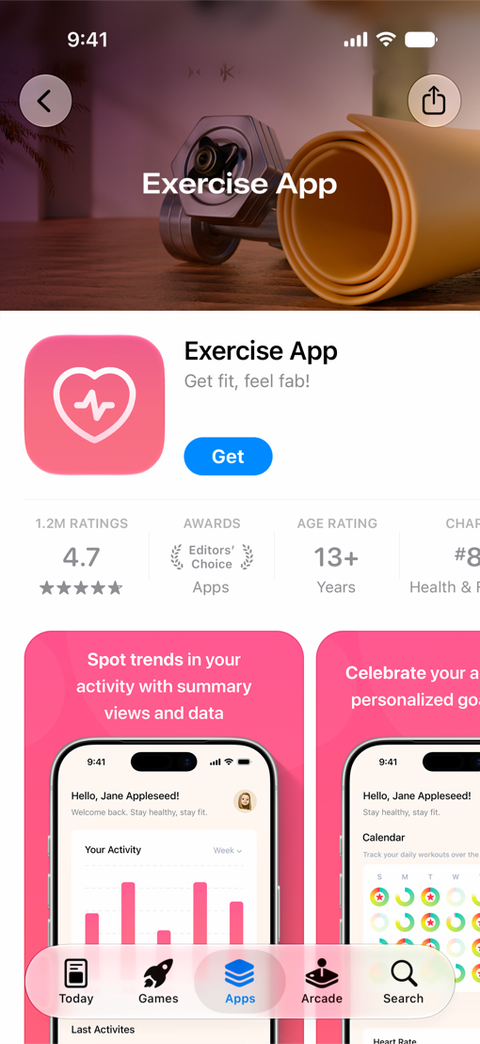
The biggest change is the product page header. In Apple’s WWDC26 App Store session, it is introduced as the first visual element on the product page. It sits alongside the app icon and screenshots to shape the first impression.
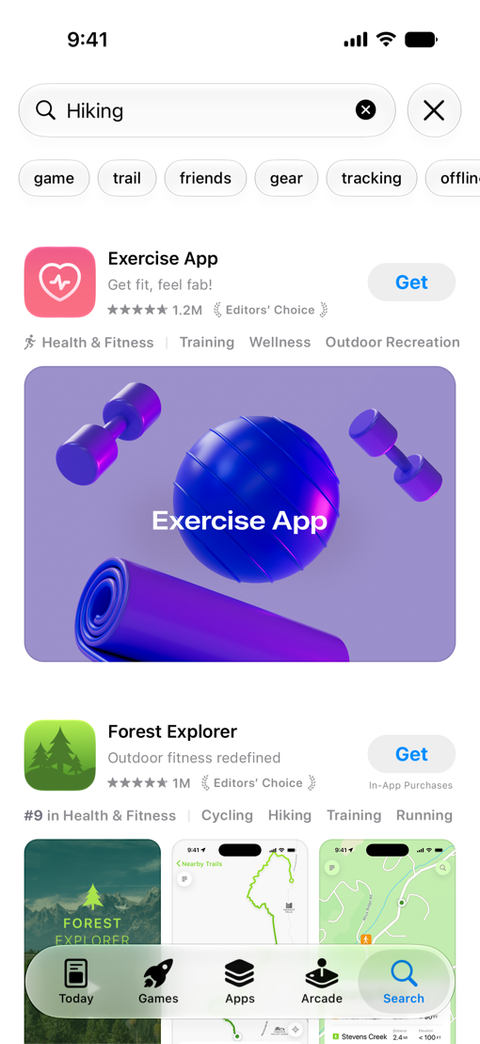
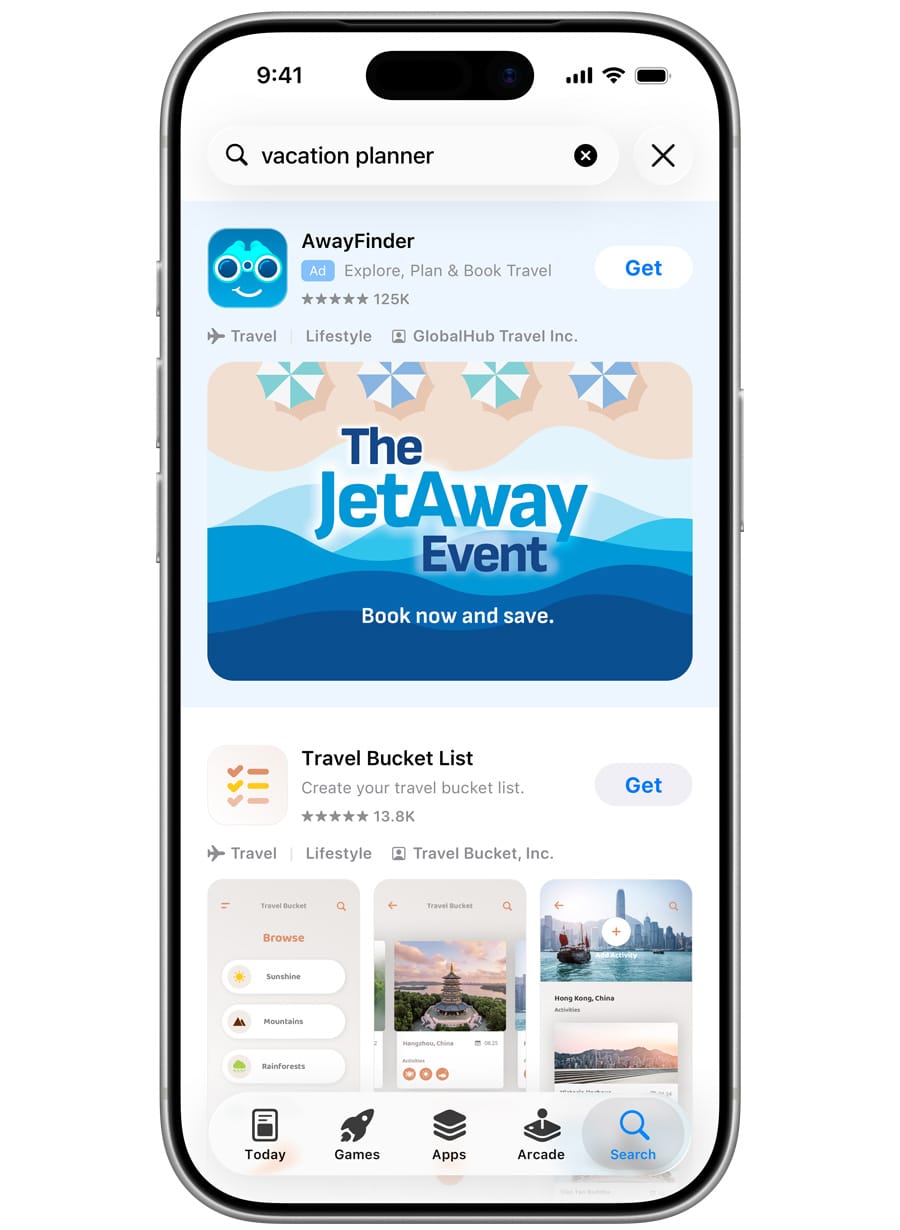
Search results gain the same flexibility. A Creative Asset can take the place of the default screenshots or app preview and communicate the app’s value before someone opens the product page. For games, the same search asset can also appear in Apple Games.
| Asset type | Primary job | What Apple has confirmed |
|---|---|---|
| Creative Asset | Market the brand, value, offer, season, content, destination, character, or gameplay moment. | New images and videos for the product page header, search results, In-App Events, Apple Ads, and use when an app is featured. |
| App screenshot | Show the real app interface and explain benefits or features across the screenshot gallery. | Existing screenshots remain part of the product page and will be managed inside Asset Library. |
| App preview | Demonstrate the app experience using captured app footage. | Existing preview videos remain a separate product page asset and will also be managed in Asset Library. |
Where Apple says Creative Assets can be used
These are more than two new upload slots. Creative Assets can connect organic discovery, tailored product pages, testing, featuring, events, and paid campaigns around one visual idea.
Product page header
An image or video at the top of the App Store product page. Apple says it is the first visual element on the page and can express the app’s identity, brand, or story.
Search results
An image or video can replace the default screenshots or preview shown with an organic search result. Apple says game assets will also appear in Apple Games search results.
Custom Product Pages and testing
Match a tailored header and search result to a campaign, keyword, or deep link. Product Page Optimization can then test which visual direction works best.
In-App Events
Apple says developers can use a Creative Asset for In-App Events. Event cards need 16:9 landscape media, while event details pages need 9:16 portrait media.
When an app is featured
Apple says Creative Assets can appear when an app is featured and that its new best practices reflect how artwork is evaluated for featuring.
Apple Ads
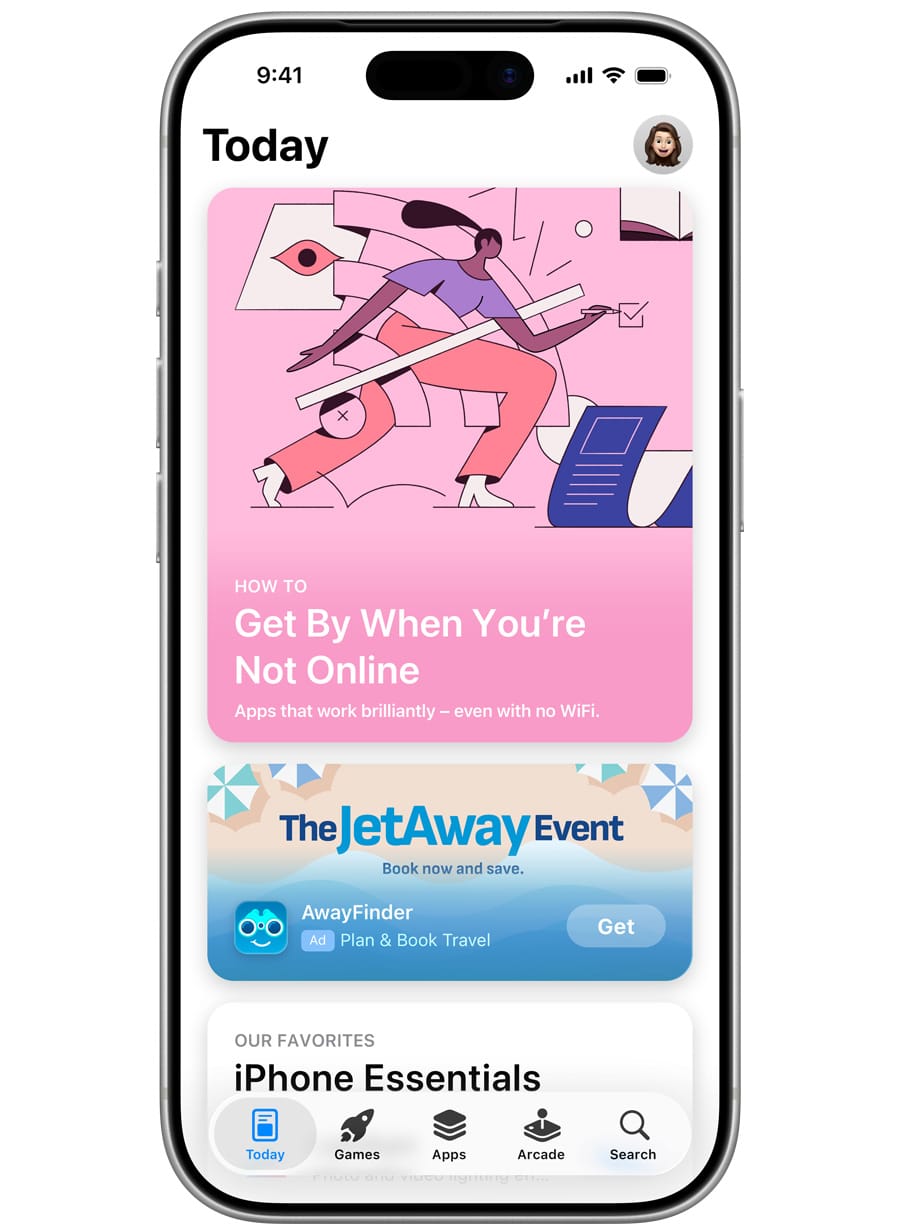
Approved Creative Assets can be selected for custom Today tab and search results campaigns, with localization, deep links, and tap destinations managed during ad setup.
How Asset Library changes App Store Connect
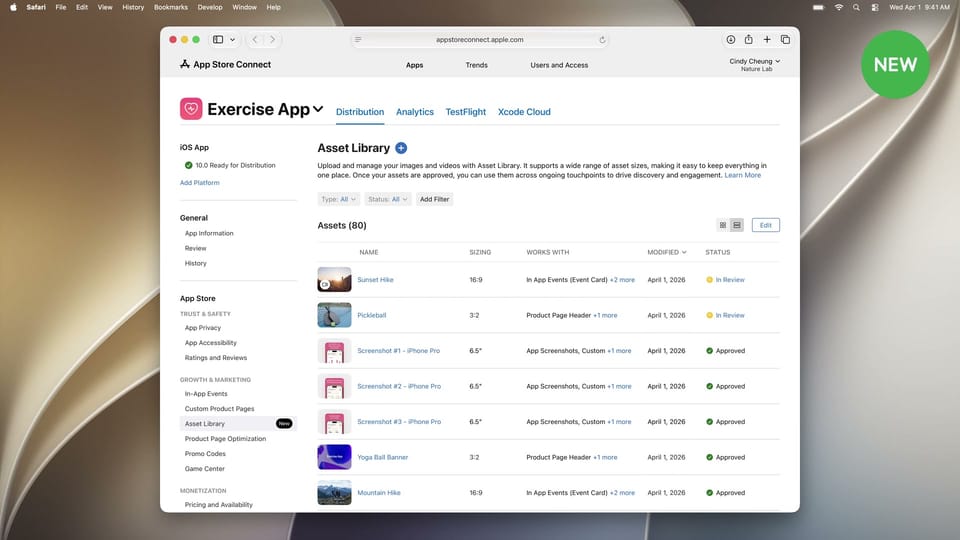
Asset Library will bring Creative Assets, screenshots, app previews, and In-App Event media into one place in App Store Connect. Teams will be able to reuse approved files across supported placements instead of uploading the same asset for every campaign.
There will be two review paths. A header or search result can still be submitted with an app version, or a Creative Asset can be sent from Asset Library for standalone review before it is assigned to a placement.
That second path matters for seasonal work. Once an asset is approved, it can be selected for a supported product page or search placement without waiting for another app version review. Apple Ads still applies its own review before an ad runs.
| Workflow | Review path | What happens after approval |
|---|---|---|
| App version page | Upload the assets used by that version, preview the page, then submit the version for App Review. | The approved header and search result assets go live with the released version. |
| Asset Library | Upload and submit Creative Assets independently of an app version or planned placement. | Approved assets are ready for supported placements and can be prepared before a seasonal or campaign launch. |
| Apple Ads | Select an eligible App Store Connect approved asset, then submit the configured ad to Apple Ads review. | The asset can run in the approved Today tab or search results campaign. |
Apple also says the App Store Connect API will support Asset Library upload and submission automation, while the Apple Ads Platform API will support ad setup. Apple has not yet published the complete production API workflow for these new asset types.
The new product page preview
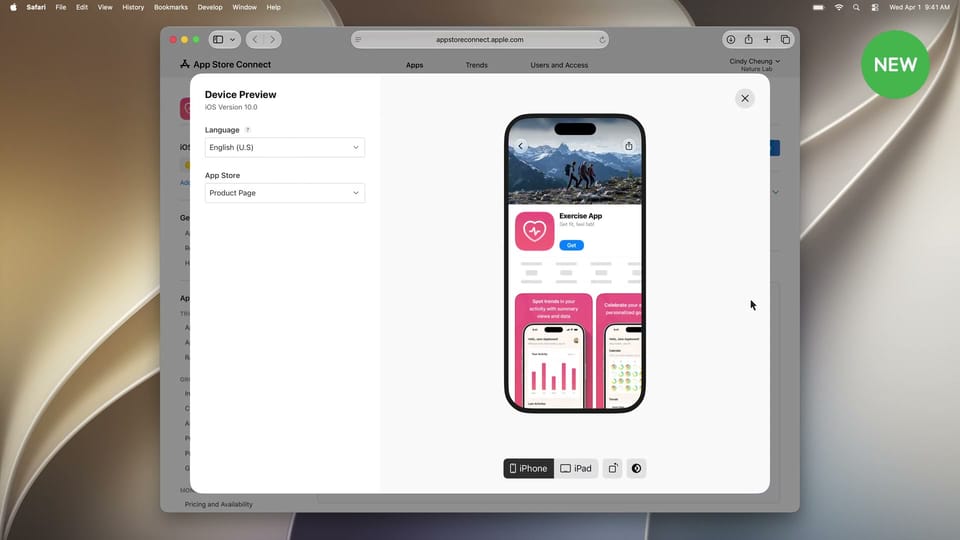
App Store Connect will add a product page preview so developers can check the complete page before it is published. The preview covers the header, metadata, screenshots, and search result asset across iPhone and iPad, languages, orientations, and Dark Mode. It should make crop, contrast, and localization problems much easier to catch before review.
Creative Asset guidance and specs confirmed so far
Apple’s static templates now give designers three concrete canvases. The wider upload matrix, including organic video requirements and file limits, is still to come.
What Apple’s App Store guidance confirms
- Safe areas and cropping: keep key elements readable, design around a safe area, and place focal artwork near the center to prevent unwanted clipping across devices and orientations.
- Video playback: choose a strong poster frame and create a clean loop because videos autoplay and repeat. Audio is muted by default in most cases.
- Age rating: every asset shown on the App Store must meet a 4+ age rating, even if the app itself has a higher rating. Violent games may use action imagery but should avoid gore, graphic imagery, or weapons pointed directly at a person or the audience.
- Content: do not include specific pricing, discounts, website URLs, copyright symbols, unverifiable awards, other platform or marketplace references, or Apple-designated recognitions.
Product page header: 3840 × 1646 px
The Product page header is the wide hero area at the top of the App Store product page. It is the natural place for brand imagery, seasonal campaigns, and new content.
Apple’s dedicated static header template uses a 3840 × 1646 px canvas, approximately 2.33:1. Its very wide shape gives designers precise control over the composition. Use it when the product page deserves tailored artwork rather than a shared campaign master.

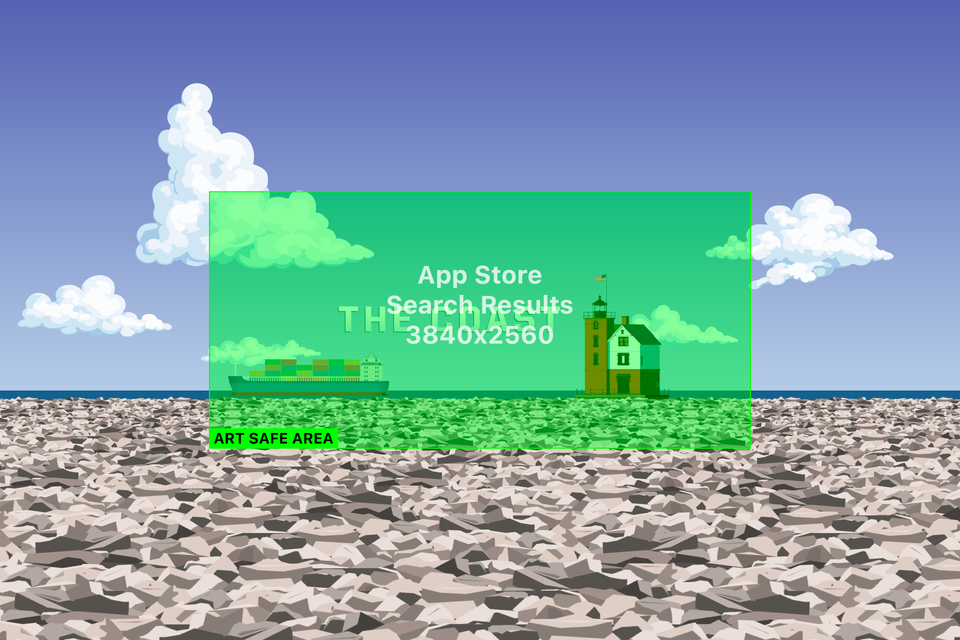
Search results: 3840 × 2560 px
The Search results Creative Asset is a placement-specific 3:2 canvas. Its job is to communicate the app’s purpose and value before someone opens the product page.
Use the dedicated 3840 × 2560 px template when search needs its own composition, message, or product imagery. If no Search results Creative Asset is selected, Apple can instead show In-App Events, app previews, or screenshots.
Universal Creative Asset: 5244 × 2950 px
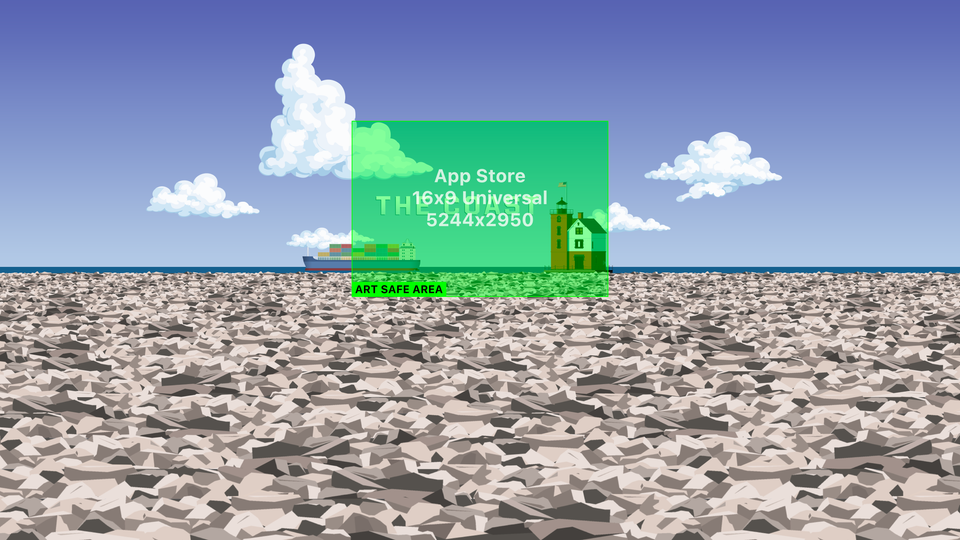
A Universal Creative Asset is not another placement. It is a reusable 16:9 master designed to serve both the product page header and search results.
The official template uses a 5244 × 2950 px canvas. It is not a higher-resolution version of the dedicated header: the aspect ratio and purpose are different. Keep the logo, message, and focal subject inside the central safe area so the artwork can adapt across placements.
Placement-specific or Universal: which should you make?
There are two practical workflows. A placement-specific campaign can use separate header and search results artwork, while a Universal Creative Asset reduces production work by reusing one campaign master across both placements.
| Static template | Canvas | What it is | Best reason to use it |
|---|---|---|---|
| Product page header | 3840 × 1646 px | Dedicated product-page hero artwork. | Maximum control over the very wide header composition. |
| Search results | 3840 × 2560 px | Dedicated organic search result artwork. | Maximum control over the 3:2 search presentation. |
| Universal Creative Asset | 5244 × 2950 px | One reusable 16:9 campaign master for the header and search results. | Reduce production work across frequent or seasonal campaigns. |
For a major launch where placement-specific composition matters, create a bespoke header and a bespoke search result. For frequent campaigns or smaller teams, create one Universal Creative Asset. Apple does not publish one fixed cropping algorithm for every presentation, so use the supplied safe areas rather than assuming one exact crop.
Apple template downloads
Download Apple’s official Photoshop files: the Product page header PSD, Search Results PSD, and Universal PSD. Apple also provides a Figma Universal template and Pixelmator versions through its App Store asset best-practices guide.
Apple Ads file rules
Treat these as confirmed Apple Ads requirements, not as a final matrix for the organic product page header or search results.
| Requirement | What Apple says | Scope |
|---|---|---|
| Aspect ratio | Images and videos must use 3:2. | Published in Apple Ads Creative Asset upload guidance. |
| Video duration | 5 to 30 seconds. | Apple Ads search results ads only. |
| Video audio | Files can include audio, but audio will not play. | Published Apple Ads behaviour. |
| Embedded text | Images and videos may include embedded text. | Apple Ads Creative Assets. |
| Localization | Embedded text can be localized for the countries and regions where ads run. | Managed during Apple Ads setup. |
Apple has not yet published the complete App Store upload requirements, including image and video formats, file limits, asset limits, alternate resolutions, and rollout details. Use the official templates for production now, then validate final exports against App Store Connect when the upload flow becomes available.
For the asset types available today, keep using the current App Store screenshot sizes and our App Store Connect wrong-size guide. Creative Assets are a separate upload type and should not be exported from those screenshot presets.
AppScreens support
Create Apple Creative Assets in AppScreens
Apple’s templates give you the canvas; AppScreens gives you the production workflow. Start a project with the named 3840 × 1646 px Product page header, 3840 × 2560 px Search results, or 5244 × 2950 px Universal Creative Asset output.
Build with the same reusable brand elements, app screens, captions, and localization workflow as the rest of your product page. That makes it easier to keep the header, search creative, and screenshot story visually connected.
How to prepare before the fall launch
The canvases and safe areas are public, so the useful work can start now. Keep the source files editable and validate the final exports in App Store Connect once Apple opens the upload flow.
- Choose the workflow: create separate 3840 × 1646 px header and 3840 × 2560 px search artwork for placement-specific control, or one 5244 × 2950 px Universal Creative Asset for both.
- Start with Apple’s template: use the official safe area instead of guessing how a placement will crop the artwork.
- Lead with one idea: choose the brand, value, offer, content, destination, character, or gameplay moment the asset needs to communicate.
- Connect the journey: match the search or ad promise to the product page, screenshot story, deep link, and in-app destination.
- Plan for motion and localization: make video work without sound, keep text editable, and leave room for longer or right-to-left languages.
- Check and preserve: meet Apple’s 4+ content rules, keep a high-resolution editable master, and recheck the export requirements at launch.
Official Apple resources
These are the useful primary sources to bookmark. Apple’s best-practices page and templates are the working references; the WWDC session explains how the placements and Asset Library fit together.
| Source | What it confirms |
|---|---|
| Apple Developer News: Get ready for new Creative Assets | The 5 August publication of organic best practices plus Figma, Photoshop, and Pixelmator templates. |
| Apple Developer: App Store asset best practices and resources | iOS 27 and iPadOS 27 availability, safe areas, video behaviour, 4+ content rules, universal assets, In-App Events, featuring, and the official Figma, Photoshop, and Pixelmator template downloads. |
| Apple Developer: What’s new in App Store | Fall timing, the original placement announcement, Asset Library, and product page preview. |
| WWDC26 video 205: New asset placements | The product page header, search results, CPP, PPO, iOS 27, iPadOS 27, and Apple Ads examples. |
| Apple Ads: Design your own ads with Creative Assets | 3:2 uploads, video duration and playback, embedded text, localization, review flow, and fall 2026 timing. |
Create your Creative Asset in AppScreens
Start with the Product page header or Universal Creative Asset output, then reuse your brand elements, app screens, and localized copy across the rest of the App Store product page.
FAQ
What are Apple Creative Assets?
Apple Creative Assets are a new category of App Store marketing images and videos. They go beyond standard screenshots and app previews and can highlight a brand, seasonal offering, new content, destination, character, gameplay moment, core value, or feature. Apple has confirmed the product page header, search results, In-App Events, Custom Product Pages, Product Page Optimization, Apple Ads placements, and use when an app is featured.
When will Apple Creative Assets be available?
Apple says Creative Assets, Asset Library, product page preview, and the related Apple Ads capabilities are coming in fall 2026. It has not published an exact launch day.
What size are Apple Creative Assets?
Apple's official static templates use a 3840 x 1646 px canvas for the dedicated Product page header, a 3840 x 2560 px canvas for the dedicated Search results asset, and a 5244 x 2950 px 16:9 canvas for the Universal Creative Asset. The Universal format is reusable across the product page header and search results; it is not another placement or simply a higher-resolution header. These are Apple's published template dimensions, while the complete matrix of accepted formats, file sizes, alternate resolutions, and video requirements remains unpublished.
What design rules has Apple confirmed for Creative Assets?
Apple says to keep focal content near the center and design with a safe area to prevent clipping across devices and orientations. Videos need a strong poster frame and should loop cleanly because they autoplay and repeat; audio is muted by default in most cases. Assets displayed on the App Store must meet a 4+ age rating, even when the app has a higher rating. Violent games may use action imagery but should avoid gore, graphic imagery, or weapons pointed directly at a person or the audience. Apple also says not to include specific pricing, discounts, website URLs, copyright symbols, unverifiable awards, other platform or marketplace references, or Apple-designated recognitions.
How are Creative Assets different from App Store screenshots?
Screenshots show the app interface and remain part of the product page gallery. Creative Assets are broader marketing images or videos for first-impression placements such as the product page header and search results. They complement screenshots rather than replacing them. Use AppScreens to keep both parts of the product page in one visual system.
Can Creative Assets be used with Custom Product Pages and Product Page Optimization?
Yes. Apple says Custom Product Pages can use tailored headers and search result visuals, including assets aligned with selected search keywords and deep links. Apple also says developers can test different Creative Asset directions with Product Page Optimization. Plan those variants with the AppScreens PPO and CPP workflow.
Can I update an approved Creative Asset without releasing an app update?
Apple says Asset Library will allow Creative Assets to be submitted for standalone App Review without an app version update. After approval, supported product page header and search result visuals can be changed using approved assets without another app version submission. Apple Ads still requires its own review before an ad runs.
What are the Apple Ads video rules for Creative Assets?
Apple Ads says video Creative Assets must use a 3:2 aspect ratio, be 5 to 30 seconds long, and can only be used in search results ads. Video files may contain audio, but the audio will not play. Apple also allows embedded text and localization for campaign countries and regions.
Can I create Apple Creative Assets in AppScreens?
Yes. AppScreens includes named output sizes for the 3840 x 1646 px Product page header, 3840 x 2560 px Search results asset, and 5244 x 2950 px Universal Creative Asset. Use the same editable brand elements, app screens, captions, and localization workflow as the rest of the product page.
What should I prepare before Apple Creative Assets launch?
Choose between placement-specific and reusable artwork. Use the 3840 x 1646 px Product page header and 3840 x 2560 px Search results templates for tailored compositions, or the 5244 x 2950 px Universal template when one campaign creative should serve both. Keep key content inside the safe area, localize embedded text, follow Apple's 4+ content rule, and preserve editable source files while Apple finalizes the remaining upload requirements.