
App store screenshot workflow comparison
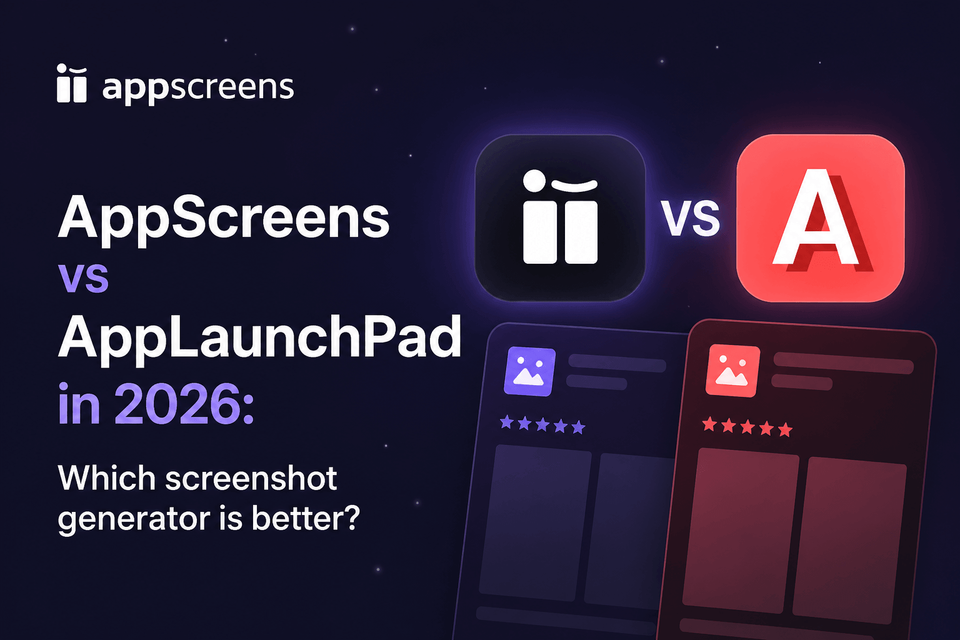
AppScreens vs AppLaunchpad in 2026: Which Screenshot Workflow Is Better for App Store and Google Play?
AppScreens is our pick for App Store and Google Play screenshots. Change a caption once, keep phone and tablet layouts connected, and upload the finished set without sorting every file by hand.
AppLaunchpad offers a template-led editor and text translation. The difference shows up on your next update: cloned device designs need separate edits, while AppScreens keeps your screenshot set in one responsive project.
Quick Take
Choose AppScreens for a first launch or a regular release schedule. Build the set, preview the store listing, and keep the source ready for the next app update.
Start free with one project, AI mode, and up to five designs with essential store-size exports for manual upload. Paid plans add more capacity, localization, and direct upload workflows.
Release workflow
AppScreens
Fix a caption once, check every output, and keep the project ready for your next release.
Narrow fit
AppLaunchpad
A template-led editor for teams happy to manage separate device designs and upload exported files themselves.
Verdict: AppScreens is the better store screenshot workflow
The strongest reason to choose AppScreens is what happens after the first design: your next caption change, language, or release stays connected to the original project.
For example, 10 screenshots across 4 sizes and 12 languages means 480 assets before test variants. That is a lot of files to keep in sync when a feature name changes. AppScreens lets you make the change in the source project and regenerate the outputs.
| Best for | AppScreens | AppLaunchpad |
|---|---|---|
| First launches and app updates | Best fit | Manual size, export, and upload work |
| Phone, iPad, Android, tablet, and custom outputs | One project, many store-ready outputs | Rebuild and export per size and language |
| One-off store screenshot sets | Fastest fit | Slower caption, size, and export work |
| Drag-and-drop editing | Connected to templates, sizes, previews, exports, and uploads | Manual screenshot graphics |
| Localization workflow | Text fitting + per-locale assets | Basic translation only |
| Direct App Store and Google Play upload | Yes | Manual upload work |
| Store listing preview and screenshot review | Listing previews + ASO/project reviews | Manual checks |
| ASO variants | CPP, PPO, Play experiments | Manual variant files |
| AI captions | Yes | No |
| Annual price | $90 | $180+ |
AppScreens Pro costs $90/year, compared with $180/year for AppLaunchpad Pro. See AppScreens pricing for the project, language, and upload limits on each plan.
Where AppScreens saves the most work
Compare the work a release actually needs, from the first design to localized screenshots in the stores.
| Decision point | AppScreens | AppLaunchpad |
|---|---|---|
| Store sizes and responsive projects | ||
| One responsive source project | Responsive source | Clone per device |
| Need current App Store export sizes? | Up-to-date | Manual size checking |
| One editable project for every size | Yes | No |
| Repeated edits and cost | Fewer repeated edits | Repeated file edits |
| All iOS - Phones, tablets, watches, TV, Mac OS, Vision Pro | Yes | iPhone, iPad, Mac templates |
| Android device coverage | Phones, tablets, and store-ready Android exports | Phones and tablets |
| Custom export sizes | Yes | Yes |
| Upload and release automation | ||
| Direct App Store Connect upload | Direct upload | No |
| Direct Google Play Console upload | Direct upload | No |
| Localized screenshot upload | All locales | No |
| Upload to Custom Product Page | CPP upload | No |
| Upload to Product Page Optimizations | PPO upload | No |
| Preview store listings, devices, and languages before export | Listing + device + locale QA | Preview design |
| Captions, localization, and ASO testing | ||
| Screenshot review workflows | ASO + project reviews | No |
| AI Captions | Yes | No |
| Project Restyle (A/B test) | Yes | No |
| AI localization guidance | AI translation + guidance | One-way translate |
| Product Page Optimization variants | PPO variants | No |
| Custom Product Page variants | CPP variants | No |
| Google Play experiment variants | Yes | Manual variants |
| First 3 screenshot conversion planning | Yes | Template-led |
| Automatic Translation | Yes | One-way translate |
| Auto Font Sizing | Yes | Manual font size controls |
| Long translation text fit | Yes | Manual fix likely |
| Per-language raw screen and spacing overrides | Yes | No |
| CSV translation import/export | Yes | No |
| Supported Languages | 80+ store languages | Multiple |
| Localization workflow | AI guidance, per-locale assets, export, and upload | Translation support |
| Manual Translation Rework | Yes | Translate button |
| Store assets, templates, and device coverage | ||
| Apple App Store | Yes | Yes |
| Google Play Store | Yes | Yes |
| Google Chrome Web Store | Yes | No |
| Amazon App Store | Yes | No |
| Huawei AppGallery | Yes | No |
| Drag-and-drop screenshot editing | Drag-and-drop editor | Yes |
| Quick Create from app listing metadata | Quick Create | No |
| Bulk raw screenshot import | Yes | No |
| Google Play Feature Graphic | Yes | Yes |
| Apple Watch outputs | Yes | No |
| Vision Pro and emerging Apple targets | Yes | No |
| App Store Templates | 150+ templates, 2,000+ outputs | 257 template records |
| Pricing and API | ||
| Free Plan | Save 1 project with up to 5 screenshots, can't use pro features without watermarks | Cannot use pro features without watermarks |
| Yearly Cost US$ | $90 | $180+ |
| API | Coming soon | No |
What the release workflow looks like
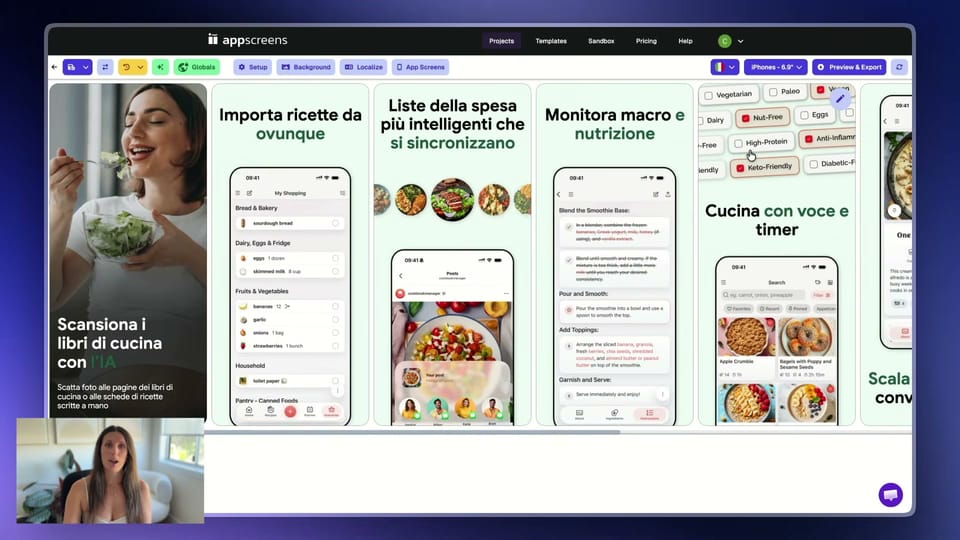
Keep the app capture, caption, and layout editable as you create new languages and test variants. Each output comes from a project you can return to after launch.
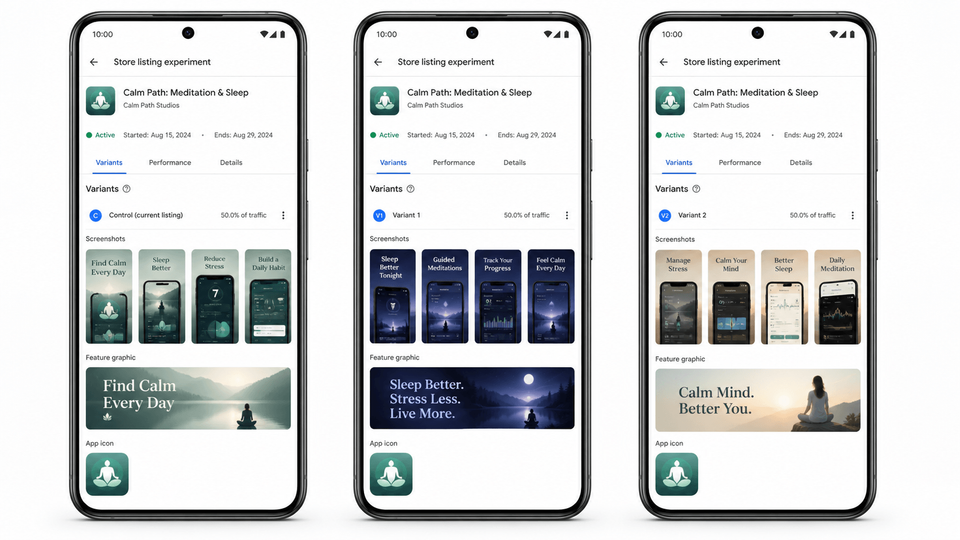
AppScreens vs AppLaunchpad: the practical difference
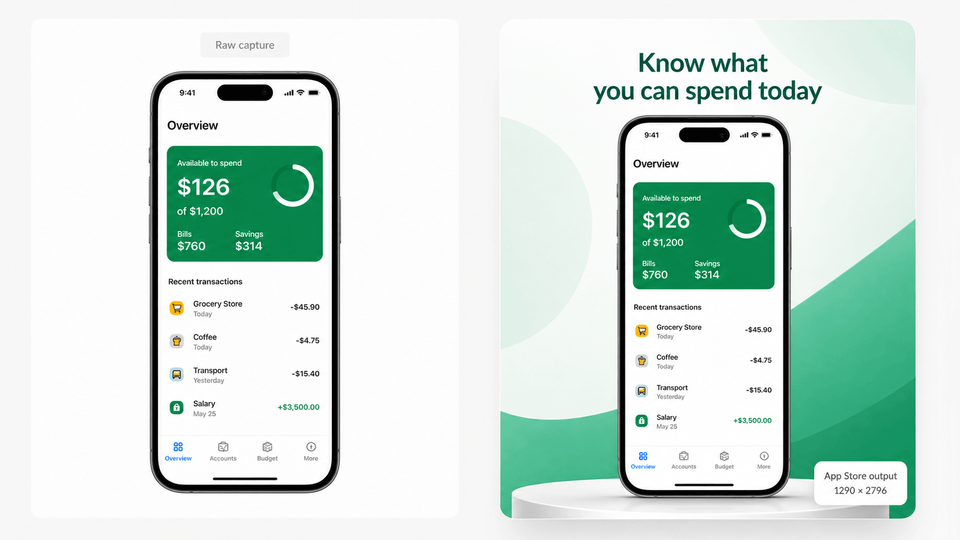
A screenshot editor should save work every time your app changes. AppScreens combines drag-and-drop design with responsive outputs, so updating the creative does not leave you with a stack of disconnected files.
Fix one caption, update every size
Keep phone, tablet, and custom outputs connected to one source. AppLaunchpad device cloning creates separate saved designs; AppScreens lets you edit the shared layout and preview the outputs before export.
Localize more than the headline
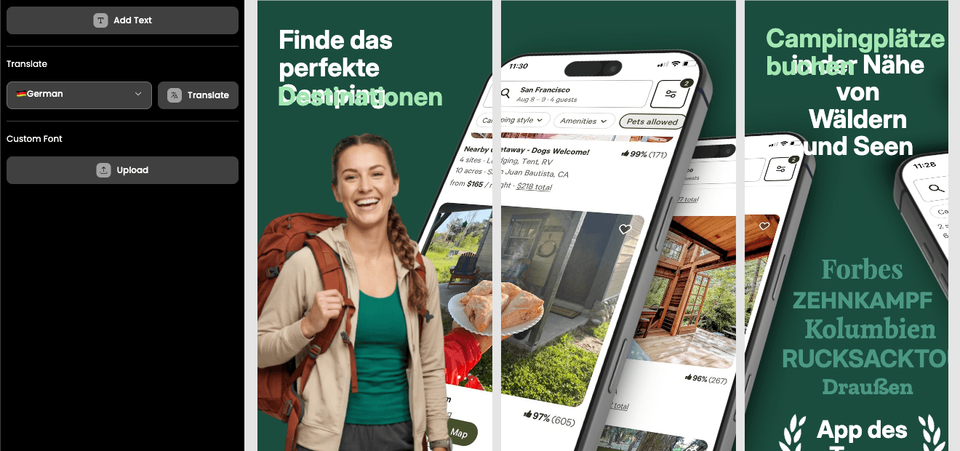
AppScreens supports 80+ localizations with automatic text fitting and per-language screenshots and images. If a German caption needs more room or the app UI changes by market, adjust it in the same project.
Finish the upload in the same place
Preview the App Store or Google Play listing, then upload supported screenshot sets directly on the relevant paid plan. Each new release starts from the saved project, rather than another round of file sorting and manual upload.
Which tool should you choose?
For a screenshot set that needs to survive app updates and new markets, we recommend AppScreens.
| Choose AppScreens if... | Choose AppLaunchpad if... |
|---|---|
| You want one caption change to reach every connected size | You are happy to maintain separate device designs |
| You need translated text and local app captures in the same project | You need text translation and will adjust the layouts yourself |
| You want store previews and direct uploads on supported paid plans | You prefer to export files and handle store upload yourself |
Start with an AppScreens template, add your app captures, and build the screenshot set you will reuse for your next release.
FAQ
Is AppScreens better than AppLaunchpad?
Yes, for developers and teams who want to reduce the work around each store release. AppScreens keeps one responsive design across device sizes, adds per-language edits and supports direct App Store Connect and Google Play uploads.
What is the main difference between AppScreens and AppLaunchpad?
AppScreens uses one responsive source project across device outputs. AppLaunchpad clones designs into other device sizes. The difference shows up when a caption or app screen changes and the set needs updating.
Does AppScreens support drag-and-drop screenshot editing?
Yes. AppScreens supports drag-and-drop screenshot editing, including shapes, SVG uploads, copying elements between screens, Continue on Screen, and keyboard shortcuts. The difference is that editing stays connected to templates, responsive output sizes, localization, store listing previews, exports, and upload workflows.
Which tool is faster for a one-off app screenshot set?
AppScreens is faster for one-off screenshot sets because users can start with Quick Create or AI onboarding, pick a ready-made screenshot template, upload real app screens, generate captions, adjust layouts with drag-and-drop editing, preview listings, and export store-ready assets without mastering a design workflow or figuring out screenshot sizes. AppLaunchpad only makes sense for one-off work when you want to design each output yourself, rebuild language versions yourself, and upload the files to App Store Connect or Google Play Console yourself.
Can you launch with the AppScreens free plan?
Yes. Free users can create one project, use AI mode, run a free ASO Review, export up to five designs in the included store sizes, and manually upload them to App Store Connect or Google Play. That is enough for many first releases. Paid plans add speed when users need more projects, screenshots, localizations, variants, direct uploads, teams, or client work. Compare AppScreens pricing.
What breaks in a manual AppLaunchpad-style screenshot workflow?
Captions stop fitting after translation, cloned device files fall out of sync, store sizes need re-exporting after one layout change, and CPP/PPO or Google Play experiment files need naming, mapping, upload, replacement, and QA. AppScreens keeps captions, text fitting, per-language assets, store-ready exports, uploads, and future updates connected in one editable project, while variants are faster to create without rebuilding every size and language by hand.
When should I use AppScreens instead of AppLaunchpad?
Use AppScreens when you want downloads, automation, quick screenshot creation, lower production cost, correct store sizes without figuring them out, and polished screenshots without becoming a designer. AppScreens keeps caption fitting, per-language assets, store-ready exports, uploads, localization, and future updates in one editable project, while variants are faster to create without rebuilding every size and language by hand. Use AppLaunchpad only when you want to design each output, rebuild each language version, export every file, and upload everything yourself.
Does AppLaunchpad support localization?
AppLaunchpad supports text translation and localization. AppScreens is stronger when localization means preserved base language, longer-text fitting, font choices, localized raw app screens, per-language images, RTL support, translated captions, export structure, and localized App Store Connect or Google Play Console upload. Without those controls, a translated set means rebuilding captions, layouts, screenshots, images, exports, and upload files by hand. See screenshot localization.
Does AppLaunchpad upload screenshots directly to App Store Connect or Google Play Console?
AppLaunchpad is an export-first workflow, so teams handle App Store Connect and Google Play Console upload manually. AppScreens supports direct App Store Connect and Google Play upload workflows, including localized screenshots and Apple CPP and PPO variants, which reduces manual sorting, dragging, replacing, and checking.
Can AppScreens preview screenshots in App Store and Google Play listings?
Yes. AppScreens includes App Store and Google Play listing preview modes so teams can check how screenshots appear in store listings before exporting files or uploading directly to App Store Connect and Google Play Console.
Can AppScreens review my existing screenshots before I rebuild them?
Yes. Run the free ASO Review to get a public scorecard, or review saved project screenshots in Preview & Upload with feedback history. Then rebuild weak spots with templates, Quick Create, drag-and-drop editing, captions, store previews, exports, and uploads.
Which tool is better for CPP, PPO, and Google Play experiments?
AppScreens is better for CPP, PPO, and Google Play experiment workflows because teams can duplicate a set, change the message, localize it, export or upload the assets, and keep winning captions, orders, and visual treatments available for future tests. Sizes, languages, and per-language assets stay managed inside each screenshot project. See PPO and CPP screenshot variants.
How much does AppLaunchpad cost?
AppLaunchpad help docs reviewed in June 2026 list a Free tier and Pro pricing at $29/month or $180/year. Always confirm final pricing at checkout before choosing a paid screenshot tool, and compare AppScreens plans at pricing.
Can I migrate AppLaunchpad designs to AppScreens?
Yes. Export or reference the current designs, bring the real app screens into AppScreens, rebuild the set as one responsive project, then use Quick Create, AI captions, templates, drag-and-drop editing, text fitting, per-language assets, variants, previews, exports, and uploads so future caption, screenshot, language, or size changes do not require editing separate files by hand.
Who should choose AppScreens over AppLaunchpad?
Choose AppScreens when you want a fast first set and a project you can reuse for the next release, language or screenshot test. The responsive design and direct upload workflows save repeated production work.
Read on
AppScreens pages
- App screenshot generator
- App Store screenshot generator
- Google Play screenshot generator
- App Store screenshot templates
- ASO screenshot workflow
- PPO and CPP screenshot variants
- Google Play feature graphic generator
Related guides
Sources
This AppScreens comparison uses our product alongside AppLaunchpad product pages, help documentation, pricing, and demos. The comparison covers screenshot creation, localization, and store publishing.
- AppLaunchpad vs AppScreens comparison article, published 10 Jun 2025
- AppLaunchpad screenshot builder pricing 2026
- AppLaunchpad pricing help doc 2026
- AppLaunchpad public template API count, checked May 2026
- AppLaunchpad clone device help doc 2026
- AppLaunchpad translation help doc 2026
- AppLaunchpad device-specific screenshot help doc 2026