
App Store Connect screenshot sizes
Apple Screenshot Wrong Size? Fix "The Dimensions of One or More Screenshots Are Wrong"
If App Store Connect says "The dimensions of one or more screenshots are wrong", the file usually belongs in a different display section or was exported at the wrong size. Do not resize blindly. Check the exact pixel dimensions, click View All Sizes in Media Manager, then upload the screenshot set to the matching display section.
The fastest repeatable fix is AppScreens: start with real app screens, keep one editable screenshot project, export the accepted App Store sizes, and upload the right assets to App Store Connect without rebuilding every canvas by hand. AppScreens is trusted by 150,000+ app professionals and users have exported 12M+ screenshots.

Quick Take
App Store Connect screenshot size errors happen when the file dimensions do not match the selected display section. Check the pixel size, click View All Sizes, and upload the file to the matching 6.9", 6.5", iPad, or other display section.
The fastest workflow is AppScreens. Keep one editable project, export the required App Store and Google Play sizes, localize the set, create variants, and upload store-ready assets without manual resizing. Ten screenshots across 4 sizes and 10 languages becomes 400 files. AppScreens turns that into a repeatable project instead of a release chore.
- Open App Store Connect and go to your app version's screenshot Media Manager.
- Check the actual pixel dimensions of the files you are trying to upload.
- Click View All Sizes so every display section is visible.
- If your files match a visible section, upload them there instead of the section showing the error.
- If no section matches, export the exact required size from AppScreens under Setup > Output Sizes.
What Causes The Wrong Size Error?
App Store Connect groups screenshots by display class. The 6.9" iPhone upload target and the 6.5" iPhone upload target look similar, but they accept different pixel dimensions. Apple lists 6.9" portrait screenshots as 1260 x 2736, 1290 x 2796, or 1320 x 2868 pixels. Apple lists 6.5" portrait screenshots as 1284 x 2778 or 1242 x 2688 pixels.
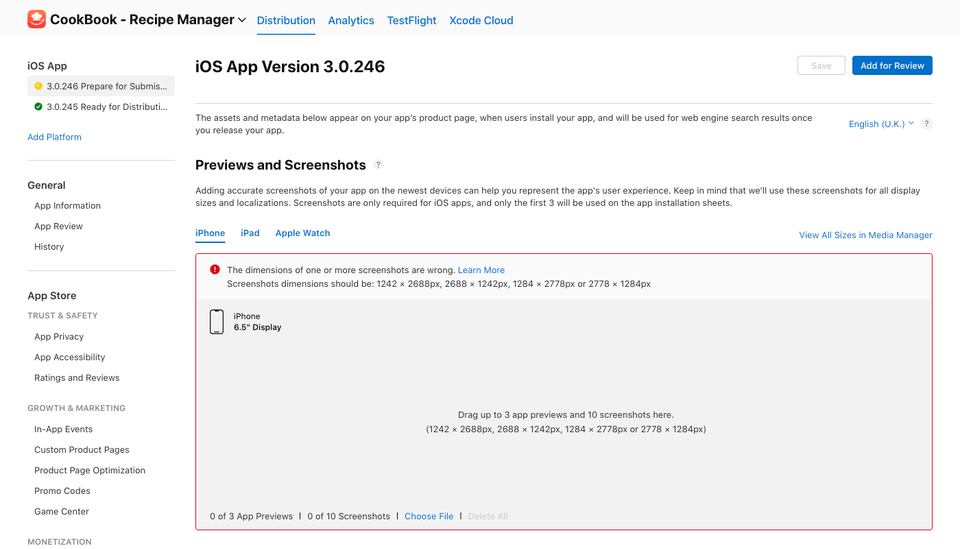
The common failure is simple: you export screenshots for one display class, then drag those files into another upload box. The screenshot above shows a 6.5" display error, but the same issue can happen with another iPhone size, iPad size, or orientation if the file dimensions do not match the selected upload section.
| App Store section | Accepted sizes | What to upload |
|---|---|---|
| iPhone Duo (export only) | Outer: 1398 x 2034 or 2034 x 1398. Inner: 2007 x 2853 or 2853 x 2007. | App Store Connect upload support is not available yet. AppScreens exports these sizes but excludes them from direct uploads. |
| 6.9" Display | Portrait: 1260 x 2736, 1290 x 2796, or 1320 x 2868. Landscape: 2736 x 1260, 2796 x 1290, or 2868 x 1320. | Current large iPhone screenshots exported for the 6.9" output target. |
| 6.5" Display | Portrait: 1284 x 2778 or 1242 x 2688. Landscape: 2778 x 1284 or 2688 x 1242. | Current accepted 6.5" screenshots, especially when you are not providing accepted 6.9" screenshots. |
| 6.3" Display | Portrait: 1179 x 2556 or 1206 x 2622. Landscape: 2556 x 1179 or 2622 x 1206. | Upload 6.3" files to the 6.3" section. |
| 6.1" Display | Portrait: 1170 x 2532, 1125 x 2436, or 1080 x 2340. Landscape: 2532 x 1170, 2436 x 1125, or 2340 x 1080. | Upload 6.1" files to the 6.1" section. Do not drag them into 6.5" or 6.9" boxes. |
| iPad and older iPhone sections | Depends on the selected device class and orientation | Use View All Sizes and the App Store screenshot sizes reference to match exact file dimensions. |
Source: Apple's official screenshot specifications. For the full AppScreens reference, see our required App Store screenshot sizes. Apple’s new product page header and search result Creative Assets are a separate format. Follow our Apple Creative Assets guide instead of applying these screenshot dimensions to the new placements.
If No Apple Section Matches, Re-Export With AppScreens
Use AppScreens when your files do not match any App Store Connect section or when you want to avoid rebuilding screenshot sizes by hand. Open your project, go to Setup > Output Sizes, enable the required App Store display size, export the corrected set, then upload those files to the matching section.
This works for one-off size fixes and first releases. Free users can create one project, use AI mode, export up to 5 screenshots, and manually upload the files to App Store Connect.
- Open your AppScreens project.
- Go to Setup > Output Sizes.
- Enable the App Store display size that matches the App Store Connect section.
- Export the corrected screenshot set.
- Upload the files into the matching section in App Store Connect.
How To Fix It In App Store Connect
Step 1: Match the file to the right display section
- Open your app in App Store Connect.
- Go to the app version where you are uploading screenshots.
- In Media Manager, click View All Sizes.
- Compare your file dimensions with each visible display section.
- Upload your files into the matching section instead of the section showing the error.
- Save the version metadata after the files finish processing.
Step 2: Re-export missing sizes from AppScreens
- Open your project in AppScreens.
- Go to Setup > Output Sizes.
- Enable the iPhone, iPad, or other output size App Store Connect is asking for.
- Export the corrected screenshot set.
- Upload those files into the matching display section in App Store Connect.
Step 3: Check every locale, variant, and upload destination
If you are updating localized screenshot sets, Product Page Optimization or Custom Product Page screenshots, or Google Play screenshots at the same time, re-export every affected set from the same AppScreens project. That keeps sizes, captions, device frames, brand styling, localized text, variants, and upload-ready assets consistent across the release.
Check before uploading to Apple
- The file dimensions match the App Store Connect display section.
- 6.9" files are uploaded to 6.9", not 6.5".
- 6.9" files are 1320 x 2868, 1290 x 2796, or 1260 x 2736 in portrait.
- 6.5" files are 1284 x 2778 or 1242 x 2688 in portrait.
- iPhone Duo outer and inner files are kept out of App Store Connect uploads until Apple enables support.
- Landscape files use the same dimensions reversed.
- You are replacing screenshots in the same display class, not mixing display classes.
Check inside AppScreens
- Output Sizes includes every store target you plan to upload.
- The export folder names match the display groups you need.
- Localized screenshots use the same output targets as the default language.
- CPP and PPO variants were exported for the same display classes as the main listing.
Error Messages You Might See
App Store Connect wording can vary depending on where the upload fails, whether you are replacing existing screenshots, and whether you are uploading through the browser or an API workflow. These usually point to the same size-slot mismatch.
Common wording
- The dimensions of one or more screenshots are wrong.
- Screenshots dimensions should be 1242 x 2688px, 2688 x 1242px, 1284 x 2778px, or 2778 x 1284px.
- One or more screenshots have invalid dimensions.
- The screenshot size is wrong for the selected display.
Examples: Which Box Should I Use?
Example 1: Your file is 1320 x 2868
Upload it to the 6.9" display section. Do not upload it to 6.5", even if App Store Connect is showing 6.5" first.
Example 2: App Store Connect asks for 1242 x 2688
You are probably looking at the 6.5" section. Click View All Sizes and check whether your screenshots actually belong in the 6.9" section.
Example 3: You replaced old screenshots and now Apple rejects them
You may be replacing a 6.5" set with 6.9" files in the same upload slot. Remove the incorrect files, switch to the correct display section, then upload again.
Common Mistakes
| Mistake | Use this rule | Why it matters |
|---|---|---|
| Mixing 6.9" and 6.5" outputs | Check pixel dimensions, not the visual design. | The files look almost identical in Finder, but App Store Connect treats them as different display classes. |
| Uploading into the first visible box | Use View All Sizes before dragging files. | Media Manager can hide sizes until you expand them. |
| Exporting at the wrong scale | Set the output target before export. | A design that looks correct can still export at the wrong resolution if the output target is set incorrectly. |
| Forgetting localized variants | Re-export every corrected locale. | If you export corrected English screenshots but forget localized screenshots, another locale can still fail. |
Also Exporting To Google Play?
Google Play does not use Apple's 6.5" and 6.9" upload sections, but Play Console still checks screenshot format, dimensions, aspect ratio, alpha, device type, and content rules. Export Android screenshots from the same AppScreens project with the Google Play screenshot generator, then confirm the Google Play screenshot sizes before upload.
Fix The Size Error, Then Keep The Screenshot Set Ready
A wrong-size upload is usually a workflow problem, not just a one-file problem. Use AppScreens to keep one editable screenshot project for App Store and Google Play sizes, localized screenshots, test variants, exports, uploads, and future release updates.
FAQ
Why does App Store Connect say the dimensions of one or more screenshots are wrong?
The most common reason is uploading screenshots into the wrong display-size section. For example, 1320 x 2868 screenshots belong in the 6.9-inch section, not the 6.5-inch section that expects 1284 x 2778, 1242 x 2688, 2778 x 1284, or 2688 x 1242.
Why is Apple asking for 1242 x 2688 or 1284 x 2778?
Those are accepted portrait dimensions for the 6.5-inch iPhone display section. If your screenshots are 1320 x 2868, 1290 x 2796, or 1260 x 2736, click View All Sizes and upload them into the 6.9-inch display section instead.
How do I export 6.5-inch screenshots in AppScreens?
Open your AppScreens project, go to Setup > Output Sizes, enable or switch to the 6.5-inch iPhone output, then export those files and upload them to the 6.5-inch section in App Store Connect. Check the App Store screenshot size guide.
Can I resize a 6.9-inch screenshot down to 6.5-inch?
Re-export it instead of manually squashing the final PNG. Use AppScreens to choose the 6.5-inch output target so text, spacing, device frames, captions, and localized layouts stay clean across every screenshot.
Are 6.5-inch screenshots still required?
Apple lists 6.5-inch screenshots as required if the app runs on iPhone and 6.9-inch screenshots are not provided. If you provide accepted 6.9-inch screenshots, Apple can use scaled screenshots for 6.5-inch displays.
Why did Google Play reject my screenshots?
Google Play rejects screenshots for format, alpha channel, dimension range, aspect ratio, device type, or file size issues. Google Play does not use Apple's 6.5-inch and 6.9-inch iPhone upload sections.
How does AppScreens avoid screenshot size errors?
AppScreens exports store-ready screenshots from responsive projects instead of relying on manual canvas resizing. That helps one-off launches and repeatable teams avoid wrong dimensions, inconsistent crops, and last-minute upload errors. Use App Store screenshot sizes and the App Store screenshot generator for compliant exports.
Can I use AppScreens just to fix screenshot sizes once?
Yes. AppScreens works for one-off size fixes as well as long-term production. Import the real app screens, choose a template or export size, review the output, then export store-ready assets for manual upload. Paid plans add more upload, localization, and variant workflows. See pricing.
Can localized screenshots have the wrong dimensions?
Yes, when teams rebuild localized files manually or export each language from separate design canvases. AppScreens keeps localized screenshots inside the same output-size workflow, so each language can be exported or uploaded with the right dimensions. See screenshot localization.
Read on
Sources
Platform requirements change. Check the official Apple and Google guidance before publishing a release.