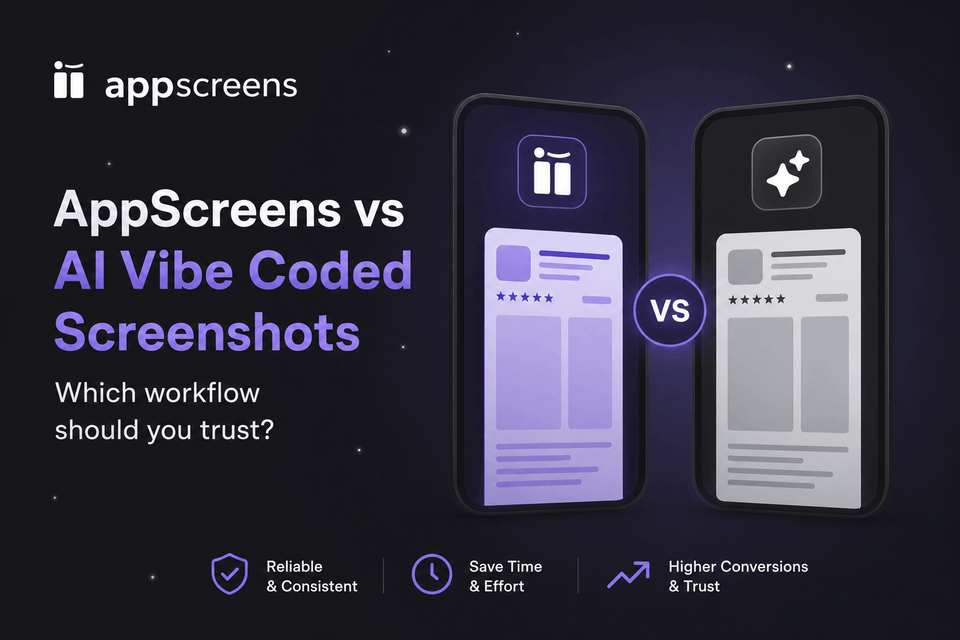
Screenshot workflow comparison
AI App Store Screenshot Generators and Prompts: What Should You Trust?
AI app store screenshot tools can generate visual concepts or help build editable screenshot sets. Use AppScreens to turn real app captures into store-ready assets with AI assistance. Make the first three screenshots explain why someone should install, then keep captions, app screens, and layouts editable for the next test or release. This guide includes a copyable AI screenshot prompt, explains what to check before upload, and shows how to turn your launch design into a clearer message worth testing.
Quick Take: Create AI-assisted screenshots you can edit and test
Use AppScreens for a fast path from real app captures to editable App Store and Google Play screenshots. Find your app and metadata with AI onboarding, choose a template or start from scratch, upload your screens, edit the captions and design, preview, then export. Free users can create one project, use AI mode, export up to 5 screenshots, and manually upload them to App Store Connect or Google Play.
Screenshot changes can convert more of the traffic you already have. OLBG reported a 45% conversion improvement from one screenshot test. Keep your launch set as the control, build an alternative in AppScreens, and test the caption, feature order, or visual style. AppScreens prepares the assets; the store runs the experiment and reports results.
Quick Workflow: Build AI-Assisted, Store-Ready Screenshots In AppScreens
Start with real app screens, choose a template, and use AI to draft benefit captions. AppScreens keeps the caption separate from the capture, so a longer headline does not mean repainting text baked into an image. Automatic text resizing helps fit captions across sizes and translations. Preview the result, replace app captures or supporting images for each language, then export the store sizes from the same design. Follow the step-by-step screenshot creation workflow to build your first set.
Direct uploads on supported paid plans cover App Store Connect, including Product Page Optimization treatments and Custom Product Pages, and Google Play's main listing. Google Play experiment variants need to be exported and attached in Play Console. AppScreens prepares the assets; the stores allocate traffic and report results.
AppScreens keeps the real app screen, caption, device frame, layout, language, and export size editable inside one production project.
1. Capture real app screens
Use current simulator, device, QA, or release-build screens. Remove private data, debug labels, loading states, notifications, and unfinished feature flags.
2. Use AI in an editable workflow
Use AppScreens AI onboarding and caption ideas to shape the first-three screenshot story. Keep the real app capture intact while you edit captions, translate, or restyle the project.
3. Build the final set in AppScreens
Choose a responsive template, add real captures, and edit the caption and brand styling. If a translated headline wraps onto another line, use automatic text resizing and preview it. When the app changes, replace its capture while keeping the layout and caption editable.
4. Export, localize, test, and upload
Export the required App Store and Google Play sizes and language sets. Keep the published set as the control while preparing a variant. Paid direct uploads cover supported store destinations; attach exported Google Play experiment assets in Play Console.
Production reality: eight screenshots across 3 device sizes and 12 languages becomes 288 files before test variants. One caption change can mean fitting text again, exporting each size, replacing localized files, and uploading the new set. AppScreens keeps captions, per-language captures, and output sizes in one editable project so you can make the change and export the set without rebuilding each canvas.
I launched with AI screenshots. What should I change now?
If people reach your listing but do not download, start with the first three screenshots. Put the clearest benefit first, show the real app delivering it, then introduce the next reason to install. Low visibility needs acquisition work, while low paid conversion after installation also needs an onboarding and pricing review.
Your opening screenshots have seconds to explain the app. An AppAgent study published in 2017 analyzed more than 25,000 visitors and reported an average store-page visit of seven seconds. Apple's current guidance says the first one to three screenshots appear in search results when no app preview is available, depending on image orientation.
Keep what is accurate and useful from the original set. Prepare the next message around a real app screen and editable text. For a meal-planning app, "Plan this week's dinners" and "Cook with the ingredients you have" offer different reasons to install. Change the caption in AppScreens while keeping the app capture and layout consistent. Use the playbook's screenshot script to pair each benefit with a real screen that proves it.
If the set is flattened, use your original app captures as the source. AppScreens does not turn a flattened AI image back into its original editable layers. Recreate the useful layout in a template, add the caption as text, and keep the app capture separate so future changes stay under your control.
Can AI-generated screenshots improve conversion?
AI can help create the next screenshot set. Test what that set communicates: the benefit, the features you show first, and the visual treatment. In OLBG's SplitMetrics case study, one screenshot experiment improved conversion by 45%, and its broader screenshot optimization work produced a 61% conversion improvement. The biggest improvement came from bringing two popular features into the first three screenshots.
Its cleaner, plain-background version performed 10-13% worse than the themed version. That is a useful reason to test an attractive redesign before replacing the launch set. Keep the published set as your control and create the alternative in AppScreens from your original app captures. If the control already exists as an AppScreens project and your plan has room for another, duplicate it before changing the caption, order, or style. Export the same sizes, run the experiment in the store console when traffic supports it, then keep the version supported by the result.
Use the screenshot testing walkthrough to build and publish the alternative. The ASO performance guide explains more caption, ordering, and localization tests you can turn into your next hypothesis.
What AI App Store Screenshot Generators Produce
Prompt-to-image tools can return the background, device mockup, caption, and app screen as one flattened image. AI-assisted editors can instead keep app captures, text, and layouts separately editable. AppScreens uses AI inside that editable workflow. Check what a tool lets you revise, rather than judging it only by the AI label.
Store screenshot work rarely ends with one image. A longer caption can overflow its space, localizing for Japan can mean replacing the captured UI and examples, and the next app release can change a featured screen. With a flattened image alone, those changes require replacing or recreating the affected elements. AppScreens lets you edit the caption, swap the capture or supporting image, and re-export the required sizes from the project.
An accurate generated image that meets store requirements does not need rebuilding simply because AI made it. Keep useful launch assets as your control. Use AppScreens when you want the next caption, screen swap, language, or test variant to stay editable, with store-ready exports and supported uploads from the same project.
AI screenshot prompt rule: use AI screenshot prompts to ask for caption ideas, first-three screenshot storylines and benefit order, background directions, style references, or rough screenshot concepts at a target store size. Keep real app captures as the source of truth. Build the final screenshot set in AppScreens so captions, devices, localized assets, export sizes, variants, and uploads stay under your control.
Will people recognize the app behind the design?
Look at the set at phone size. Does the opening caption name a specific benefit? Is the app screen readable? Do the images look like one product? A generated concept can be visually interesting while leaving those questions unanswered. The same is true of a manually designed concept.
Keep the parts that help explain the product and remove anything that competes with them. If your app creates artwork or edits photos, showing its actual outputs can be useful proof. If it tracks spending, show the real spending view rather than an invented dashboard. Your screenshots should set expectations the app can meet.
Example AI screenshot prompt
Use this prompt to explore store-style images and benefit captions. Ask the tool to preserve real app captures and avoid invented claims, then check the result. If the output is flattened and you need caption or layout changes, recreate those elements in AppScreens using your original captures.
Create 4 App Store and Google Play screenshot concept images for my app.

Target: portrait iPhone screenshot concepts. Final files will be produced separately in the required store sizes.

App type: recipe and meal planning app.
Audience: busy home cooks who want faster meal prep.
Screens: recipe search, saved recipes, cook mode, meal planning.

For each screenshot, create:
- one polished app store screenshot image
- one short benefit-led caption
- one modern background style
- one phone mockup

Use the uploaded app captures unchanged. Do not redraw the UI or invent features, awards, reviews, or data.
Keep the concepts consistent. Treat them as ideas to rebuild with editable captions, not final upload files.
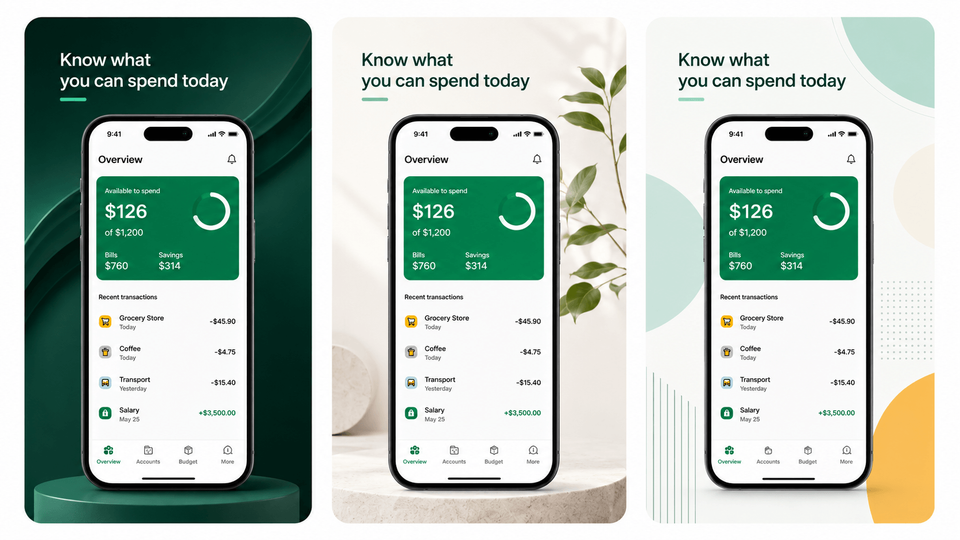
AI-generated concept outputs
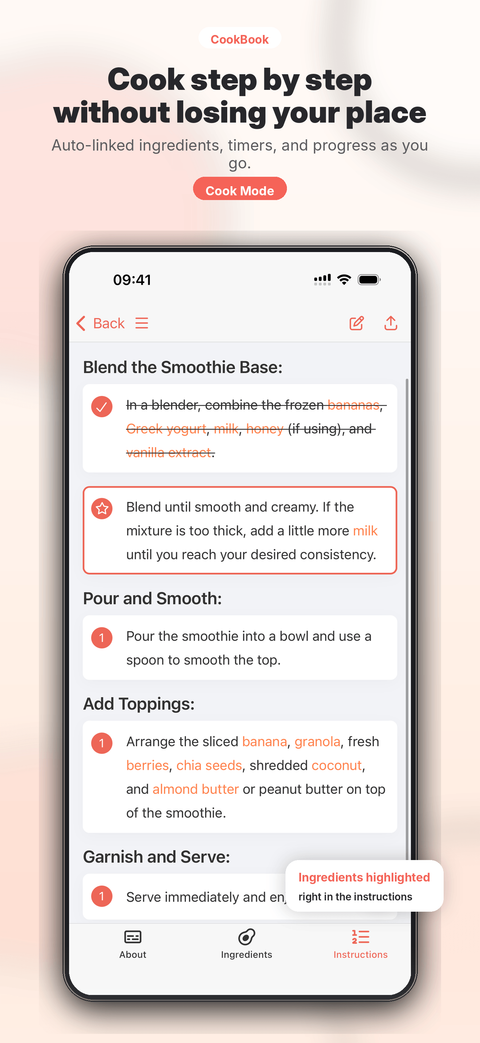
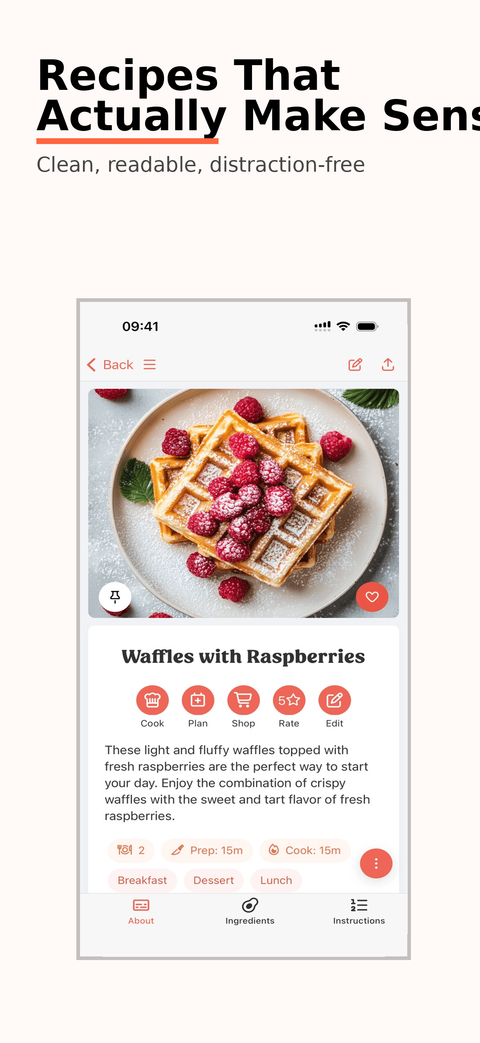
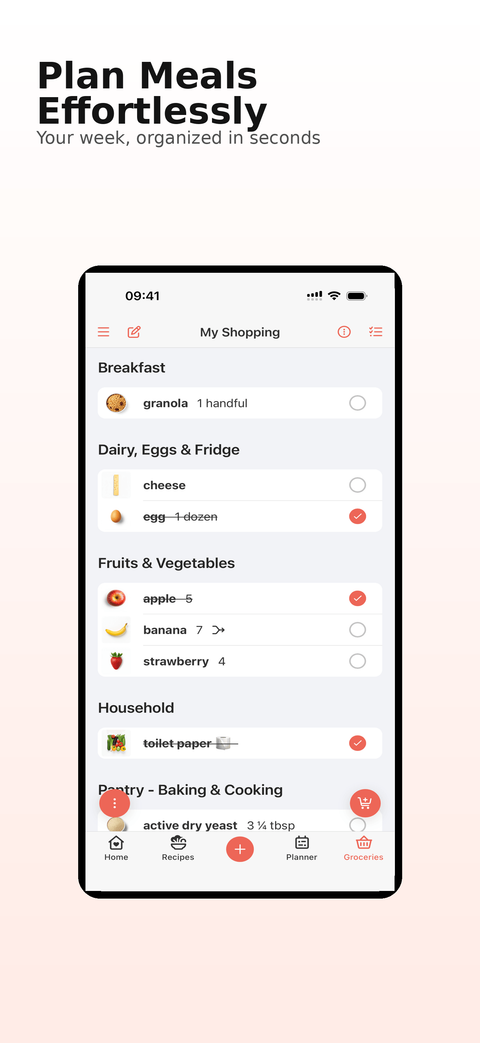
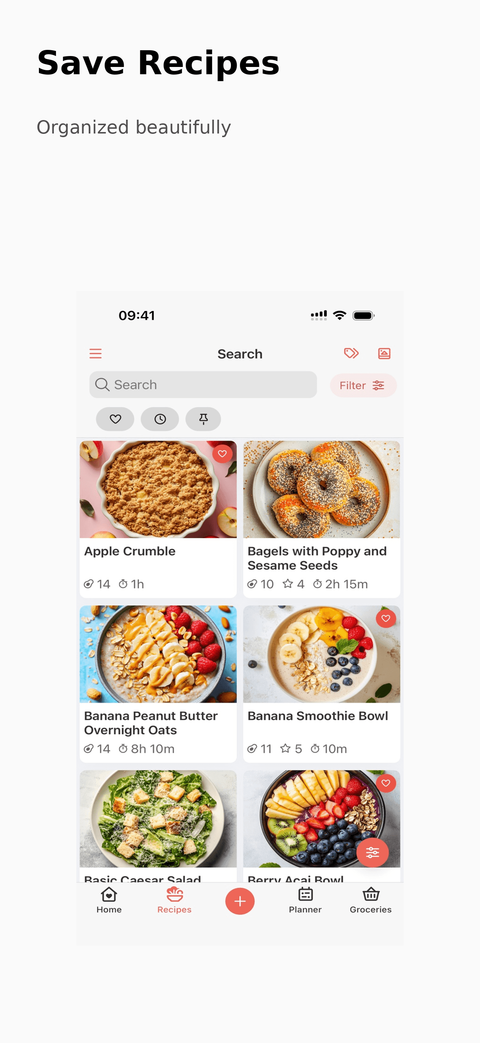
AppScreens production outputs
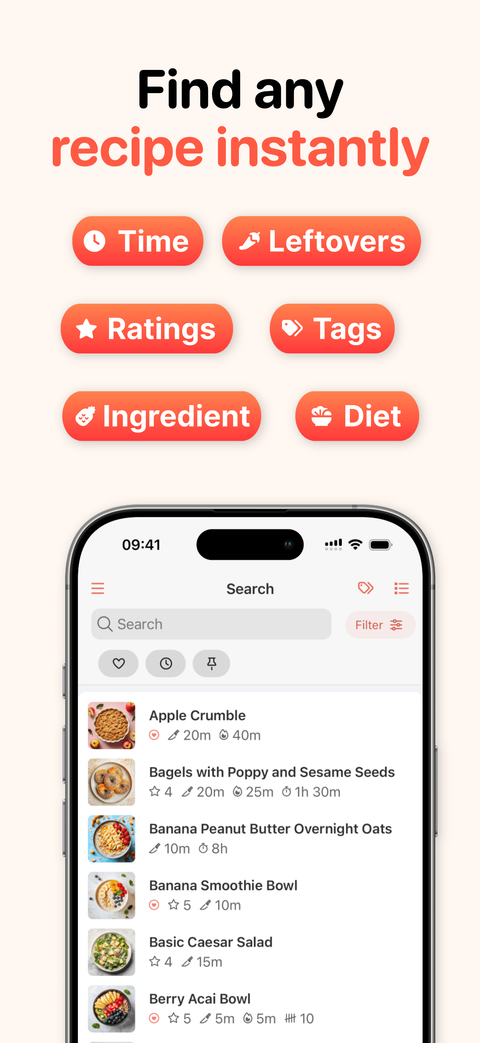
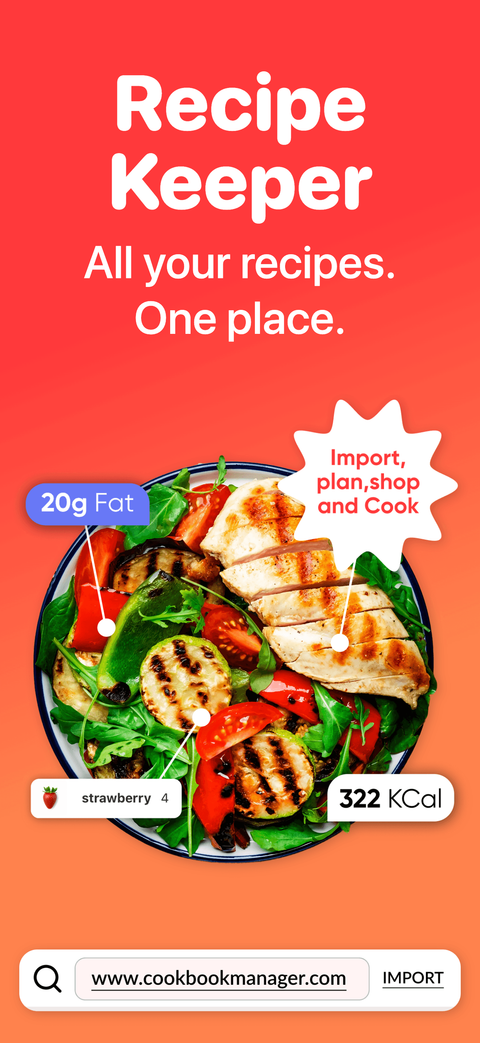
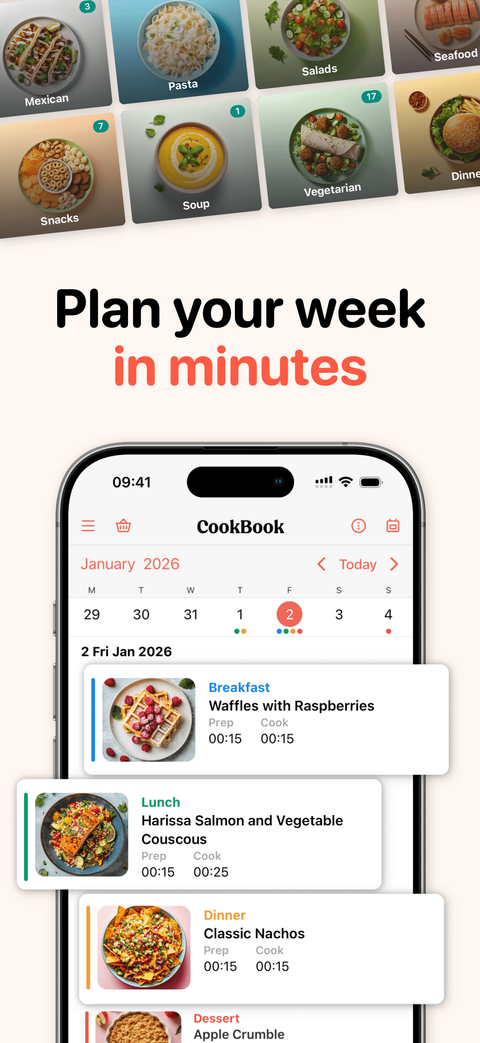
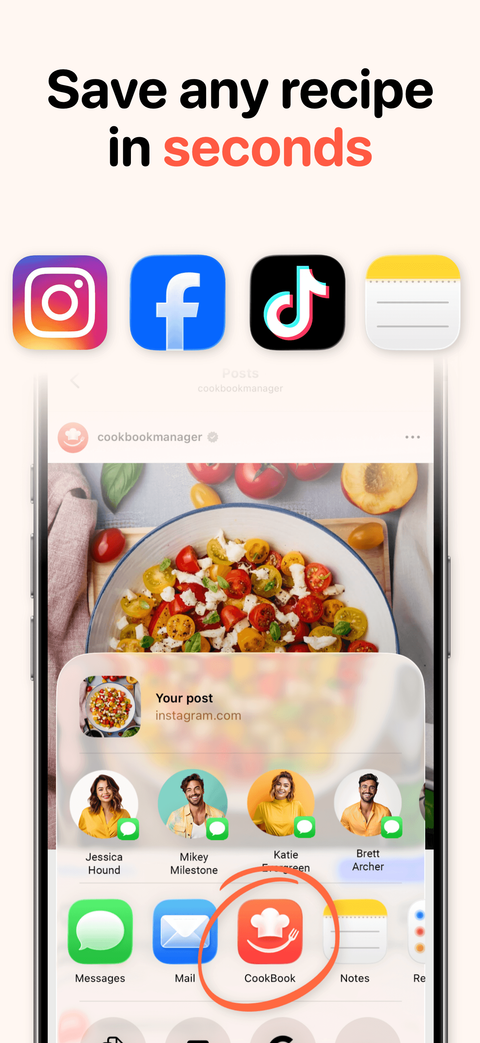
The Main Difference: Flattened Output vs Editable Screenshot Project
This comparison covers flattened prompt-to-image output without an editable source. AI-assisted editors, including AppScreens, can preserve separate elements. AppScreens keeps the app capture, caption, layout, device frame, background, output size, and language editable so you can revise the message without regenerating the whole image. The final store upload is a raster image in either workflow.
| Workflow need | Flattened prompt-to-image output | AppScreens |
|---|---|---|
| Source of truth | The generated image can become the source, even if it no longer matches the app. | Your captured app screenshot remains the source inside the design. |
| AI role | AI controls the final image, so buttons, captions, claims, crops, fonts, and layouts can change between generations. | AI assists the workflow with captions, guidance, translation, and restyling while the real app screen stays the source of truth. |
| Set consistency | One-by-one outputs can use different shapes, device frames, crops, backgrounds, caption styles, and visual hierarchy. | One project keeps the full screenshot set visually consistent across screens, sizes, languages, and variants. |
| Cost of changes | A longer caption or updated app screen requires replacing or recreating part of the flattened image. | Edit the caption or replace the app capture, preview the layout, then re-export the sizes from that project. |
| Store metadata accuracy | Risky if AI changes UI, features, text, badges, charts, states, device context, or the app promise. | Safer because the real app UI is preserved, framed, and exported for the intended store target. |
| Store-size exports | Each new aspect ratio can need a different crop or layout so captions and the app screen remain visible. | Preview device-specific layouts and export required App Store, Google Play, tablet, feature graphic, and custom sizes from the same project. |
| Localization | Baked-in captions need to be replaced or rebuilt for each language, with the resulting layout checked again. | Translate editable captions, use automatic text resizing, and replace app captures and supporting images separately for each language, including RTL layouts. |
| Experiment control | Regenerating a variant can change multiple things at once: caption, crop, device frame, background, app UI, or brand styling. | Keep the published set as the control and create an editable alternative. If the control already exists as an AppScreens project and your plan has room, duplicate it before changing the intended variable. |
| Team handoff | Without the editable source, the next teammate needs the original captures and design instructions to recreate elements. | The project remains editable for future captions, store sizes, languages, variants, uploads, and release updates. |
Cost tradeoff: a flattened draft can be quick to generate. The next release may need a new app capture, a longer caption, and different examples for each market. AppScreens keeps those elements editable, handles text resizing and store-size exports, and provides paid uploads to supported destinations. That removes repeated canvas resizing and file-by-file upload steps when you update the set. See AppScreens pricing.
Which Workflow Should You Use?
Use prompt-to-image generation to explore visual concepts, then check the output before using it. Choose AppScreens when you want AI assistance inside an editable store screenshot workflow: real app captures, fitted captions, templates, accepted sizes, localization, ASO variants, feature graphics, and supported uploads. It works for a first launch set and keeps the same project ready for future caption, language, size, or variant changes.
Best for AppScreens
Fast first launches, one-off store screenshots, founders who do not want to learn design tools, and teams managing sizes, localization, ASO variants, uploads, and future updates.
Not best for AppScreens
Pure moodboards, brand exploration with no real app UI yet, or a single decorative concept image that will never need store sizes, captions, localization, variants, exports, uploads, or future edits.
Why Screenshot Accuracy Matters
Store screenshots are part of the app's metadata and product promise. Apple's App Review Guidelines say app metadata, including screenshots and previews, should accurately reflect the app's core experience. Google Play's Metadata policy also restricts misleading metadata, including screenshots and promotional images. If AI redraws your UI, invents a feature, changes text, uses the wrong device context, adds unsupported claims, or makes the app look more capable than it is, the screenshot may stop representing the product users actually download.
That is why AppScreens keeps your real app screens as the source of truth while AI helps with captions, guidance, translation, and restyling. Review the final message and visuals before upload.
What Store-Ready Means
Once the screenshot becomes a production asset, polish is not enough. The file needs to meet store requirements, accurately represent the app, and use accepted formats and dimensions. Separately, keeping an editable source makes caption changes, localization, and future variants easier. Store uploads are raster images; they do not need to contain editable layers.
For App Store screenshots, that means exporting accepted image formats and required display sizes. The Apple App Store Connect screenshot specifications require one to ten screenshots in .jpeg, .jpg, or .png format, with accepted pixel dimensions depending on device class.
For Google Play, that means meeting preview asset rules, using accurate app visuals, and exporting required assets such as screenshots and feature graphics. The Google Play preview asset requirements require a minimum of two screenshots across device types, accept JPEG or 24-bit PNG with no alpha, and set minimum and maximum dimension rules. Its feature graphic requirement is 1024 x 500 px.
For a full breakdown, see our iOS screenshot sizes guide and Google Play screenshot sizes guide.
Our recommended production workflow combines store requirements with these editing conveniences:
- Real app UI, not AI-redrawn UI
- Editable captions and text layers
- Exact export sizes for each target
- Consistent layout across the full screenshot set
- Localized captions, screenshots, and images that still fit
- Repeatable variants for launch, Custom Product Pages, Product Page Optimization, and experiments
- QA checks before upload
Where AI Can Go Wrong in App Store Screenshots
The risk is not just that AI makes something ugly. The bigger risk is that it makes something plausible but inaccurate. App store screenshots are part of your product promise. If the AI output changes the UI, invents states, or makes the app look more capable than it is, you may misrepresent the actual experience.
UI accuracy risks
- Buttons, tabs, charts, icons, or menus are redrawn differently.
- Small text inside the app screen becomes unreadable or fictional.
- The app is made to look like a different design system.
- AI adds data, features, notifications, badges, or screens that do not exist.
- Each screenshot in the set has a different shape, crop, device frame, or visual hierarchy.
- The device context does not match the intended App Store or Google Play target.
- Brand fonts, colors, shadows, and spacing change between images.
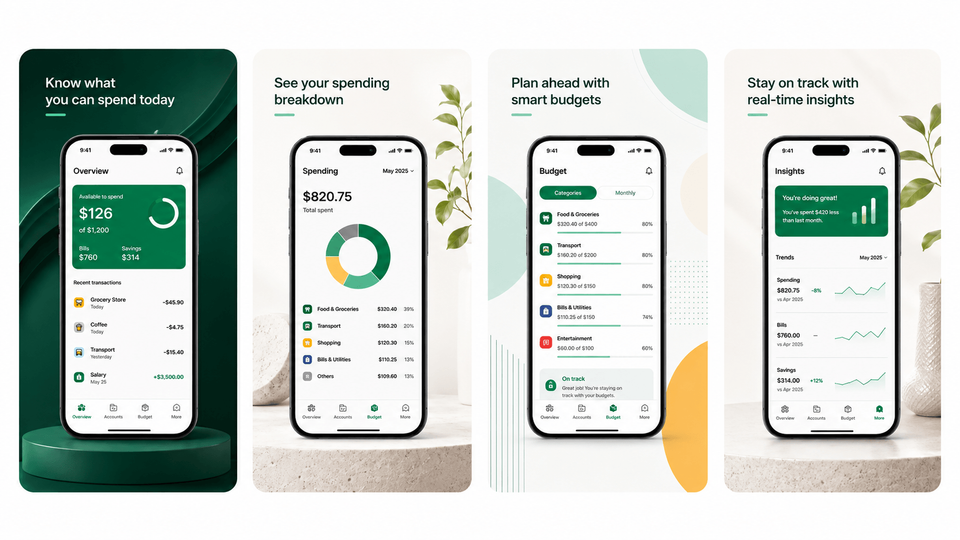
Before exporting, compare every app capture with the version users will download. Replace any invented controls, charts, or features with the original app capture in AppScreens.
What Should I Check Before Uploading AI-Assisted Screenshots?
Check accuracy and required dimensions before uploading. Also review readability and consistency, which help visitors understand the listing even when an image already meets the technical requirements.
Accuracy and presentation checklist
- The screenshot does not accurately represent the real app experience.
- AI has changed buttons, tabs, icons, charts, menus, copy, or screen states.
- The asset includes features, data, badges, notifications, or claims that do not exist in the app.
- The screenshot contains real customer data, private account details, production emails, phone numbers, addresses, payment information, or personal notifications.
- The screenshot includes debug labels, staging banners, placeholder or nonsensical sample data, loading states, broken UI, or unfinished feature flags.
- The status bar or notification area contains distracting or non-representative information that should be cleaned before upload.
- The file dimensions do not exactly match the required export target.
- The screenshot uses the wrong device class, device frame, or visual context for the store target.
- The screenshots do not look like one set because shapes, crops, backgrounds, caption style, device frames, or hierarchy change from image to image.
- The localized version cannot keep the same layout after text expansion or RTL changes.
- The screenshot contains time-sensitive claims, unsupported ranking claims, or promotional text that may become outdated.
Correct inaccurate or noncompliant assets before upload. Keep an editable source for captions, sizes, languages, and future variants, even though the exported upload files are flattened images. Final store screenshots should use realistic fictional data, clean app states, and real product screens that match what users can actually experience.
Both stores require accurate metadata. Apple's App Review Guidelines expect screenshots and previews to accurately reflect the app's core experience, so AI-redrawn UI, invented features, unsupported claims, wrong device context, or misleading screen states can create metadata problems before the app is approved. Google Play has similar risk through preview asset requirements and recommendations: mandatory requirements can affect publishing status, and recommendation-surface rules can affect where assets are eligible to appear. Google also warns against misleading or excessive metadata, and its preview asset guidance discourages claims such as "Best," "#1," "Top," "New," "Free," "Discount," "Sale," and "Million Downloads" in certain graphic contexts.
Example Workflows
The right workflow depends on whether you are exploring ideas or shipping assets to real store pages.
Example 1: Indie developer preparing a launch
Use AI to brainstorm five caption angles, then capture real simulator or device screenshots. In AppScreens, use AI onboarding, choose a template or start from scratch, upload the raw files, write the final captions, export iPhone and Android sizes, and QA the final files before upload. Free users can create one project, use AI mode, export up to 5 screenshots, and manually upload them to App Store Connect or Google Play, which is enough for many first releases.
Example 2: Team localizing screenshots into 12 languages
Localization gives you another message to test. ZiMAD reported a 36% conversion-rate increase after adapting its App Store screenshots for Japan. In AppScreens, translate the caption, replace the captured UI for that language, and swap supporting images or examples for the market. Automatic text resizing helps with longer translations; preview line breaks, fonts, and RTL layouts before export. Use the screenshot localization walkthrough for the production steps and the localization results guide to choose what to test in your next market.
Example 3: ASO manager testing first-screenshot messaging
Keep the published screenshots as the control. Build the alternative from the original captures, or duplicate an existing AppScreens project if your plan has room. Change the first screenshot caption or layout and export matching sizes, keeping the other elements consistent so you can assess that change.
Worked example: Localizing a launch screenshot
A budgeting app launches with "Track every dollar." Its German caption needs more room, its Japanese listing needs a Japanese app capture, and its Arabic version needs an RTL layout. An editable source lets you adapt those elements without recreating every store-size image.
In AppScreens:
- Capture the real budgeting screen from the app.
- Import the raw screen into AppScreens.
- Add the caption as editable text.
- Export the first English screenshot for iPhone and Android.
- Add supported localizations in the project and translate the captions.
- Replace the app capture and supporting images separately for each language.
- Use automatic text resizing, then preview line breaks, fonts, cropping, and RTL layout.
- Export the final localized sets from the same source design.
On the next app release, replace the affected captures and export the language sets again. For an experiment, keep the published files as the control while preparing the alternative. Duplicate an existing AppScreens project when your plan has room, or create the alternative from your original app captures.
Common Mistakes with AI App Store Screenshots
| Mistake | Use this rule | Why it matters |
|---|---|---|
| Trusting the first good-looking output | Check dimensions, UI fidelity, text, and consistency before upload. | Good-looking does not mean accurate or upload-ready. |
| Resizing one image for every store size | Use responsive layout rules, not simple scale-up or scale-down. | Scaling or cropping a flattened image for a different aspect ratio can blur the UI, cut off text, or move the focal point. |
| Trying to localize flattened text | Keep captions editable with layout controls. | Long German text, compact Japanese text, and RTL Arabic layouts all need more than a baked-in static image. |
| Regenerating one screenshot in a set | Keep device framing, color, lighting, caption style, and UI details consistent across the set. | Store visitors notice when a replacement screenshot does not belong with the rest of the set. |
| Accepting one-by-one AI outputs as a set | Build the final set in AppScreens from one template so dimensions, device context, visual hierarchy, caption style, and brand treatment stay aligned. | A mismatched set makes users work harder to understand the app. If you need to ship ASAP, that means choosing between weaker store creative today or a late rebuild across sizes, captions, device frames, and localized variants. |
| Letting AI invent app states | Only show screens, features, and data that exist in the app. | Store screenshots should set accurate user expectations. |
| Adding ranking or promotional claims to graphics | Avoid claims such as "#1," "Best," "Free," "Sale," or "Download now" unless the store context and policy allow them. | Claims can become misleading, outdated, or at odds with store policy. |
| Testing AI-generated variants that changed multiple things | Change one variable at a time: caption, order, background, or layout. | Otherwise the team cannot tell what caused the performance change. |
| Repeating every file upload after an update | Use AppScreens for export and supported direct uploads. Export Google Play experiment variants and attach them in Play Console. | A caption or screen change can mean replacing files for each device size and language. Paid uploads to supported destinations remove those repeated file-by-file steps. |
Turn AI Ideas Into Store-Ready Screenshots
Create AI-assisted screenshots in AppScreens and keep the set editable. Use real app screens as the source of truth, add benefit-led captions, fit text across languages, swap per-language screenshots or images, create ASO variants, export required App Store and Google Play sizes, upload store-ready assets, and keep the project ready for future releases, tests, campaigns, and upload changes.
FAQ
I launched with AI screenshots. What should I change first?
If relevant visitors find your listing but do not download, improve the story across the first three screenshots: a clear benefit, real app proof and a second reason to install. Build one alternative in AppScreens using editable captions and your original app captures, then compare it in a native store experiment. Also check discovery, price and availability. Low paid conversion after installation needs a separate check of onboarding and pricing.
Does using AI screenshots mean my app will convert badly?
No. How the image was produced does not establish its conversion performance. Judge the clarity, accuracy, audience fit, and store requirements, then use a native experiment when traffic supports it. Individual stories of success or disappointment do not prove a general effect.
Can AppScreens make my existing AI image editable?
AppScreens does not recover the original layers from a flattened AI image. Recreate the useful layout in a template using your original app captures and separate text. You can then revise captions, restyle the set, export sizes, and prepare future variants without regenerating the full image.
Can I use AI-generated screenshots on the App Store?
Screenshots must accurately reflect the app experience and meet the required formats and dimensions. Check AI-assisted assets for invented features, changed UI, unsupported claims, and misleading device context. Keeping an editable source is useful for revisions, but the uploaded image itself is normally a flattened raster file.
Can AI-generated screenshots be used on Google Play?
Only use AI-generated visuals when they accurately represent the real app, meet Google Play asset requirements, and do not mislead users. If AI changes the UI, invents features, or creates incorrect dimensions, use it for brainstorming only.
What is the safest AI screenshot workflow?
Capture real app screens, remove private or debug data, use AppScreens AI onboarding to find your app and store context, generate caption ideas, choose a ready-made template, check UI accuracy, text fit, set consistency, device context, and export sizes, then export the required App Store, Google Play, feature graphic, localization, CPP, PPO, or experiment variants from the same editable project. Compare plans for upload and scale.
Do good app store screenshots increase downloads?
Yes, stronger screenshots can turn more of your existing traffic into downloads. OLBG reported a 45% conversion improvement from one screenshot test and 61% across its screenshot optimization work. Its plain-background alternative performed 10% to 13% worse, which is why visual preference alone is not enough. Use AppScreens to create caption, style and order variants, then A/B test the message. See the published ASO performance results.
What is an AI app store screenshot generator?
An AI app store screenshot generator uses prompts, uploaded screenshots, or app information to create visual concepts or editable screenshot sets. Prompt-to-image output can be flattened; AI-assisted editors can retain separate app captures, captions, and layouts. Final uploads need accurate app content and accepted dimensions. AppScreens combines AI-assisted creation with an editable source for future captions, sizes, languages, and variants.
What should I put in an AI screenshot prompt?
Describe the intended audience, app benefit, caption angles, and visual direction. Ask the tool to preserve the supplied app UI and avoid invented features, awards, reviews, and data. Check the output for accuracy and exact dimensions. Keep real app captures and editable text in your source project so the next caption or size change is easy to make.
What does AppScreens AI onboarding do?
AppScreens AI onboarding helps users start faster by finding the app, using available store context and metadata, guiding the screenshot project, helping with captions, and moving the user into a ready-made template workflow. It is designed for the “just make my screenshots” path, not a blank design canvas.
Can I use AppScreens for a one-off AI screenshot set?
Yes. Use AI onboarding, pick a template, add real app screens and edit the captions and style without hiring a designer. AppScreens handles text fitting and store-ready sizes, so you can produce a launch set quickly without designing separate canvases. Start free with one project and up to five screenshot exports for manual upload. Supported paid plans add capacity, localization and direct uploads.
Is manually uploading app screenshots worth it?
Manual upload works for a small first release. With several languages and device sizes, each update means exporting, sorting and attaching the correct files again. AppScreens produces store-ready exports, while supported paid plans upload to App Store Connect, including configured PPO treatments and Custom Product Pages, and to Google Play’s main listing. For Google Play experiments, export the variants and attach them in Play Console.
What is the difference between a screenshot generator and a screenshot editor?
Prompt-to-image generators can return a flattened image; editors retain separate elements such as app captures, captions, frames, and backgrounds. Some tools combine both. An editable source makes revisions easier, while the final store upload is normally a raster image.
Why are AI screenshots hard to edit later?
When the source is one flattened AI image, changing a caption means repainting or regenerating text and checking whether the app UI, crop or phone frame also changed. A translation may no longer fit, and each size may need rebuilding. AppScreens keeps app captures, captions, images and layouts separately editable, so you can change the message, fit the text and re-export sizes without asking AI to redraw the app.
Why do AI screenshot sizes cause problems?
AI image tools often create images near the requested aspect ratio but not at exact App Store or Google Play pixel dimensions. They can also use the wrong device class or visual context for the target store slot. Resizing after generation can break composition across phones, tablets, feature graphics, and localized variants. Use App Store screenshot sizes and Google Play screenshot sizes to check requirements.
Why are localized AI screenshots risky?
Captions can stop fitting, translated text may appear beside an English app screen, and the wrong currency, font or reading direction can make the image confusing. A flattened source makes each correction a new image edit. AppScreens supports editable translated captions, automatic text fitting and per-language screenshots and images. ZiMAD reported a 36% conversion gain after adapting screenshots for Japan. See the localization evidence and check each language against the experience your app actually supports.
How can I use AI in AppScreens for CPP and PPO variants?
Use AppScreens AI-assisted captions and restyling to prepare editable variants from real app captures. Keep the current set and change the element you want to test, such as the caption, order, or feature focus. If you change the entire design, interpret the comparison at that level rather than attributing the result to one element. See PPO and CPP screenshot variants.
Is AppScreens an AI screenshot generator?
AppScreens uses AI where it speeds up the screenshot workflow, including AI onboarding, AI captions, AI guidance, AI translation, and AI project restyling. The core product is a purpose-built screenshot editor and export system for real App Store and Google Play assets, so users get editable screenshots instead of one-off flattened AI images.
Can AppScreens write app screenshot captions with AI?
Yes. AppScreens supports AI-assisted caption ideas and AI captions, then keeps the text editable so teams can refine messaging, translate it, resize it across device sizes, and test variants. This is especially useful for founders who do not want to write every ASO caption from scratch. Start with templates or the ASO screenshot workflow.
Read on
Sources
- Apple Developer: Product page screenshots and search results
- AppAgent: Store-page visitor research, published in 2017
- SplitMetrics: OLBG screenshot design and ordering tests
- SplitMetrics: ZiMAD screenshot localization for Japan
- Apple Developer: App Store screenshot specifications
- Apple Developer: App Review Guidelines, Accurate Metadata
- Google Play Help: Preview asset requirements
- Google Play Help: Metadata policy
- Google Play Help: Deceptive Behavior policy
Reviewed against Apple App Store Connect screenshot specifications, Apple App Review metadata guidance, Google Play preview asset requirements, and Google Play metadata policies. Last content review:
Platform requirements and policies change. Check Apple and Google's official guidance before uploading final screenshots, feature graphics, videos, or promotional store assets.