App store screenshot design tools
Best App Store Screenshot Design Tools in 2026
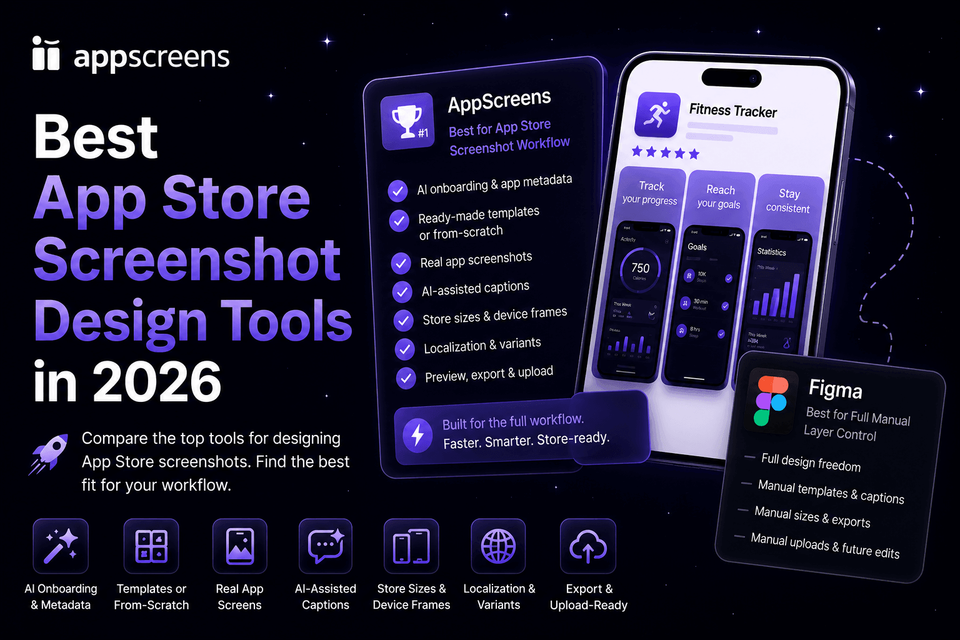
The best App Store screenshot design workflow in 2026 is AppScreens. Designing App Store screenshots is not the same as making a pretty graphic. A real screenshot design workflow needs captions that fit, visual hierarchy, device frames, App Store sizes, Google Play sizes, localized layouts, per-language screenshots and images, organized exports, upload-ready files, and a source project that stays editable when the next caption, locale, size, variant, or app update changes.
AppScreens is built around that full workflow: find your app with AI onboarding, use app metadata, choose a ready-to-go screenshot template or start from scratch, upload real app screens, edit captions and design, preview sizes and languages, then export or upload store-ready App Store screenshots and Google Play screenshots.
Good screenshot design matters because screenshots help sell the app before the install. Screenshot updates are cited around +6% downloads on iOS and +9% on Google Play, while ASO screenshot testing examples range from about +4% to +61%. Localization can be just as important: public examples report +101% to +128% more downloads, and screenshot localization examples report +33% to +36% conversion gains.
Use Figma when a designer wants layer-by-layer design control and is prepared to refit captions, rebuild localized layouts, re-export store sizes, name files, map uploads, and repeat those edits across every variant by hand.
If you only need one release set, AppScreens still starts closer to finished screenshots because templates, AI-assisted captions, real app screens, store sizes, and exports are already part of the workflow.
Need a different angle? Jump to best overall, best free, or quickest.
Quick Take
Use AppScreens when the job is App Store or Google Play screenshot design and speed matters. Start with AI onboarding, app metadata, ready-to-go screenshot templates or from-scratch design, upload real app screens, edit captions, then export or upload store-ready assets.
Use Figma for layer-by-layer design control, Canva for general graphics, Placeit or Previewed for promotional device scenes, and Fastlane for raw or simple framed screenshot capture from a maintained release pipeline. Use screenshots.pro when you want a fully open manual designer with device frames and screenshot elements built in, but check store sizes, caption fitting, localization, exports, uploads, and future replacements yourself. AppScreens wins when captions, sizes, localization, exports, uploads, and future updates need to stay connected, and variants need a faster production path.
Quality matters. Screenshot updates are cited around +6% downloads on iOS and +9% on Google Play, ASO testing examples range from about +4% to +61%, and localization examples report +101% to +128% more downloads.
Best app screenshot design tool by category
This map is focused on design intent. It separates app store screenshot design workflow from general graphics, blank-canvas design, promotional mockup scenes, narrower screenshot builders, and raw capture automation.
| Category | Winner | Why |
|---|---|---|
| Best app screenshot design workflow | AppScreens | Fastest path from real app screens to store-ready screenshots: templates, AI captions, text fitting, store sizes, localization, exports, uploads, and faster variant creation. |
| Best layer-by-layer design control | Figma | Best blank-canvas control when a designer wants to manage every layer, caption fit, store size, localized layout, export, and handoff by hand. |
| Best simple social-style graphics | Canva | Useful for lightweight general graphics, but captions, store sizes, localized assets, exports, and uploads stay outside the design. |
| Best promotional device scenes | Placeit or Previewed | Useful for landing pages, pitch decks, ads, social posts, and device scenes; Previewed free exports are 720p with attribution. |
| Best fully open mockup designer | screenshots.pro | Useful when you want a fully open designer with Figma-like manual movement plus built-in device frames and screenshot elements; check attribution, output-size setup, caption fit, localization, manual uploads, and future replacements. |
| Best raw or framed capture automation | Fastlane | Best for raw captures or simple framed screenshots from maintained UI tests and Fastfile lanes; finished ASO creative, localization, variants, uploads, and replacement files still need another workflow. |
1. AppScreens: best app screenshot design workflow
AppScreens wins the app screenshot design workflow because it combines the creative layer and the store production layer. You can start with AI onboarding and app metadata, choose a template or start from scratch, upload real screens, edit captions and styling, preview outputs, then export or upload store-ready assets from one editable project.
It starts closer to the finish line than a blank canvas. Start with screenshot templates for speed, or start from scratch when creative control matters. Use AI-assisted captions and app context, adjust device frames and brand styling, preview responsive App Store sizes and Google Play sizes, localize the set, then export or upload assets for the stores.
Design faster
Templates, AI captions, app metadata, and real app screens start the design close to a finished screenshot set.
Stay store-ready
Store sizes, text fitting, per-language assets, exports, localization, and upload-ready files stay connected in one project.
Edit later
When captions, screens, locales, or sizes change, the same project updates instead of cloned files falling out of sync. Variants are faster to create from that workflow.
That makes AppScreens useful for one-off screenshot sets, first releases, and repeatable workflows. A single project can become the place where caption changes, localized layout checks, per-language screenshots, store-size exports, upload files, and future updates stay connected, while variants are faster to create without rebuilding every size and language by hand.
Use AppScreens when you want clearer screenshots to win more downloads, create assets quickly, avoid size guesswork, lower repeated production cost, automate exports and uploads, and publish polished screenshots without becoming a designer.
AppScreens is free to start. Free users can use AI mode, create one project, export up to 5 screenshots, and manually upload the files to App Store Connect or Google Play, which is enough for many basic launch sets.
AppScreens is not only for large teams. About 60% of exports happen in free mode, which shows how often developers use it for quick, practical screenshot creation before they need more projects, uploads, localization, variants, or team workflows.
Start free when you need a basic launch set. Upgrade when speed matters across more screenshots, projects, direct uploads, localization, variants, team workflows, or client work.
Why app screenshot design is different from general design
App screenshot design is not just layout polish. A finished store screenshot set needs a benefit-led caption that fits, visual hierarchy, a real app screen, device framing, brand styling, correct App Store and Google Play sizes, readable text across devices and languages, per-language screenshots or images, localization support, organized exports, upload-ready files, and a source project that can handle the next caption, locale, size, variant, or app update without rebuilding every asset.
Raw screenshots are important source material, but uploading them as-is can cost conversions. They show the interface, but they do not always sell the outcome, explain the benefit, localize the pitch, create visual hierarchy, or give visitors a clear reason to install. AppScreens turns raw app screens into polished store screenshots without starting from a blank design canvas.
Figma gives designers layer-by-layer control over the canvas. AppScreens gives app teams the faster screenshot design workflow because the store-specific steps are built into the project.
Screenshot Capture vs Screenshot Design vs Screenshot Upload
Screenshot capture, screenshot design, and screenshot upload are different jobs. Fastlane is strongest for capture, especially Apple screenshot capture from UI tests. Figma is strongest for blank-canvas layer control. App Store Connect and Google Play Console handle upload and validation. AppScreens is built for the design workflow between those steps: captions that fit, device frames, brand styling, responsive App Store sizes, Google Play sizes, localization, per-language assets, exports, and upload-ready screenshot sets.
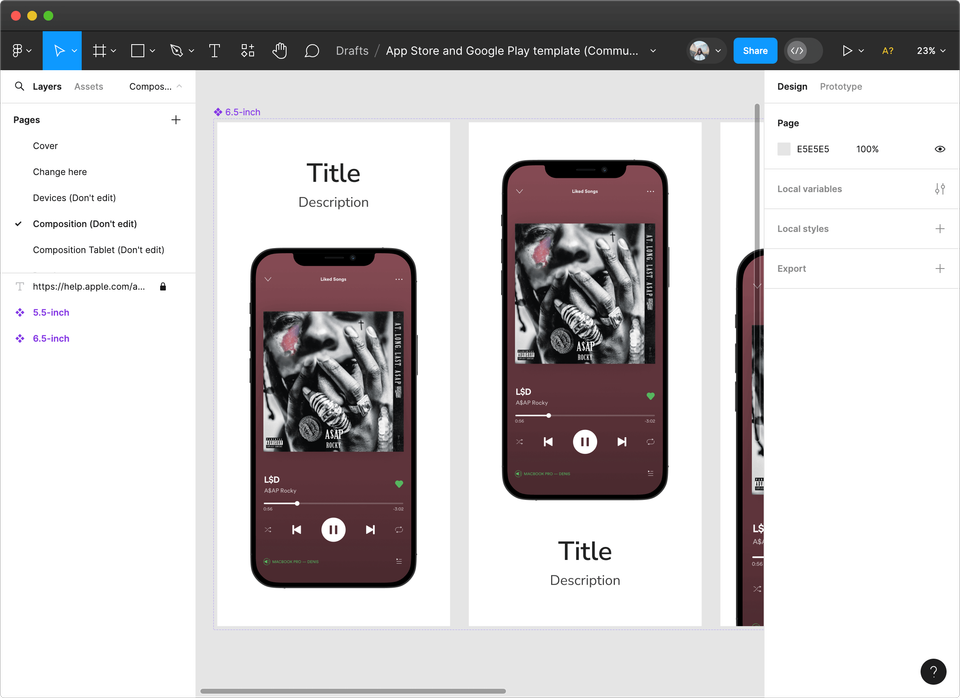
2. Figma: best layer-by-layer design control
Use Figma when a designer wants layer-by-layer control and is prepared to refit captions, rebuild localized layouts, re-export store sizes, replace upload files, and repeat changes across every variant by hand.
The research backs the tradeoff: Figma's free Starter plan can work for an individual designer, but Figma has no native app store screenshot workflow. Store dimensions, text fitting, localized layouts, per-language screenshots or images, export naming, upload mapping, and variant updates all have to be managed by hand.
Use AppScreens when you want the faster app screenshot design workflow: templates, AI captions, device frames, brand styling, responsive App Store sizes and Google Play sizes, localization, exports, and upload-ready assets in one project.
For the deeper breakdown, read the Figma alternative for App Store screenshots.
3. Canva: best simple social-style graphics
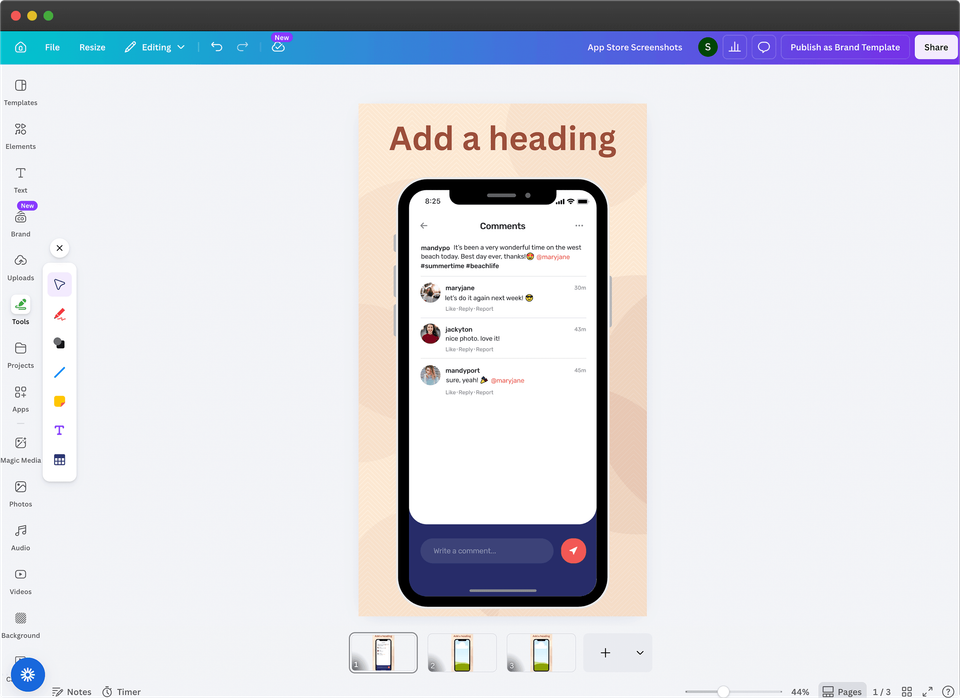
Use Canva for simple social-style graphics, quick visual drafts, or general marketing assets. Use AppScreens when the design is an App Store or Google Play screenshot and needs captions, app screens, store sizes, localization, exports, uploads, caption refits, localized layout rebuilds, store-size re-exports, or variant updates.
Canva's free plan is useful for general design work, but it is not screenshot-specific. It does not enforce App Store or Google Play dimensions, does not upload to stores, and Pro assets can watermark free designs unless they are licensed or the team upgrades.
For the deeper comparison, read the Canva alternative for App Store screenshots.
For one-off store screenshots, AppScreens still starts closer to the finish line because templates, AI-assisted captions, real app screens, store sizes, text fitting, and exports are built into the workflow.
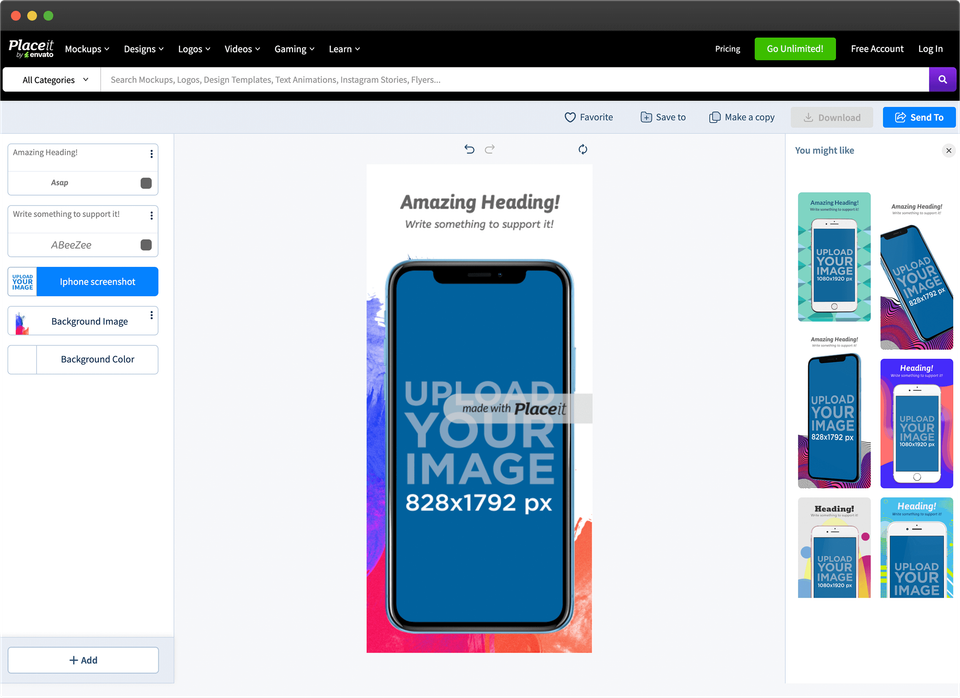
4. Placeit and Previewed: best promotional device scenes
Use Placeit or Previewed when the deliverable is a promotional device scene for a landing page, pitch deck, social post, or ad concept. Use AppScreens when the deliverable is an actual App Store or Google Play screenshot set that needs captions, correct sizes, clean exports, localization, and upload-ready files.
A one-off promotional mockup and a one-off store screenshot are different jobs. Use AppScreens when that one-off asset still needs captions, correct sizes, exports, and upload-ready files.
Previewed is a good example of that difference: the researched free plan is unlimited but capped at 720p output with attribution. That is useful for mockups, but risky for a release asset unless the team checks dimensions, licensing, export quality, file naming, locale mapping, and upload requirements.
5. screenshots.pro: fully open designer with screenshot-specific pieces
screenshots.pro sits between a blank-canvas design tool and a full App Store or Google Play screenshot workflow. It gives you a fully open designer where you can manually move objects around like Figma, while starting with some screenshot-specific pieces such as device frames, mockup controls, and output presets.
That can help when creative control matters and a pure blank canvas feels too slow. Do not treat it as a finished release workflow. The broader screenshots.pro comparison found concrete caveats: free Basic use requires attribution, localization is a paid-plan feature, the visible template set was small, and there is no built-in App Store Connect or Google Play upload workflow.
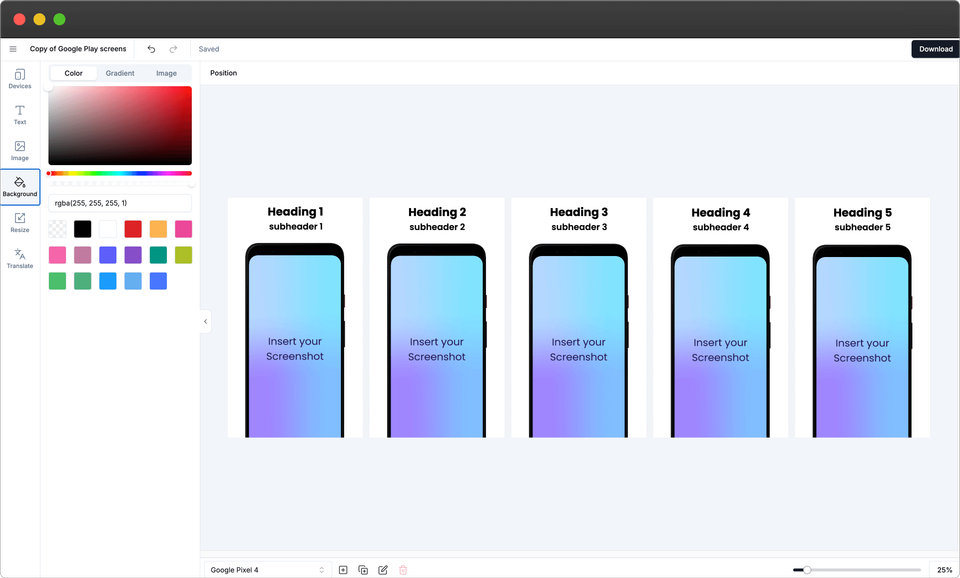
The release work still comes back later. Output presets are device or mockup oriented, not the same as current App Store Connect display-class screenshot groups such as 6.9-inch, 6.5-inch, and iPad. Smart resize can copy a layout to another output format, but the copied layout still needs manual checking, caption fitting, localized asset checks, export naming, upload mapping, and replacement QA.
Use AppScreens when the design has to become a release-ready screenshot set. AppScreens keeps templates, AI-assisted captions, real app screens, text fitting, per-language assets, store-ready exports, uploads, localization, and future updates in one editable project, with a faster path to ASO variants.
For the deeper caveats, read AppScreens vs screenshots.pro.
6. Fastlane: best raw and framed capture automation
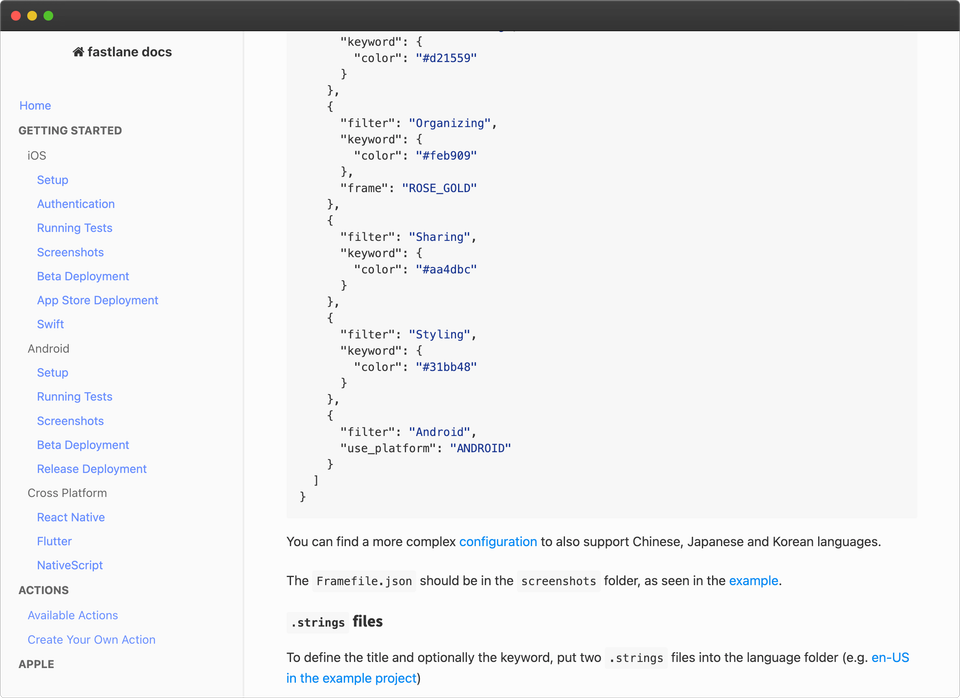
Fastlane Snapshot is useful when engineering teams need automated raw screenshot capture from UI tests or CI. With frameit, it can also create simple framed screenshots with device assets and text as part of a release pipeline. That can be enough for very basic ASO when the goal is accurate framed captures, not a fuller conversion story.
Once configured, the benefit is efficiency. The cost is setup and maintenance. Snapshot depends on UI tests, devices, app state, labels, buttons, permissions, onboarding, and navigation staying predictable. When a button, selector, login state, permission prompt, route, modal, or Fastfile rule changes, the screenshot lane can fail at build or release time unless developers keep the pipeline robust.
Simple framed captures are still a narrow creative workflow. They can cost conversions when they replace stronger store creative: fewer benefit-led layouts, weaker visual hooks, less localization control, slower CPP, PPO, or Google Play experiment variants, and more manual work for captions, localized screenshots or images, store-size exports, file naming, upload mapping, replacement files, and store checks.
Choose AppScreens when those captures need captions that fit, per-language screenshots or images, store-ready sizes, organized exports, uploads, localization, and future updates in one editable project, plus a faster path to fresh ASO variants.
For the deeper comparison, read AppScreens vs Fastlane.
Mistakes that make screenshot design tools look faster than they are
The wrong tool often looks fine in the editor and breaks later, when the design has to become accepted store files. The same pattern shows up in wider comparisons like Best App Store Screenshot Tools in 2026 and AppScreens vs screenshots.pro: open mockup designers and attractive device renders are not the same as a finished screenshot workflow.
Release checklist before you choose a tool
Before choosing a screenshot design tool, check whether it can handle the real store screenshot job, not just the first mockup.
- Can it export accepted App Store screenshot sizes and Google Play screenshot sizes without resizing every canvas by hand?
- Can captions keep fitting after edits, smaller devices, longer translations, and RTL checks?
- Can you swap screenshots or images per language without rebuilding localized layouts?
- Can it create ASO variants for PPO, CPP, and Google Play experiments?
- Can file names, device slots, locale mapping, exports, uploads, and replacement files stay organized?
- Can one future caption, screenshot, language, or size change update the set without cloned files falling out of sync?
If those checks matter, use AppScreens. It keeps templates, captions, text fitting, per-language assets, store-ready exports, uploads, localization, and future updates in one editable project, and ASO variants can be created without rebuilding every size and language by hand.
| Mistake | What breaks later | Better AppScreens check |
|---|---|---|
| Choosing the prettiest mockup instead of the finished store workflow | Captions, real app screens, accepted sizes, localization, exports, and upload files still have to be handled elsewhere. | Use AppScreens when the design needs templates, AI captions, real screens, previews, store-ready exports, uploads, localization, and a faster path to variants. |
| Assuming an export is release-ready | Attribution, watermarks, resolution caps, commercial-use rules, file naming, and upload mapping can block a simple launch set. | Start free with one AppScreens project, AI mode, up to 5 exports, and manual upload. Use pricing when you need more projects, screenshots, uploads, localization, variants, teams, or client work. |
| Treating localization as translated caption text | Longer captions stop fitting, RTL layouts need checking, and some markets need different screenshots, images, examples, or proof. | Use AppScreens localization for AI translation, text fitting, RTL support, per-language screenshots or images, exports, uploads, and QA. |
| Leaving size and upload checks until the end | One layout change can force store-size re-exports, file renaming, upload replacement, and checks across App Store Connect or Google Play. | Preview and export accepted App Store sizes and Google Play sizes from the same project before publishing. |
| Cloning files for every variant or update | A new hook, caption, screenshot, order, CPP, PPO, or Google Play experiment can become repeated edits across every device size, locale, export folder, and upload slot. | Use AppScreens to create PPO and CPP screenshot variants while sizes, languages, and per-language assets stay managed inside each screenshot project. |
Design store-ready screenshots without starting from a blank canvas
Use AppScreens to turn real app screens into polished App Store and Google Play screenshots. Choose a ready-to-go template or start from scratch, use AI-assisted captions, customize devices and brand styling, then export or upload store-ready assets from one editable project.
FAQ
What is the best App Store screenshot design tool in 2026?
AppScreens is the best app screenshot design workflow when the goal is store-ready App Store and Google Play screenshots. Figma is best for layer-by-layer design control, Canva is best for simple general graphics, Placeit or Previewed are best for promotional device scenes, and Fastlane is best for raw or simple framed capture automation from a maintained release pipeline. screenshots.pro is a narrower fit when you want a fully open manual designer with device frames and screenshot elements, and the team can still handle caption fitting, localization, output checks, manual uploads, and future replacements.
Is Figma better than AppScreens for screenshot design?
Figma is better for layer-by-layer design control. AppScreens is better when the deliverable is a store-ready App Store or Google Play screenshot set that needs text fitting, per-language assets, accepted sizes, exports, localization, uploads, and future updates in one project, plus faster variant creation.
Do better app screenshots increase downloads?
Better screenshots can turn the same store traffic into more installs by making the app's value clear faster. Screenshot updates are cited around +6% downloads on iOS and +9% on Google Play, while ASO testing examples range from about +4% to +61%. Localization examples report +101% to +128% more downloads, and screenshot localization examples report +33% to +36% conversion gains. Results are not guaranteed, but screenshots are one of the store page's main selling surfaces.
Is Canva good for app screenshot design?
Canva is useful for simple general graphics and rough concepts. AppScreens is stronger for real app store screenshot sets because Canva does not enforce store requirements or upload to stores, while AppScreens includes app context, captions, templates, device frames, store sizes, exports, and upload-ready assets.
Are Placeit and Previewed good for app store screenshots?
They are useful for promotional device scenes, landing pages, ads, social posts, and pitch decks. Previewed's free plan is capped at 720p output with attribution, so use AppScreens when the deliverable is a store-ready screenshot set with captions that fit, correct sizes, clean exports, localization, upload-ready files, and future updates in one project, plus faster variant creation.
What mistakes should I avoid when choosing a screenshot design tool?
Avoid choosing only the prettiest mockup, assuming every export is release-ready, translating captions without checking layout fit, leaving store-size and upload checks until the end, and cloning files for every variant. AppScreens keeps captions, text fitting, per-language assets, store-ready exports, uploads, localization, and future updates in one project, while variants are faster to create without rebuilding every size and language by hand.
Is AppScreens good for one-off screenshot design?
Yes. AppScreens is fast for a single screenshot set because you can start from a template, use AI-assisted captions, upload real app screens, and export store-ready files without learning a general design tool.
Sources
This design-tools page uses public product pages and platform documentation to separate design workflow, blank-canvas layer control, promotional mockup scenes, raw capture automation, store sizing, and upload requirements.
- Apple App Store Connect screenshot specifications for App Store screenshot sizing and upload requirements.
- Google Play Console graphic assets documentation for Google Play screenshot and store-listing asset requirements.
- Fastlane snapshot documentation and frameit documentation for raw capture and simple framed screenshot automation.
- AppScreens ASO screenshot workflow for screenshot update and ASO testing examples.
- AppScreens screenshot localization workflow for localization and screenshot localization examples.
- AppScreens vs screenshots.pro for screenshots.pro caveats around manual design, output presets, export work, upload mapping, and future updates.
- Public product pages for Figma, Canva, Previewed, Placeit, and screenshots.pro were checked for design-control and promotional mockup context.
- AppScreens screenshot design workflow video.