AI screenshot generator
AI App Store Screenshot Generator
Give your first screenshot set a clear story without writing every headline from scratch. AppScreens uses your app’s context to suggest captions for an editable template built around your real captures. Create App Store and Google Play screenshots with guided AI today, or explore upcoming MCP and API workflows for your own agent.
Start free with guided AI. No card required.

1. App context 2. AI captions
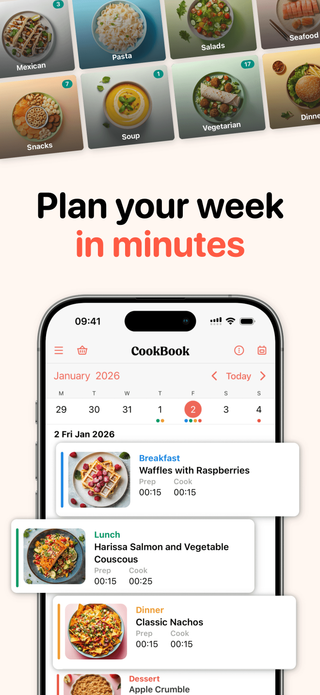
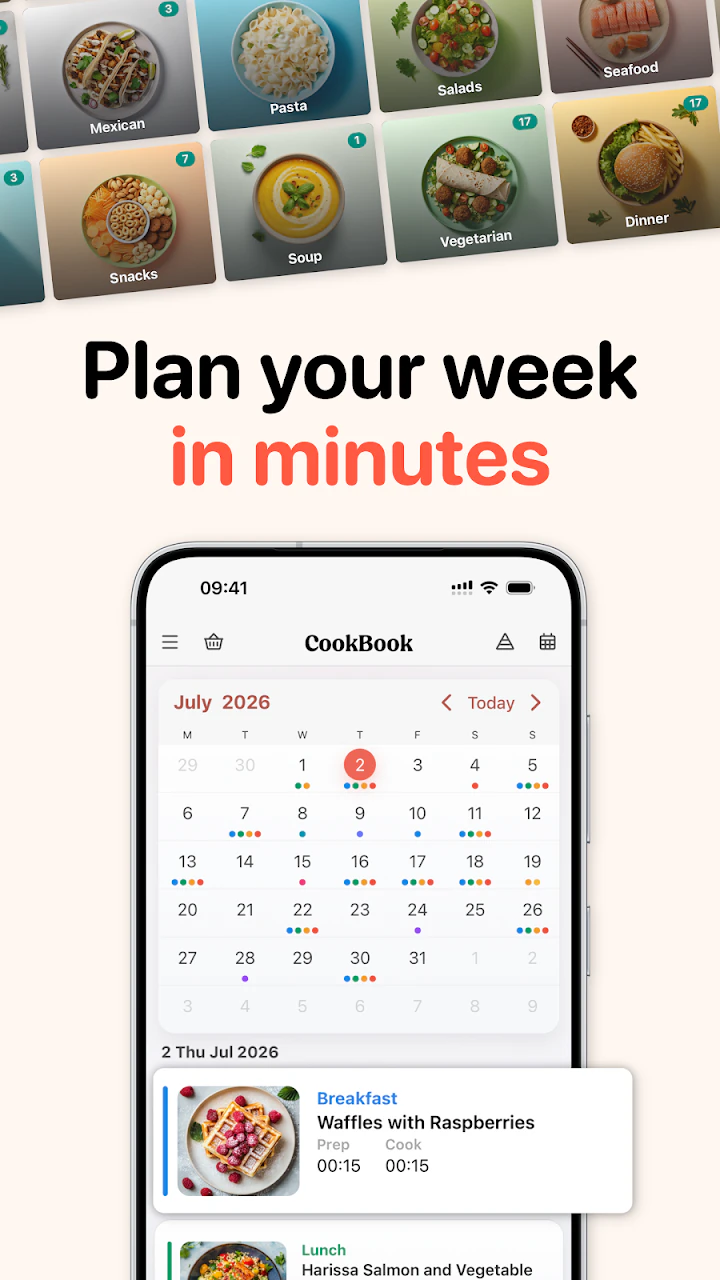
AppScreens reads CookBook’s app context and suggests benefit-led screenshot captions to choose from, then applies them to a template with the real app captures.

3. Template 4. Editable screenshots
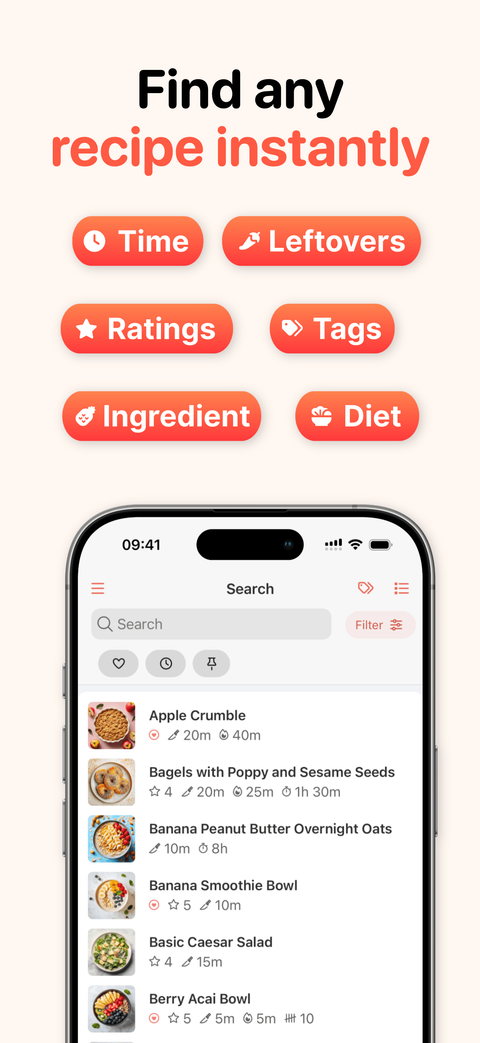
Recipe search
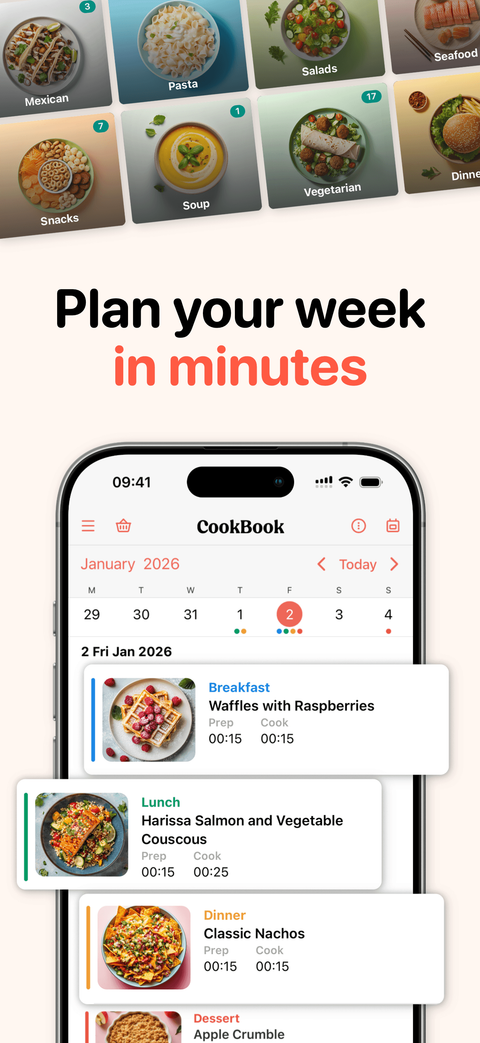
Meal planning
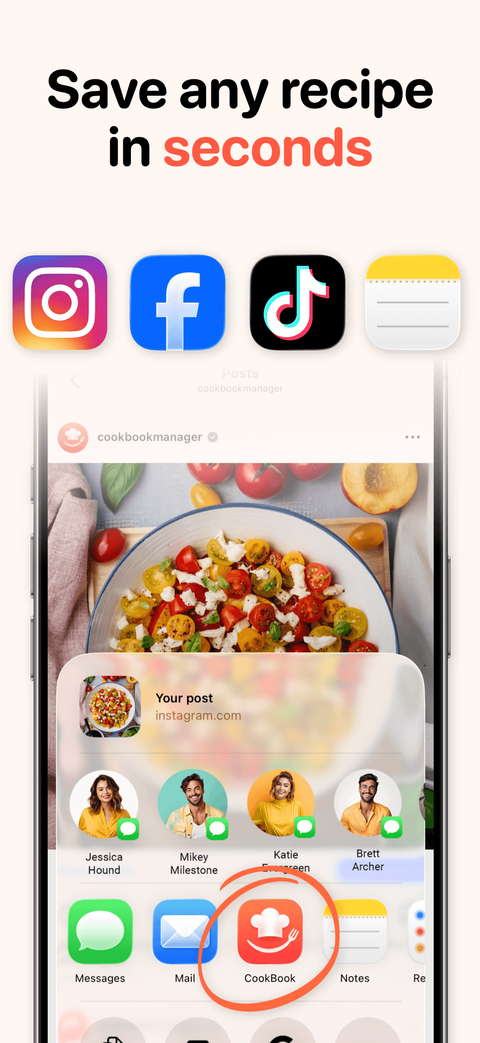
Recipe import
App professionals
Screenshots exported
Developer days saved














Two ways to create app screenshots with AI
Create your first set with guided AI in the browser today. Soon, your AI agent and release pipeline can work on the same editable project.
AI inside AppScreens
Available nowGo from app context to an editable screenshot set
Tell AppScreens about your app, choose the useful AI caption suggestions and pick a template. Add your real app captures, then make the words, colors, devices and layout yours in the visual editor.
One responsive design carries the story across your selected store sizes. Preview the result, translate the captions and export or upload the finished set.
AI through MCP and the API
Coming soonLet your AI agent create the screenshot set
 Claude Code
 Codex
 Cursor
Ask Claude Code, Codex or Cursor to create a launch set, refresh it with new captures or prepare new markets. AppScreens MCP and the REST API will run the same project and rendering operations, and you can reopen the project in AppScreens at any time. Store uploads stay a separately approved step.
Write AI screenshot captions that sell the benefit
Tell AppScreens who your app helps and what they can do with it. Use that context to turn features into a screenshot story.
- App context
- A recipe manager for home cooks who want to save recipes and organise meals.
- Screenshot story
- Find a recipe, plan the week and save a new idea from another app.
- Your editing decision
- Choose a short headline that fits the actual capture. Adjust the language, tone and visual style before exporting.
AppScreens turns CookBook’s feature labels into benefit-led captions: Recipe search becomes Find your next favourite recipe, Meal planning becomes Plan your week in minutes, and Recipe import becomes Save recipes from other apps.
Start with an App Store Screenshot Template
Start with 150+ template sets and 500+ editable screenshot layouts, then export across App Store and Google Play target sizes without rebuilding each canvas. Pick a template, customize fast, then export or upload with confidence.


From app context to an editable first set
How to create App Store screenshots with AI
Choose the useful suggestions, make the design yours and review the finished set.
Find your app or add its context. Explain the audience, useful features and result you want the screenshots to communicate.
Read the AI screenshot guide
Use the initial ASO Captions suggestions to build the story. Keep the useful wording and refine the message for your app.
Pick a design that fits the app. Review the captions in the template preview, then save the project and open the editor.
Browse templatesUpload or replace the app screens in the editor. Edit a caption, change the colours and framing, and check the supported device previews.
Use Preview & Export for the selected sizes. Download the finished images or upload directly to the connected app stores.
See direct store uploads
From a first draft to your finished design
Watch the AppScreens editor in use. Your real app captures, captions and design layers remain separate, so you can change one without rebuilding the whole set.
Explore editable templates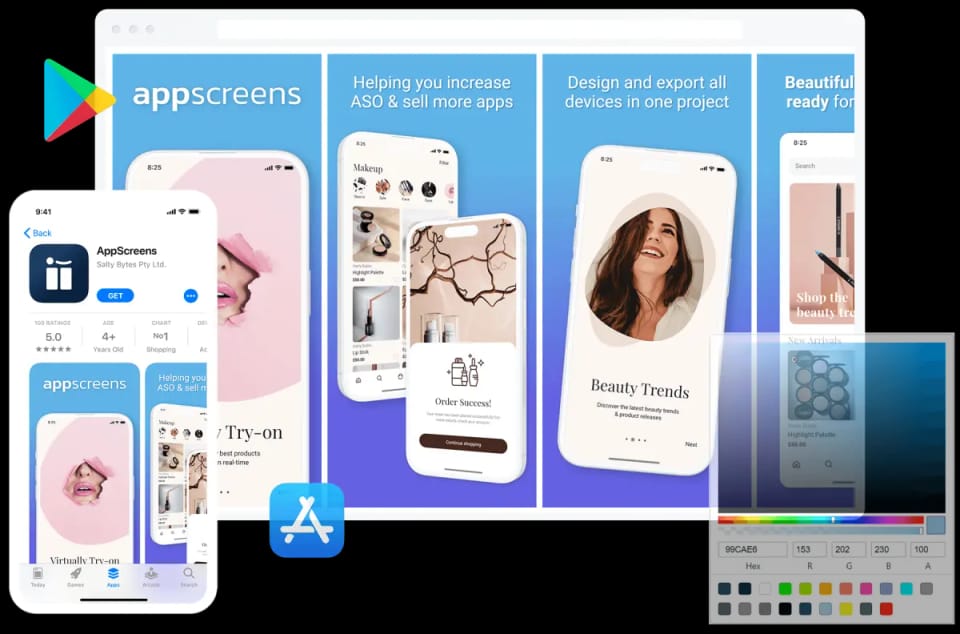

You control the final design
Edit captions, move design elements with drag-and-drop, and replace your app captures without asking AI to redraw the image. Your project keeps its editable layers; PNG and JPEG files are the finished exports.
- Refine a headline
- Edit any caption manually, or use AI Titles & Subtitles for fresh short or long-form suggestions in styles such as Outcome, Direct and ASO Expert.
- Change one composition
- Open Layouts & Elements, then Pick a Preset. Adjust the app capture, framing, fonts and colours in the editor.
- Restyle the whole set
- Use Restyle with another template or Quick Create. Duplicate the project first to keep the original, then review captures and translated captions in the new layout.
Finish iPhone, iPad and Android outputs together
Keep the visual story in one project. Choose the supported device outputs, use the right app captures and review how the composition fits each size.
Use the real interface for each device
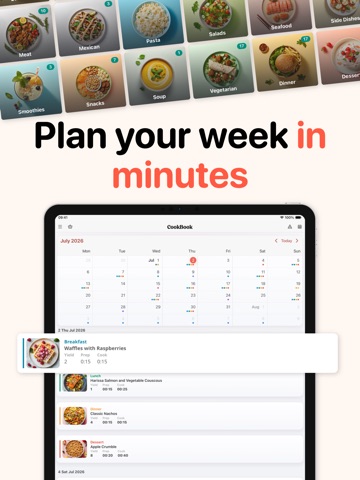
A tablet may have a wider calendar or different navigation. Add its own capture rather than making the phone interface fill the extra space.
Preview the selected store sizes
Check the caption, app screen and framing at each output. Responsive design carries the presentation across devices; your preview is where you make the final decisions.
Finish with Preview & Export
Generate the selected device sizes, then download the images or send the set straight to App Store Connect or Google Play.

iPhone with Dynamic Island (large)
1320 × 2868
iPad 13-inch
2064 × 2752
Android phone
2160 × 3840


Localize the message and keep the design together
Approve the base-language captions, then adapt the message for the markets you serve. AppScreens keeps translations and locale-specific images in the screenshot project.
Translate the meaning, then check the fit
Use AI translation with app and brand context. Review longer captions in the design and edit the wording when it needs a shorter line.
Show the app people will see
Use the appropriate localized app captures. Check fonts, alignment and right-to-left captions before delivering Arabic, Hebrew or other supported locales.
Reach your next market from the same project
Create versions in 88 supported languages, keeping the captions, app captures and design together.
- English
- Plan your week in minutes
- Deutsch
- Plane deine ganze Woche in wenigen Minuten
- العربية
- خطط لأسبوعك في دقائق
Example: exporting iPhone-medium_en-US_01.png (1206 × 2622); iPhone-medium_de-DE_01.png (1206 × 2622); iPad-13_en-US_01.png (2064 × 2752); Android-phone_en-US_01.png (2160 × 3840), packaged as CookBook-screenshots.zip.
- 8
- Screens
- 6
- Output sizes
- 10
- Languages
files from one screenshot project.
Example: eight screens for iPhone, iPad and iPhone Duo on the App Store, plus phone, 7-inch and 10-inch tablet on Google Play, in ten languages. Send the selected sets together instead of filling 60 screenshot galleries by hand.
Take the finished set all the way to the store
Finish with the assets your launch needs. AppScreens turns the reviewed design into the selected device sizes and languages, then downloads the files or uploads the supported set to your connected store account.
Download your selected outputs
Choose the devices and locales in Preview & Export, check the composition and download the finished images. Keep the saved project for the next revision.
Upload the supported screenshot set
Connect the app and select the App Store Connect or Google Play destination. Review the app, destination and locale sets before uploading.
Keep the listing message aligned
Screenshot captions are one part of the listing. Prepare descriptions, keywords and other metadata as their own task, then make sure the screenshots tell the same useful story.
Prepare ASO copy and metadataWant your agent or release pipeline to handle the work? Explore AI screenshot creation through MCP or automate screenshot exports with the API.

Update the set when your app changes
Keep the next release in the same project. Add the new capture, revise the message and review the affected outputs instead of rebuilding the screenshot set.
Example: meal-planner-v2.png added to the Saved CookBook project and placed into its screenshots.


1. Replace the affected capture.
Upload the current app screen to the saved project and choose the relevant device or locale.
2. Update the headline.
Edit it directly, or use AI caption assistance to find a new angle for the feature.
3. Review and deliver.
Check the selected sizes and languages, then export or upload the revised screenshot set.
Need a different story for a campaign? Duplicate the project and build a screenshot variant while keeping the original set.
AI image tools vs an editable project
AppScreens vs design tools and AI image generators
Compare how each approach handles your real app captures, captions, device sizes and future edits.
Scroll across to compare all three.
| Capability | General design tools | AI image generators | AppScreens |
|---|---|---|---|
| What the AI does | Nothing; you write and lay out every screen | Draws the whole image, interface included | Guided AI captions in the editor, plus upcoming MCP/API control of editable screenshot projects |
| Starting point | A blank canvas or a general template | A prompt, then a flat generated image | 150+ template sets built for App Store and Google Play |
| Your real app interface | Placed and masked by hand | Can be redrawn or invented | Your captures, kept exactly as they are, in device frames |
| Every required size | Rebuild or resize each canvas | One image at a time | One responsive project exports iPhone, iPad and Android sizes |
| Editing after the first draft | Editable, with size-specific layouts to maintain | Regenerate and hope it matches | Every caption, image and frame stays editable |
| Localization | Duplicate and translate each file | Prompt again for each language | Translate captions into 80+ languages, including right-to-left |
| Store listing preview | Not included | Not included | App Store and Google Play listing previews before you export |
| Publishing | Download, then upload by hand | Download, then upload by hand | Upload to App Store Connect and Google Play Console |
| Test variants | Duplicate files and track them yourself | Not included | Create Custom Product Pages and PPO tests for Apple, then upload their screenshots |

We've Boosted Downloads for over 200,000 App Developers
Real feedback from app builders shipping faster and looking sharper on the App Store and Google Play.

“It is really easy to make a good set of screenshots. Amazing tool! Loved it”
“Thanks so much for the great tool. I managed to create screenshots for my App and I don't have any technical experience.”

“Thank you @AppScreens for making this tedious job, a bit more enjoyable.”
“AppScreens instantly solve all my rejections problems from Apple and Android. The solution made app screen creation faster and better.”
“It is really easy to make a good set of screenshots. Amazing tool! Loved it”
“Thanks so much for the great tool. I managed to create screenshots for my App and I don't have any technical experience.”
“Thank you @AppScreens for making this tedious job, a bit more enjoyable.”
“AppScreens instantly solve all my rejections problems from Apple and Android. The solution made app screen creation faster and better.”
“Perfect for generating promotion images for App Store! Perfect to auto translate and manage multiple translations and variations”
“I don't think I could release my app without this tool. It single handedly creates all the output sizes I need to release my app to the Apple App Store and Google Play Store, from one design.”

“Totally love it! Even with the free version, I can get my app screens done quickly and beautifully.”

“The thing I love about this tool is that you can export the screenshots to fit all device sizes in one single click.”
“Perfect for generating promotion images for App Store! Perfect to auto translate and manage multiple translations and variations”
“I don't think I could release my app without this tool. It single handedly creates all the output sizes I need to release my app to the Apple App Store and Google Play Store, from one design.”
“Totally love it! Even with the free version, I can get my app screens done quickly and beautifully.”
“The thing I love about this tool is that you can export the screenshots to fit all device sizes in one single click.”
“You can focus on creating pretty screenshots & polishing marketing phrases. Truly an awesome product!”
“Well worth the money, saves hours and hours of kicking around. Highly recommend!”
“Great for indie devs or small teams! It's super easy to use and saves you a lot of time, all without compromising design flexibility.”
“You can focus on creating pretty screenshots & polishing marketing phrases. Truly an awesome product!”
“Well worth the money, saves hours and hours of kicking around. Highly recommend!”
“Great for indie devs or small teams! It's super easy to use and saves you a lot of time, all without compromising design flexibility.”
One workspace
Everything you need to ship your store listing
AppScreens is a browser-based App Store and Google Play screenshot designer: one editable project exports every required iPhone, iPad and Android size in 80+ languages and uploads to App Store Connect and Google Play Console.
Create
Optimize
- Screenshot LocalizationTranslate captions and adapt each locale.
- PPO and Custom Product PagesPrepare variants for tests and audiences.
- Screenshot FeedbackGet a free ASO review of your app listing.
- App Store Screenshot SizesFind the right iPhone and iPad dimensions.
- Google Play Screenshot SizesCheck Android dimensions and requirements.
AI app screenshot questions
Can’t find the answer you’re looking for? Reach out to our customer support team.
Build the screenshot set your launch needs
Bring your app, get help with the message and make the design yours. Keep the same project ready for the next device, language and release.
© 2026 AppScreens, a registered business name of Salty Bytes Pty Ltd. All rights reserved | v1.1.260