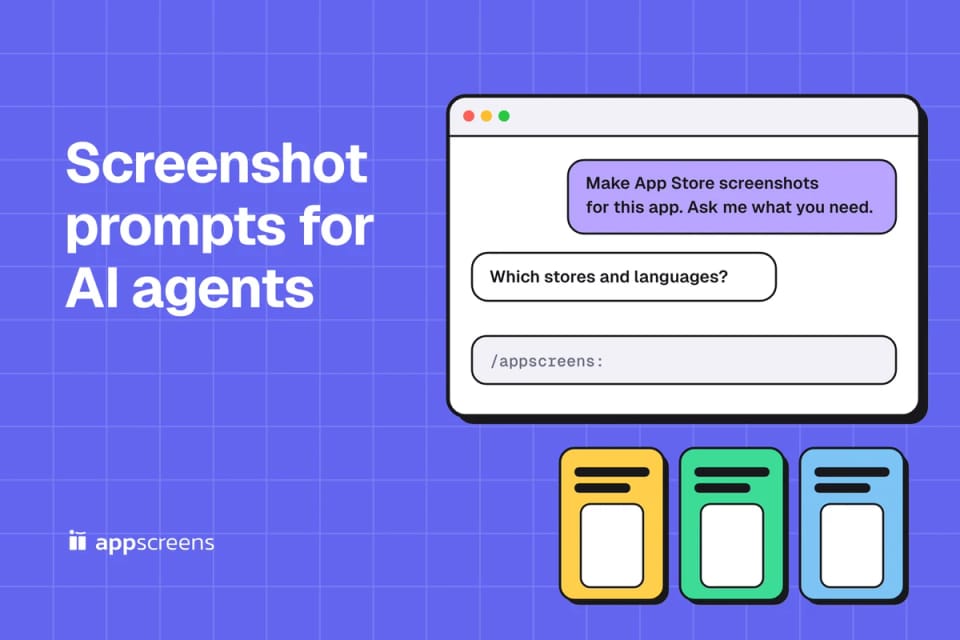
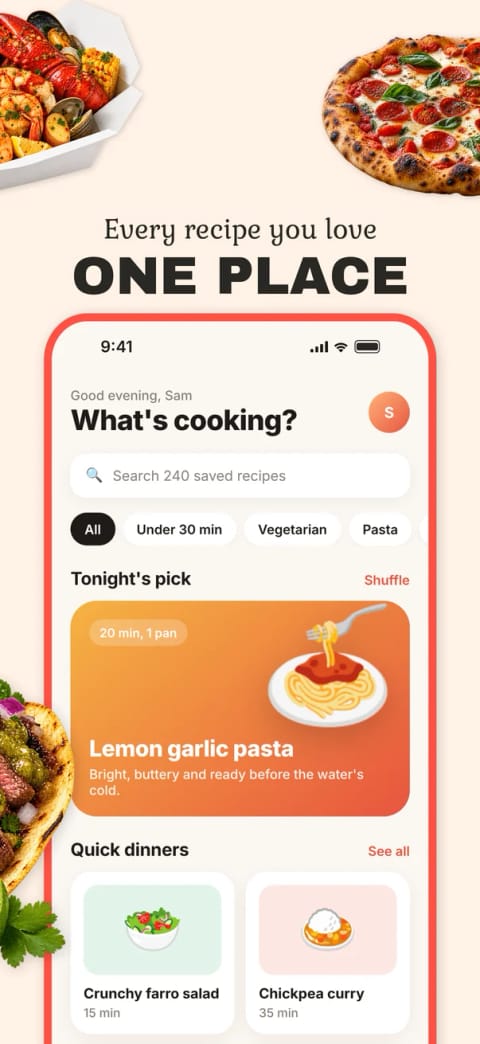
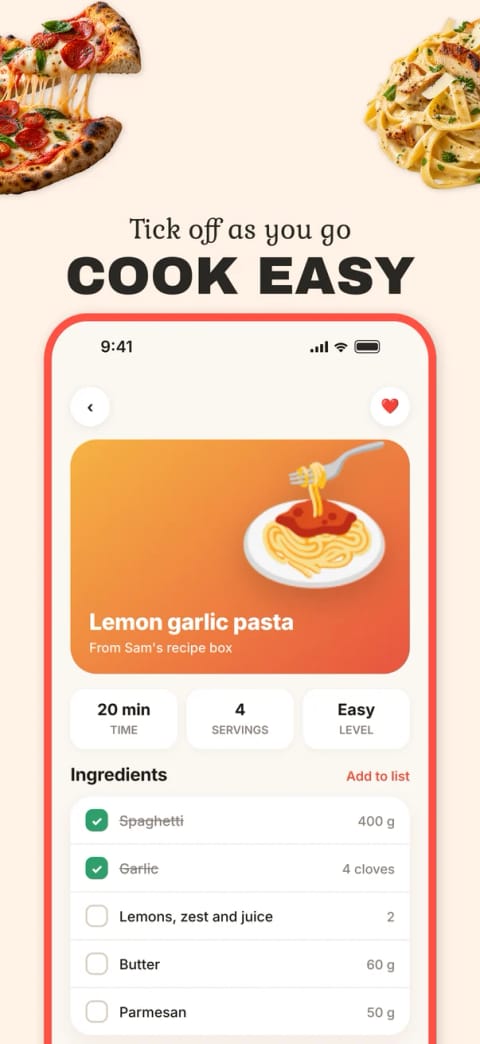
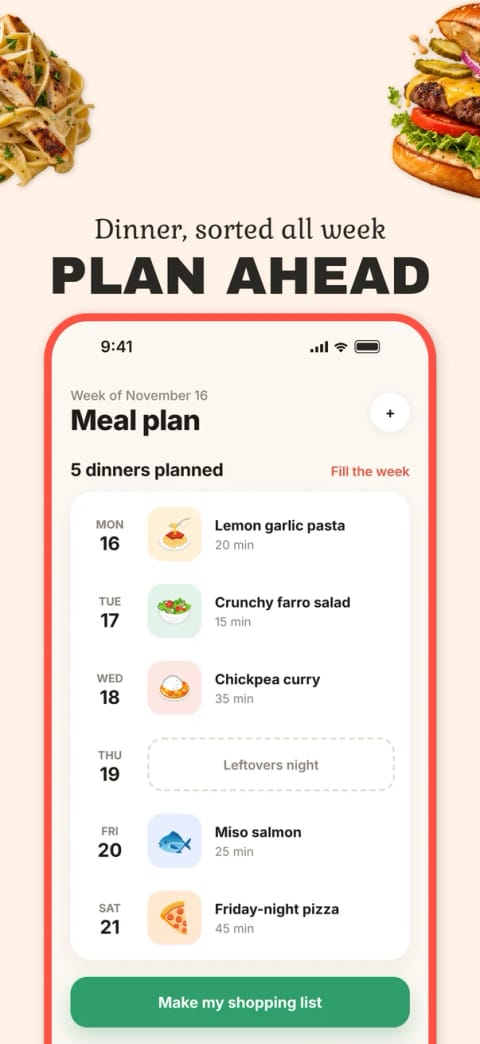
The best App Store screenshot prompt is short: "Help me make App Store and Google Play screenshots for this app with AppScreens. Ask me what you need." Paste it into Claude Code, Codex, Cursor or ChatGPT with the AppScreens MCP server connected. The agent reads your project, builds an editable set from real captures, previews every page and uploads only after you approve.
Below are the prompts we use, one per job, from the first plan to post-release updates, with results from our test sessions. We make AppScreens, and every prompt except the capture prompt, which uses your agent's own terminal, runs through its MCP server. There's also a plan prompt for ChatGPT or any chat that works without a connection.

Quick Take
- Connected to AppScreens, your agent turns real captures into one editable screenshot project for App Store and Google Play, with previews in the chat.
- Start in your project folder, so the agent can read the app name, iPad support and real screens.
- One job per prompt: plan, capture, create, edit, localize, export, upload or update. Say what not to change: "keep the layout" and "don't upload yet" save a lot of undoing.
- Before any store upload, the agent shows an upload preview and waits for your yes.
- Real captures can go to review as they are, if they meet the store requirements and show the app accurately; the store decides approval. Run the variant prompt too, because captions and design are what you can test.
Free to start: a free account lets the agent build and preview one project of up to five screenshots (previews up to 800 px). You export from the editor in your browser and upload by hand, which covers many first releases. Paid plans let the agent finish the job itself: exports, translation into 80+ languages, test variants and direct upload to App Store Connect and the Google Play main listing.
Before you prompt
Open the agent in the folder that holds your app. From there it can read app.json, the Xcode project or pubspec.yaml to learn the app's name and whether it runs on iPad, and it can build the app and capture real screens. Then connect AppScreens:
claude mcp add --transport http --scope user appscreens https://api.appscreens.com/mcp
codex mcp add appscreens --url https://api.appscreens.com/mcp
Sign in when asked. A free account runs the plan, create and edit prompts on one project of up to five screenshots; the steps below that need a paid plan say so. In other clients, the server URL is https://api.appscreens.com/mcp:
- Cursor: choose Add to Cursor on the connect page, approve the install, then open Customize > MCPs and choose Connect if sign-in doesn't start.
- Claude Desktop or claude.ai: open Customize > Connectors, choose Add custom connector, paste the URL and sign in. Enable AppScreens in a new chat under + > Connectors.
- ChatGPT: open Plugins and choose Add custom MCP server, if your workspace allows custom MCP plugins. Paste the URL, select OAuth, then type @ in a new chat and pick AppScreens.
Chat apps can't read your project folder, so attach the captures there. Full sessions are in the Claude Code, Codex and Cursor walkthroughs.
App Store screenshot prompts by job
Create
Adjust
Create
1. Plan the screenshot set
Plan App Store and Google Play screenshots for this app. Don't create anything yet.The agent asks: one short message covering only what it couldn't find in the project, usually the stores and languages. It reads iPad support from the Xcode project or ios.supportsTablet. It does: lists the output sizes, the captures it needs and a page-by-page plan with a headline idea for each page. You get: a plan to approve. Nothing is created until you say so.
No connection yet? The plan is the part a plain chat does well. Paste this into ChatGPT, Claude or any chat and fill in the brackets:
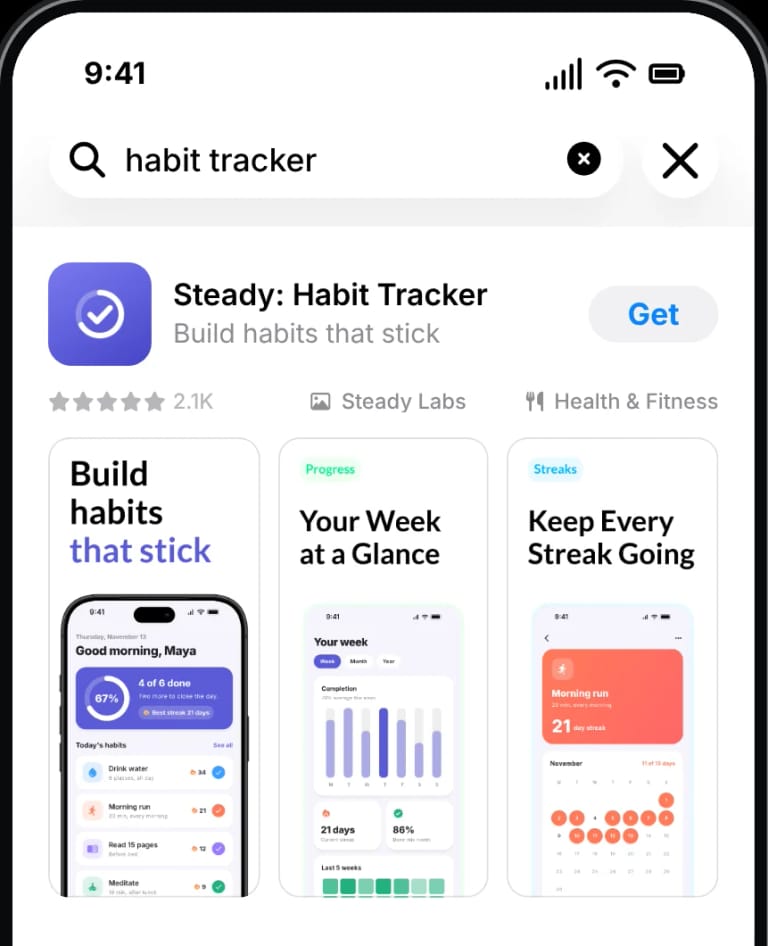
Plan App Store screenshots for [app name], [what it does] for [who it's for]. Propose [6] screenshots in order. The first one to three can show in App Store search results, so they carry the main value. For each, give the real screen to capture, a headline of five words or fewer, an optional subline and the benefit it proves. Use only features the app has today: [list]. Don't make images.Apple's product page guidance says the "first one to three images will appear in search results" when there's no app preview, which is why both prompts lead with the main value:
2. Capture real screens
Build this app in Release on the iPhone 18 Pro simulator, set a 9:41 status bar and capture the home, search and detail screens.Tell it: which screens matter and how to load sample data, if the app has a flag for it. It does: runs the build and xcrun simctl commands in your terminal, so this needs an agent with shell access, such as Claude Code or Codex. This step is your agent's own work, not AppScreens'. You get: PNG files at the simulator's native size, which on an iPhone 18 Pro or 17 Pro fits the required iPhone slot (1206 × 2622 or 1179 × 2556). The Expo and React Native, Capacitor and Flutter guides and the simulator recipes show the commands it should run.
3. Create the set
Help me make App Store and Google Play screenshots for this app with AppScreens. Ask me what you need.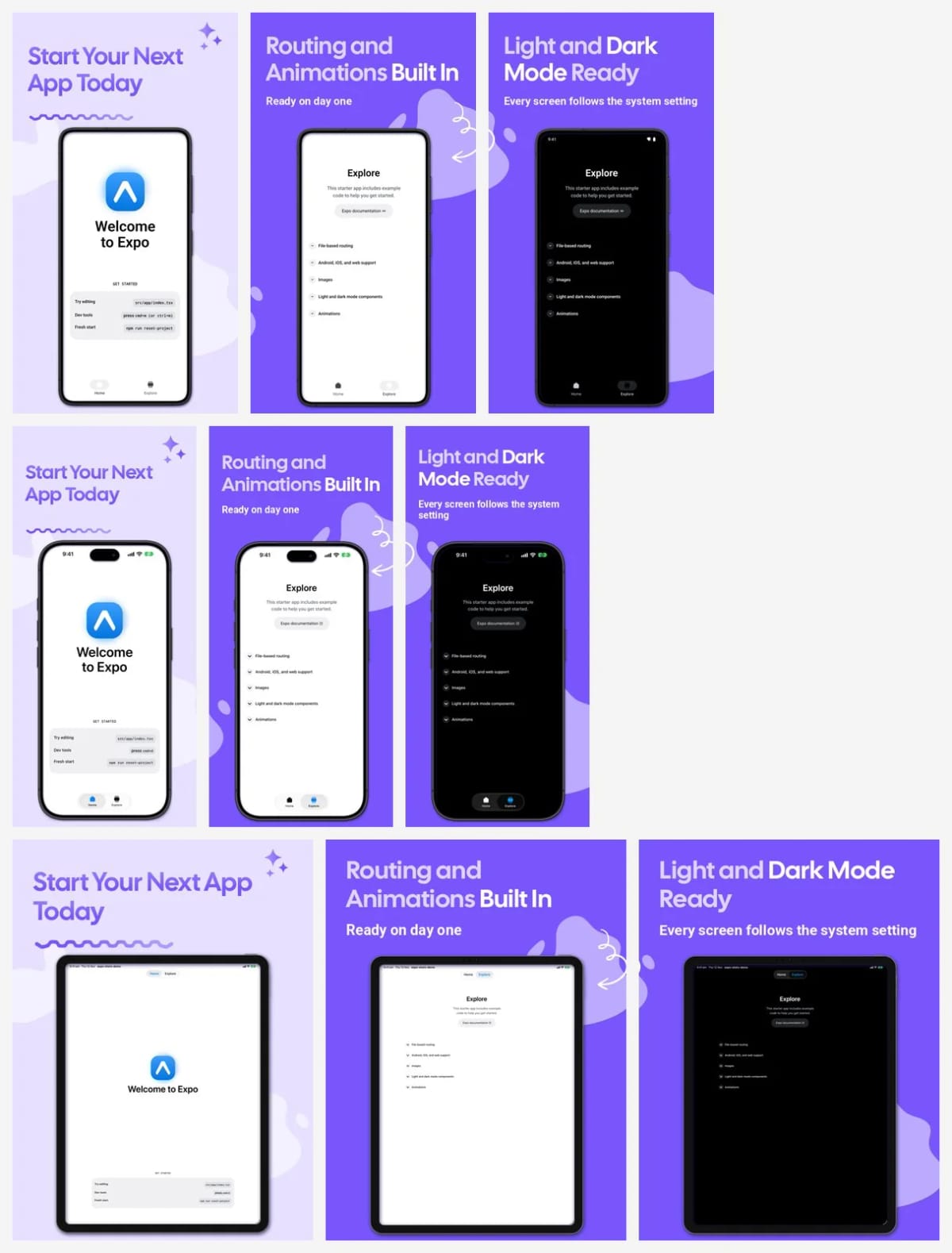
The agent asks: the same scope questions as the plan, then shortlists two or three templates that fit the app. It does: creates an editable project, uploads your captures, writes captions and renders a preview. You get: preview images in the chat and a project you can open in the browser.
What the agent asked in that session, and the Android 2:1 note
You:   Help me make App Store and Google Play screenshots for this app with
       AppScreens. Ask me what you need.

Agent: app.json sets ios.supportsTablet to true, so the App Store will want
       iPad screenshots as well as iPhone. Three questions first:
       1. Will this Google Play release cover Android tablets?
       2. What should the main screenshot language be?
       3. Which other languages, if any, should this set cover?

You:   Phones only on Android. English (US). No other languages yet.

Agent: The set needs three sizes:
         iPhone with Dynamic Island (medium)   1206 × 2622
         iPad 13-inch display                  2064 × 2752
         Android phone, 16:9                   2160 × 3840
       Google Play also needs a 1024 × 500 feature graphic for a new listing.
       For a starter app, Lyra (dark, with a glow behind the phone), Sora
       (light lavender) and Tech (dark green) fit best. Lyra's sample cover
       has an "as seen in" row and a "Works with Apple Health" badge. I'll
       remove both, since your app has neither.

You:   Lyra, three pages.

Agent: Created the project and uploaded your nine captures. The matcher
       placed the iPhone and iPad captures. It left the three Android ones
       out because they're 1080 × 2400 (20:9) and the Android size is 16:9,
       so I placed those by hand. Here are 3 pages at all 3 sizes.

You:   Not keen on that look. Try Kova.

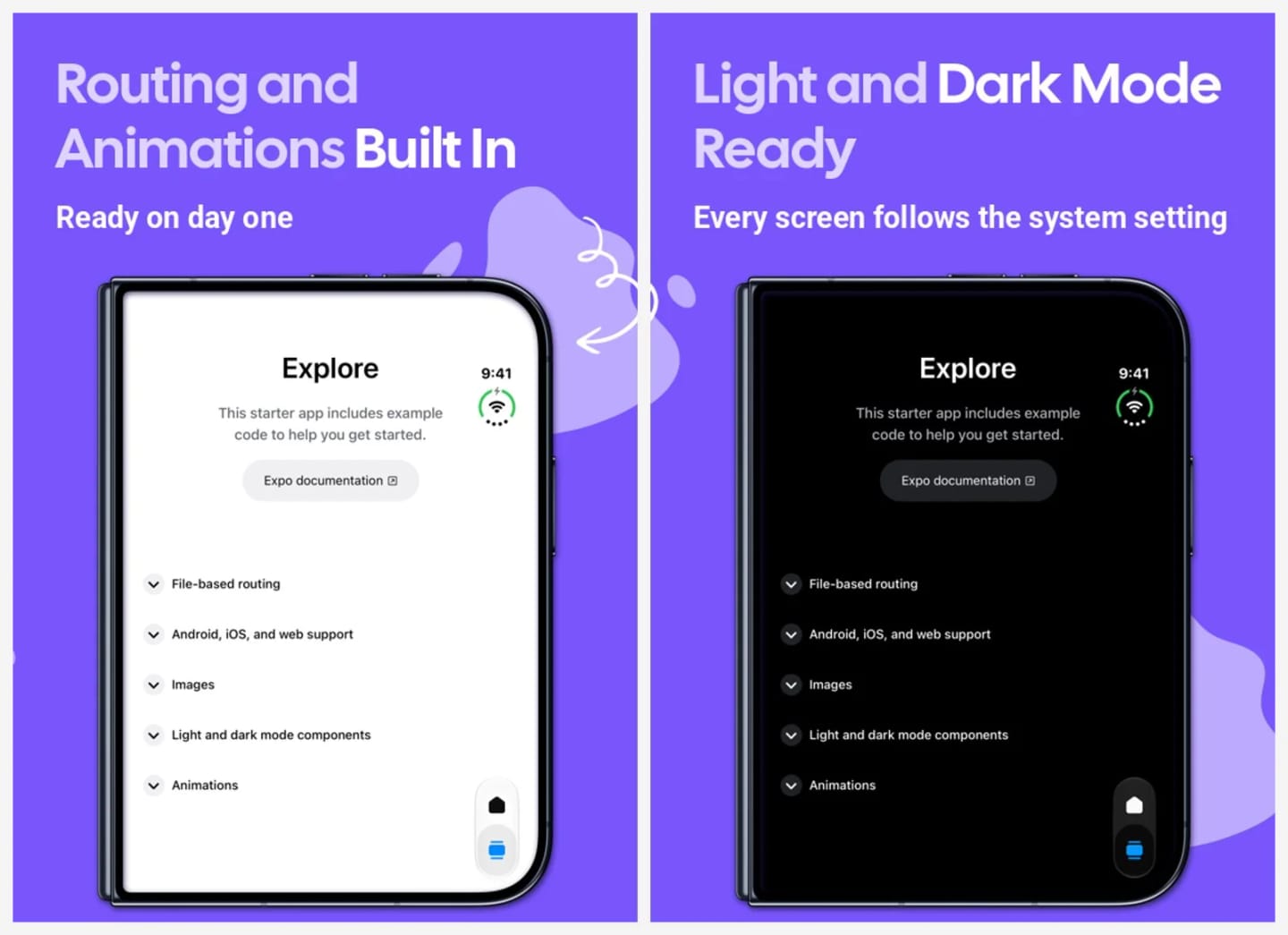
Agent: New project from Kova with the same captures, so nothing to upload
       again. Kova's sample copy is for a language app, so I replaced every
       caption. In the first render the arrow doodle on page 2 ran into the
       subtitle at the Android and iPad sizes, so I shortened the subtitle
       to "Ready on day one" and rendered again.

You:   It's built with Xcode 27.2. Doesn't that need iPhone Duo too?

Agent: Yes. The size plan lists iPhone Duo for apps built with the iOS 27.1
       SDK or later, required from April 2027. App Store Connect has one
       Duo slot, so I've added both the outer (1398 × 2034) and inner
       (2007 × 2853) sizes for you to choose from. Your outer-screen
       captures fill pages 2 and 3. The cover and the inner size still
       need captures.

Tools called: plan_screenshot_requirements, list_templates, get_template,
create_project, set_project_settings, create_asset_upload and
complete_asset_upload (once per capture), apply_project_changes,
plan_device_screenshot_import, assign_device_screenshots,
render_project_preview, get_preview_image
The Android point comes up with most apps. Most Android phone captures are taller than Google Play's 2:1 limit (a Pixel 8 emulator captures 1080 × 2400), so raw emulator captures can't be uploaded as they are. Inside a device frame, as here, they're fine, and the Expo guide shows two ways to get a plain 9:16 capture. The Google Play screenshot sizes page lists the other limits.
4. Start from a template or a reference
Start my screenshots from the Munch template. Keep its layout and page count.

Use the screenshots at [App Store or Google Play link] as a style reference and rebuild that look with my captures and my own captions.
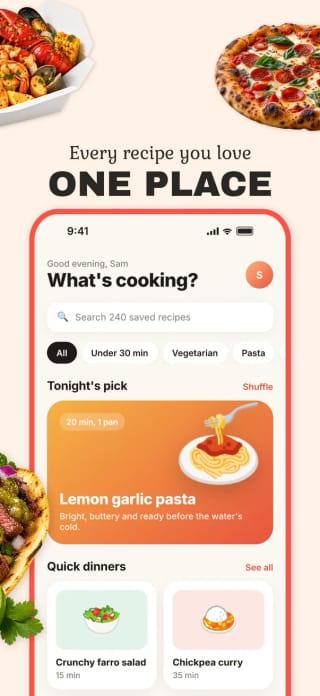
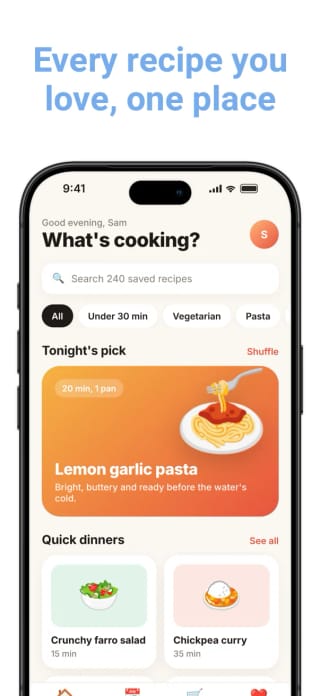
The agent asks: for your captures and copy if it can't find them. It does: with a template, keeps the layout and page count and previews every page. With a reference, it rebuilds the look as editable layers and checks an early render of the cover against it, plus a typical page if its layout differs, before finishing the rest. You get: your app in a design you picked, with every caption still editable. The templates and inspiration pages each have a Create with Agent button that copies a prompt with the right ID, and the prompt builder writes one from a store link, an Inspiration search, a template or a suggestion.
Munch
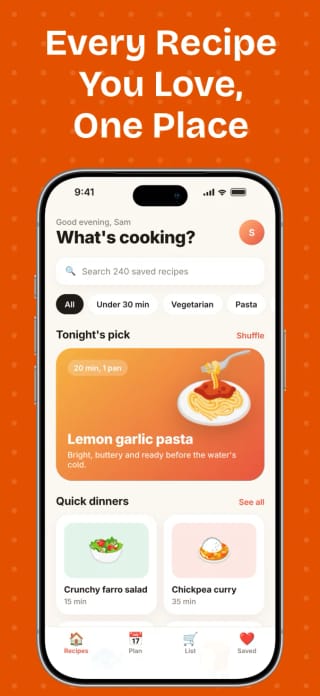
Offora
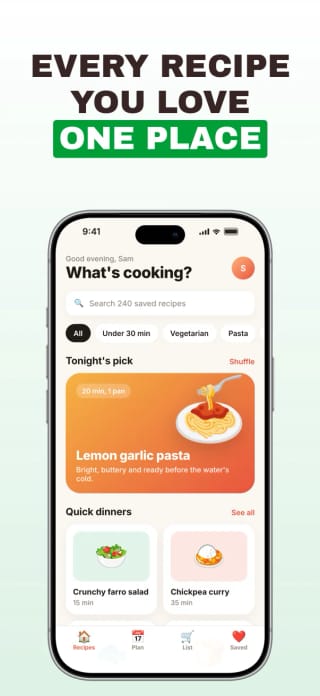
Tali
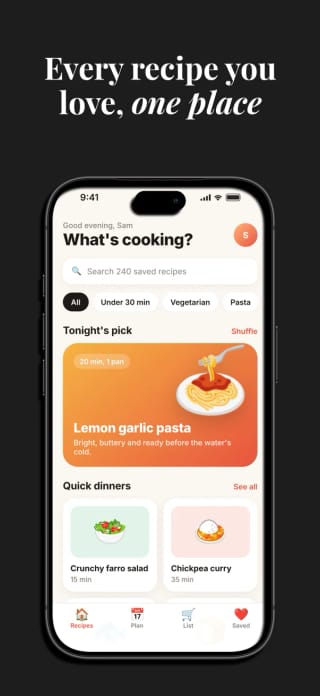
Vanta
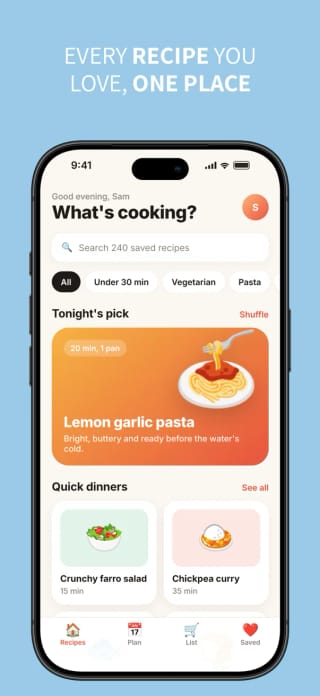
Free Solis
Free White
Adjust
5. Edit captions and design
Make every caption shorter and lead with the benefit. List the new captions before you apply them.

Change the background to our brand blue and keep everything else the same.
It does: shows the new captions as a numbered list, applies them when you agree, then renders the affected pages. Every change is a new project revision, so "go back to the previous version" works too. Worth adding: the words you don't want ("no 'seamless'", "no exclamation marks") and the claim you can prove, such as a rating or a user count.
6. Localize the set
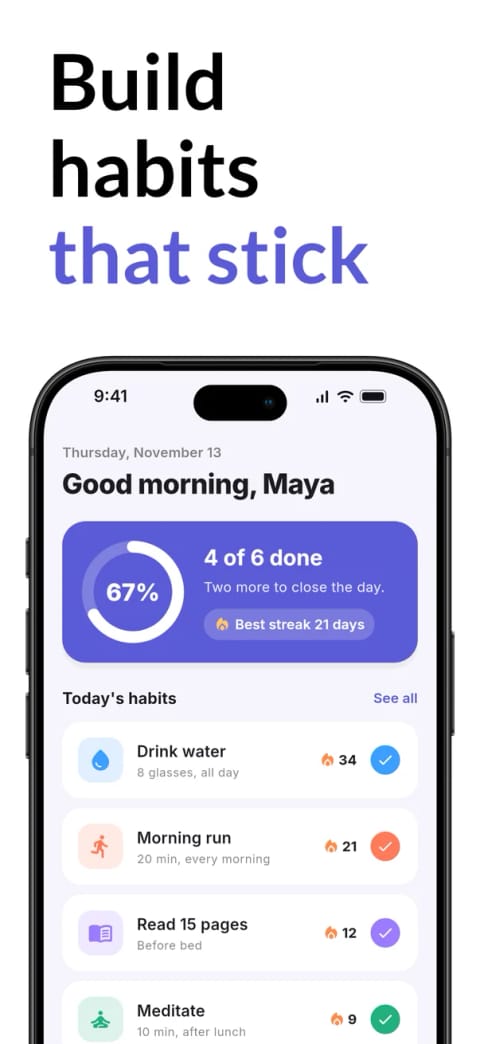
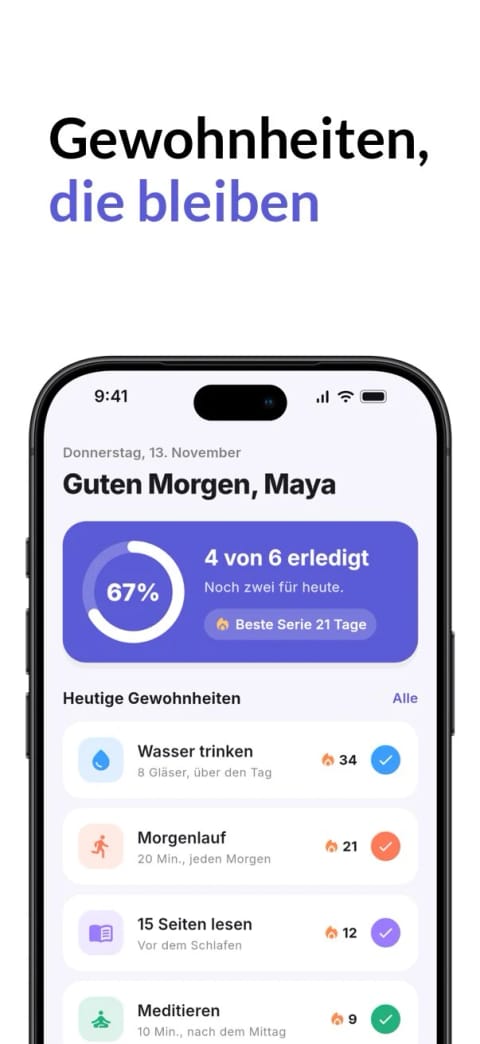
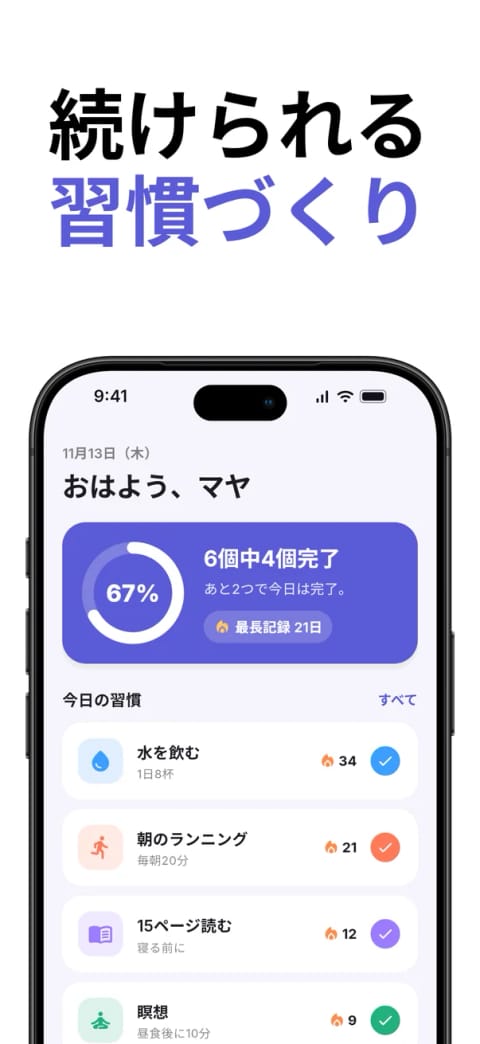
Translate the screenshots into German, Japanese and Arabic, and check that every caption fits on every size.The agent asks: whether you'll supply translations or want it to draft them, and whether you have screenshots of the app in each language. It does: keeps brand and product names, flags lines a native speaker should check, checks text fit and right-to-left layout, and renders each language. You get: one project with every language in it, from 80+ supported, using your localized captures where you have them, instead of a separate set of files per language. Translation needs a paid plan, and AppScreens screenshot localization shows what it covers. The localization guide covers what to check by hand, and the localized capture guide shows how to get screenshots of the app in each language.
7. Add a new device or the feature graphic
Add the iPhone Duo sizes to this project and show me the new pages.

Make a Google Play feature graphic that matches this set.
It does: adds iPhone Duo as new outputs of the same project, so captions and translations carry over, and renders the new size. The feature graphic becomes its own editable artwork project at 1024 × 500, which needs a paid plan. You get: the new pages to review. iPhone Duo screenshots are required from April 2027 for apps built with the iOS 27.1 SDK or later.
In our test we asked for Duo by name, and the agent added both sizes and placed our outer-screen captures. Duo needs its own captures from the iPhone Duo simulator, which has two screens; the Expo guide shows the --display option that picks one.
8. Make an A/B test variant
Make a test variant that changes only the first caption. Show it next to the current set. Don't upload anything.It does: duplicates the project as a named variant, changes that one idea and renders the control and the variant side by side. The copy is a second project, so this needs a paid plan. With App Store Connect linked, it can create a product page test or custom product page for the variant, or use one you've made, and upload the approved variant to it. For Google Play, it exports the variant and you attach it to the experiment in Play Console. You do: submit the treatment for review and start the test in App Store Connect. The product page optimization guide covers what to test first, and the treatment walkthrough explains submitting and applying it.
Stopping after the capture prompt leaves you with plain captures. The variant prompt is how you find out whether your captions and design earn installs. Headspace ran 15 rounds of screenshot A/B tests, and M+C Saatchi Performance reported an average 34% increase in organic conversion rate across iOS and Google Play compared with the previous period, during a December 2023 to May 2024 campaign. That is a campaign result rather than a single test; the screenshot testing walkthrough covers it, and our public test results list single tests from other apps. With the project already open in the session, each new idea is one prompt and a side-by-side render.
Deliver
9. Export
Validate and export the iPhone and iPad sets in English and German.It does: checks every selected size and language for problems such as out-of-date translations, then exports the saved revision. You get: a download link to the exported files. Exporting from the agent needs a paid plan; on the free plan you export from the editor in your browser. The App Store screenshot sizes guide lists what each slot accepts.
10. Upload to App Store Connect with an AI agent
Upload the approved iPhone screenshots to my main App Store listing, replacing the current ones. Show me the upload preview first.

Upload the approved phone screenshots to my Google Play main listing. Show me the upload preview first.
The agent asks: which listing, if it can't tell: the main listing, a custom product page or a test treatment. It does: exports the approved revision if needed, then shows the store, listing, languages, sizes, image count and whether it replaces or adds. It waits for your yes, and most clients also ask before running the upload tool. You need: a paid plan and your store key added in the AppScreens browser flow. Keys never go through the chat. You get: the upload status for each store, with no exported files to rename, sort by size or drag into App Store Connect and Play Console. Google Play experiment variants are the exception: the agent exports them and you attach them in Play Console. See how direct upload to App Store Connect and Google Play works.
1. Approved revision
The pages you checked in a render
2. Export
Every size and language in the plan
3. Upload preview
Store, listing, languages, sizes, image count, replace or add
4. You approve
Nothing uploads before your yes
5. Upload
Status for each store
An upload is not a release. On the App Store, new screenshots appear only after App Review approves the version, test or custom product page they belong to. On Google Play, listing changes are reviewed before they publish.
11. Update after a release
We shipped the new search screen in this release. Update only the screenshots that show search.It does: finds the pages that use the old capture or mention the old feature, swaps the capture, adjusts those captions and lists what changed on each page. Untouched pages stay as they are. If the version is already live, our guide to updating screenshots without a new build covers changing them through a product page test.
12. Audit the captions
Check every screenshot caption against what the app actually does. Report problems, don't change anything.You get: a list of claims the app doesn't support, repeated ideas and unclear wording. Apple's guideline 2.3 asks for metadata that accurately reflects the app, so this is worth doing before review.
What sizes do App Store and Google Play screenshots need?
The create prompt picks these for you from the plan, but it helps to know what you're approving:
| Output | Portrait size | When |
|---|---|---|
| iPhone with Dynamic Island (medium) | 1206 × 2622 or 1179 × 2556 | Required, 1 to 10 screenshots |
| iPad 13-inch | 2064 × 2752 or 2048 × 2732 | If the app runs on iPad |
| iPhone Duo | 1398 × 2034 outer, 2007 × 2853 inner | From April 2027, for apps built with the iOS 27.1 SDK or later |
| Google Play phone | 320 to 3840 px per side, no more than 2:1 | At least 2; four 9:16 at 1080 × 1920 or larger for recommendation formats |
| Google Play feature graphic | 1024 × 500 | Required for the listing |
Sources: Apple's screenshot specifications and Google's preview assets help. Every size is on our App Store and Google Play size pages.
AppScreens MCP prompts in Claude Code
The AppScreens MCP server also ships ready-made prompts. Clients that support MCP prompts list them in their prompt menu. In Claude Code, type /appscreens: and they appear in the command menu, such as /appscreens:create_app_store_screenshots. Some take optional arguments, separated by spaces, such as a template ID and an app link: /appscreens:start_from_template <template ID> <app link>.
| Prompt | What it does |
|---|---|
plan_store_screenshots | Recommends stores, devices, languages, captures and a page plan. Creates nothing until you approve. |
create_app_store_screenshots | Starts from your app, confirms missing choices, proposes captions and previews the design. |
start_from_template | Suggests templates or uses the one you name, keeping its layout and page count. |
match_screenshot_reference | Rebuilds a reference as editable layers, checking the cover first, and a typical page when its layout differs. |
find_screenshot_inspiration | Compares how apps in your category open their screenshots and suggests original directions. |
edit_screenshot_project | Edits or copies a project and leaves everything outside the request alone. |
restyle_screenshot_project | Changes the design and checks the result with previews. |
localize_screenshot_project | Applies translations and localized captures, then inspects every language. |
audit_screenshot_copy | Reports unsupported, repetitive or unclear claims without writing anything. |
create_screenshot_ab_variant | Duplicates the set as a named test variant and changes one idea. |
update_screenshots_after_release | Updates only the pages a release affected and lists what changed. |
prepare_store_export | Validates the exact selection and exports the saved revision. |
deliver_store_screenshots | Confirms the store and listing, previews the upload, waits for approval and tracks the result. |
Can ChatGPT make App Store screenshots?
Connected to AppScreens, ChatGPT can run the copy-paste prompts above. It can't read your project folder or run the simulator, so attach the captures yourself. Without a connection, a popular workflow has two steps: ask a chat for a plan, as in the plan prompt above, then ask the image model for one screenshot at a time with your real screen attached. The first step works well. In the second, the model redraws your screen as one flat image, so small text and icons can drift from the real app, the caption is baked in, and the size usually needs a separate fix before App Store Connect accepts it. Apple's guideline 2.3.3 expects screenshots to show the app in use, so check each redrawn screen against the app. Image models are most useful for a background or an illustration behind real captures. The AI screenshot generators comparison goes into the difference. If you built the app in Replit, Lovable or Rork and have no project folder to open, the AI-built app publishing checklist covers how each builder reaches the stores and what Apple and Google check.
What makes a short prompt work
To give everything up front, build the prompt instead of writing it: pick your app and a design, add the sizes and languages, then copy the prompt into your agent.
Or write it yourself. Here is a fuller version of the create prompt with the details that matter. Fill in the brackets:
Make App Store and Google Play screenshots for [app] version [x] with AppScreens. Audience: [who]. Lead with [benefit 1], [benefit 2] and [benefit 3]. Use my real captures in [folder] and keep the app UI as it is; don't invent screens or features. Stores: [App Store, Google Play]. Devices: [iPhone, iPad, Android phone]. Languages: [list]. Style: [colors, mood or template name]. Proof we can claim: [rating or user count]. Avoid: [words]. Keep captions under [n] words. Show me a preview before you export. Don't upload.- Name the app and the release, or give the store link: "for version 2.1 of Recipe Box" beats "for my app".
- Name the limits: "don't change the layout", "only the iPhone set", "don't upload yet".
- Say what must stay real: "keep my captures unchanged" and "don't mention features the app doesn't have".
- Give it real captures or let it capture them. Mock-ups and old screenshots become captions that describe the wrong screen.
- Ask for a preview before export. A rendered page shows a caption wrapping to three lines in German; a description of it doesn't.
- Keep one project per app. Asking the agent to work on the existing project keeps translations, sizes and variants together for the next release.
Run the create prompt on your app
Connect AppScreens, open your agent in the app folder and paste prompt 3. Keep the project for the next release, language or test, so each change is one prompt instead of a rebuild. Start free with one project, or see pricing when you want the agent to export, translate and upload for you.
FAQ
What is a good prompt for App Store screenshots?
A short one that names the job and the app, with the agent running in your project folder or given the store link: "Help me make App Store and Google Play screenshots for this app with AppScreens. Ask me what you need." The agent reads the app's name, iPad support and screens from the project and asks about anything it cannot find, so you don't need to describe the app first.
Is there a ChatGPT prompt for App Store screenshots?
Yes. Ask ChatGPT for a plan, not pictures: the screenshot order, the real screen to capture for each and a headline of five words or fewer, with the main value in the first three. Then build the pages from real captures, which ChatGPT can do when it is connected to the AppScreens MCP server.
Can I use AI to create App Store screenshots?
Yes. AI can plan, caption, translate and lay out every size, but build from real captures: Apple guideline 2.3.3 says screenshots should show the app in use. An agent connected to AppScreens builds an editable set from your captures and previews it before anything is uploaded.
Can AI agents take screenshots?
Yes, if the agent can run commands. Claude Code and Codex can build your app and save screens with xcrun simctl io booted screenshot on the iOS Simulator or adb exec-out screencap -p on Android. Chat apps such as ChatGPT cannot, so you attach the captures.
Can I make App Store screenshots with an AI agent for free?
Yes, for a first set. On a free AppScreens account your agent can build and preview one project of up to five screenshots from your real captures. You export the files from the editor in your browser and upload them to App Store Connect or Google Play by hand. Agent exports, translation, test variants and direct uploads need a paid plan.
Can ChatGPT make App Store screenshots?
Connected to the AppScreens MCP server, yes, from real captures you attach, with the same short prompts. Its image model works differently: it redraws your screen as one flat image, so small text and icons can drift from the real app and the size usually needs fixing. Use it for backgrounds or illustrations behind real captures.
Will the AI change my app's screens?
Not in AppScreens. The agent places your real captures inside frames and writes captions around them; it does not redraw the interface. Ask it to keep the captures unchanged and not to mention features the app lacks, then run the audit prompt. A chat image model is different: it redraws the screen as one flat image, so check every detail.
Can I edit the same screenshot project later?
Yes. Each change is a new revision of one project, so weeks later you can ask for a new caption, a swapped capture or another language, or go back to a previous version. The same project opens in the AppScreens editor in your browser, so you can also make changes by hand.
Can the agent use localized app captures, not just translated captions?
Yes. Give it captures of the app in each language and it places them on that language's pages, then applies or drafts the captions and checks the fit. Without localized captures, the screens inside the frames stay in your source language. Translation needs a paid plan; the localized capture guide shows how to get the screenshots.
What size should App Store screenshots be?
The required iPhone size is iPhone with Dynamic Island (medium display), 1206 x 2622 or 1179 x 2556, plus iPad 13-inch at 2064 x 2752 if the app runs on iPad. From April 2027, apps built with the iOS 27.1 SDK or later also need iPhone Duo screenshots at 1398 x 2034 for the outer display and 2007 x 2853 for the inner one.
Do these prompts work for Google Play?
Yes; name Google Play in the prompt. Google needs at least two screenshots, 320 to 3840 pixels per side with the long side at most twice the short side, and a 1024 x 500 feature graphic. For recommendation formats it asks for at least four 9:16 screenshots of 1080 x 1920 or larger.
Why make a test variant of my App Store screenshots?
Because you can't tell from looking which set converts better, and small changes move the result. In a SplitMetrics case study, textPlus tested screenshot variations and Treatment B reached a 31.7% conversion rate, a 3.66% lift. With AppScreens connected on a paid plan, one prompt duplicates the project, changes one idea and renders both sets side by side.
Do AI agents use MCP?
Many do. The Model Context Protocol lets an AI client call tools on a server. AppScreens runs one at https://api.appscreens.com/mcp for Claude Code, Codex, Cursor, Claude, ChatGPT and other clients that support remote MCP servers.
How do I use MCP prompts in Claude Code?
MCP servers can ship ready-made prompts, and Claude Code lists them in the slash command menu as /server:prompt. With AppScreens connected, type /appscreens: to see prompts such as create_app_store_screenshots, localize_screenshot_project and deliver_store_screenshots. Arguments go after the command, separated by spaces.
Can an AI agent upload screenshots to App Store Connect?
Yes, but only after you approve the upload preview, and only with a tool that has store access. AppScreens uploads to App Store Connect, including product page test treatments and custom product pages, and to the Google Play main listing. It first shows an upload preview with the store, listing, languages, sizes, image count and whether it replaces or adds, and the agent waits for your approval. It needs a paid plan and a store key added in the AppScreens browser flow.
Can an AI agent translate App Store screenshots?
Yes. Ask it to translate the set and check that every caption fits on every size. AppScreens translates into 80+ languages with your app's context, checks text fit and right-to-left layouts, and renders each language for review. Translation needs a paid plan.
Sources
- AppScreens API and MCP reference (tools and prompts)
- Claude Code: MCP (MCP prompts as slash commands)
- Model Context Protocol: prompts
- Apple: App Review Guidelines (2.3 and 2.3.3)
- Apple: Screenshot specifications (including iPhone Duo) and Creating your product page
- Google Play: Add preview assets to showcase your app
- M+C Saatchi Performance: Headspace (34% average organic conversion increase, December 2023 to May 2024)
- SplitMetrics: textPlus case study (Treatment B at 31.7% conversion, a 3.66% lift)
Tested with Claude and the AppScreens MCP server, using captures of the Expo SDK 58 starter app from the Expo guide. The Simmer and Steady sets were made the same way from the demo apps in our Capacitor and Flutter guides.
Quote the prompts, tables and sections from this guide in your own posts, documentation or answers with a link to this page. Please do not republish the whole guide.
AppScreens.com, "App Store Screenshot Prompts for AI Agents: Create, Edit, Localize, Export and Upload", 11 November 2026. https://appscreens.com/blog/app-store-screenshot-prompts-ai-agents