

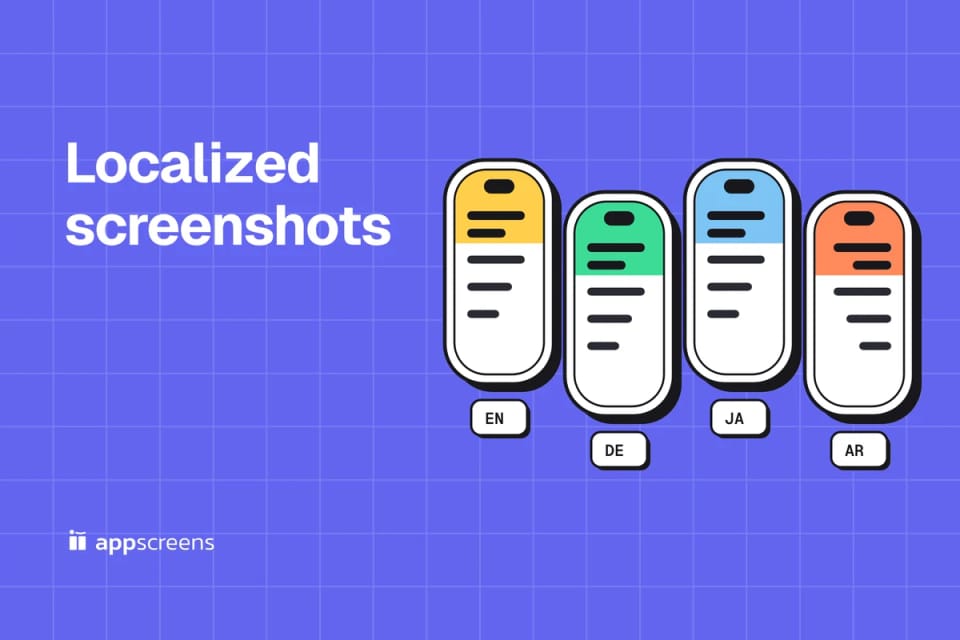
To change your app's language for screenshots, relaunch it on the iOS Simulator with -AppleLanguages "(de)" -AppleLocale de_DE. On Android 13 and later, use adb shell cmd locale set-app-locales. Capture each language, translate the captions, then upload one set per language: a language you add without its own screenshots starts with your primary language's set.
Capture the screens whose text, dates, prices or layout change, so each translated caption sits above a matching screen. A German caption above an English screen looks unfinished, and it happens when you translate the captions but reuse the English captures. Once you have the captures, let AppScreens turn them into localized App Store screenshots: with the AppScreens MCP server connected, the coding agent that ran the capture commands places each language's captures, translates the captions with your app's context and renders every language, so you see the fit and the right-to-left layout before you export or upload.
1. Original capture
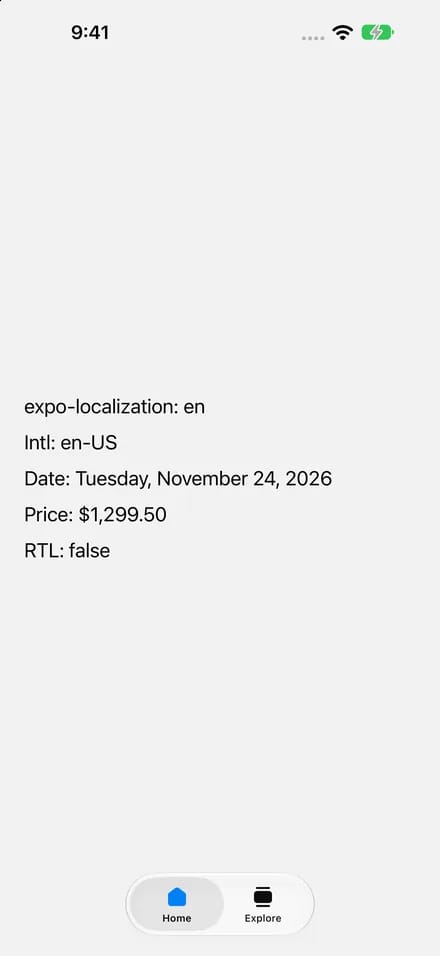
2. English design
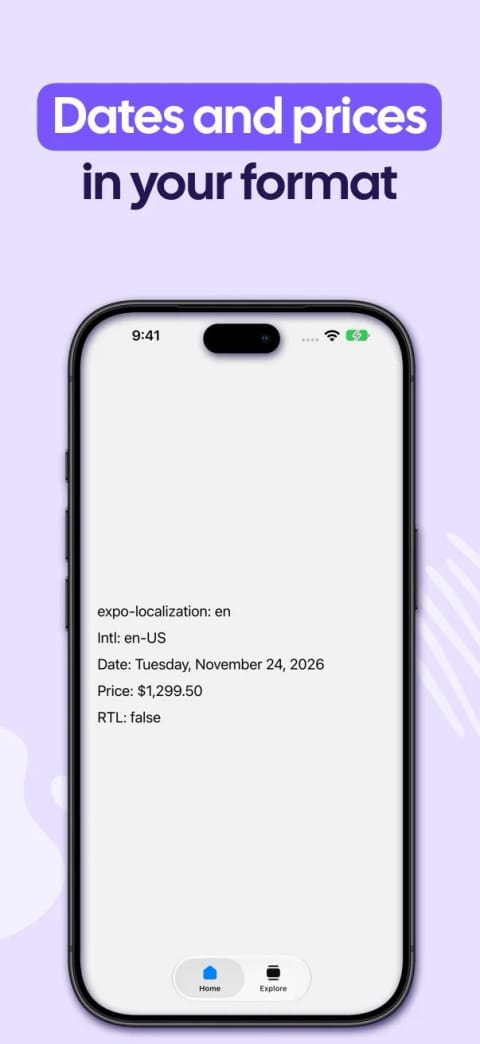
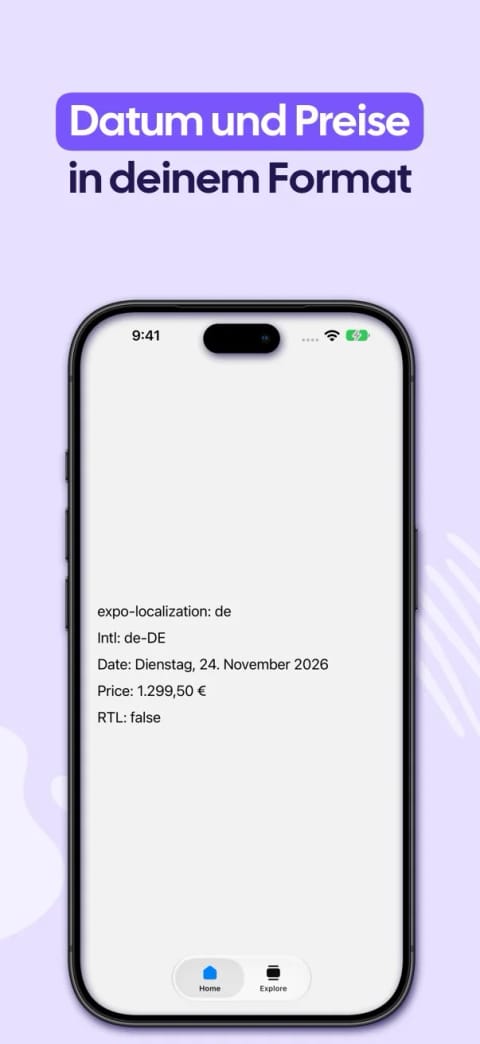
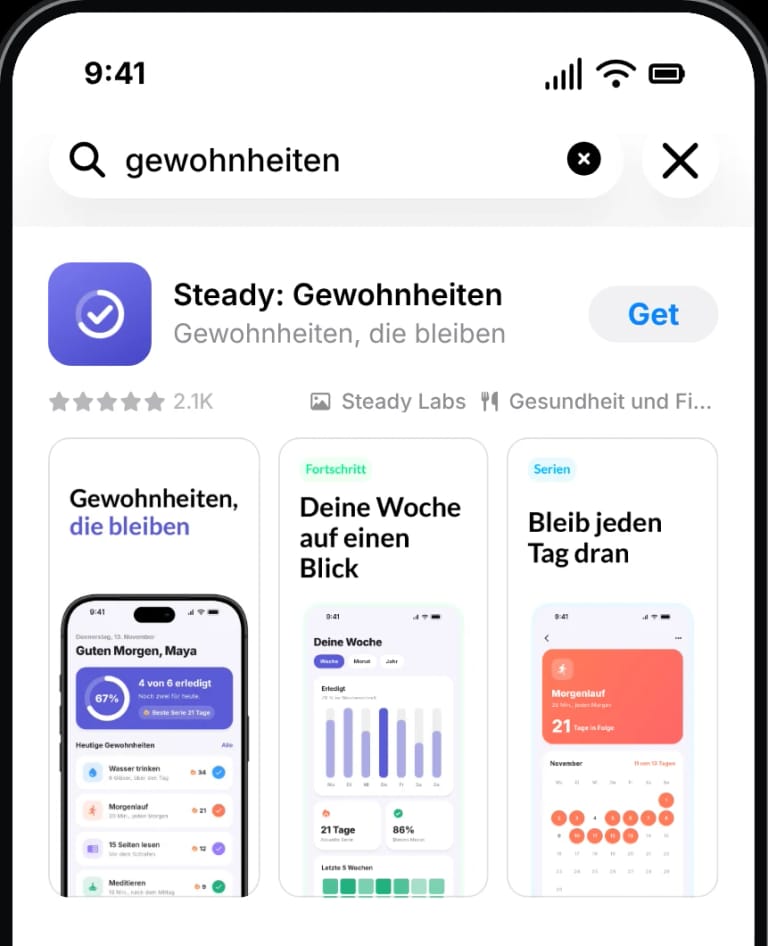
3. German, app in German
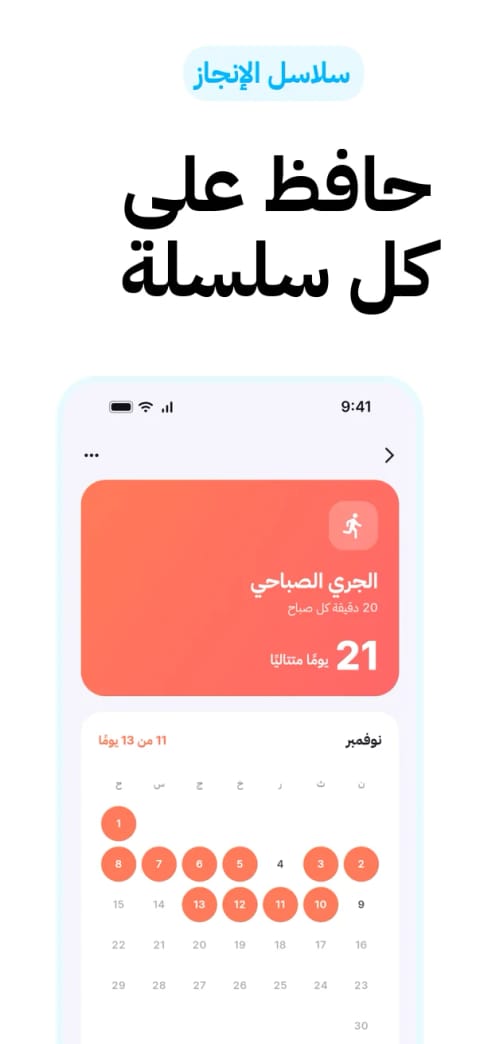
4. Arabic, right to left
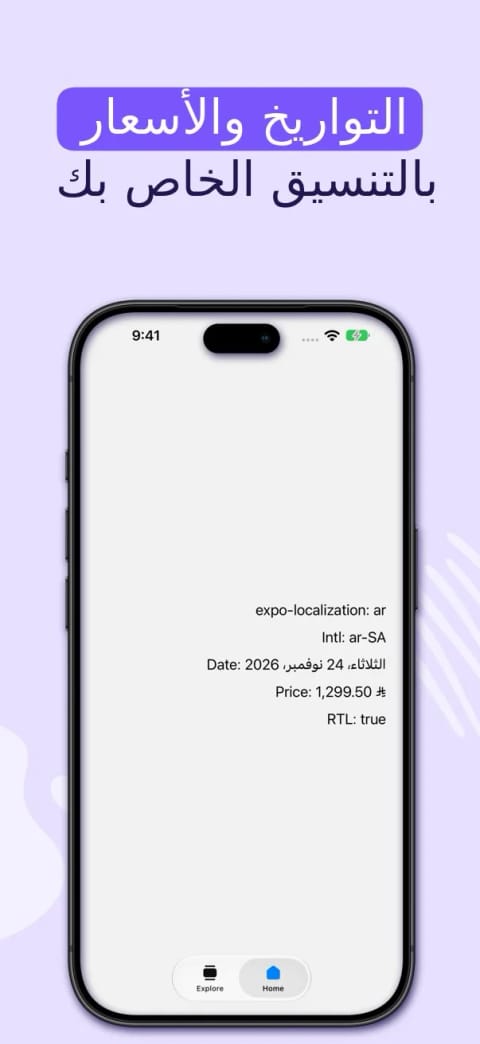
There are two ways to get localized captures:
- Capture them yourself: run the app in each language with the commands in steps 2 and 3.
- Use captures you already have: from fastlane, an Xcode test plan, a golden test or a tester's phone, as long as the app shows the target language.
Then the steps are the same: translate the caption layers, replace each language's app image, fit the text, preview every size and export. Translating a caption doesn't translate your app. If the app isn't localized, the screen inside the frame stays in your source language.


Quick Take
- iOS, one app:
xcrun simctl launch --terminate-running-process "$UDID" com.example.app -AppleLanguages "(de)" -AppleLocale de_DE - iOS, whole simulator:
xcrun simctl spawn "$UDID" defaults write "Apple Global Domain" AppleLanguages -array de, then shut down and boot. - Android 13+:
adb shell cmd locale set-app-locales com.example.app --locales de-DE, then restart the app. - A language added without its own screenshots starts with the primary language's set on the App Store, and Google Play shows the default language's graphics. The listing can still be published with the fallback set, but in a SplitMetrics case study, ZiMAD's conversion rate in Japan rose 36% after a Japan-specific screenshot redesign, so localize your biggest markets first.
- Automate many languages with fastlane snapshot and screengrab, or an Xcode test plan with one configuration per language.
- Translate with AppScreens: connect its MCP server and your coding agent builds every language from your captures in one project, so you can check the fit. Translation and direct upload are on paid plans.
English
German
Japanese
Arabic
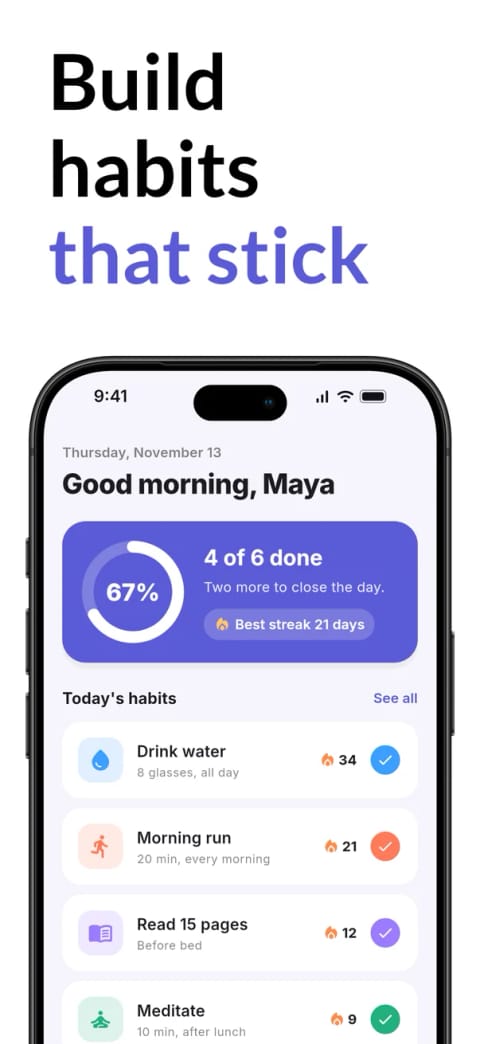
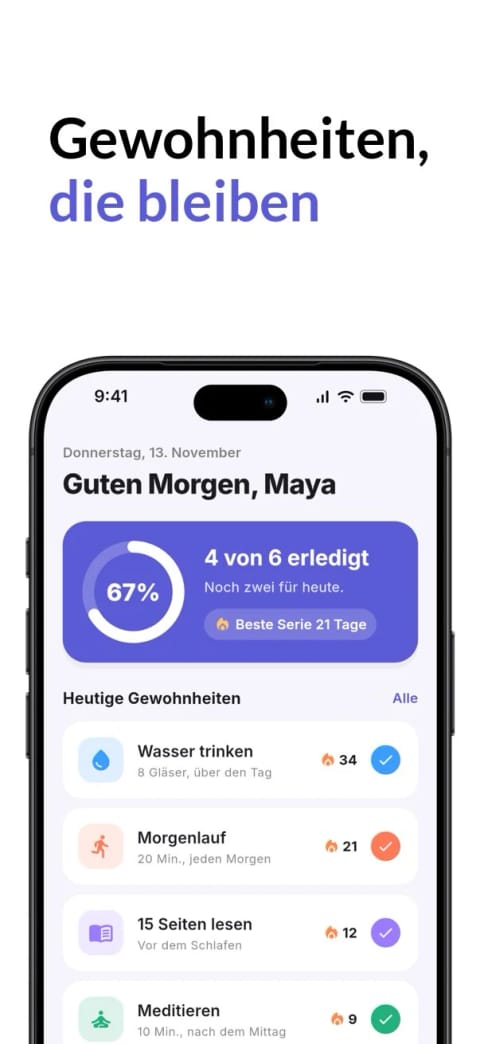
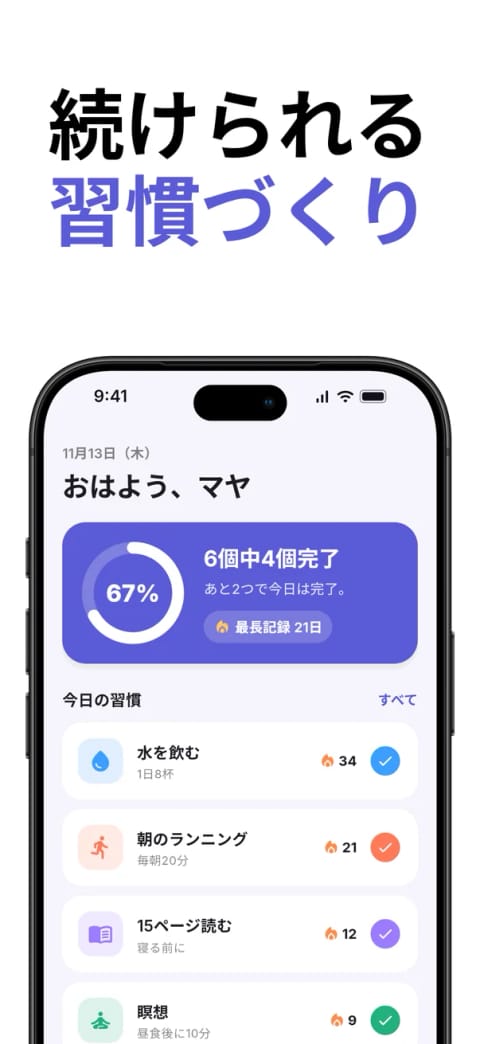
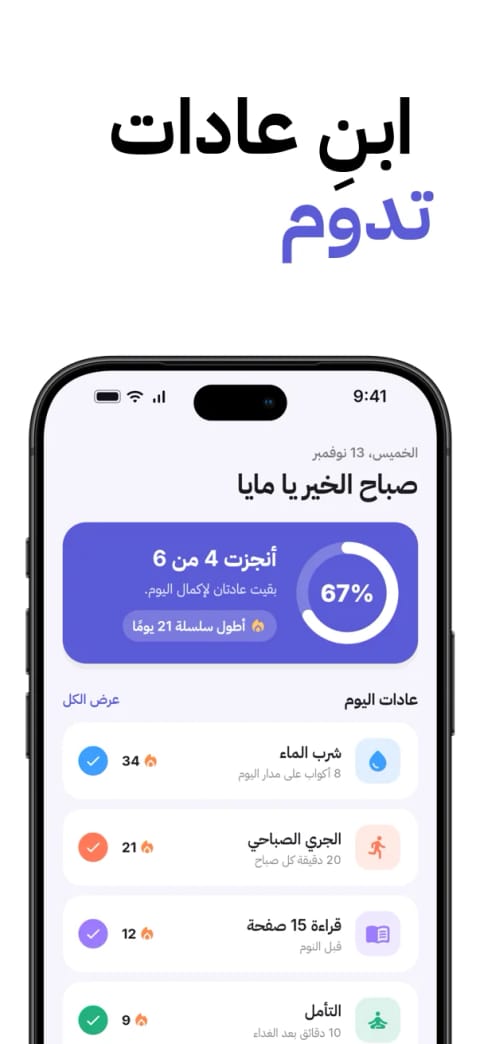
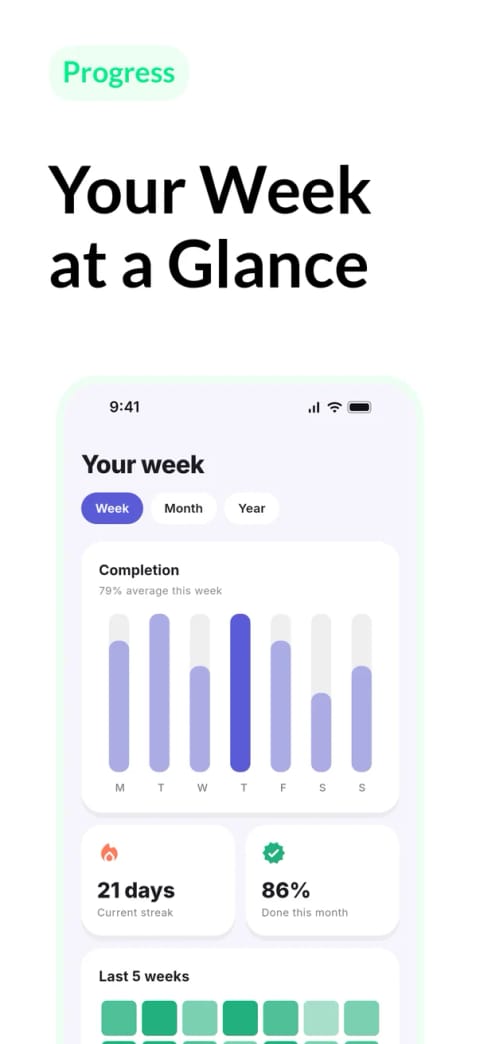
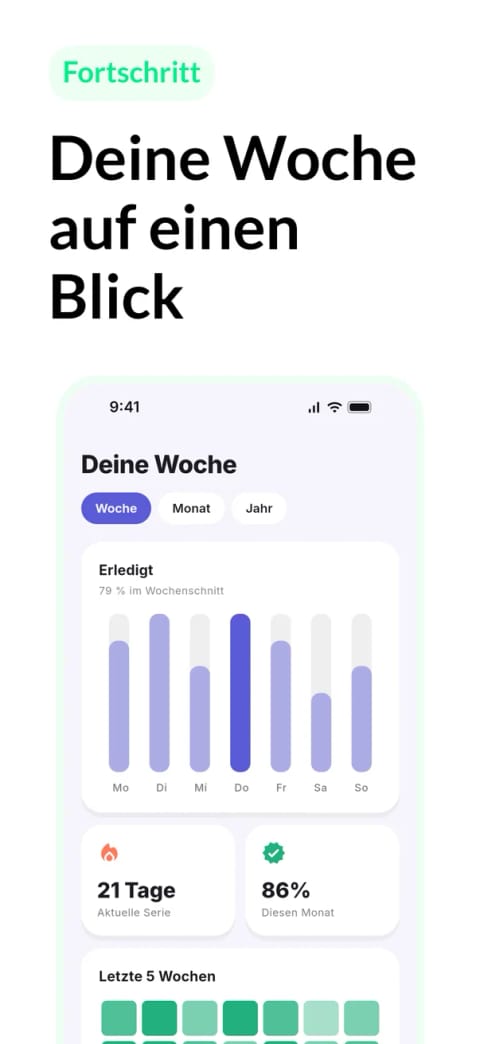
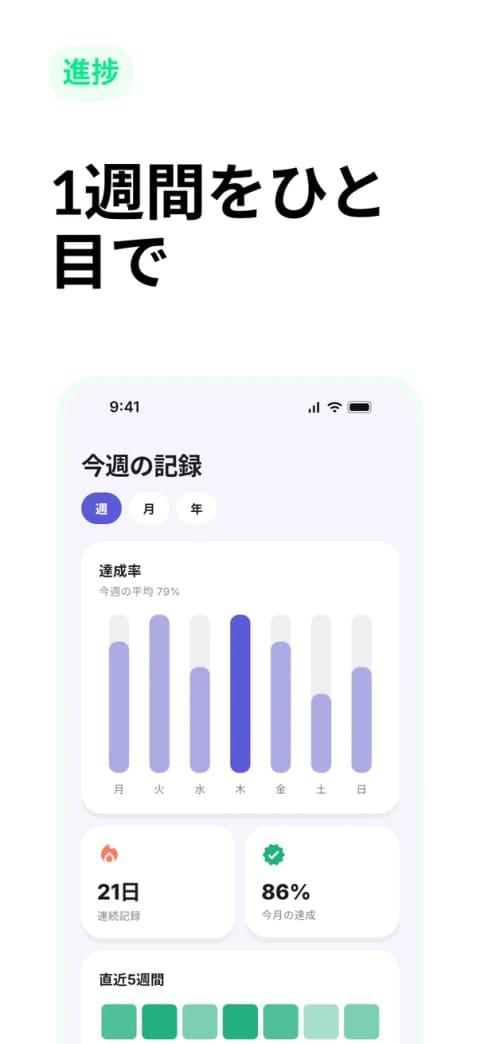
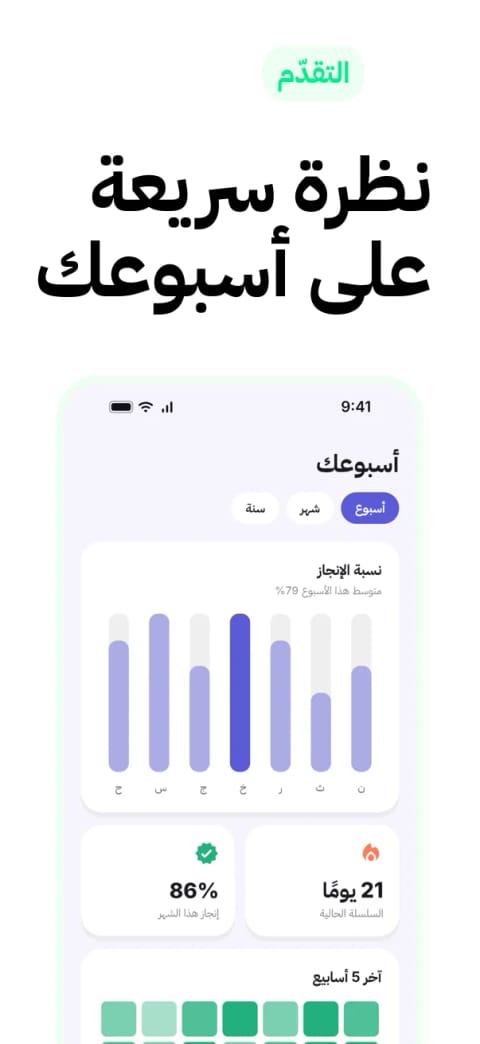
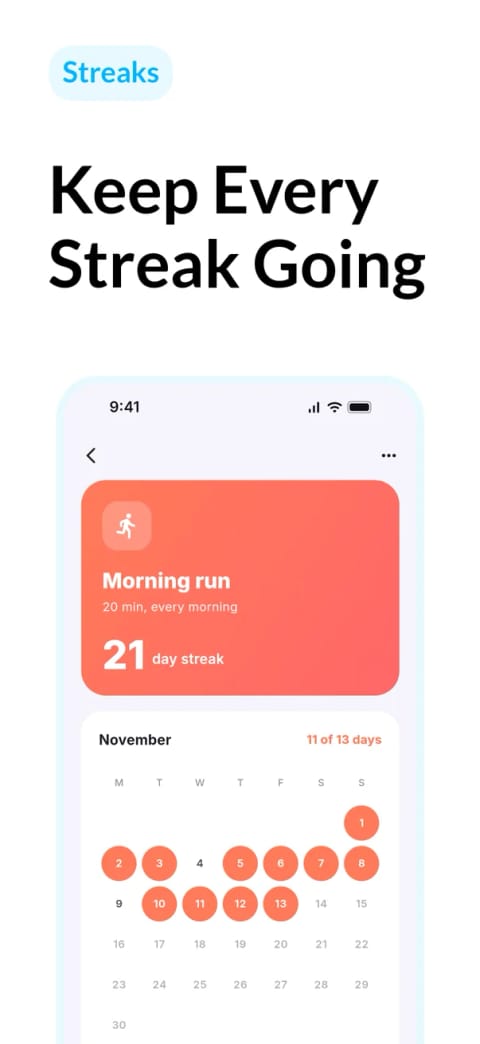
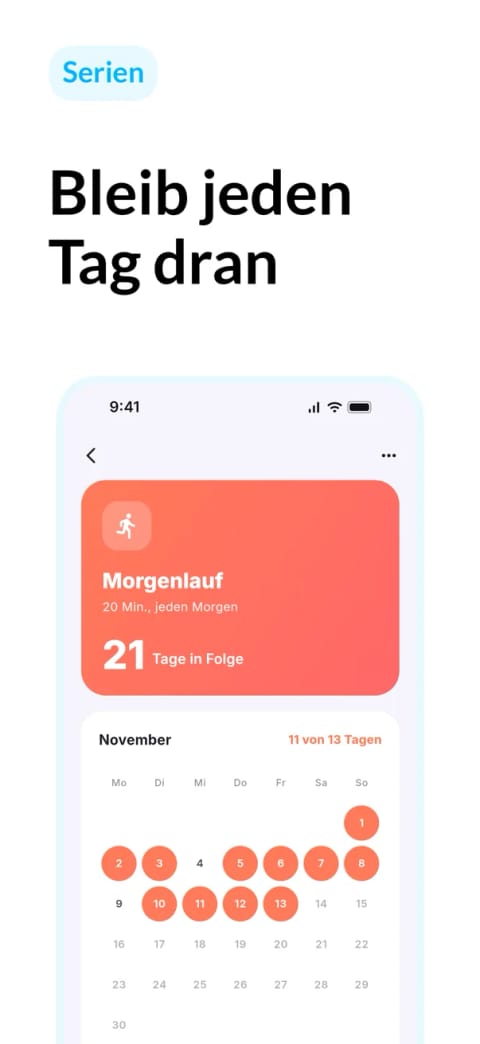
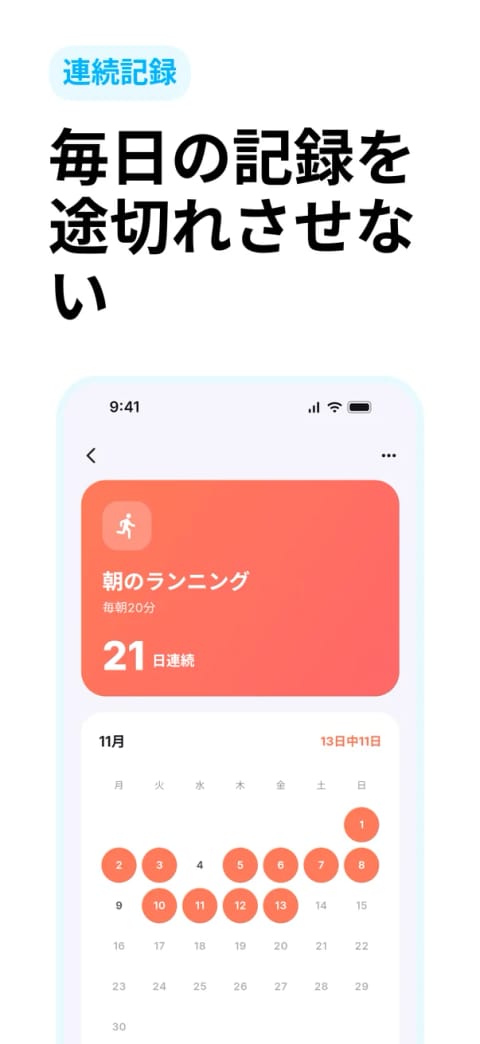
1. Which screens need a new capture in every language?
Not every screen changes. Capture again in each language when the screen shows any of these:
| On the screen | What changes | Capture per language? |
|---|---|---|
| Buttons, labels, headings | The words, and often the line breaks | Yes |
| Dates, prices, distances | Format, currency and units | Yes |
| Arabic or Hebrew | The whole layout mirrors | Yes |
| Sample content: names, recipes, messages | Whether it looks local | Yes for your top two or three markets by installs |
| Photos of people, food, money or places | Whether they fit the market | Swap them for your top markets if they look out of place |
| A photo, map or chart with no text | Nothing | No |
If you skip a language, the store falls back. In App Store Connect, a language you add starts with the primary language's screenshots, and a shopper whose language you don't offer at all sees the next most relevant localization. On Google Play, "If you add text translations without localized graphic assets, your app's graphic assets show from the default language."
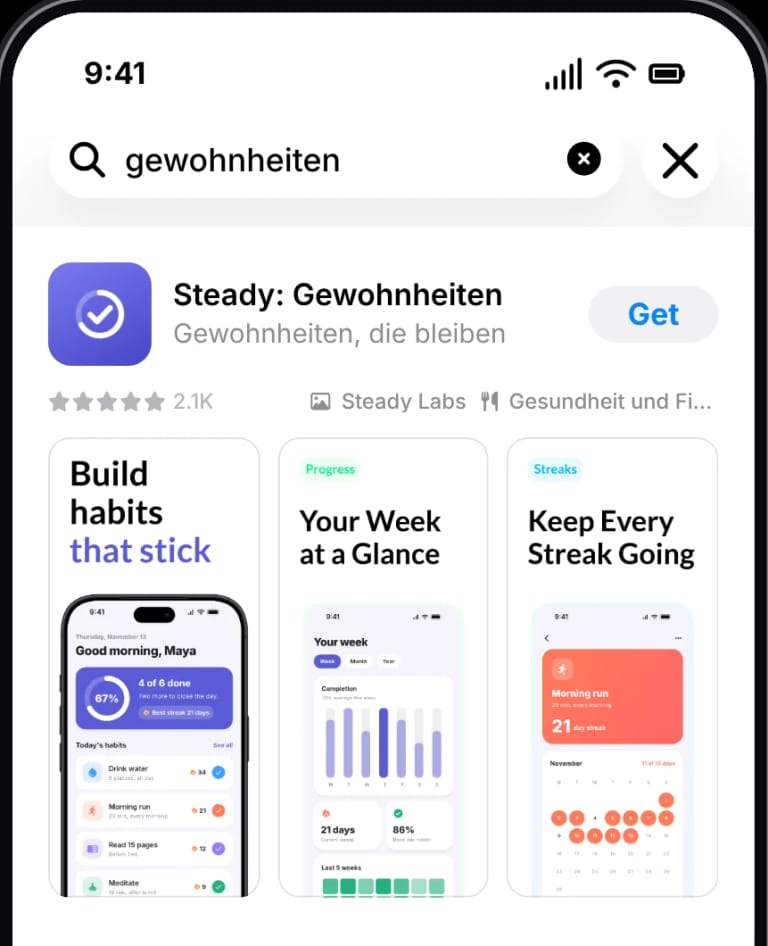
A listing can still be published with the fallback set. The cost is conversion: SplitMetrics reports that ZiMAD redesigned one game's screenshots in a Japanese style, tested them first, and saw its conversion rate in Japan rise 36% in App Store analytics afterward. That came from adapting the design, not only the words, and it is one app in one market, so if a market has the traffic, test the localized set against the fallback; our screenshot localization results include others.
Which languages should you localize first?
- Start with two or three markets that already bring impressions, installs or revenue. App Store Connect and Play Console both break their statistics down by country.
- Promote only languages the app itself supports. Apple keeps listing languages separate from the languages in your binary, so a German listing for an English-only app sets the wrong expectation.
- For listing text, Play Console has free machine translation; screenshots and the feature graphic still need localized files. To target countries rather than languages, Google recommends custom store listings.
- Measure conversion per market before adding more. The languages guide goes deeper.
2. Change the iOS Simulator language from the command line
One app: simctl launch with -AppleLanguages
Launch arguments do the same job as the App Language and App Region options in an Xcode scheme, and fastlane snapshot passes the same two before each run. They change only your app, so you can loop through languages without rebooting. Pass both: without -AppleLocale, dates and prices keep the old region.
for pair in "en en_US" "de de_DE" "ja ja_JP" "ar ar_SA"; do
  set -- $pair
  xcrun simctl launch --terminate-running-process "$UDID" com.example.app -AppleLanguages "($1)" -AppleLocale "$2"
  sleep 3
  xcrun simctl io "$UDID" screenshot --type=png "home-$1.png"
done
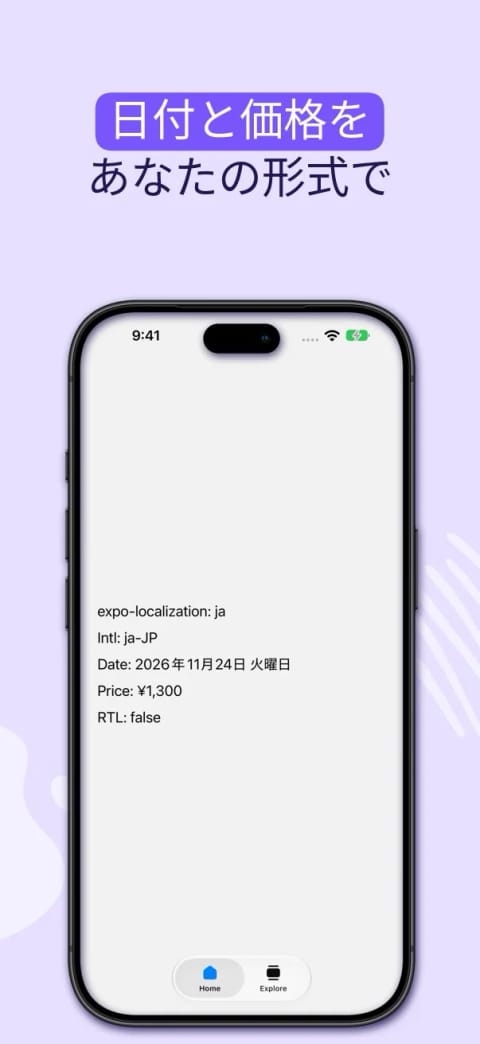
Your app only switches to languages it is localized for. In an Expo app, list them in the expo-localization plugin's supportedLocales; Expo's docs note that on iOS the device language "must also be one of your app's supported locales". The same capture in four languages from our test app:
en en_US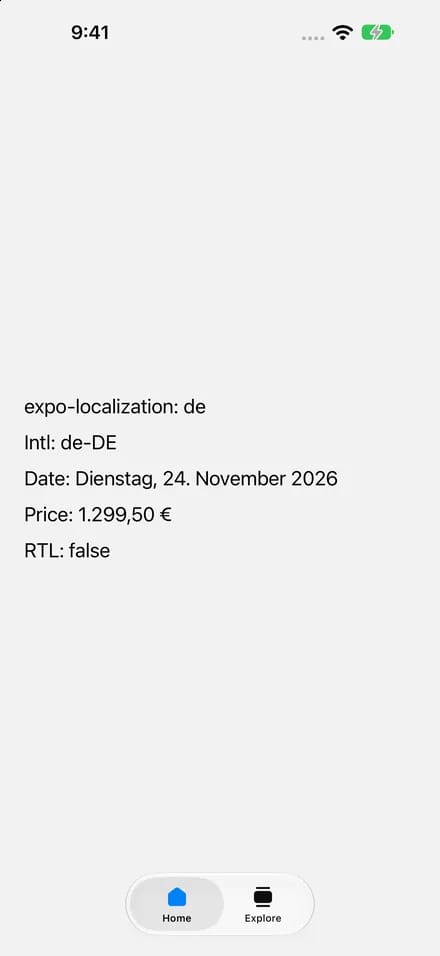
de de_DE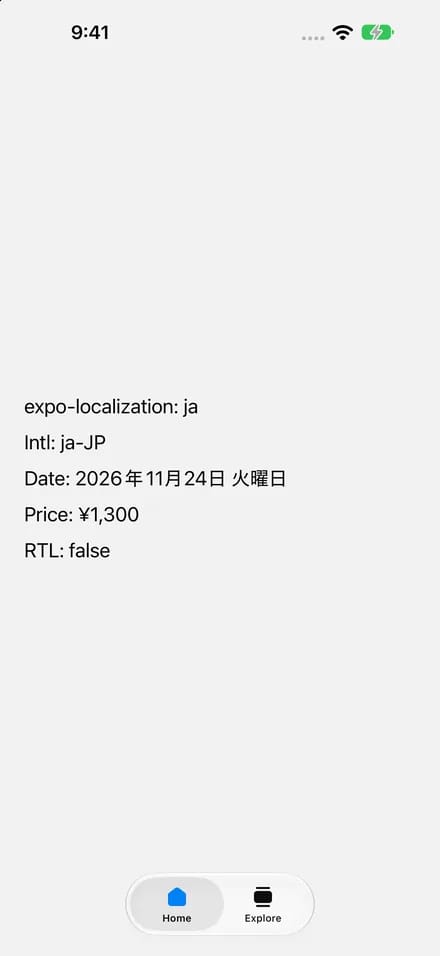
ja ja_JP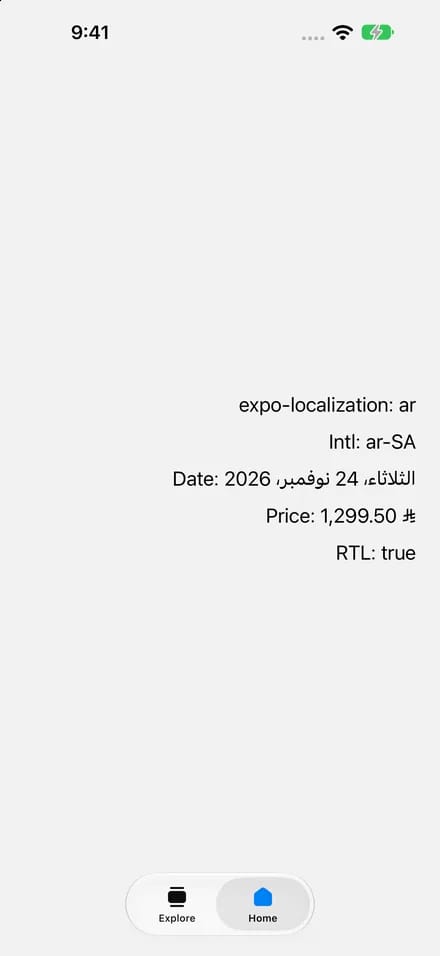
ar ar_SA: right to left, tab bar mirroredThe whole simulator
Launch arguments change only your app. Apple's localization testing page notes that changing the device's Language & Region changes "the entire operating system". If system screens such as the keyboard or a share sheet appear in your screenshots, switch the simulator, then shut it down and boot it again:
xcrun simctl spawn "$UDID" defaults write "Apple Global Domain" AppleLanguages -array de
xcrun simctl spawn "$UDID" defaults write "Apple Global Domain" AppleLocale -string de_DE
xcrun simctl shutdown "$UDID"
xcrun simctl boot "$UDID"
In our test the app showed German, with German dates and prices, as soon as it was relaunched, but the status bar kept the English time format (9:41) until the reboot (09:41). Apple doesn't document these defaults keys for the simulator, so check the result in a screenshot.
Check layouts before you translate
Apple's pseudolanguages show where text will break before any translation exists. Pass -NSDoubleLocalizedStrings YES to double every string, or -AppleTextDirection YES to preview a right-to-left layout. In UI tests, xcodebuild test -testLanguage de -testRegion DE runs the whole suite in one language. Android has the same idea in its pseudolocales: enable them for your debug build, then pick en-XA for longer, accented text or ar-XB for a right-to-left layout.
3. Change an app's language with adb
One app, Android 13 and later
Android 13 added per-app languages, and the locale shell command sets them. Restart the app after each change:
adb shell cmd locale set-app-locales com.example.app --locales de-DE
adb shell cmd locale get-app-locales com.example.app
adb shell am force-stop com.example.app
adb shell monkey -p com.example.app -c android.intent.category.LAUNCHER 1
adb exec-out screencap -p > home-de.png
What our emulator reported:
$ adb shell getprop ro.build.version.release
15
$ adb shell cmd locale set-app-locales com.appscreens.exposhotsdemo --locales de-DE
$ adb shell cmd locale get-app-locales com.appscreens.exposhotsdemo
Locales for com.appscreens.exposhotsdemo for user 0 are [de-DE]

# the same command before the app was installed on this emulator
$ adb shell cmd locale set-app-locales com.appscreens.exposhotsdemo --locales de-DE
Unknown package com.appscreens.exposhotsdemo for userId 0
The command doesn't require android:localeConfig in your manifest, which only controls whether people can pick your app's language in system settings. Our test app switched on its next launch in every language, and Arabic mirrored the layout. An "Unknown package" reply means the app isn't installed on that emulator; the command still exits with status 0, so check its output in scripts.
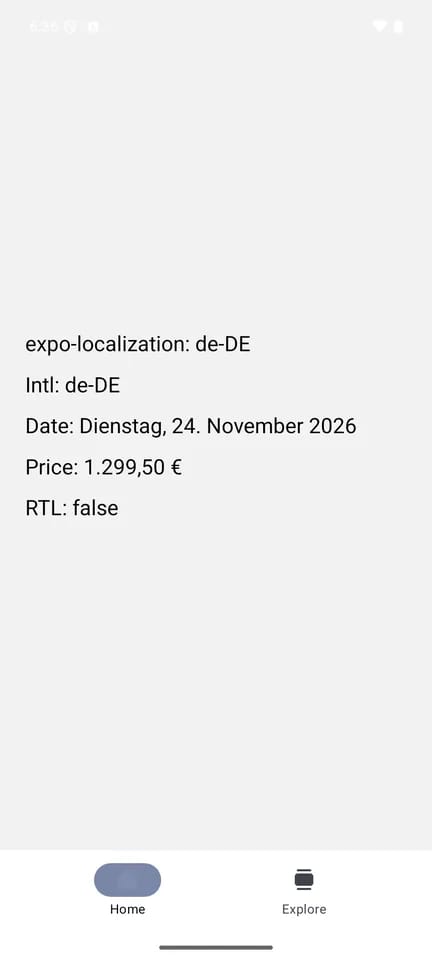
de-DE on the Pixel 8 emulator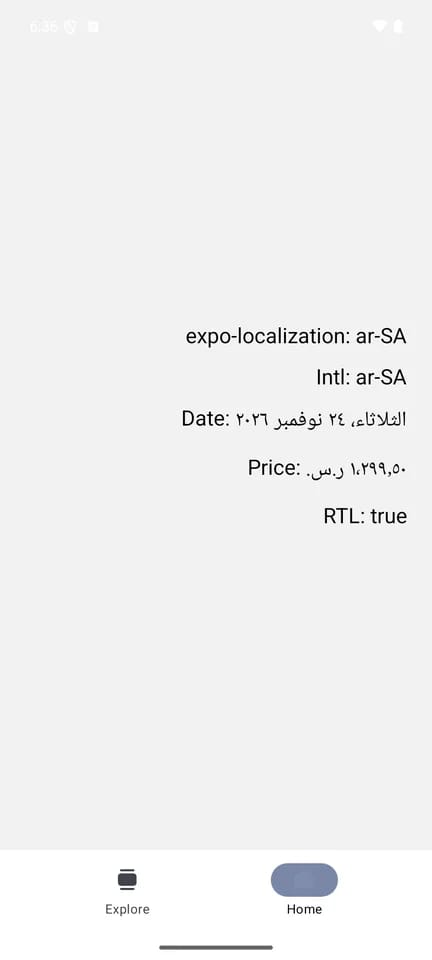
ar-SA: Android uses Arabic-Indic digits here, iOS didn'tThe whole emulator
Open the language settings with adb shell am start -a android.settings.LOCALE_SETTINGS and change it there. Android's docs also show setprop persist.sys.locale de-DE; stop; sleep 5; start, but that needs a root shell, and system images with the Play Store can't run adb root. Android's emulator docs point to AOSP images for that.
4. How do you automate every language?
Past three or four languages, a script per language gets slow. fastlane's snapshot runs your UI tests once per device and language and passes the same launch arguments as the loop above. After fastlane snapshot init, list the languages in the Snapfile and call snapshot() in a UI test:
# fastlane/Snapfile
devices(["iPhone 18 Pro", "iPad Pro 13-inch (M5)"])
languages(["en-US", "de-DE", "ja", "ar-SA"])
scheme("MyAppUITests")
override_status_bar(true)
clear_previous_screenshots(true)
// In your UI test's setUp()
let app = XCUIApplication()
setupSnapshot(app)
app.launch()
// Then, on each screen
snapshot("01Home") Run fastlane snapshot from the terminal; running the test in Xcode doesn't save them. On Android, screengrab does the same with a locales([...]) list in the Screengrabfile, a LocaleTestRule class rule in your instrumented test and Screengrab.screenshot("01_home") on each screen. Check the device names against xcrun simctl list devices and do a test run with one language first.
Xcode test plans
Without fastlane, Xcode can run the same UI tests in every language from one test plan:
- Choose Product > Test Plan > New Test Plan.
- Under Configurations, add one configuration per language and set its Application Language and Application Region.
- Under UI Testing, switch Localization Screenshots on.
- Run Product > Test. Xcode saves the screenshots for each language with the test results.
Apple built this to give translators context, so treat the output as captures: they still need captions and store sizes before they're App Store screenshots. Flutter teams can do the same with golden tests, as our Flutter guide shows; that's how the Steady set near the top was made.
5. React Native, Expo, Flutter and Capacitor notes
- React Native:
I18nManager.forceRTLtakes effect on the next app start and is meant for development and testing. Relaunch after switching to Arabic or Hebrew. - Expo:
getLocales()from expo-localization returns the user's languages. Its config plugin takessupportedLocalesandsupportsRTL, which is on by default. Since SDK 58, the layout follows the device language, Expo Go included, but RTL overrides you set from code don't stick in Expo Go, which resets them. Capture store screenshots from a development or release build, the same app you ship. The Expo screenshot guide has the Release build steps. - Flutter: set
tester.platformDispatcher.localesTestValue = [Locale('de')]in an integration or widget test, or pass a locale toMaterialApp. On iOS, the supported languages also have to be added to the Xcode project. The Flutter screenshot guide covers integration_test captures. - Capacitor and web views: the page reads the language from
navigator.language. Check in a capture that it follows the launch arguments or per-app setting before you rely on it. The Capacitor screenshot guide covers the rest of the capture.
Whichever capture route you use, the captions, layout and store sizes still come after. The fastlane comparison covers when a fastlane setup pays off.
6. How do you translate App Store screenshots with AI?
CSA Research's 2020 survey of 8,709 consumers in 29 countries found that 76% prefer to buy with information in their own language and 40% never buy from websites in other languages. The localization download study collects app-specific results. Translated captions run longer, Arabic and Hebrew need a mirrored layout, and feature names should match what the localized app shows. The localization guide shows the fit checks.
Short text grows the most. The W3C's summary of IBM's guidance gives these average expansions from English into European languages, and a caption is usually short:
| English characters | Average length after translation |
|---|---|
| Up to 10 | 200% to 300% |
| 11 to 20 | 180% to 200% |
| 21 to 30 | 160% to 180% |
| 31 to 50 | 140% to 160% |
| 51 to 70 | 151% to 170% |
| Over 70 | 130% |
In the Steady set, "Keep Every Streak Going" (23 characters) became "Bleib jeden Tag dran" in German, shorter rather than longer, because the German caption was written for meaning, not word for word. Either way, check every language in a render.
With AppScreens connected to your coding agent, ask once you have the captures:
Translate the screenshots into German, Japanese and Arabic, use my localized captures for each language, and check that every caption fits on every size.The agent confirms the languages and sizes, applies your translations or drafts them with your app's context, keeps brand and product names, places each language's captures, and renders every language so you can see the fit and the right-to-left layout. By hand, this is where the work multiplies: five screens in four languages on iPhone and Android is 40 designed screenshots, each with its own capture and caption, and a later caption change touches all of them. AppScreens keeps them in one editable project and fits each caption to every size. The free plan covers the source-language set (one project of up to five screenshots, exported and uploaded by hand); translation into 80+ languages and direct upload need a paid plan. The localization guide shows the same steps in the editor, and the screenshot prompts guide has the other prompts for the same project.
We ran that prompt on the captures from this guide. Two things needed a fix, and both only showed up in the render. The Japanese draft broke the line just before the particle を, so the second line started with it; we moved を to the end of the first line. And the template's headline font has no Japanese or Arabic letters, so those two languages fell back to a plainer system font. If the look matters, pick a font that covers every script you ship. A render shows fit, not meaning, so have a fluent speaker read the captions for your top markets before you upload.
7. Upload each language
App Store Connect has supported 50 localizations since March 2026. Add the language to the app version, then upload its screenshots in each device section: up to 10 per device size, and if the layout is the same across sizes, the highest required size is enough because App Store Connect scales it down. On Google Play, add the translation in the store listing and upload localized graphics for it, up to 8 screenshots per device type, including the feature graphic if it has text. Translations follow the shopper's language; to show a different listing by country, Google recommends custom store listings. Done by hand, that is a separate upload for every language and device size in each store. On a paid plan, AppScreens uploads the languages you choose to App Store Connect and the Google Play main listing after you approve the upload preview. To change a live version's localized screenshots without a new build, use a product page test treatment for those localizations.
Common mistakes
| Mistake | What people see | Fix |
|---|---|---|
-AppleLanguages without -AppleLocale | German text with US dates and prices | Pass both |
| A language the app doesn't support | English text next to French dates and prices: in our test expo-localization reported fr, but Intl fell back to en-FR | Add the language to the app's supported localizations |
| Capturing in Expo Go | RTL overrides set from code reset, and the screens come from a host app rather than the build you ship | Capture from a development or release build |
| Keeping US sample data in every market | In our Japanese capture, $1,299.50 became ¥1,300, a misleading price | Seed believable prices, names and dates per market |
| Forgetting to restart after a per-app change | The old language until the next launch | Force-stop and relaunch the app |
| Adding a language without screenshots | The primary language's screenshots | Upload a localized set, or accept the fallback on purpose |
| Translating the captions but reusing the English captures | A German caption above an English screen | Capture each language and place its captures with that language |
| A headline font without Japanese or Arabic letters | A plainer fallback font in those languages, as in our test | Pick a font that covers every script you ship and check a render per language |
Turn your captures into a translated set
AppScreens keeps every language in one editable project: captions translated with your app's context and fitted to each size, each language's captures in place, then exported or uploaded to App Store Connect and the Google Play main listing. Start free with one project of up to five screenshots, exported and uploaded by hand. Upgrade when you need translation, direct uploads or more projects.
FAQ
How do I change the language of an app in the iOS Simulator?
Relaunch it with launch arguments: xcrun simctl launch --terminate-running-process UDID bundle-id -AppleLanguages "(de)" -AppleLocale de_DE. This changes only that app. In Xcode, the scheme's App Language and App Region options do the same.
How do I localize App Store screenshots?
Capture the app in each language, or use localized captures you already have. Then translate the captions, place each language's captures on its pages, check the fit and right-to-left layouts in a render, and upload one set per language in App Store Connect and Play Console. A language without its own set shows your primary language's screenshots.
Can I use a different app screenshot for each language?
Yes, and you should for any screen with text, dates or prices, so a German caption sits above the app in German. In AppScreens one project holds every language: each language's pages use that language's captures while the layout stays shared. Without them, a translated caption sits above your source-language screen.
Why doesn't my app change language in the iOS Simulator?
Usually the app is not localized for that language, so iOS uses one it supports. Add the language to the app's supported localizations, then pass both -AppleLanguages and -AppleLocale and relaunch. In Expo, add it to supportedLocales in the expo-localization plugin and rebuild.
How do I change the iOS Simulator language from the command line?
Write the language to the simulator's global defaults with xcrun simctl spawn UDID defaults write "Apple Global Domain" AppleLanguages -array de, and AppleLocale -string de_DE, then shut the simulator down and boot it again. Apple does not document these keys for the simulator, so check the result in a screenshot.
How do I change one app's language on Android from adb?
On Android 13 and later, run adb shell cmd locale set-app-locales com.example.app --locales de-DE, then restart the app. adb shell cmd locale get-app-locales com.example.app shows the current setting.
How do I automate localized screenshots?
Use fastlane snapshot on iOS, with a languages list in the Snapfile and snapshot() calls in a UI test, and fastlane screengrab on Android, with a locales list and a LocaleTestRule. Without fastlane, an Xcode test plan with one configuration per language and Localization Screenshots on saves screenshots for each language when you run Product > Test.
Are localized App Store screenshots worth it?
For the markets that bring you installs, yes. Each language without them shows the primary language's screenshots on the App Store and the default language's graphics on Google Play. In a SplitMetrics case study, FiftyThree's localized Chinese screenshots performed 33% better than its English ones. Start with your top two or three markets.
Which languages should I localize first?
Start with two or three markets that already bring installs or revenue, in languages your app supports, and measure conversion there before adding more. App Store Connect and Play Console both break their statistics down by country.
How many localized screenshots can I upload per language?
Up to 10 per device size on the App Store and up to 8 per device type on Google Play. If a language looks the same across sizes, upload the highest required size and App Store Connect scales it down.
Can I localize App Store screenshots for free?
Partly. simctl and adb are free, and Play Console offers free machine translation for listing text, but untranslated graphics show the default language's images. AppScreens' free plan covers the source-language set; translation into other languages needs a paid plan.
How do I test right-to-left screenshots?
Run the app in Arabic or Hebrew with -AppleLanguages "(ar)" on iOS or set-app-locales ar-SA on Android, or use Apple's right-to-left pseudolanguage with -AppleTextDirection YES or Android's ar-XB pseudolocale. In React Native, I18nManager.forceRTL takes effect on the next app start.
Can AI translate App Store screenshots?
Yes, but it translates the captions, not your app: the screens inside the frames change only if you supply localized captures. Check every language in a render and have a fluent speaker read your top markets. Captions run longer, right-to-left languages need a mirrored layout and feature names should match the localized app. AppScreens translates captions into 80+ languages with your app's context and renders every language for review. Translation needs a paid plan.
Sources
- Apple: Testing localizations when running your app and Creating screenshots for localizers
- Apple (archive): Testing your internationalized app (launch arguments and pseudolanguages)
- App Store Connect: Localize App Store information and 50 localizations
- Android source: locale shell command, per-app languages and localization
- Google Play: translations and localized assets
- xcodebuild man page (
-testLanguage,-testRegion), Android: managing AVDs and Settings - React Native: I18nManager, Expo: Localization, Expo localization guide, Flutter: TestPlatformDispatcher and Flutter: internationalization
- W3C: Text size in translation and Android: pseudolocales
- Apple: Screenshot specifications and Google Play: preview assets
- fastlane snapshot (and SnapshotHelper.swift) and screengrab
- SplitMetrics: ZiMAD screenshot localization, FiftyThree screenshot localization and CSA Research: consumers prefer their own language
Tested with Xcode 27.2, an iPhone 18 Pro Max simulator on iOS 27.2, a Pixel 8 emulator on Android 15 and Expo SDK 58. The Steady set comes from the golden test in our Flutter guide.
Quote sections, tables and commands from this guide in your own posts, documentation or answers with a link to this page. Please do not republish the whole guide.
AppScreens.com, "Change the iOS Simulator and Android Language for Screenshots, Then Translate with AI", 6 November 2026. https://appscreens.com/blog/localized-app-screenshots-ios-android