

App previews vs screenshots
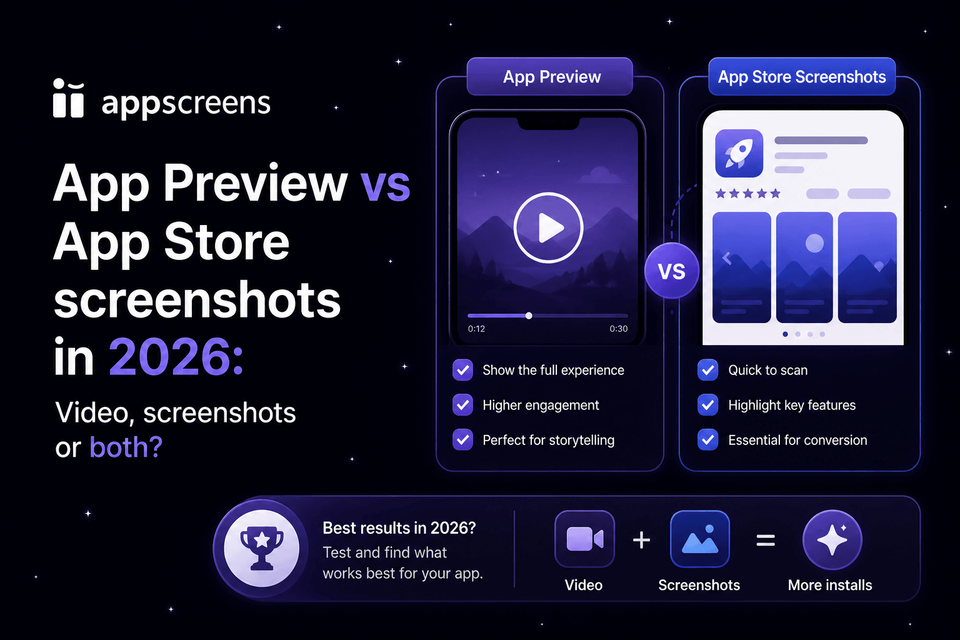
App Previews vs App Store Screenshots in 2026: Video, Screenshots, or Both?
Short answer: start with screenshots. Screenshots are required, scannable, easier to localize, easier to test, and visible to users who do not watch video. Add an app preview or Google Play preview video when motion changes the install decision: gameplay, gestures, before-and-after edits, map movement, workout flow, or a transformation static frames cannot prove.
Once the screenshot story is clear, build the baseline in AppScreens: upload real app screens, choose a template, add benefit-led captions, preview the set, then export App Store and Google Play screenshots. Raw screenshots are source material, not finished store creative, because they show the interface but do not always sell the outcome, explain the benefit, or give visitors a clear reason to install.


Quick Take
App previews and preview videos are not automatically better than screenshots. Some apps benefit from video, some see no meaningful lift, and some listings perform better when users can scan a strong screenshot story without extra playback friction.
Build the screenshot baseline first, then add video when motion proves something still images cannot: gameplay, gestures, speed, transformation, or a live flow. Treat video as an ASO test against the screenshot-only baseline before making it part of the main listing.
Use AppScreens when you need the screenshot side fast: real app screens, benefit-led captions, templates, device frames, localization, variants, exports, and upload-ready assets. Use the test result to decide whether video earns the extra production work.
Start with screenshots
Create the control set first: benefit-led captions, strong first-three order, store sizes, and localization.
Add video when motion matters
Use a preview for gameplay, gestures, transformation, timing, or flows that static frames cannot prove.
Test before committing
Compare video-plus-screenshots against the screenshot baseline with Product Page Optimization.
Best Workflow: Build Screenshots First, Then Test Video
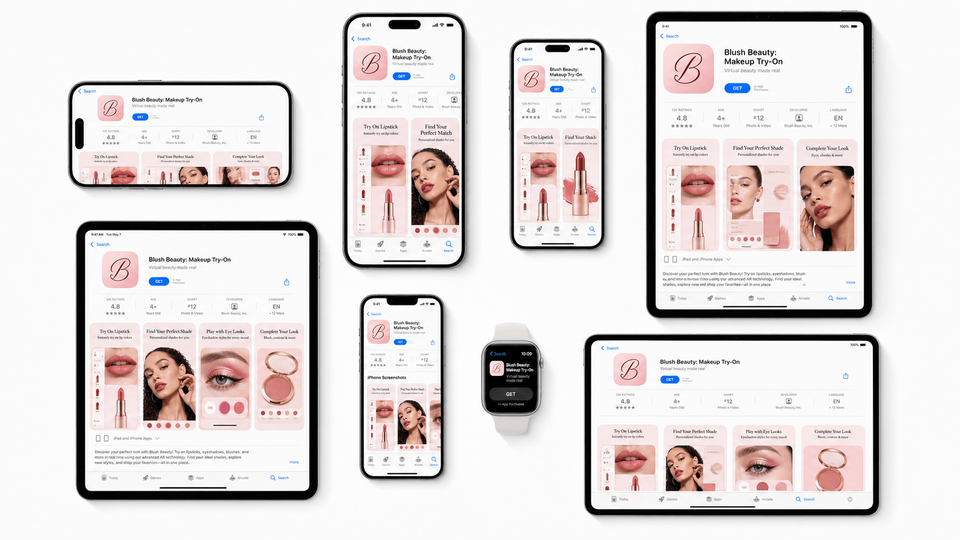
The practical workflow is simple: build the screenshot baseline first in AppScreens. Upload clean app screens, choose a reusable screenshot template, add AI-assisted benefit-led captions, apply device frames and brand styling, then export store-ready App Store assets from one editable project.
Once the screenshot story is strong, add an app preview when motion proves a benefit static frames cannot: gameplay, gestures, speed, transformation, or a live flow. Treat the poster frame as frame zero, then compare video-plus-screenshots against the screenshot-only baseline with Product Page Optimization screenshot variants.
1. Create the control set
Use AppScreens to create the screenshot set every visitor can understand without video playback.
2. Add video only for motion proof
Storyboard a preview when movement, timing, or transformation changes the install decision.
3. Test the difference
Keep the screenshot-only version as the control and let real store traffic decide whether video helps.
Quick Comparison Table
Treat screenshots as the baseline. Add an app preview only when motion makes the app easier to understand. Then use Product Page Optimization when you want to test whether screenshots plus video outperform the screenshot-only baseline.
On Apple, the video asset is an app preview. On Google Play, the closest equivalent is a preview video shown through the Play listing, often with the feature graphic acting as the video cover. In both stores, screenshots remain the baseline asset because users can scan them quickly, they support localization, and they still need to explain the app when video does not play.
Apple’s new Creative Assets are a separate image and video category for product page headers, search results, Custom Product Pages, Product Page Optimization, and Apple Ads. They do not turn standard app previews into general marketing trailers. Read the Apple Creative Assets guide for the distinction, confirmed placements, and fall 2026 timing.
| State | Question it answers | Main job | Use when |
|---|---|---|---|
| Baseline: screenshots only | Can users understand the app quickly from screenshots? | Explain the app's value in a fast, scannable sequence. | Use in every listing. This is the foundation before deciding whether video is worth adding. |
| Add state: screenshots + optional app preview | Would motion make the app easier to understand or believe? | Show interaction, timing, gameplay, transformation, or a workflow that still images cannot explain well. | Add video when it gives users useful proof, not just because the listing has room for it. |
| Test state: PPO video variant | Does video improve conversion compared with the screenshot-only baseline? | Test a coordinated app preview, poster frame, and screenshot story against the baseline. | Use Product Page Optimization when you want evidence before making video part of the main listing. |
What Screenshots Do Best
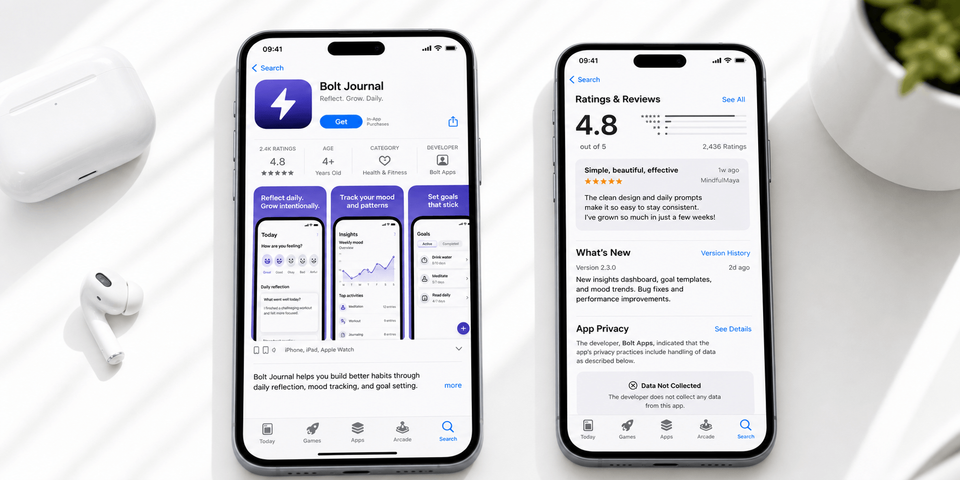
Screenshots are the practical foundation of the store listing. Users can scan them at their own pace, compare captions, and understand the product without waiting for video playback. They are also the asset type you can update most often during launches, seasonal campaigns, localized screenshot sets, PPO and CPP screenshot variants, and Google Play listing experiments.
Screenshots are strongest for fast comprehension
A good screenshot set answers three questions quickly: what does this app do, why should I care, and can I trust what I am seeing? Use the first three frames for the core story, then use later frames for secondary workflows, integrations, personalization, social proof, privacy, or platform-specific benefits.
Screenshot workflow checklist
What App Previews Do Best
An app preview is a short video trailer made from in-app footage. It is useful when the thing you are selling is movement: a puzzle mechanic, a camera filter being applied, a workout flow, a gesture interaction, a live map, a swipeable social feed, or a before-and-after edit.
App previews are strongest for proof through motion
Screenshots can claim that a feature is fast. A video can show it taking three taps. Screenshots can show a finished edit. A video can show the transformation. Screenshots can show a game board. A preview can show why the game feels satisfying.
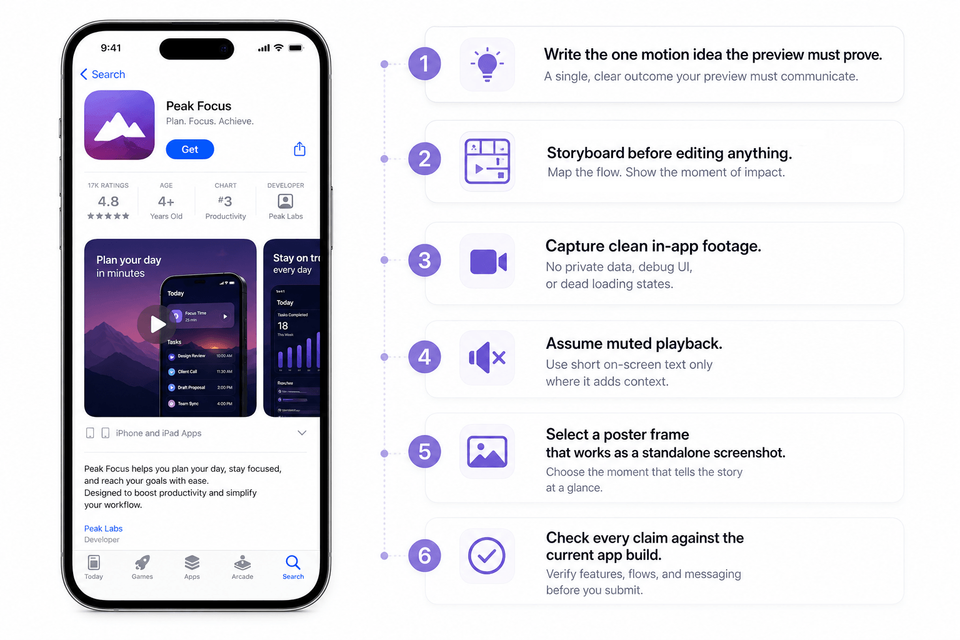
App preview planning checklist
- Write the one motion idea the preview must prove.
- Storyboard the full 15-30 second preview before editing, then make the first 5 seconds earn the rest.
- Capture clean in-app footage with no private data, debug UI, or dead loading states.
- Assume muted playback and use short on-screen text only where it adds context.
- Select a poster frame that works as a standalone screenshot.
- Check every claim against the current app build before submitting.
When Video Is Worth It
Video is worth it when it can show a meaningful behavior that screenshots cannot communicate quickly. It is not worth it just because competitors have one, or because someone wants the listing to feel more premium.
Good reasons to make an app store app preview
Your app changes state quickly
Editing apps, AI apps, photo tools, drawing apps, and dashboards often benefit from showing the before-to-after moment.
Your experience is the product
Games, meditation, fitness, music, video, and social apps often need motion to make the experience feel real.
Your UI flow is a selling point
If the app is faster, easier, or calmer than alternatives, a short flow can prove that better than a feature list.
Your screenshots are already strong
Video should extend a clear screenshot story, not rescue a weak one.
Video is probably not worth it yet if
- You have not finalized the screenshot story, captions, and first-three asset order.
- The app UI will change again before the next release.
- You cannot localize the video for important markets, but screenshots can be localized now.
- The preview would mostly show splash screens, logos, or generic transitions.
- You do not have a poster frame that is as strong as a normal screenshot.
Best Order of Assets
If you upload app previews and screenshots, the preview appears before screenshots on Apple platforms that support previews. That makes the preview's poster frame part of your screenshot strategy. Treat it like frame zero, not like a video thumbnail you choose at the end.
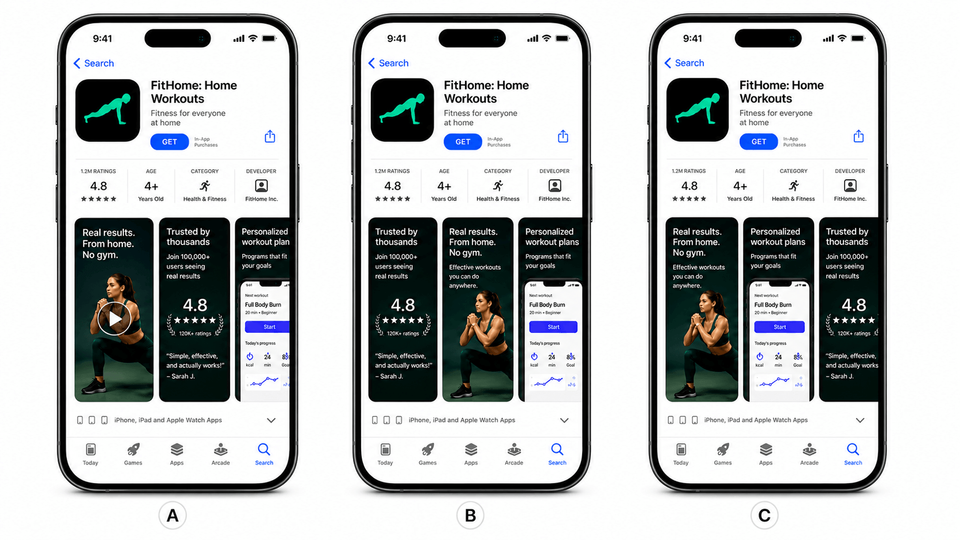
Recommended order when using screenshots only
- Screenshot 1: core outcome or highest-intent feature.
- Screenshot 2: the main workflow that delivers the outcome.
- Screenshot 3: proof, trust, privacy, speed, or category-specific differentiator.
- Screenshots 4-7: secondary features, personalization, integrations, and advanced use cases.
- Screenshots 8-10: localization-specific needs, plan clarity, platform depth, or final objection handling.
Recommended order when using app previews and screenshots
- Preview poster frame: a compelling still that matches the main promise.
- Preview first 5 seconds: motion proof of the promise, not a logo intro.
- Screenshot 1: restate the same promise in a scannable still.
- Screenshot 2: show the feature or flow in static detail.
- Screenshot 3: add proof, trust, or a second high-intent use case.
- Screenshots 4-7: assume some users will not watch the video and cover secondary workflows, integrations, personalization, plans, or category-specific reasons to install.
- Screenshots 8-10: use remaining slots for advanced use cases, platform depth, pricing context, support, privacy, or final objection handling.
Common Mistakes
| Mistake | Use this rule | Why it matters |
|---|---|---|
| Making video before the screenshot story is clear | Lock the first three screenshot messages before making the video. | If the team cannot agree on the first three screenshots, the video will probably become a messy feature tour. |
| Using a weak poster frame | Make the poster frame work like a polished screenshot. | If autoplay is off or the user pauses quickly, the poster frame carries the first impression. |
| Showing hands, device footage, or off-app scenes | Record the app, not a person using a phone. | Apple app previews should stay within the app experience. |
| Relying on audio to explain the preview | Add simple visual context or rethink the edit. | App previews can play muted. |
| Letting video and screenshots tell different stories | Make the preview, poster frame, and first screenshot reinforce the same promise. | Users should not have to restart the story after watching the video. |
Test It. Data Beats Opinions.
App previews can help, hurt, or do nothing depending on the app, audience, creative quality, and traffic source. Keep screenshots strong enough to stand alone, then test the video treatment against the screenshot baseline before making it your permanent listing.
A clean test is better than a team debate: change one meaningful thing, give the test enough traffic, and compare conversion before rolling the winner into your default product page.
Read more about ASO A/B testing →|Read more about PPO tests →
Build The Baseline, Then Test The Video
Do not let an app preview become a release bottleneck. Use AppScreens to turn real app screens into polished App Store and Google Play screenshots, keep the set editable, localize it, create ASO variants, and export or upload store-ready assets from one project. Add video when motion proves the value, then test it against the screenshot baseline.
FAQ
Are app previews better than screenshots?
Not always. Screenshots are usually the fastest and most reliable starting point because every store visitor can scan them quickly. AppScreens helps create a polished screenshot set first with AI onboarding, templates, AI captions, real app screens, and store-ready exports. Add an app preview later when motion clearly explains value better than static frames.
How many app previews and screenshots can I upload?
Apple currently supports up to three app previews per supported device size and language, and one to ten screenshots in JPEG, JPG, or PNG formats.
Does AppScreens make app previews?
AppScreens focuses on store screenshots, screenshot templates, localized screenshot sets, feature graphics, CPP and PPO variants, and upload-ready image exports. It does not create app preview videos, but it gives teams a strong screenshot baseline to test video against. Start with the App Store screenshot generator.
Does Google Play use app previews or screenshots?
Google Play uses screenshots, feature graphics, and preview videos rather than Apple-style app previews. Screenshots are still the baseline because users can scan them quickly, while a preview video is useful when motion explains gameplay, interaction, or transformation better than still images. Build the screenshot set first with the Google Play screenshot generator, then test video when it adds proof.
Should I make an app preview for a simple utility app?
Start with screenshots. For simple utility apps, the value should be obvious in the first few frames. Add video only when a specific interaction, transformation, or workflow is easier to understand in motion.
What should the first app preview show?
Show the strongest in-app moment immediately: gameplay, transformation, completed task, or a fast workflow. Do not spend the first seconds on a logo intro.
Should I create screenshots before app previews?
Yes. Create screenshots first because they define the store story, benefits, and visual hierarchy. AppScreens is the fastest workflow for this first pass: choose a template, upload real app screens, use AI captions, and export App Store or Google Play assets. Then use the same story to decide whether an app preview is worth producing.
Can I skip video and still launch with strong screenshots?
Yes. App previews are optional, while screenshots are central to the listing. A strong AppScreens set with real UI, benefit-led captions, templates, localization where needed, and store-ready exports is enough for many launches. Start with the App Store screenshot generator.
Can app previews be A/B tested?
Yes. Use Apple Product Page Optimization to test app previews against your baseline screenshots or alternate media treatments. Keep the hypothesis clear so the result tells you whether video adds conversion value. Plan the test with the PPO guide and prepare screenshot variants in AppScreens.
Read on
Sources
- Apple: Screenshot specifications
- Apple: Upload app previews and screenshots
- Apple: App preview specifications
- Apple: App previews best practices
- Apple: Configure Product Page Optimization test treatments
- Google Play: preview assets, screenshots, feature graphics, and preview videos
Platform requirements change. Check Apple and Google’s official guidance before publishing app previews, preview videos, screenshots, or Product Page Optimization treatments.