

App Store Connect release checklist
App Store Connect Release Checklist for Indie App Launches in 2026
Use this App Store Connect release checklist before every iOS submission: verify the selected build, metadata, screenshots, app previews if used, pricing, availability, privacy details, age rating, App Review notes, demo access, support links, backend services, and release timing.
Most avoidable launch delays come from missing assets, screenshots that do not match the selected build, wrong device sizes, incomplete privacy details, broken URLs, unavailable backend services, reviewer accounts that do not work, or App Review notes that do not explain how to test the app.
Screenshots are both a release requirement and one of the first selling surfaces users see. Use AppScreens to turn final app screens into launch-ready App Store screenshots with benefit-led captions, correct sizes, localization, Custom Product Page and Product Page Optimization variants, and export or upload workflows from one editable project.


Quick Take
Before you click Submit for Review, confirm the selected build, metadata, screenshots, app previews if used, pricing, availability, privacy answers, age rating, App Review notes, demo access, support links, backend services, in-app purchases, subscriptions, and release timing.
Screenshot QA deserves its own pass. Screenshots should match the selected build, use accepted App Store sizes and formats, show real app UI, avoid private data, and be uploaded to the correct locales. After approval, normal screenshot updates usually require a new app version, with approved Product Page Optimization treatments as the main exception.
AppScreens step: screenshots are not just a release asset. They are one of the first selling surfaces users see. Use AppScreens to choose a template or start from scratch, upload final app screens, edit benefit-led captions, export required App Store sizes, and keep the set editable for localization, CPP, PPO, uploads, and future releases.
Last verified:
App Store Connect pre-submit checklist
Use this quick pass when the build is uploaded and you are close to submitting for review.
Build and archive ready
Before you choose a build in App Store Connect, confirm it is both upload-ready and review-ready. Since 28 Apr 2026, apps uploaded to App Store Connect must be built with Xcode 26 or later using the required platform SDK: iOS 26, iPadOS 26, tvOS 26, visionOS 26, or watchOS 26 as applicable.
Upload-ready means the archive, signing, bundle ID, version number, build number, capabilities, and entitlements are valid. Review-ready means Apple can open the selected build, reach production services, test account-based features, review in-app purchases, and verify the claims made in your screenshots and metadata.
Release build checklist
| Check | What to verify | Why it matters |
|---|---|---|
| Archive | The correct scheme, bundle ID, version, and build number are archived. | Wrong build numbers and staging targets create avoidable review loops. |
| Minimum SDK | The archive was built with Xcode 26 or later and the required 2026 platform SDK for the app target. | A build can be blocked before review if it does not meet Apple's current upload requirements. |
| Signing | Distribution signing, provisioning, capabilities, and entitlements match production. | Review cannot approve a build that behaves like a debug or ad hoc build. |
| Services | Production API, auth, subscriptions, push, maps, and storage are live. | Apple asks developers to keep backend services accessible during review. |
| TestFlight | The same build path has been tested on real devices and supported iOS versions. | Simulator-only testing misses login, payment, camera, push, and performance issues. |
| Release option | Manual release, automatic release, scheduled automatic release, pre-order, or phased release is selected intentionally where available. | Approval and launch timing are different decisions. A correct build can still go live at the wrong time if release settings are wrong. |
App Review notes and reviewer access
Do not assume App Review will discover every feature on its own. If your app has login, paid features, role-based access, sample data, hardware requirements, hidden workflows, subscriptions, or region-specific behavior, explain exactly how to test them.
Apple asks developers to test for crashes and bugs, keep metadata complete and accurate, provide current App Review contact information, and give reviewers full access. Account-based apps need an active demo account or a fully featured demo mode, plus any required hardware, files, sample QR codes, or role permissions.
Before submission, confirm that:
Simple app review note example
This build does not require login. To test the main workflow, open the sample project on the home screen, tap Export, and save the generated file. No personal data or external account connection is required.
Login or subscription app review note example
This build includes account-based features and a Pro subscription. Please sign in with the demo account below, open Settings > Billing to view subscription states, and use the sample workspace to test export history. The Pro paywall, purchase restore flow, and free-user limits are available from Settings > Billing. Backend services are live for review.
Copy-paste App Review notes template
Use this structure when your app has login, subscriptions, role-based access, hidden features, hardware, or sample data.
Demo account:
Email:
Password:
Role or plan:
Two-factor authentication:
Sample workspace or project:

Primary review path:
1. Open the app.
2. Sign in with the demo account.
3. Go to:
4. Test this feature:
5. Confirm this expected result:

Paid features or subscriptions:
- Where to find the paywall:
- How to test purchase or restore:
- What is available to free users:
- What is available to paid users:

Extra review resources:
- Sample QR code:
- Test file:
- Hardware requirement:
- Region-specific behavior:
- Backend or API dependency:

Notes:
This build uses production services for review. Please contact the App Review contact if access fails.
App metadata
Metadata is where many first launches slow down. The app may be technically fine, but the product page still needs a complete identity, accurate claims, working URLs, and store-safe language.
App metadata checklist
| Field | Requirement | Final check |
|---|---|---|
| App name | Use a clear, unique name within Apple's 30-character limit. | Does the name identify the app without stuffing generic terms? |
| App icon | Matches the submitted brand and app experience. | Does it look clear at small sizes and avoid misleading claims? |
| Subtitle | Summarize the app's value in one concise phrase within Apple's 30-character limit. | Does it explain the benefit without making unverifiable claims? |
| Description | Match the submitted build, lead with the strongest first sentence, and avoid unnecessary keywords or prices. | Does the first sentence explain what the app does and why it matters? |
| Keywords | Use relevant, comma-separated search terms within Apple's 100-character limit. | Have you removed duplicate words, competitor names, trademarks, protected terms, and irrelevant terms? |
| Promotional text | Up to 170 characters and editable without a new app version. | Is it useful launch messaging rather than a keyword dump? |
| What's New | Used for version updates. | Does it explain meaningful changes instead of vague release filler? |
| Category | Choose the most relevant primary category. | Would a reviewer and user agree this is the right category? |
| Category-specific compliance | Required only for relevant app types. | Have health, finance, kids, gambling, UGC, or regulated features been checked before submission? |
| Copyright | Current legal owner is correct. | Does it match the developer account or rights holder? |
| Content rights | Rights answers match the app's content, media, and third-party assets. | Are licensed images, audio, fonts, templates, or data sources covered? |
| Support URL | Publicly accessible without login. | Does it load on mobile and provide a real support path? |
| Privacy policy URL | Publicly accessible and accurate. | Does it cover the data practices of the app and third-party SDKs? |
| Subscription terms | Reachable where relevant. | Are price, billing period, trial, renewal, and cancellation details clear? |
| Accessibility labels | Review Accessibility Nutrition Labels where relevant. | Does the product page accurately reflect the accessibility features your app supports? |
For 2026 launches, also review Accessibility Nutrition Labels in App Store Connect so the product page does not understate the accessibility features your app supports. Apple says Accessibility Nutrition Labels appear on product pages and are specific to the device type used to view the product page.
Metadata should describe the app users can download from the selected build. Do not use metadata to advertise future features, unavailable plans, unsupported platforms, region-specific prices, competitor names, or claims the app cannot prove. Use the app previews vs screenshots guide to keep those launch assets telling the same story.
App Store screenshots and app previews
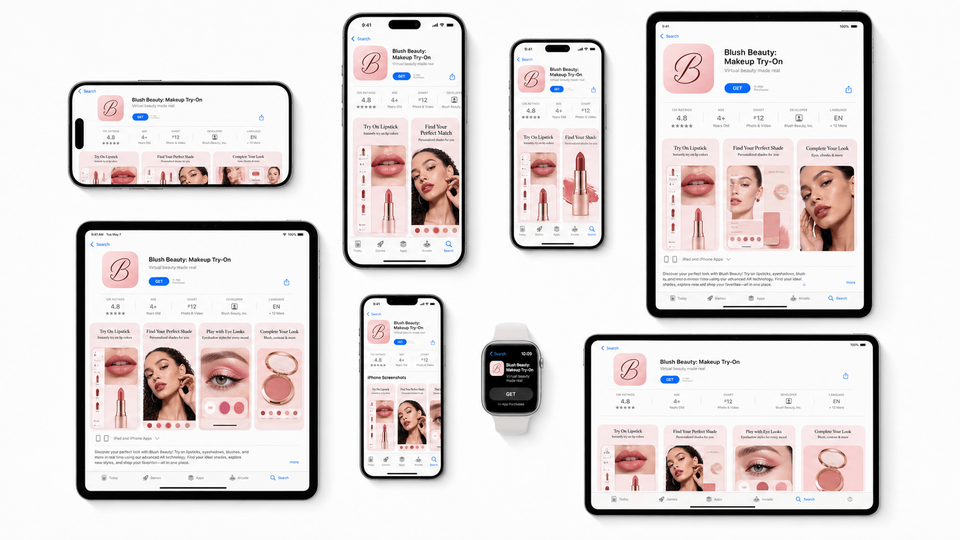
Screenshots are part of your App Store metadata, not a decoration pass at the end of launch. They need to match the selected build, show the app in use, use supported file formats, and explain the app's value quickly. Good launch screenshots make the app's value obvious in search and on the product page, so the same launch traffic has a better chance of becoming installs.
That is why screenshots should be ready for more than the first upload. Localization examples report +101% to +128% more downloads, screenshot localization examples report +33% to +36% conversion gains, and ASO testing examples range from about +4% to +61%. Results are not guaranteed, but screenshot localization and testing matter because they turn the same store traffic into clearer, better-matched product pages.
App Store Connect requires 1 to 10 screenshots for each required display target in JPG, JPEG, or PNG format. If your app UI is the same across multiple device sizes and localizations, App Store Connect may use the highest resolution screenshots to scale down to smaller sizes. Use Media Manager when you need custom screenshots or previews for specific device sizes, device families, or locales.
Create the screenshot set before you submit
AppScreens turns final app screens into store-ready screenshots for the App Store screenshot sizes you actually need. Build one screenshot story, add AI-assisted captions, reuse it across device sizes where appropriate, localize captions, adapt per-language screenshots, prepare Custom Product Page variants or Product Page Optimization variants, then export or upload launch-ready assets from one editable project.
Manual release work scales quickly. Eight screenshots across 3 device sizes and 12 languages becomes 288 files before CPP, PPO, or future UI-update variants. AppScreens keeps sizing, captions, localization, exports, uploads, and QA in one repeatable workflow.
Manual export vs AppScreens
| Approach | Best when | Tradeoff |
|---|---|---|
| Manual export | You already have finished, correctly sized screenshot assets and only need to upload a small fixed set. | Works for admin-only uploads, but it does not help with benefit-led captions, design polish, localization, ASO variants, conversion clarity, future updates, or repeated exports. |
| AppScreens | You want launch screenshots that pass App Store checks and make the app's value clear enough to support more installs. | Built for templates, benefit-led captions, required App Store sizes, localization, CPP and PPO variants, uploads, and one editable project you can reuse. |
Screenshot requirements to check before upload
The first 1 to 3 screenshots matter most because they may appear in App Store search when no app preview is shown. Treat them as a small product story: outcome, proof, and workflow.
Once an app version is submitted for review and approved, you need to create a new app version to update screenshots in the normal version metadata flow. Product Page Optimization is the main exception: if a screenshot or app preview treatment is reviewed, approved, and applied to the original product page, those assets can replace the default set without shipping a new binary. That makes screenshot QA a release-critical step, especially for launches with localized screenshots, subscriptions, iPad support, Custom Product Pages, or Product Page Optimization tests.
Apple has also announced Creative Assets and a centralized Asset Library for fall 2026, including a standalone review path for future product page header and search result visuals. Keep those files separate from standard screenshot and app preview requirements. See our Apple Creative Assets and Asset Library guide for the confirmed workflow and current rollout timing.
For exact dimensions and format checks, use our App Store screenshot sizes guide and the App Store and Google Play screenshot requirements section before exporting.
App preview checks if you use video
App previews are optional, but you can upload up to 3 per supported device size and language. If you use app previews, remember that they appear before screenshots on iPhone, iPad, Mac, and Apple TV. Use the app previews vs screenshots guide if you are deciding whether launch video is worth the extra review and production work.
Before upload, confirm that:
Screenshot planning for CPP and PPO
For launch, finish the default product page first. After that, use AppScreens to duplicate the screenshot set for Custom Product Pages or Product Page Optimization tests. CPP is useful for audience-specific pages, while PPO is useful for testing alternate icons, screenshots, and app previews against the default product page.
Apple supports up to three alternate product page versions for Product Page Optimization, and phased testing or personalization should not distract from getting the default launch page ready first.
Pricing, agreements, privacy, tracking, and age rating
This part of the submission checklist is where your business model, data collection, and compliance details must match the actual build. Do not copy old answers from a previous version without checking the SDKs and features in the build you are submitting.
Apple requires a privacy policy URL for iOS apps and requires developers distributing on the App Store to explain data handling practices in App Store Connect. Your answers should include your own app behavior and the behavior of third-party code integrated into the app, and they need to stay accurate when SDKs or features change.
Pricing, availability, and monetization checklist
Before submission, confirm the business setup matches the way the app makes money.
Privacy checklist
Before answering App Store Connect privacy questions, audit the submitted build and every SDK it includes:
Your privacy answers should cover your own app behavior and the behavior of third-party code integrated into the app. If your privacy practices changed since the last version, update the App Store Connect responses before submission.
Account deletion checklist
If users can create an account in the app, test the account deletion path before review. The option should be available in the app, easy to find, and usable by the reviewer without contacting support.
Age rating checklist for 2026
Do not reuse old age rating assumptions without checking the current App Store Connect questionnaire. Apple updated its age rating system for 2026, and missing updated responses can interrupt app update submission.
Answer the current questions based on the real content and capabilities of the submitted build.
Check:
First launch vs app update
Some App Store Connect checks apply to every submission. Others depend on whether this is your first public release or a version update. Use this table before choosing release timing, preparing screenshots, and submitting in-app purchases.
| Check | First launch | Version update |
|---|---|---|
| App metadata | Complete all required fields before first submission. | Review changed fields and keep metadata accurate. |
| Screenshots | Create a full iPhone and iPad launch screenshot set for every supported device family and locale. | Regenerate screenshots if the UI, pricing, plan names, or key workflows changed. |
| What's New | Usually not relevant for a first public release. | Use it to explain meaningful changes, fixes, and new features. |
| In-app purchases | Submit products with the app if they are part of launch. | Confirm products are still visible, functional, and described accurately. |
| Release timing | Choose the correct first-release option, including manual release, automatic release, or pre-order where relevant. | Choose manual, automatic, or phased release where available for the update. |
Final review checks
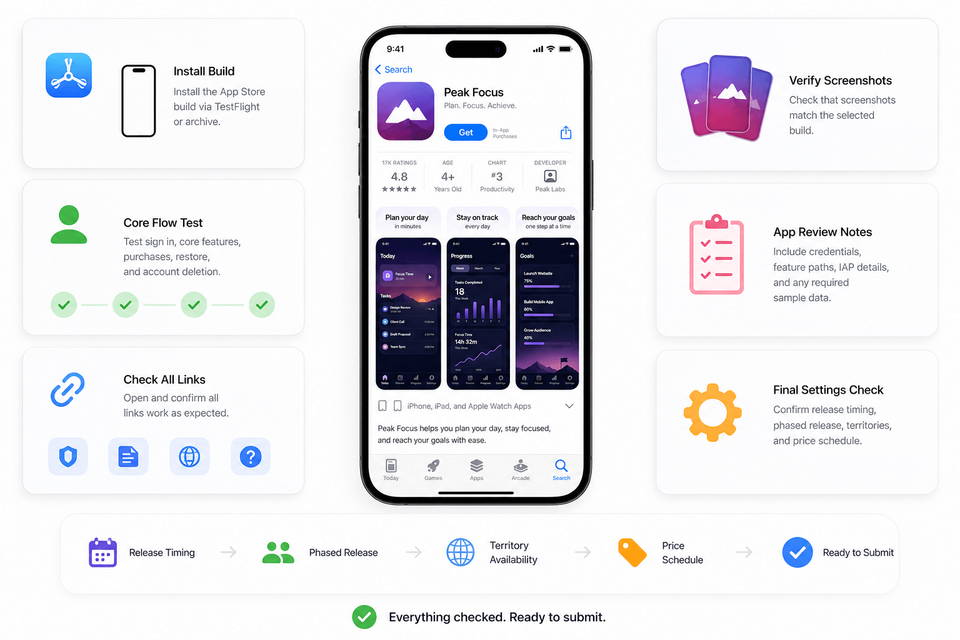
Before submission, test the reviewer's path as if they know nothing about your app. They should be able to open the build, sign in if needed, find the important features, understand paid functionality, and verify the claims in your screenshots and description. This is also the final pass for crash testing, accurate metadata, reviewer access, support URLs, and App Review contact details.
Final 15-minute pre-submit checklist
Use this when everything looks ready and you are about to click Submit for Review.
- Correct build selected in App Store Connect.
- Version number and build number match the release plan.
- App name, subtitle, description, keywords, support URL, and privacy policy are final.
- App Store screenshots match the selected build and are uploaded to the right device sizes and locales.
- App previews, if used, have the right poster frame and appear before screenshots intentionally.
- Pricing, territories, release timing, subscriptions, and in-app purchases are correct.
- Privacy answers match the submitted build and third-party SDKs.
- Age rating answers match the app's real content and capabilities.
- Demo account or demo mode works on a clean device.
- Backend services and required test data are live.
- App Review notes explain login, paid features, role-based flows, hardware, QR codes, or hidden features.
- Delete account flow works if users can create accounts.
- Support, privacy, terms, marketing, and help links load without login.
Common mistakes
These are the most common avoidable App Store submission blockers: incomplete metadata, screenshots that do not match the selected build, missing privacy details, broken support or privacy URLs, unavailable backend services, reviewer accounts that do not work, unclear subscription access, in-app purchases that are not visible to review, and age rating answers that do not match the app's real content.
| Mistake | Use this rule | Why it matters |
|---|---|---|
| Uploading screenshots for the wrong device size | Check App Store Connect's device-size sections before uploading. | A 6.9-inch screenshot dropped into a 6.5-inch slot can trigger a dimension error even when the image itself is valid. |
| Using screenshots from an older UI | Regenerate screenshots before submission when the app changes. | Apple expects metadata to accurately reflect the app, including moved features, changed plan names, or updated design. |
| Forgetting first-submission in-app purchases | Configure, submit, and include required in-app purchase details with app review. | Launch builds with subscriptions or in-app purchases need those products ready and visible in the build. |
| Missing monetization setup | Check Paid Apps Agreement, tax, banking, IAP metadata, subscription details, and StoreKit testing before submission. | Paid apps, subscriptions, and in-app purchases can delay launch when business setup or review information is incomplete. |
| Treating phased release as a first-launch option | Use manual, automatic, or pre-order timing for first launches where relevant; reserve phased release for eligible version updates. | Apple's phased release gradually rolls a version update out over 7 days to users with automatic updates on eligible devices. |
| Blocking reviewers at login | Provide a working demo account with no verification traps. | Email verification, region-only SMS, expired password reset, or an empty workspace can turn a working app into a rejection. |
| Treating privacy labels as a guess | Review analytics, crash reporting, ads, social login, payments, AI, and support tools. | You are responsible for the data practices of third-party code in your app. |
Turn your final UI into App Store screenshots
Stop treating screenshots as a last-minute release chore. Use AppScreens to turn final app screens into polished, launch-ready App Store screenshots that match the selected build, use the right device sizes, support localization, and stay editable for CPP, PPO, future app updates, and App Store Connect upload workflows.
FAQ
What is an App Store Connect release checklist?
An App Store Connect release checklist is a pre-submit workflow covering the release build, app metadata, screenshots, previews, pricing, privacy, age rating, reviewer access, support links, and final App Review checks.
What do I need before submitting an app to App Store Connect?
You need a selected production build, complete required metadata, screenshots for supported device families, pricing and availability settings, app privacy answers, age rating answers, support and privacy URLs, App Review contact information, reviewer notes, and demo access if the app requires login.
How many App Store screenshots do I need?
App Store Connect accepts 1 to 10 screenshots per required display target. For launch, prepare enough screenshots to explain the main user outcome, core workflow, proof points, pricing or subscription context where relevant, and the final reason to install. Check dimensions at App Store screenshot sizes.
What assets do indie developers miss before submitting to the App Store?
Indie developers miss correctly sized screenshots, localized screenshots, a privacy policy URL, support URL, subscription terms, demo credentials, sample data, and reviewer notes for non-obvious features. AppScreens helps the screenshot part move faster with AI onboarding, templates, export sizes, and optional upload workflows. Check App Store screenshot sizes before submitting.
Do App Store screenshots need to match the submitted build?
Yes. App Store screenshots, previews, and descriptions should accurately reflect the app experience in the submitted build. Stale screenshots create metadata rejection risk and weaken user trust.
Can I update screenshots after my app is approved?
In the normal App Store Connect version metadata flow, once an app version has been submitted for review and approved, you need to create a new version to update screenshots. Product Page Optimization is the main exception: if a screenshot or app preview treatment is reviewed, approved, and applied to the original product page, those assets can replace the default set without shipping a new binary. Final screenshot QA should still happen before submission, especially for localized screenshots and multiple device sizes.
Do I need an app preview?
No, app previews are optional. Use one when motion explains the app better than static screenshots. If you use an app preview, make the first seconds clear without sound because previews can autoplay muted.
What should I include in App Review notes?
Include demo credentials, feature paths, subscription or in-app purchase details, sample data, role permissions, test files, required hardware, backend dependencies, and any non-obvious workflows Apple needs to review.
What privacy details should I check before submission?
Review your app and third-party SDKs for analytics, crash reporting, ads, attribution, payments, login, support chat, AI APIs, push notifications, cloud storage, and location. Your privacy answers should describe the submitted build, not an older version or planned future state.
Should I use manual release, automatic release, or phased release?
Use manual release if you want to control the exact launch moment after approval. Use automatic release if the app should go live as soon as Apple approves it. Use phased release where available for version updates when a gradual rollout is the safer option.
How can AppScreens help with an App Store release checklist?
AppScreens prepares launch-ready screenshots fast: AI onboarding, templates, AI captions, real app screen uploads, required App Store screenshot sizes, localized screenshots, feature graphics, CPP and PPO variants, and store-ready exports. Free users can export and upload manually; paid plans add App Store Connect upload workflows and more production scale. Start with the App Store screenshot generator.
Can I release an app with free AppScreens screenshots?
Yes. The free AppScreens workflow is enough for many basic launch sets: create a project, use AI mode, choose a template, add up to five screenshots, export, and upload manually in App Store Connect. Paid plans add more screenshots, upload workflows, localization, variants, and team scale. See pricing.
Can AppScreens upload screenshots to App Store Connect?
Yes. AppScreens supports App Store Connect upload workflows, including localized screenshots and Apple CPP and PPO variants. This is where paid speed matters: it reduces the manual sorting, dragging, replacing, and checking that happens when teams upload many screenshot files by hand. Compare upload needs on pricing.