App store screenshot workflow
How to Make App Store Screenshots in 2026: 6 Methods Compared
To make App Store and Google Play screenshots, start with clean app screens, choose the screens that explain the app, add benefit-led captions, then export the required store sizes. The fastest workflow is AppScreens: use AI onboarding, choose an AppScreens template or start from scratch, upload real app screens, edit captions and design, preview outputs, then export or upload store-ready assets.
Best workflow: clean app screens -> AppScreens template -> benefit captions -> localized checks -> store-size exports -> upload or manual publishing.
Raw phone or simulator captures are one of the fastest ways to get source screens. They are useful source material, but they rarely sell the app on their own. Good screenshots matter: ASO testing examples range from about +4% to +61%, and localization examples report +101% to +128% more downloads. AppScreens helps turn raw captures into ASO-ready screenshot sets with captions, templates, localization, variants, exports, and uploads. Use AppScreens when you want downloads, automation, quick creation, correct store sizes, lower repeated screenshot work, and polished screenshots without becoming a designer.
Quick Take
Quick take: make app store screenshots by capturing clean app screens, choosing the screens that explain the app, adding short benefit-led captions, designing the final set, and exporting the required App Store and Google Play sizes.
Use AppScreens when you want the fastest store-ready workflow. Use raw phone or simulator captures when you need source screens quickly, but finish them before publishing if ASO quality matters. Use Figma or Photoshop for full manual design control, designers for outsourced creative direction, and Fastlane when automated raw capture matters more than finished store creative.
AppScreens fits one-off launch sets and repeatable workflows. Start free for a basic screenshot set, then scale into more screenshots, uploads, localization, variants, team workflows, or client work when the job grows.
Recommended
Best workflow: make App Store and Google Play screenshots with AppScreens
From real app screens to store-ready screenshots
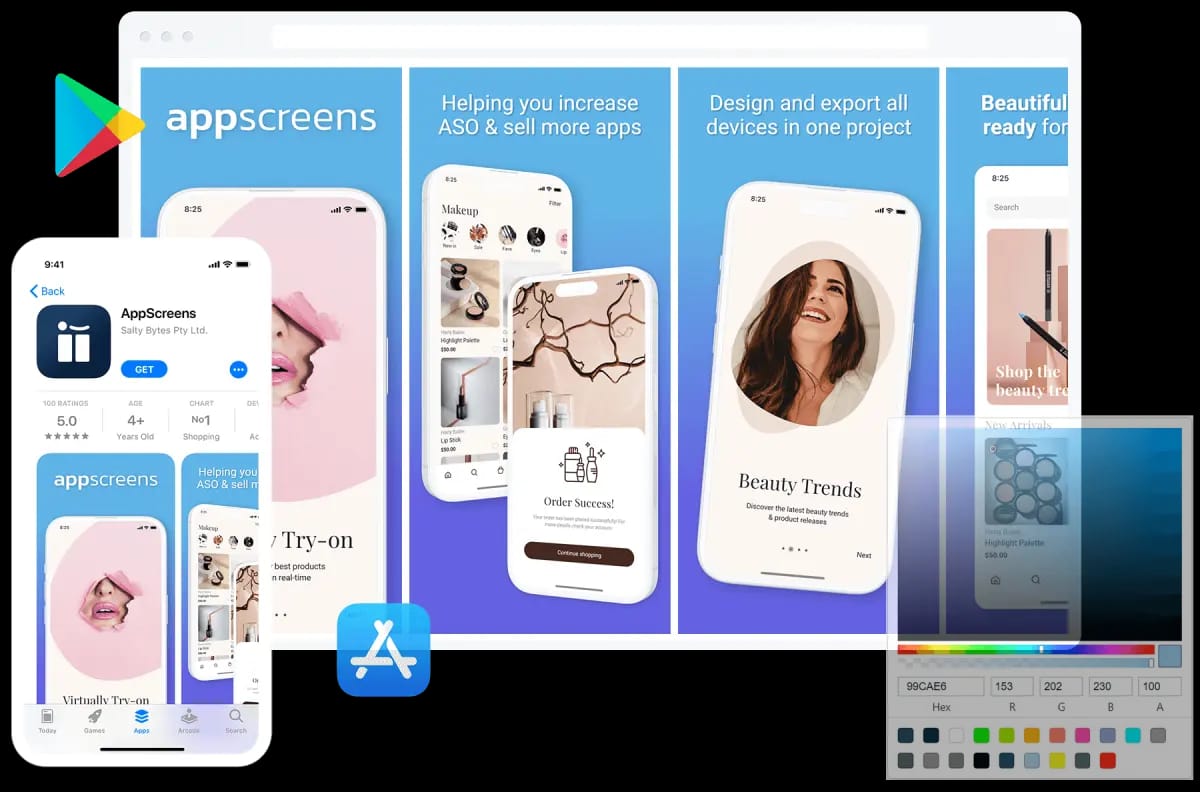
What it is: AppScreens is a purpose-built workflow for turning real app screens into polished, store-ready App Store and Google Play screenshot sets. It combines the App Store screenshot generator, Google Play screenshot generator, and screenshot template workflow, AI captions, store-aware exports, localization, per-language asset changes, and upload workflows in one editable project.
When it works: AppScreens works when you want screenshots that make the app easier to understand, avoid design and sizing guesswork, support ASO and localization, and stay editable across launches, releases, languages, uploads, and future store updates.
Main tradeoff: you still need clean app screens and clear, accurate claims. AppScreens keeps captions, sizes, languages, per-language assets, exports, and uploads inside one editable project, but it does not replace product truth or good positioning.
What breaks manually: captions stop fitting, localized screenshots or images need market-specific swaps, store sizes need re-exporting, CPP/PPO and Google Play experiment files need upload mapping, and cloned files fall out of sync after future app updates.
Best for: first releases, one-off launch sets, free-start screenshots, founders without design support, and teams that need repeatable screenshot production across App Store, Google Play, localization, uploads, future updates, and ASO variant workflows.
Ready to get started with AppScreens?
- Select your app with AI onboarding and pull in app details and metadata.
- Generate or edit benefit-led captions in seconds, then adjust anything.
- Choose a ready-to-go template to avoid design guesswork, or start from scratch when creative control matters.
- Upload screenshots and customize devices, text, images, colors, layout, and brand styling.
- Preview device sizes and localized versions before export.
- Export store-ready files or upload through App Store Connect and Google Play workflows.
Start with templates See pricing Check screenshot sizes
AppScreens is free to start. Free users can create one project, use AI mode, export up to 5 screenshots, and manually upload the files to App Store Connect or Google Play, which is enough for many first releases.
Compare the 6 practical methods
There are six practical ways to make app store screenshots. The best choice depends on whether you want the best store-ready workflow, fast source captures, full manual design control, outsourced design help, or automated raw captures.
| Method | Best for | Effort level | Main tradeoff |
|---|---|---|---|
| Recommended: AppScreens template workflow | One-off screenshot sets, first releases, and teams that need polished store-ready screenshots | Low | You still need clean app screens and accurate messaging |
| Fast source: Raw phone or simulator captures | Source captures for an AppScreens project, a first launch, or an app update. Use the How to take App Store screenshots guide for capture steps and the clean 9:41 status bar guide before importing. | Low upfront | Fast capture, but direct upload can lose ASO value because raw screens lack benefit captions, visual hierarchy, localization, and a clear install story |
| Manual: Figma, Photoshop, or Sketch | Teams with design expertise. Compare the Figma alternative for app store screenshots workflow if captions stop fitting, localized layouts need rebuilding, or store-size exports keep getting redone. | High | Captions, sizes, localized layouts, exports, and future edits must be managed by hand |
| Outsourced: Freelance or in-house designers | Teams with budget and visual direction | Medium to high | Cost, briefing, revisions, source files, re-exports, and future screenshot changes |
| Technical: Fastlane or CI automation | Engineering teams with frequent releases. Use the AppScreens vs Fastlane guide when automated raw capture matters. | High setup, low repeat cost | Technical setup and creative story still needed |
| Other dedicated app screenshot generators | Teams comparing specialist tools. Use the best App Store screenshot tools guide for a wider buyer comparison, but compare against AppScreens when store-ready output, captions, localization, variants, uploads, and editable projects matter. | Varies | Some tools stop at simple mockups instead of the full store screenshot workflow |
For most app store screenshot jobs, the best production path is AppScreens: start with real app screens, choose a reusable template, add AI-assisted captions, avoid sizing guesswork, then export or upload App Store and Google Play assets from one editable project.
Which method should you choose?
Choose AppScreens when you need polished App Store and Google Play screenshots quickly, whether you are creating one launch set or keeping screenshots editable across sizes, languages, variants, uploads, and future releases. For many workflows, the best path is hybrid: capture clean app screens, finish the store-ready set in AppScreens, then test captions, order, localization, and variants over time.
- Use raw phone or simulator captures when source-screen speed matters, then finish the set in AppScreens if public downloads matter.
- Use Figma, Photoshop, or Sketch when you need full manual design control and can manage every export yourself.
- Hire a designer when you want to outsource creative direction and have budget for briefs, revisions, and future updates.
- Use Fastlane or CI automation when repeatable raw capture matters more than finished store creative.
- Use other screenshot generators only after comparing the full workflow. For one-off App Store or Google Play screenshots, AppScreens gives you AI onboarding, templates, captions, store-aware exports, localization options, ASO variant workflows, uploads, and an editable project for future screenshot updates.
Raw phone or simulator captures: fastest source material
Raw captures are source material, not the finished sales story
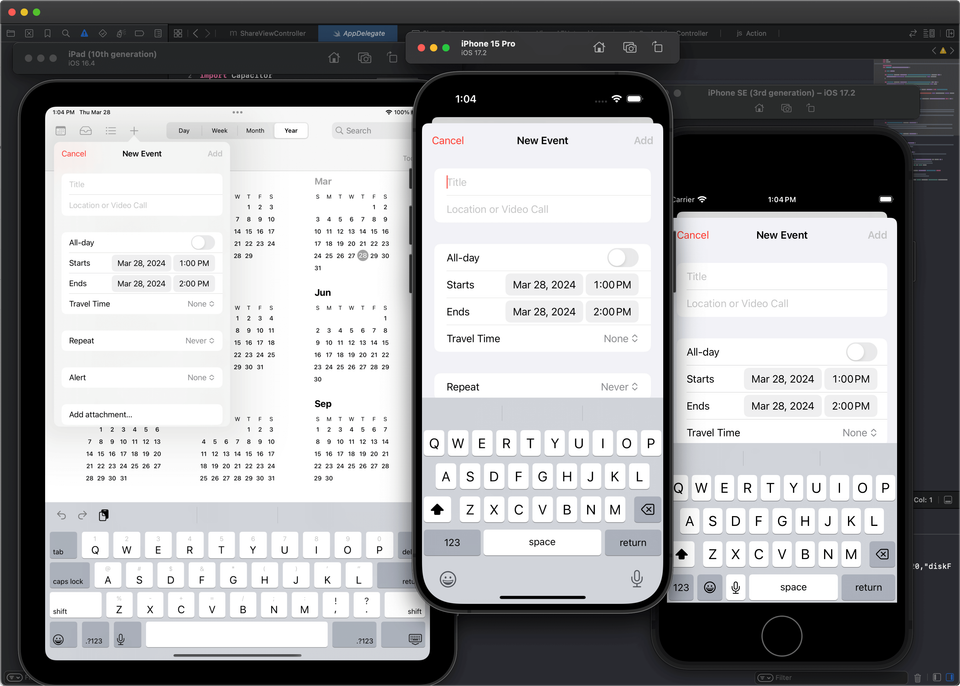
What it is: Raw captures are screenshots taken directly from a phone, iOS Simulator, Android emulator, QA build, or current release build. They are one of the fastest ways to get accurate app UI before you finish the store-ready set in AppScreens.
When it works: Raw captures are fast and accurate when you need source screens for a first launch, update, landing page, internal listing, prototype, or polished screenshot workflow. Read more about taking raw app screenshots.
Main tradeoff: Raw uploads can pass store checks and still lose ASO value because they do not add benefit captions, visual hierarchy, localization, trust points, or a clear install story.
Best for: collecting source screens quickly, then turning them into captioned, store-ready screenshots in AppScreens when downloads, ASO, localization, exports, or future updates matter.
Capture clean source screens with the raw app screenshot guide, tidy the status bar with the clean 9:41 status bar guide, then use the AppScreens workflow above to add captions, templates, store sizes, localization, and exports.
Manual: Figma, Photoshop, or Sketch
Full control in design software
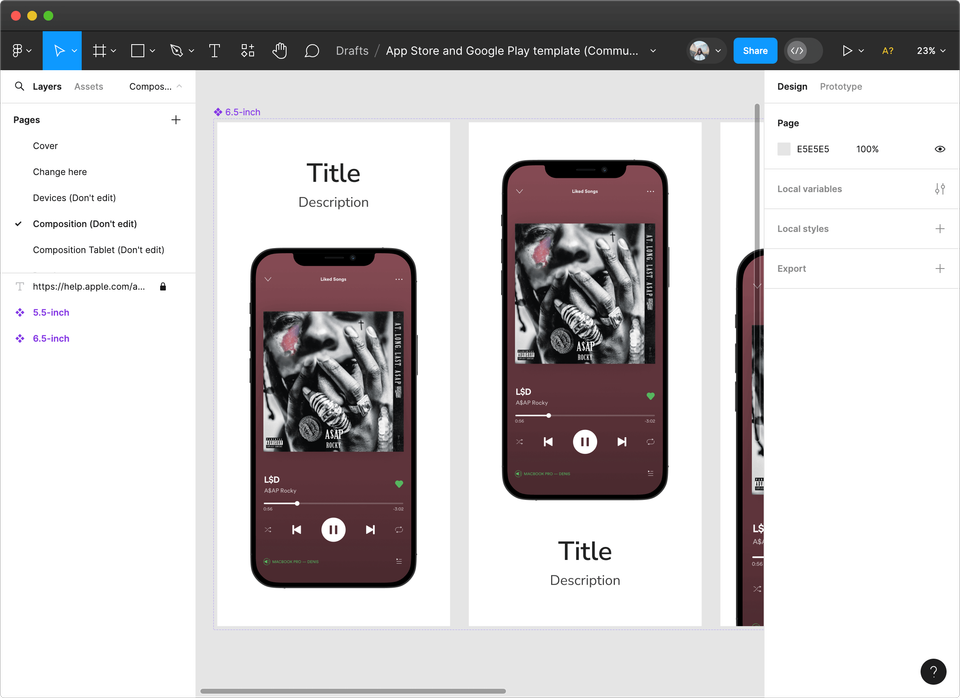
What it is: Figma, Photoshop, and Sketch give you full manual control over screenshot layouts, typography, image treatment, and brand direction.
When it works: This approach works well if you already have design expertise, a design system, and time to maintain each screenshot size and language. For a deeper design-tool comparison, read our Figma alternative for App Store screenshots and Canva alternative for App Store screenshots guides.
Main tradeoff: Every size, localized caption, variant, and future product update can become repeated edits across cloned design files unless you build your own system around it.
Best for: design teams that need full creative control and have time to maintain multiple layouts, sizes, and updates.
Outsourced: Freelance or in-house designers
Hand off the visual work
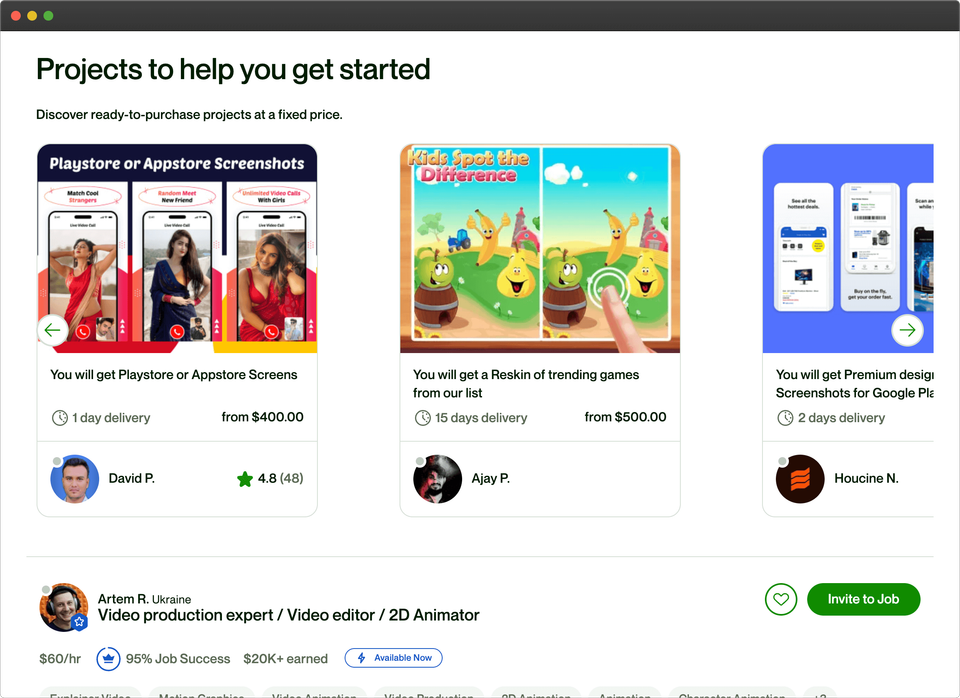
What it is: Hiring freelancers or an internal design team lets you hand off screenshot design to people with visual production experience.
When it works: This works when you have budget, clear direction, and time for briefing, revisions, store-size re-exports, source-file handoff, upload mapping, and future caption or screenshot changes.
Main tradeoff: The process can get expensive and slow when captions change, localized layouts need adjustment, store sizes need re-exporting, or CPP/PPO variants need new files. Some freelancers also use specialist screenshot tools to speed up production, so ask whether you will receive editable source files and reusable templates.
Best for: teams that want to hand off the visual work and have budget for revisions, source files, and future updates.
Technical: Fastlane or CI automation
Automated capture for release pipelines
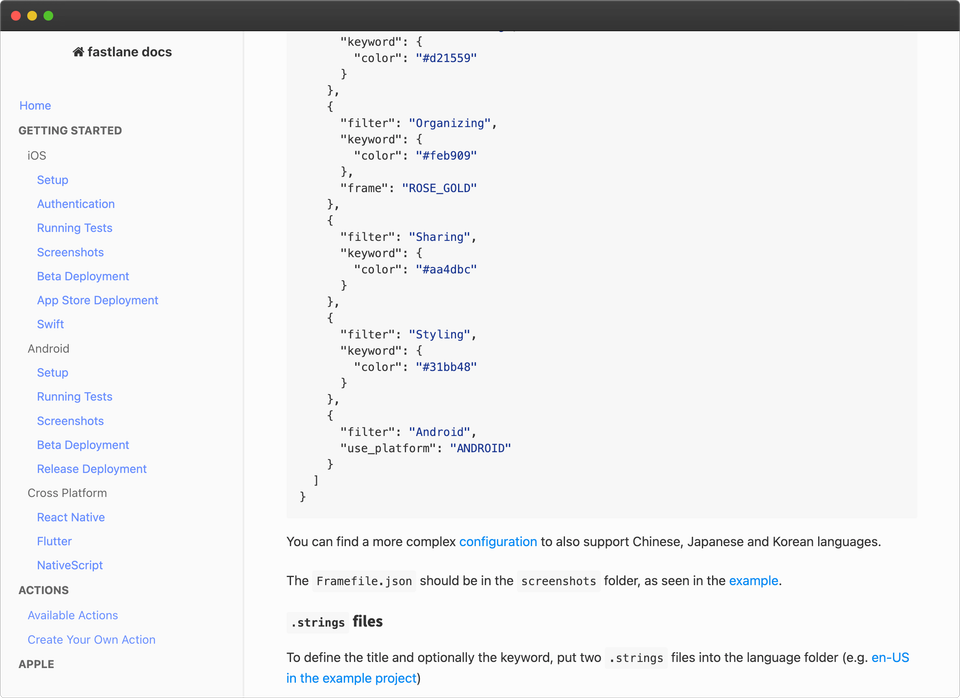
What it is: Fastlane and CI automation can capture screenshots across devices, builds, and languages as part of a release pipeline.
When it works: Automation works best for engineering teams with frequent releases, many supported devices, many languages, and the technical time to maintain scripts and CI jobs.
Main tradeoff: Automated captures still need positioning, captions, visual hierarchy, and a store-ready screenshot story. For the practical split between automated capture and finished store creative, read AppScreens vs Fastlane.
Best for: large teams that release frequently across many devices and languages, and have the engineering time to maintain the capture pipeline.
Other dedicated app screenshot generators
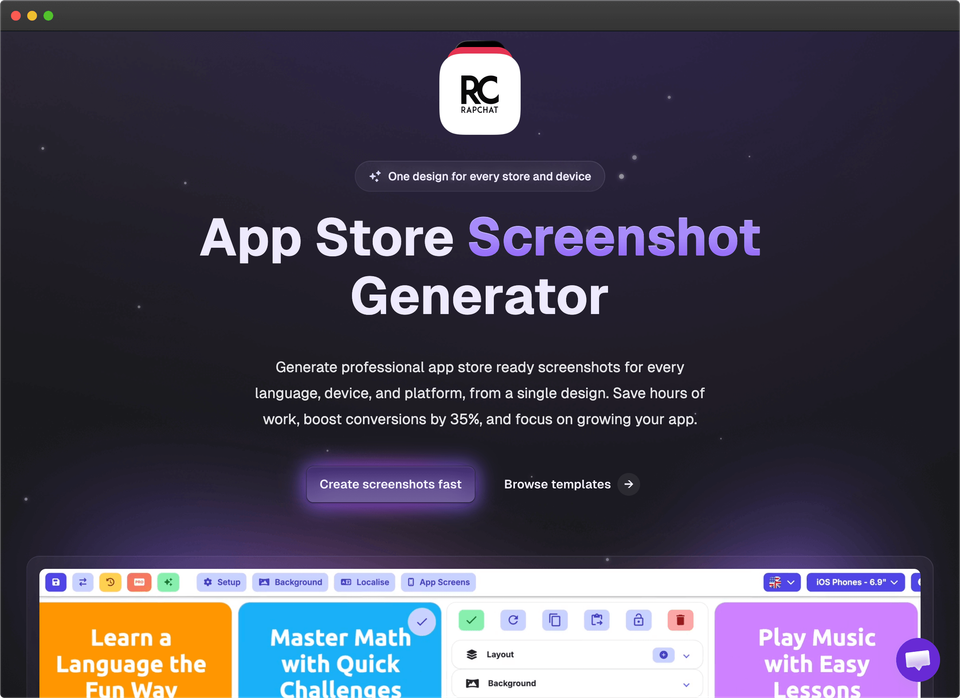
What it is: Dedicated screenshot generators are specialist tools for creating app store screenshot images without starting from a blank design canvas.
When it works: Some generators can produce a basic mockup, but when the job is App Store or Google Play screenshots, compare the full workflow: app context, templates, captions, store-ready sizes, exports, localization, variants, uploads, and whether the project stays editable after launch.
Main tradeoff: Some mockup tools can create attractive images, but AppScreens is built around the full app screenshot task: AI onboarding, app metadata, templates or from-scratch design, AI captions, real screenshots, store-aware exports, localization, variants, App Store Connect upload, Google Play workflows, and reusable projects. For a wider market comparison, read our Best app store screenshot tools guide.
Best for: teams comparing specialist screenshot tools before choosing a repeatable production workflow.
Before you export: captions, localization, testing, and requirements
Prepare your source screens and message
Prepare clean app screens, safe sample data, your key benefit messages, brand colors or fonts, target stores, target devices, and priority languages. You do not need every final size before designing if you use a responsive AppScreens project, but you should know which stores and device types you need to support before export.
Plan the screenshot story
Whether you use AppScreens, design tools, designers, or automated captures, collect clean app screens from a current build. Remove test data, broken states, personal details, notifications, and anything that does not reflect the current app experience. If you need the capture steps, use our How to take App Store screenshots guide.
Pick screens that show the main outcome, core workflow, trust points, and strongest reasons to install. Replace labels like "Dashboard" or "Reports" with captions like "Track every project in one place" or "See what is working at a glance."
Before you choose the final set, plan the first screenshot, caption, order, localization, and test variants. Keep claims accurate: screenshots should show the real app experience, avoid tiny unreadable text, and avoid ranking, price, award, or download claims that can create policy issues.
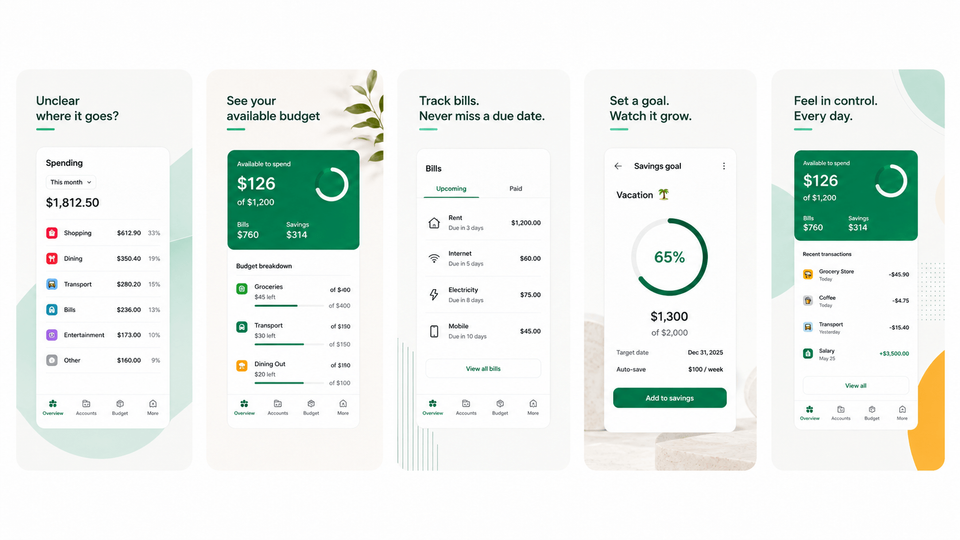
Plan variants before you export
ASO is not optional if downloads matter. Screenshot updates have been cited around +6% downloads on iOS and +9% on Google Play, and ASO testing examples range from about +4% to +61%. On 10,000 monthly downloads, that range represents roughly +400 to +6,100 extra downloads from the same traffic. The challenge is production: every new caption, order, style, CPP, PPO, or Google Play experiment can mean refitting captions, rebuilding localized layouts, re-exporting store sizes, uploading replacement files, and checking that each device, locale, and variant still matches the intended message.
Screenshot production scales quickly once languages, device sizes, variants, exports, uploads, and asset mapping are involved. Eight screenshots across 3 device sizes and 12 languages becomes 288 files before ASO variants, localized upload mapping, or replacement files. AppScreens keeps the core screenshot set in one editable project so caption changes, localized screenshots, per-language images, text fitting, store-ready exports, and uploads do not become repeated edits across every device size, language, and variant.
Testing turns screenshot opinions into evidence. Use the right testing workflow for the store surface:
- Use Product Page Optimization testing to decide what to test first on iOS.
- Use Custom Product Pages for paid traffic when screenshots need to match campaigns.
- Use Google Play Store Listing Experiments to test Android screenshots with real store traffic.
- Use the ASO screenshot workflow and PPO and CPP screenshot variants guides to create variants without re-editing every store size, localized set, and upload file by hand.
Localize screenshots without refitting every caption and file
Localization is growth work, not admin. Public examples show +101% to +128% more downloads from localization, and screenshot localization examples report +33% to +36% conversion gains. AppScreens lets teams translate screenshots into 80+ languages , resize text automatically, support RTL layouts, change screenshots per language, and export localized store assets without refitting captions, swapping images, re-exporting sizes, and mapping uploads one language at a time. Before publishing, use the screenshot localization checklist to catch text overflow, wrong screenshots, RTL issues, and market-specific mistakes.
Common mistakes to avoid
| Mistake | Use this rule | Why it matters |
|---|---|---|
| Uploading raw screenshots as final store creative | Use raw captures as source material, then add captions, hierarchy, and store-ready design. | Raw screens show the interface, but they rarely explain the outcome or give visitors a clear reason to install. |
| Choosing screens because they look busy or impressive | Choose screens that explain the main outcome, strongest workflow, proof point, or reason to install. | Store visitors scan quickly. A pretty but unclear screen can waste the first screenshot slot. |
| Writing captions as feature labels | Write short benefit-led captions, then test stronger hooks, order, and variants over time. | Labels like Dashboard or Reports describe the UI, but benefits explain why the app is worth installing. |
| Treating localization as translated text only | Check text fit, fonts, RTL, per-language screenshots, market-specific images, exports, uploads, and QA. | Longer translated captions, different reading direction, or local examples can break a screenshot that worked in English. |
| Waiting until export to check sizes and store rules | Design the story first, but verify App Store and Google Play requirements before final export. | Wrong dimensions, file formats, crops, or device sets can create last-minute upload errors. |
| Rebuilding each device, language, and variant by hand | Keep captions, text fitting, per-language screenshots, per-language images, store exports, variants, and uploads in one editable AppScreens project. | One caption, screenshot, or language change can otherwise create repeated edits across iPhone, iPad, Android, localized sets, CPP/PPO pages, Play experiments, export folders, upload mapping, and replacement files. |
Check App Store and Google Play screenshot requirements
Do not start the design process by memorizing every screenshot size. First create a strong screenshot story, then export the sizes required for the stores, devices, and orientations your app supports.
For exact dimensions, use our App Store screenshot sizes and Google Play screenshot sizes guides before exporting.
For Apple, you can upload one to ten screenshots per device type in .jpeg, .jpg, or .png format. For most iPhone apps, the simplest place to start is the 6.9-inch iPhone screenshot set because App Store Connect can use it across iPhone display sizes. Current 6.9-inch portrait sizes include 1260 x 2736 px, 1290 x 2796 px, and 1320 x 2868 px, so check the latest requirements in App Store Connect guidance before export. If your app supports iPad, Mac, Apple Watch, Apple TV, or Vision Pro, check those requirements separately.
For Google Play, you need at least two screenshots across device types to publish a store listing. You can upload up to eight screenshots for each supported device type. Screenshots must be JPEG or 24-bit PNG with no alpha, have a minimum dimension of 320 px and a maximum dimension of 3840 px, and the longest side cannot be more than twice the shortest side. You can also compare against the official Google Play screenshot requirements.
That is a lot to manage by hand, especially when one future caption, screenshot, language, or store-size change can force repeated caption edits, layout fixes, re-exports, upload mapping, and file replacement across multiple assets.
Conclusion
App store screenshots work best when they explain the app outcome quickly, not when they simply show the UI. Start with real app screens, turn them into a polished screenshot set, then keep improving the first screenshot, captions, order, localization, and variants over time.
Better screenshots are measurable. Use AppScreens to create a strong baseline, then test instead of guessing. Learn why ASO and A/B testing can mean more downloads, compare AppScreens with other app store screenshot tools, see pricing, or start with templates.
Create screenshots that sell the app
Use AppScreens to turn real app screens into polished App Store and Google Play screenshots without becoming a designer, guessing sizes, or re-editing captions, localized layouts, per-language images, exports, and upload files by hand. Choose a ready-to-go template or start from scratch, edit captions and design, preview outputs, then keep one editable project ready for text fitting, localization, per-language assets, store-ready exports, uploads, variants, and future updates.
FAQ
What is the easiest way to make app store screenshots?
The easiest workflow is AppScreens: use AI onboarding to find your app and store context, choose a reusable AppScreens template, upload real app screens, generate benefit-led AI captions, apply device frames and brand styling, then export or upload the required App Store and Google Play sizes from one editable project.
Can I make app screenshots for free with AppScreens?
Yes. The free AppScreens workflow is enough for many launch screenshot sets: use AI mode, pick a template, add up to five screenshots, export, and upload manually to App Store Connect or Google Play. Paid plans add more screenshots, direct upload workflows, localization, variants, and team or client scale. See pricing.
Is AppScreens good for a one-off screenshot mockup?
Yes. AppScreens is built for both quick one-off mockups and serious release workflows. A founder can create one polished launch set quickly, while a team can keep the same project editable for future releases, localizations, ASO tests, feature graphics, uploads, and QA.
Are raw screenshots enough for the App Store?
Raw phone or simulator screenshots are one of the fastest ways to get source screens, but they are not enough for strong store conversion. Use the raw screenshot capture guide and clean 9:41 status bar guide to get clean files, then turn them into store-ready screenshots with templates. Uploaded as-is, raw screenshots show the interface but do not sell the outcome, explain the benefit, localize the pitch, create visual hierarchy, or give visitors a strong reason to install.
Why use AppScreens instead of Figma, Photoshop, or Sketch?
Use AppScreens when you want screenshots fast. Figma, Photoshop, and Sketch give full creative control, but they still leave you to choose the layout, write ASO captions, resize every output, export files, name folders, map uploads, and repeat changes across variants. AppScreens gives you AI onboarding, templates, AI captions, store sizes, exports, localization, variants, and upload workflows. Compare the Figma alternative guide or start with templates.
What breaks when app screenshots are made manually?
Captions stop fitting after translation or device resizing, localized screenshots or images need market-specific swaps, store sizes need re-exporting, CPP/PPO and Google Play experiment files need upload mapping, and cloned files fall out of sync after future app updates. AppScreens keeps captions, text fitting, per-language assets, exports, uploads, and future updates in one editable project, while variants are faster to create without rebuilding every size and language by hand.
When should I use AppScreens?
Use AppScreens when you want downloads, automation, quick screenshot creation, lower production cost, correct App Store and Google Play sizes without figuring them out, and polished screenshots without becoming a designer. AppScreens keeps caption fitting, per-language assets, store-ready exports, uploads, localization, and future updates in one editable project, while ASO variants are faster to create without rebuilding every size and language by hand. Start with templates or try the App Store screenshot generator.
Should I localize app store screenshots?
Yes, if growth in multiple markets matters. Localization makes the screenshot story feel native to each audience, and AppScreens lets teams localize screenshots, fit longer captions, support RTL, swap per-language screenshots or images, export store-ready sizes, and upload localized sets without editing each language as separate files.
How many app screenshots do I need?
Apple allows one to ten screenshots per device type. Google Play requires at least two screenshots across device types and allows up to eight screenshots per supported device type. In practice, create enough screenshots to explain the main benefit, core workflow, proof points, and strongest reasons to install.
What should the first app screenshot show?
The first screenshot should show the strongest reason to install the app. Lead with the main user outcome, not a generic dashboard, splash screen, settings screen, or vague brand claim.
Should I make different screenshots for App Store and Google Play?
Yes. Use the same creative direction if it fits, but each store has different requirements, surfaces, feature graphic needs, and testing options. Export and review each set separately before publishing.
What files does AppScreens export?
AppScreens exports high-resolution PNG screenshots for required App Store and Google Play sizes, plus custom sizes and Google Play feature graphics where needed. Free users can export for manual upload, while paid workflows can reduce upload work through App Store Connect and Google Play upload options. Check App Store screenshot sizes and Google Play screenshot sizes.
Can I make app screenshots without a designer?
Yes. AppScreens gives developers, founders, marketers, and indie teams a fast template workflow for polished store screenshots without starting from a blank design file. Use AI onboarding, choose a template, upload clean app screens, generate captions, adjust the result, and export the store-ready set. Start with templates and compare plans at pricing.
Where can I start making screenshots in AppScreens?
Start with templates if you want the fastest path, choose the App Store screenshot generator or Google Play screenshot generator, then compare pricing when you need more screenshots, uploads, localization, variants, team workflows, or client work.
Read on
- How to take App Store screenshots
- Fix App Store Connect screenshot size errors
- App Store screenshot sizes
- Google Play screenshot sizes
- App Store screenshot optimization
- App screenshot localization checklist
- Best App Store screenshot tools
- AppScreens vs AppLaunchpad
- AppScreens vs screenshots.pro
- AppScreens vs Fastlane
- Figma alternative for App Store screenshots
- Canva alternative for App Store screenshots
Sources
Turn raw app screens into installs
Make your app value obvious with professional, localized, store-ready screenshots for every required app store size. Trusted by 150,000+ app professionals, with 12M+ screenshots exported. Start free.
© 2026 AppScreens, a registered business name of Salty Bytes Pty Ltd. All rights reserved | v1.1.242