
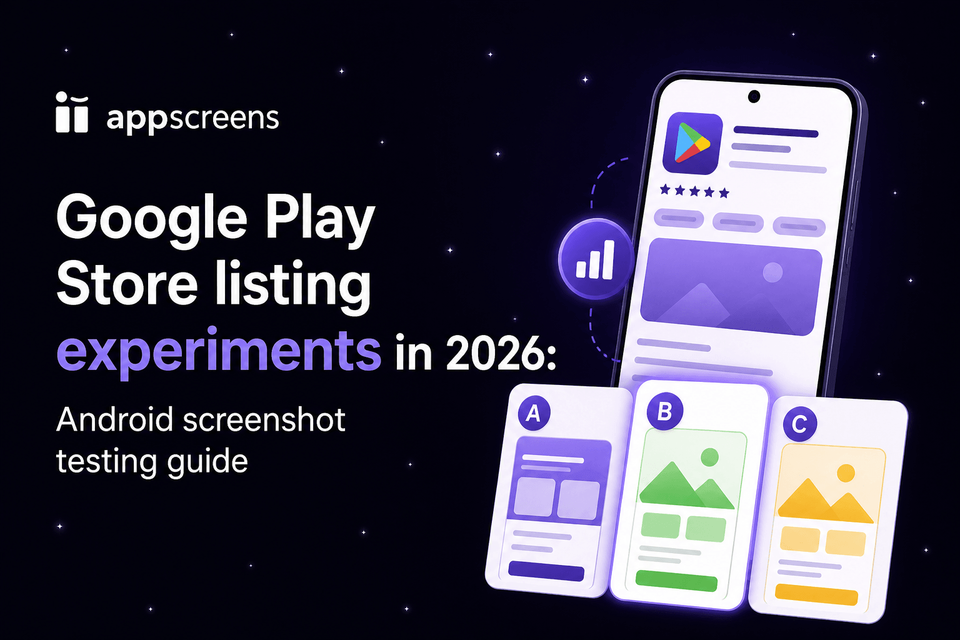
Google Play Store Listing Experiments in 2026: Android Screenshot Testing Guide
Google Play Store Listing Experiments help Android teams stop guessing about screenshots, icons, feature graphics, videos, and localized text. Use them to compare one clear variant against your current listing with real Play Store visitors, then apply the winner only when the result is strong enough to matter.
The cleanest setup is one hypothesis, one asset type, one visible change, enough traffic, and a minimum seven-day run. Use retained first-time installers when traffic supports it, or first-time installers when you need a broader install signal.
AppScreens makes the production side faster: duplicate your current project, create a Play Store screenshot or feature graphic variant, QA the files, export Play Console-ready assets, then upload the variant into the experiment without rebuilding every size by hand.
ASO testing matters because it can turn existing store traffic into more installs without buying more ads. Google’s public examples include Tapps Games increasing installs by more than 20%, Kongregate increasing installs by 45%, and Pincer Games increasing conversions by 20%. Treat those as upside examples, not forecasts, then use your own traffic, conversion rate, and retained first-time installer data to decide what to roll out.
Quick Take
Google Play Store Listing Experiments let you test one meaningful change against your current Play Store listing before applying it to everyone.
For most apps, start with the first screenshot, first-three screenshot story, or feature graphic. Keep the setup clean: one hypothesis, one asset type, one visible change, enough traffic, a minimum seven-day run, and retained first-time installers when traffic supports it.
Use the result to apply, reject, refine, or rerun the idea. AppScreens is useful when variant production gets repetitive: duplicate the control, create screenshot, feature graphic, or localized variants, QA the assets, export Play Console-ready files, and keep winners editable for future tests.
What should you test first?
Start with the asset most likely to change the install decision. For most Android apps, that means the first screenshot, first-three screenshot story, or feature graphic because those assets carry the visual promise users compare before installing.
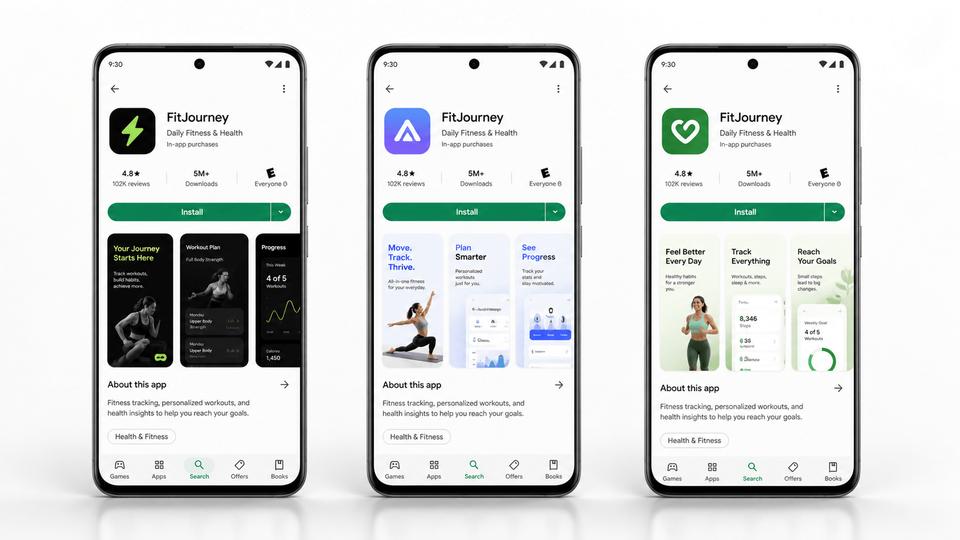
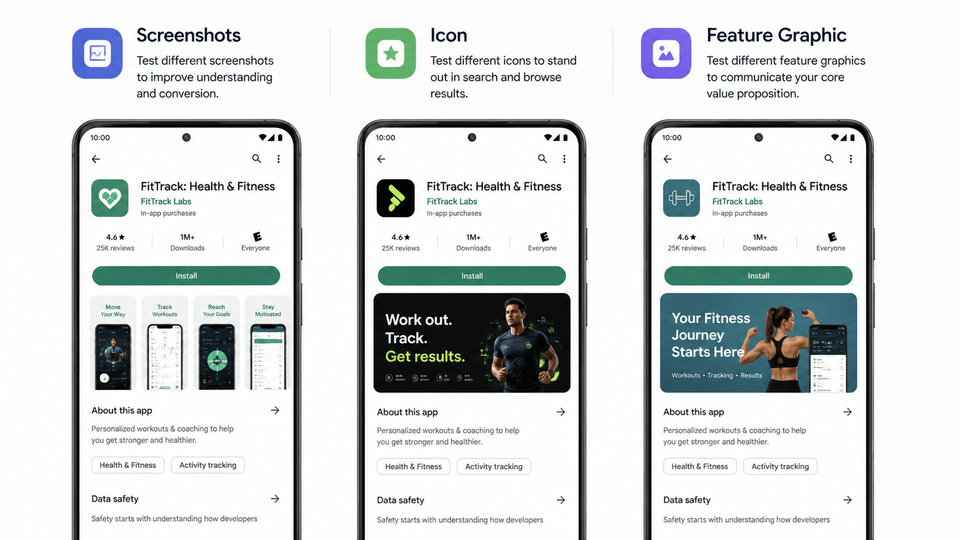
Best first answer: test screenshots when you want to improve the store story, test the feature graphic when the hero promise drives attention, test the icon when search or browse visibility is the problem, and test localized screenshots when a market needs a clearer native pitch.
Use the Google Play screenshot generator when the test is about captions, screenshot order, benefits, localization, or device visuals. Use the Google Play feature graphic generator when the test is about the hero promise shown near videos, promotions, or high-impact visual placements.
| Situation | Test first | Good first variant |
|---|---|---|
| Users do not understand the app quickly | First three screenshots | Change the opening story from feature-led to benefit-led. |
| Most traffic comes from search or browse | Icon | Test a simpler, more recognizable icon against competitor results. |
| You use a promo video or strong hero area | Feature graphic | Match the feature graphic promise to screenshot 1. |
| You are entering a new country or language | Localized screenshots | Adapt captions, UI examples, currencies, proof points, and screenshot order. |
| Paid campaign traffic needs a different pitch | Custom store listing | Match the listing message to the campaign promise. |
| Visuals are strong but conversion is weak | Short description | Reinforce the same promise shown in the first screenshot. |
If you are unsure, start with screenshots. They are easier to create, easier to interpret, and close to the install decision. A strong first screenshot or first-three story teaches more than a tiny caption edit.
Use the main store listing when you want to improve the default experience for most organic visitors. Use localized experiments for country, language, or market-specific messaging. Use custom store listing experiments when paid campaign traffic, audience segments, or visitor sources need a different pitch from your default listing.
Fastest Workflow: Create The Variant In AppScreens, Then Test It In Play Console
The fastest Google Play experiment workflow is AppScreens: duplicate your current screenshot project, change one visible idea, QA the complete asset set, export Play Console-ready files, then upload only the variant assets that belong to the current experiment.
Raw screenshots are source material, not finished store creative. AppScreens turns real Android app screens into polished, store-ready screenshot variants with reusable templates, AI-assisted captions, device frames, brand styling, localization, feature graphics, export-ready sizes, and one editable project for future tests.
1. Duplicate the control
Keep the current listing reproducible. Duplicate the project in AppScreens before changing the hook, order, caption angle, feature graphic, or localized proof point.
2. Change one visible idea
Build one variant worth testing: a stronger first screenshot, a new first-three story, a localized caption set, or a feature graphic that reinforces the same promise.
3. QA the full asset set
Check text fit, cropping, Android device coverage, translations, file names, and whether the UI reflects the current app experience before the test goes live.
4. Export and upload
Export the Google Play screenshots or feature graphic from the variant project, upload them to Play Console, and record the hypothesis, dates, traffic context, result, and next decision.
Production note:
One A/B test can create design, localization, export, upload, and QA work across every tested asset. AppScreens keeps the control and variant editable so a winning idea can become the new baseline instead of another one-off export folder.
How Google Play Store Listing Experiments Work
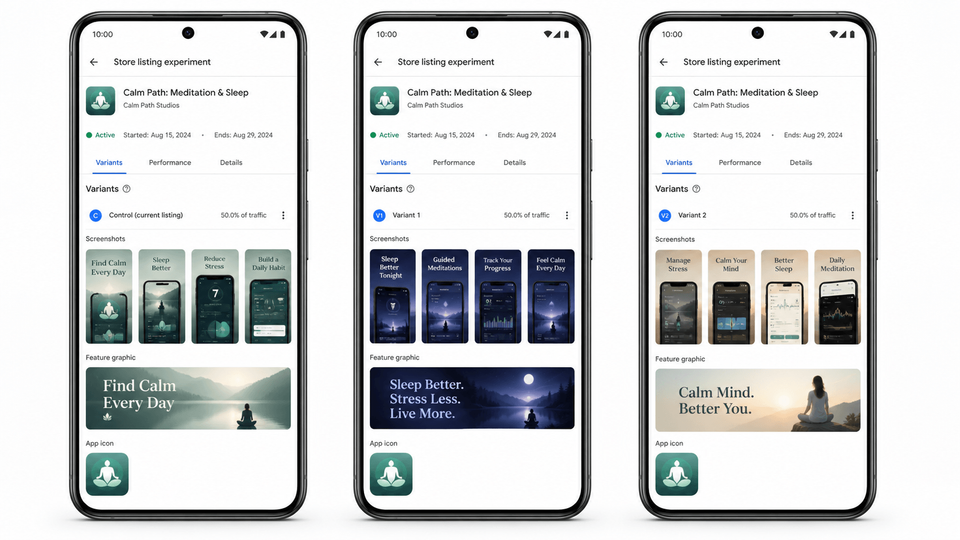
Google Play Store Listing Experiments are native A/B tests inside Play Console. You test one or more variants of a store listing asset against the current listing, split a percentage of eligible store traffic, and compare results using first-time installers or retained first-time installers.
Default graphics experiments test graphics in the default store listing language. Localized experiments can test graphics and descriptions for selected languages. For the clearest result, build one visible creative change at a time, then use Play Console’s result and your own traffic context to decide whether to apply, reject, refine, or rerun the idea.
Source: Play Console Help: Run A/B tests on your store listing.
Before you start
Check the experiment type before designing variants:
- Use a default graphics experiment for icon, feature graphic, screenshots, and promo video in the default store listing language.
- Use a localized experiment when you need to test localized graphics, short descriptions, or full descriptions.
- Do not plan a default graphics experiment if the main change is store listing text.
- You can run one default graphics experiment or up to five localized experiments at the same time.
- Test up to three variants only when each idea is meaningfully different and you have enough traffic.
- Remember that your experiment audience is not the same as all possible store visitors.
How to set up the experiment
Run every Google Play Store Listing Experiment for at least seven days so weekday and weekend behavior are included. After that, keep the test running until Play Console has enough data to recommend a winner, keep the current listing, or treat the result as a draw.
Some Play Console experiment controls may vary by developer account. If your setup screen does not show every option, use the closest available setting and record your assumptions in the experiment notes.
| Traffic level | Recommended setup | What to avoid |
|---|---|---|
| Low traffic | One variant, one obvious creative change, larger minimum detectable effect, first-time installers if retained installers need too much data. | Tiny caption edits, color tweaks, three-variant tests, or stopping early. |
| Moderate traffic | One or two variants, clear hypothesis, even split, retained first-time installers when Play Console estimates a practical completion window. | Testing multiple weak ideas at once or changing traffic sources during the test. |
| High traffic | Two or three distinct variants only when each idea teaches something different. Use retained first-time installers for rollout decisions. | Three minor versions of the same idea or reacting to day-two spikes. |
Choose retained first-time installers when traffic supports it because it connects the store promise to short-term post-install quality. Use first-time installers when you need a broader install signal or do not have enough volume for a retained-installer test.
Choose the confidence level you are comfortable using for rollout decisions. A higher confidence level reduces false positives, but can require more data.
Do not stop because day two looks exciting
Early experiment charts are unstable. A variant can jump ahead after one burst of traffic, then flatten when the audience mix changes. Decide before launch what you need to see: a full-week run, enough installers, stable traffic, and a result large enough to matter.
Experiment checklist
Before launch:
- The hypothesis names one asset and one expected behavior change.
- The variant is meaningfully different from the current listing.
- The screenshots show the current app experience accurately.
- The first screenshot still works when cropped in a store preview.
- Localized variants use local examples, not only translated captions.
- Traffic source changes, campaigns, pricing, and seasonality will be recorded.
- The result will decide whether you apply, reject, refine, or rerun the idea.
- The control and variant projects are saved in AppScreens.
Example 6-month test roadmap
Use this roadmap if you want a steady testing system instead of random creative swaps.
- Month 1: Screenshot hook
Compare a feature-led first screenshot with an outcome-led first screenshot.
- Month 2: Screenshot order
Move proof, workflow, or the fastest win into the first three screenshots.
- Month 3: Feature graphic
Compare a brand-only graphic with one that reinforces screenshot 1.
- Month 4: Icon
Test recognizability in search with a materially different concept or contrast system.
- Month 5: Localized screenshots
Adapt the winning screenshot story for one priority market.
- Month 6: Short description
Test whether the short description reinforces the visual promise.
Save each winner in AppScreens and feed learnings into future screenshots, custom store listings, localization, and paid campaign creative.
Common mistakes that hurt results
Most bad experiment decisions come from noisy setup, weak variants, or measuring installs without checking whether the store promise matches the app experience.
| Mistake | Better rule |
|---|---|
| Testing too many assets at once | Test one asset type, message, or creative angle unless you are validating a full listing direction. |
| Creating variants users barely notice | Make the change visible in the first screenshot, feature graphic, icon, or short description. |
| Ignoring traffic source changes | Annotate paid campaigns, featuring, pricing changes, seasonality, and country mix shifts. |
| Translating instead of localizing | Adapt UI examples, proof points, currencies, dates, captions, and feature order for the market. |
| Optimizing only for installs | Prefer retained first-time installers when traffic supports it and avoid over-promising. |
Turn Google Play Testing Into A Repeatable Screenshot Workflow
Store Listing Experiments work best when your team can create meaningful variants without rebuilding every asset by hand. Use AppScreens to keep one editable project for the control, screenshot variants, localized assets, feature graphics, exports, uploads, QA, and future store updates.
FAQ
Can you run Google Play Store Listing Experiments on custom store listings?
Yes. You can run experiments on main and custom store listing pages. Use custom store listing experiments when a market, paid campaign, audience segment, or visitor source needs a different creative angle from the default listing.
What is the best metric for Google Play Store Listing Experiments?
Use retained first-time installers when traffic allows because it measures users who install the app for the first time and keep it installed for at least one day. Use first-time installers when you need a broader install signal or do not have enough traffic for a retained-installer test.
How many variants should I test?
Start with one variant when traffic is limited or the decision is important. Use two or three variants only when each creative idea is meaningfully different and each split will still receive enough traffic.
What is a control in a Google Play experiment?
The control is your current store listing version. It is the baseline your experimental variant is tested against.
What is a variant?
A variant is the experimental version shown to part of your experiment audience. For screenshot tests, the variant can change the first screenshot hook, order, caption angle, feature graphic, localized message, or visual style.
What are retained first-time installers?
Retained first-time installers are users who install the app for the first time and keep it installed for at least one day.
What is minimum detectable effect?
Minimum detectable effect is the smallest difference between the control and variant that you want the experiment to treat as meaningful. Smaller effects need more traffic to detect reliably.
Should I test screenshots, icon, and feature graphic at the same time?
No for most learning-focused tests. Test one asset type or creative idea at a time so you know what caused the result. Bundle assets only when you are intentionally testing a complete new listing direction.
What should I test first in Google Play Store Listing Experiments?
Start with the first screenshot hook, first three screenshot order, caption angle, Google Play feature graphic, or localized screenshot set. AppScreens is useful because templates and AI captions make it faster to create a clean variant without rebuilding every store asset manually.
How does AppScreens help with Play Store experiments?
AppScreens helps teams duplicate the current screenshot project, use AI captions for a clear variant, localize screenshots, QA store-ready assets, export Google Play sizes, prepare feature graphics, and preserve old winners for future experiments. Build Android assets with the Google Play screenshot generator.
Can AppScreens create localized Google Play experiment assets?
Yes. AppScreens supports AI translation, 80+ localizations, automatic text resizing, RTL layouts, per-language screenshots, per-language images, Google Play screenshot exports, feature graphics, and Play upload workflows. Start with screenshot localization or compare pricing.
Read on
Sources
- Google Play Console: Store listing experiments
- Play Console Help: Run A/B tests on your store listing
- Play Console Help: Add preview assets to showcase your app
- Play Console Help: Create custom store listings
Google Play Console features and requirements can change. Check the official Google guidance before publishing store listing experiments, screenshots, feature graphics, videos, or localized variants.