

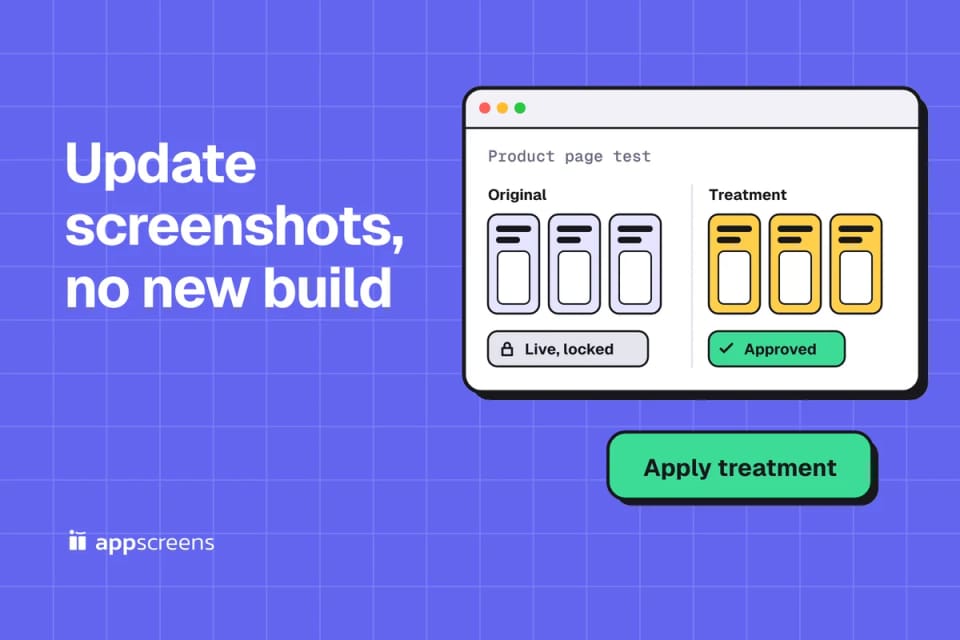
You can replace a live app's App Store screenshots without a new build or app version, but the new set still goes through App Review. Add the screenshots to a product page optimization treatment, submit it, and once App Review approves it, apply it to your product page. On Google Play, replace them on the Main store listing in Play Console and send the change for review.
App Store Connect locks the screenshots of a live version, and Apple's product page tests are the way around it, "without submitting a new version of your app". Once the treatment is approved, you can apply it straight away, without waiting for a test result. On Google Play, screenshots belong to the store listing, not the release. The slow part is the new set, at every device size and language you change. AppScreens, which we make, builds it from your real app screens.
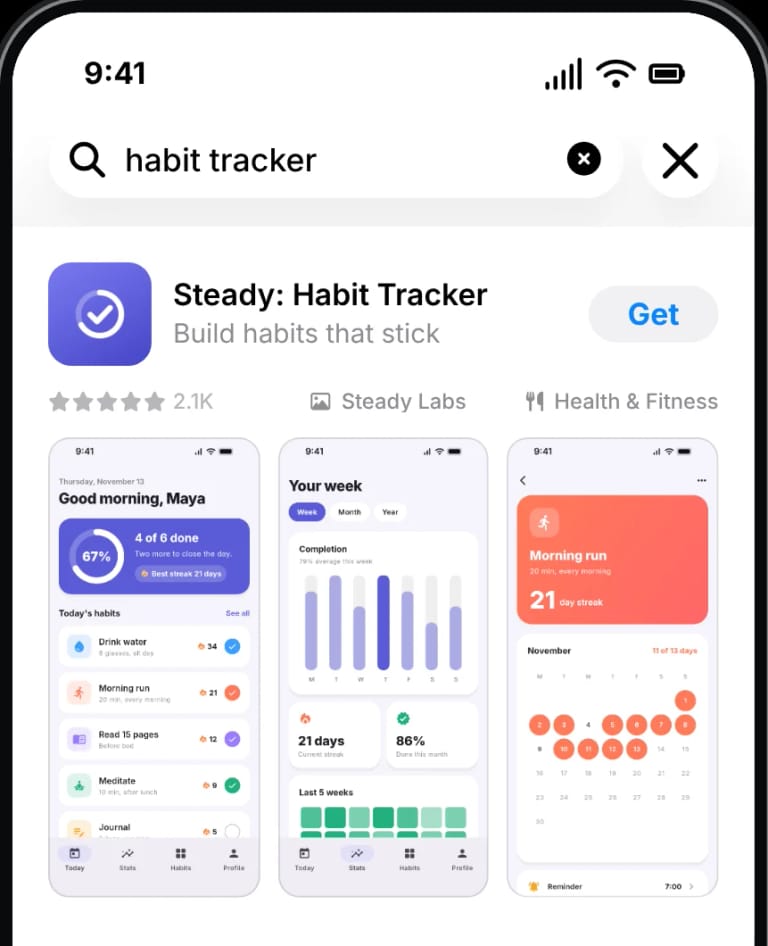
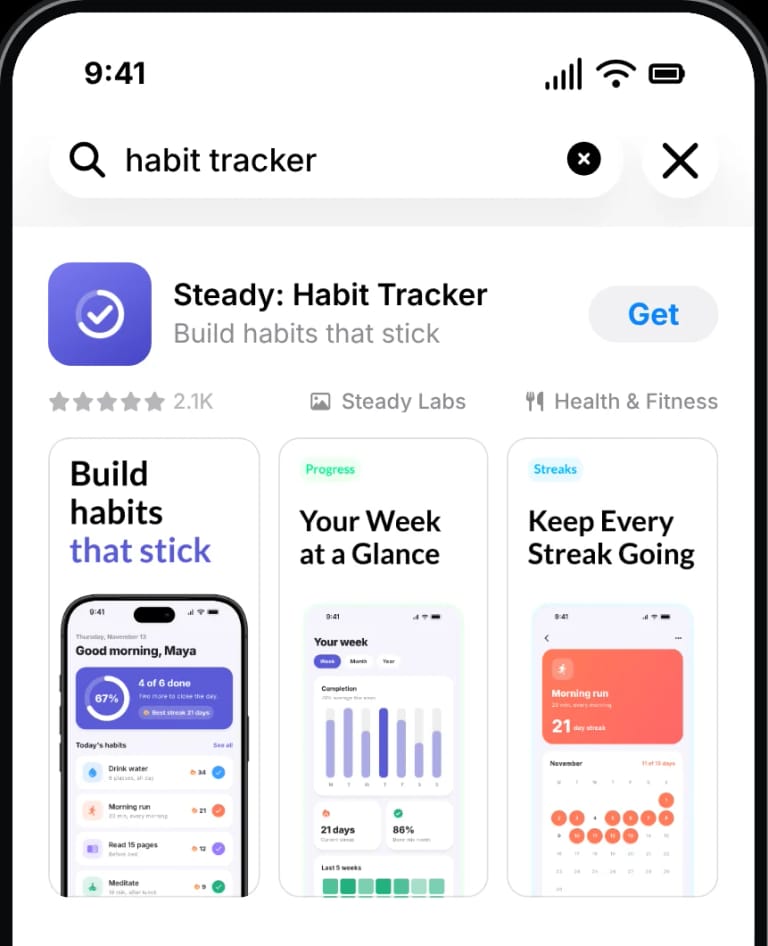
App Store
No new build or versionReview still applies
Create a product page test
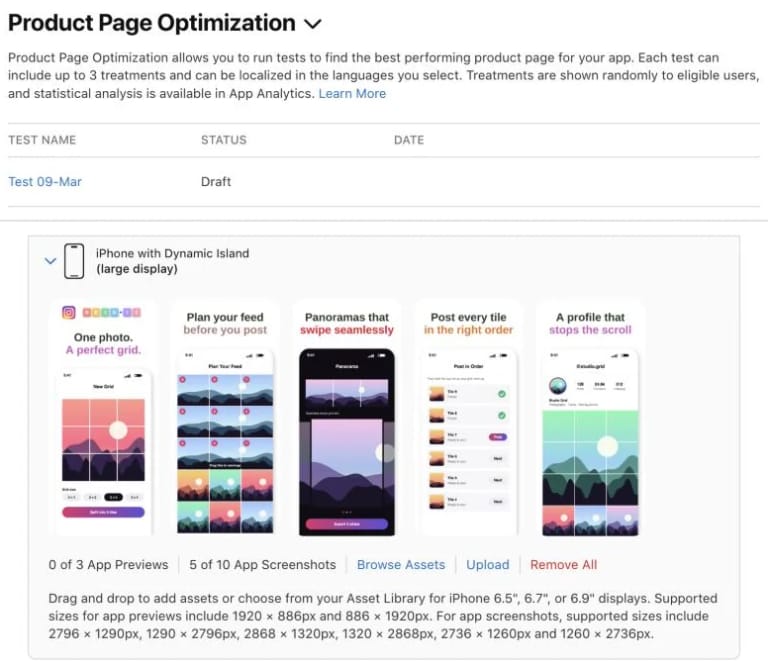
Product Page Optimization in App Store Connect
Upload the new screenshots to a treatment
Every size and language you are changing
Start Test, then Add for Review
App Review checks the treatment
Once approved, apply
Apply Treatment to Current Product Page
Or let it run
Measure conversion first
Applying can't be undone and stops a running test. A new icon needs the next version, and a custom product page doesn't replace your default page.
Google Play
No new releaseReview still applies
Edit the Main store listing
Grow users, Store presence, Main store listing
Send the change for review
From Publishing overview
Published
Automatically, or when you choose with managed publishing on

Quick Take
- Create a product page optimization test for your live app and upload the new screenshots to a treatment, for every size and language you're changing.
- Click Start Test, then Add for Review and Submit for Review. No new build is needed, and you can't change the test once it's started.
- Once App Review accepts it, the test runs. Let it run to see whether the new set wins, or click Apply Treatment to Current Product Page straight away.
- Applying is permanent, stops the test, and changes screenshots and previews only. Name, subtitle, description, keywords and the icon still need a new version, and a new version needs a new build.
AppScreens is free to start: make one project of up to five screenshots from your real app screens, export it and upload it to the treatment by hand. Paid plans add variants, translation and direct upload into the treatment. From Claude Code, Codex or Cursor, the new set then takes one prompt and an approved upload preview.
Which route do you need?
| You want to | Route | New build? | Review? |
|---|---|---|---|
| Replace the live default screenshots | Product page test, then apply | No | Yes, the treatment |
| Change them with your next release | New app version | Yes | Yes, with the version |
| Show other screenshots to one audience | Custom product page | No | Yes, on its own |
| Update Google Play | Main store listing | No release | Yes, then publish |
Why App Store Connect won't let you edit screenshots after release
Screenshots belong to an app version. App Store Connect accepts new ones only while a version is in Prepare for Submission, Invalid Binary, Rejected, Metadata Rejected or Developer Rejected. A live version is Ready for Distribution, so its screenshots are read-only, and a version that is Waiting for Review is locked too.
A new version also means a new build. Once a version is live, App Store Connect's build picker only lists builds uploaded since that release, so you can't resubmit the current build just to change its screenshots.
If the version you want to fix is Waiting for Review, In Review or Pending Developer Release, you can remove it from review. It moves to Developer Rejected, the screenshots unlock, and review starts over when you resubmit. Anything else in that submission, such as a product page test, is pulled with it. If you'd rather not restart review, let the version ship and then replace its screenshots with a product page test. A test can be submitted while a version is in review, because Apple allows two submissions under review per platform, one with an app version and one with other items. Keep in mind that the version in review has its own screenshots, and they become your product page when it's released.
What can you change without a new version or build?
| Asset | App Store | Google Play |
|---|---|---|
| Screenshots and previews | Apply an approved product page test treatment, or ship the next version | Edit the store listing in Play Console; the change is reviewed |
| Promotional text | Any time, without a new submission (170 characters) | Short and full description: edit the store listing |
| Product page header and search results assets | On a live version, with approved assets from the Asset Library (iOS 27 and later) | Feature graphic: edit the store listing |
| Pages for specific traffic | Custom product pages, reviewed independently of app updates | Custom store listings |
| App icon | Next version only; an icon in a test must already be in the current binary | Edit the store listing |
| Name, subtitle, description and keywords | Next version only, and that version needs a new build | App name and descriptions: edit the store listing |
How to replace live screenshots with a product page test
- Create the test. In App Store Connect, open your app, choose Product Page Optimization and create a test. The app must be Ready for Distribution and live on the App Store. You can have up to three treatments, and the traffic proportion is split between them: with three treatments at 30%, each gets 10% of visitors. All localizations are selected by default. People whose localization you leave out aren't included in the test.
- Add the screenshots to a treatment. Upload them for each device size and localization you are changing, at the same sizes as a version. A device size you don't edit uses the screenshots from your original product page. Keep only the localizations you are changing in the test. Click Browse Assets to reuse screenshots already approved in the Asset Library. Upload everything before the next step, because Apple says "you cannot change a test once it's started".
- Click Start Test, then submit it for review. When the treatment has new screenshots, App Store Connect asks you to add the test for review: click Add for Review, choose a new submission or a draft with your next version, then click Submit for Review. No build is involved. The test starts running once App Review accepts it; the next section covers what App Review checks.
- Let the test run, or move straight to applying. A test runs for 90 days or until you stop it, and a stopped test can't be restarted. Results appear after five first-time downloads, and a treatment that reaches 90% confidence can be labeled Performing Better or Performing Worse.
- Click Apply Treatment to Current Product Page. Select the app versions to apply it to, then click Apply Treatment. Apple allows this "at any time", one treatment per test. It can't be undone, it stops a running test, and only the screenshots and previews are applied. If you've already started the next version in Prepare for Submission, select it too, so that release picks up the new set.
If all you want is to replace the screenshots, apply the treatment as soon as it's approved. If you want to know whether the new set converts better, let the test run. The product page optimization guide covers what to test first, and the low-traffic guide covers what to do when 90% confidence is months away.
When you have the traffic, the test is worth the wait. A new set isn't automatically better than the one it replaces, and the product page decides how many of your current visitors install. In an example Apple published, Simply Piano's original screenshots-only page performed 3% better over 12 days than a treatment with an app preview video, so applying that treatment untested would have shipped the weaker page. Tests find winners too: in another of Apple's examples, Peak Brain Training's winning icon delivered an 8% conversion increase over 44 days, and our published product page results list more.
A: current page
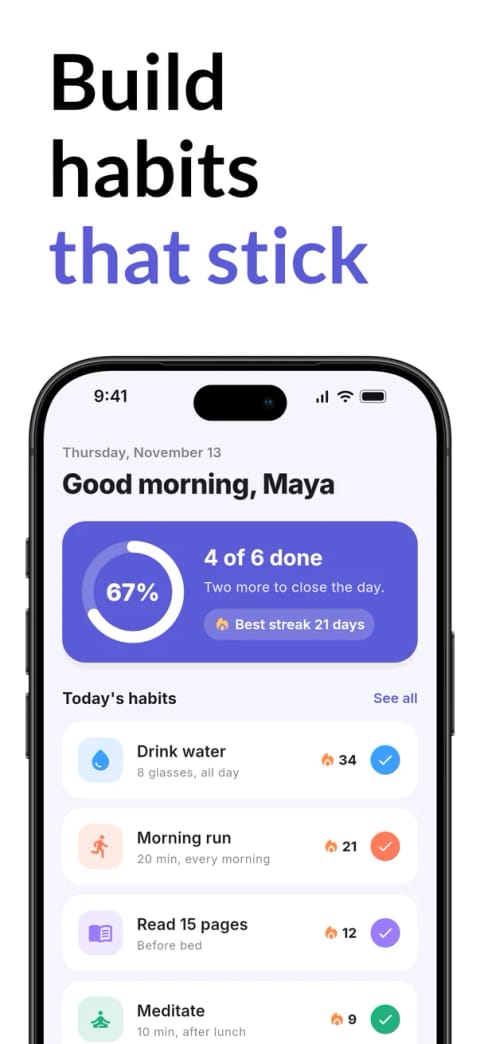
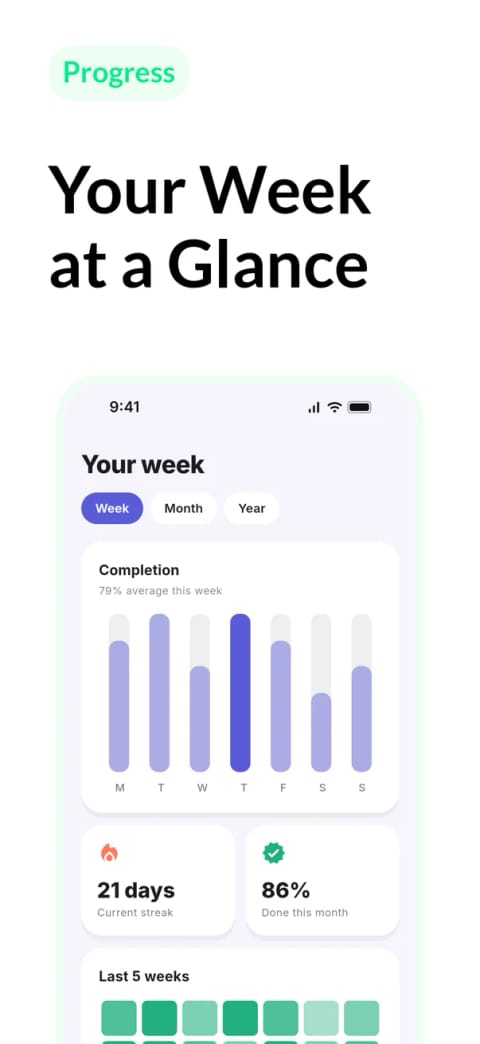
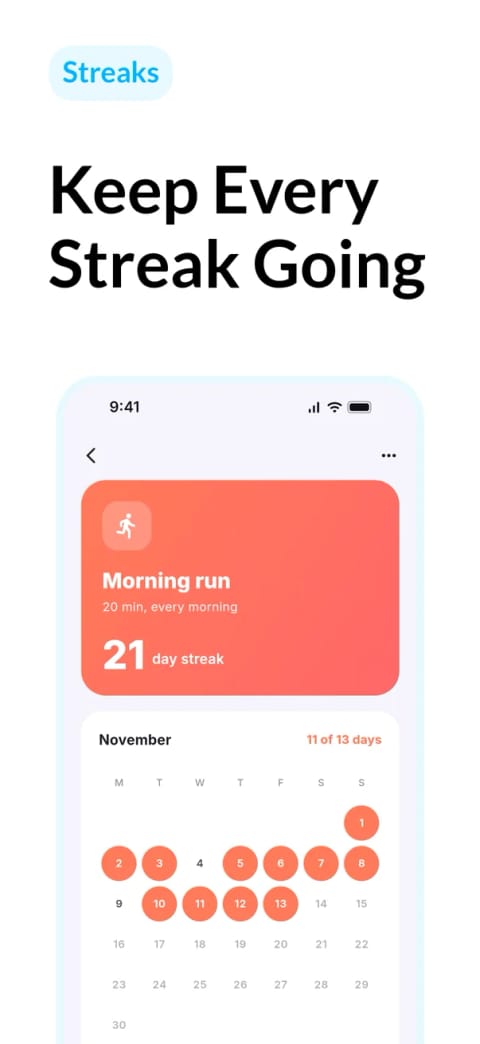
B: treatment
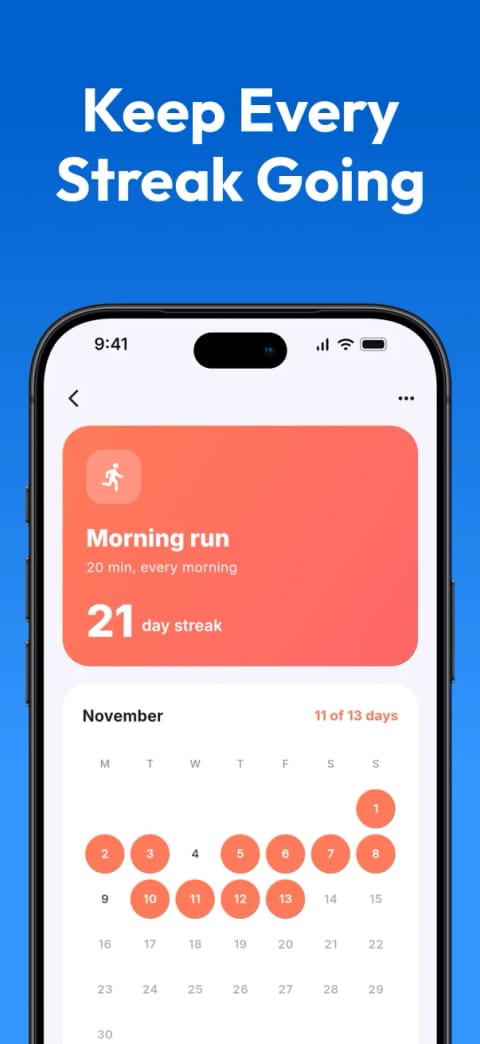
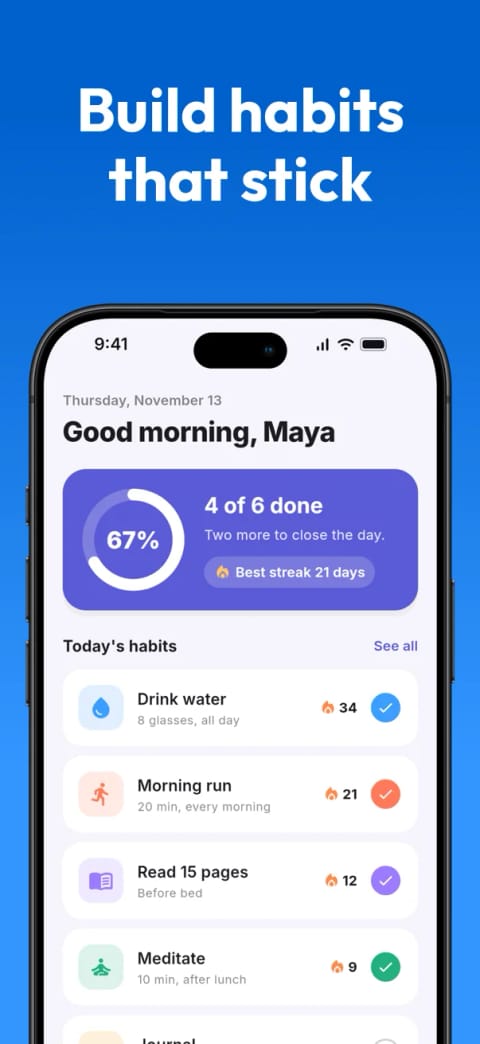
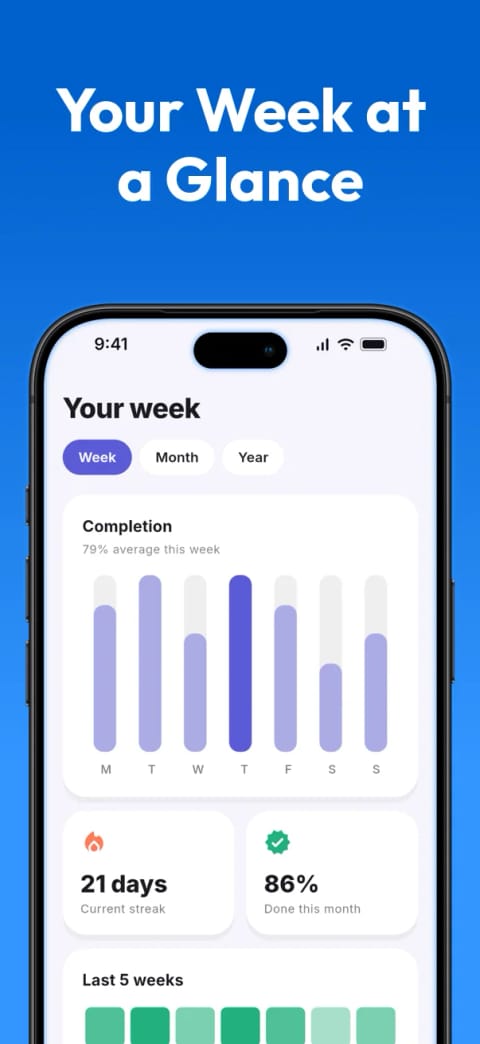
Either way, the slow part is the new set. A device size or localization you leave out of the treatment keeps your current screenshots, so a full refresh of six screenshots for iPhone and 13-inch iPad in 10 localizations is 120 images in one treatment. AppScreens keeps that set in one editable project: change a capture or a caption once, preview every size and language, and export them all from the same layout. The free plan gives you one project of up to five screenshots to export and upload by hand, enough for a simple one-language refresh. On a paid plan, AppScreens makes the new set as a product page test variant and uploads it into the treatment; your coding agent can do it in one prompt.
Tests don't run on custom product pages or on the Apple Watch and iMessage App Stores, and you can run one test at a time.
What App Review checks in a treatment
Treatment screenshots are reviewed like a version's. Apple's guideline 2.3.3 says screenshots should show the app in use, and it approves only submissions where more than half of them do. Treatments are reviewed against your latest version, so a screenshot of a feature that only exists in your next build risks a rejection. If you only reorder screenshots that are already on the App Store, the treatment is already approved and doesn't need to be resubmitted. An icon you test has to be in the binary of your current App Store version.
If a treatment is rejected, the rejection statuses guide explains what each status means and what to change before you resubmit.
When a custom product page or a creative asset is the better tool
Custom product pages don't change your default page. Each one (up to 70 per app) has its own screenshots, previews and promotional text, is reviewed independently of an app update, and shows to people who follow its link. Since October 2025 you can also assign keywords, so a custom page can appear in search for those terms instead of your default page. Use one when the new screenshots are for one audience, such as an ad campaign or a search term; the custom product pages guide goes deeper.
Creative assets. Since 5 October 2026, if your current version is live, you can update its product page header and search results assets with approved assets from the Asset Library "without submitting a new version". They show on iOS 27 and iPadOS 27 and later, alongside your screenshots rather than instead of them; the creative assets guide explains where they appear.
The Asset Library takes screenshots too. You can upload and submit them "independent of an app version" to get them approved in advance, then pick them in a treatment, a custom product page or your next version with Browse Assets. Approval alone doesn't change a live version's set; you still place them through one of those routes.
Update Google Play screenshots without a new release
On Google Play, screenshots, the feature graphic and descriptions are part of the store listing, not the release:
- In Play Console, open Grow users > Store presence > Main store listing.
- Under Graphics, replace the phone screenshots, and the tablet sets if you have them. Each device type takes up to 8, and at least two are needed to publish. Google's help page allows up to 2:1, while the console's own hint asks for 16:9 or 9:16, so export at 9:16. Save.
- Open Publishing overview and send the change for review.
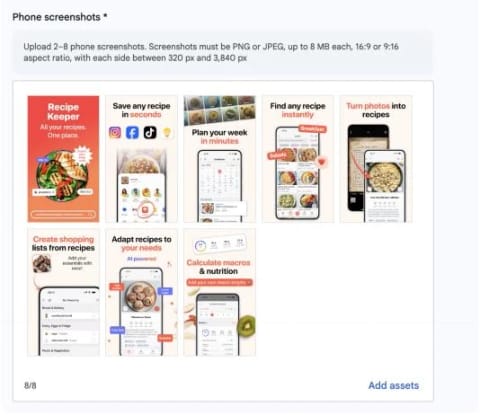
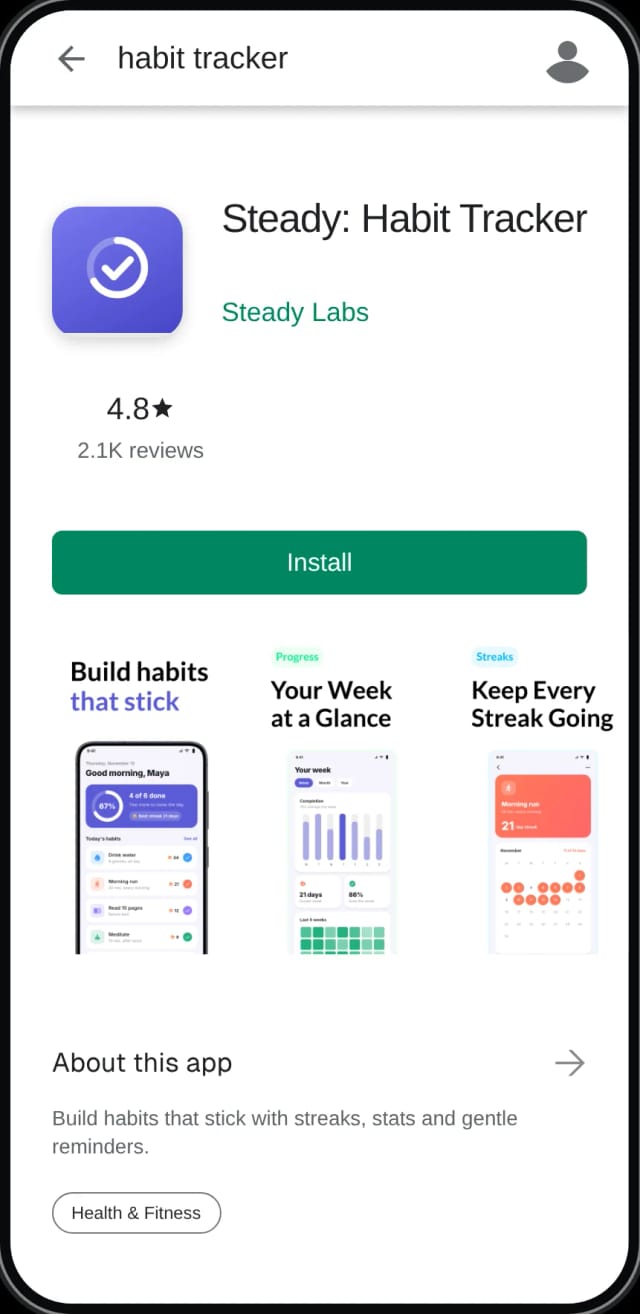
Google says processing "can take a few hours or up to seven days (or longer in exceptional cases)". With managed publishing on, approved store listing changes wait until you publish them, which lets you time a new set with a campaign. If you're replacing the App Store set too, export the Google Play screenshots from the same AppScreens project, fitted to Google Play's sizes and 2:1 limit, so both stores change together.
To test before you switch, store listing experiments compare up to two variants with your current listing and stop automatically after six months. Google's own advice is to run one for at least a week, to cover weekday and weekend traffic. You can run one default graphics experiment or up to five localized ones at a time. Custom store listings, up to 50, target countries, search keywords, Google Ads traffic, pre-registration or groups such as churned users. The store listing experiments guide covers setup.
Update store screenshots from Claude Code, Codex or Cursor
With the AppScreens MCP server connected to Claude Code, Codex or Cursor, you can make the new set, create the test and upload into it without leaving the chat:
Make a variant of my screenshots with the new search screen, show it next to the current set, then create a product page test with one treatment in App Store Connect and upload the variant to it. Show me the upload preview first.On a paid plan, the agent duplicates the project as a named variant, swaps the capture and caption, and renders both sets side by side. It then creates the test in App Store Connect as a draft, and uploads the variant into its treatment after showing an upload preview with the listing, languages, sizes and image count. If a test is already being prepared, Apple won't accept a second one, so the agent offers that test's treatments instead. A custom product page works the same way, and the agent can also upload to your Google Play main listing. You still submit the treatment for review and apply it in App Store Connect. Google Play's publishing API has no endpoint for store listing experiments, so for an experiment the agent exports the variant and you add it in Play Console. The connect page has the setup for Claude Code, Codex and Cursor, and the Claude Code guide covers Claude Code in more detail.
We tried the upload half on one of our own apps on 12 November 2026. Apple only allows one test in preparation at a time, and that app already had one, so the agent offered its treatments. It exported five 1320 × 2868 screenshots in 22 seconds, then showed the upload preview: the bundle ID, the test and treatment names, en-US, the iPhone size, five images, and Replace. Nothing went up until we said yes. The upload took 34 seconds, and all five images arrived in the treatment's large iPhone slot. The test stayed a draft, waiting for us to start it and submit it for review. The same day, on the same app, the agent also created a custom product page, which App Store Connect lists as Ready to Submit.
How to update screenshots in App Store Connect with a new version
A release is the normal time to refresh screenshots, and Apple's guideline 2.3 asks you to keep them up to date with new versions. With the new version in Prepare for Submission:
- In Apps, select the app, then the new version under its platform. Pick a language from the menu at the top right to work on another localization.
- Under Product Page Information, open the App Previews and Screenshots tab and select the device tab.
- Click Upload or drag the screenshots in. For other device sizes, choose View All Sizes in Media Manager.
- Save, select the new build and submit the version for review.
Change only what the release changed:
- Recapture the screens that changed, in every language that shows them, and swap those captures in. In an AppScreens project the layout, captions and other pages stay, and every size exports again from the same set. The Expo, Flutter and Capacitor guides have the capture commands, and the localized screenshots guide covers other languages.
- Adjust only the captions that describe the change. A new feature usually needs one new page, not a new set.
- Add new device sizes while you're there. iPhone Duo screenshots are due from April 2027 for apps built with the iOS 27.1 SDK or later, and AppScreens adds both iPhone Duo outputs to your existing project instead of a new design.
- Check every device section of the new version in App Store Connect before you submit. The release checklist covers the rest of the submission.
If an agent built the set, ask it to change only what shipped:
We shipped the new search screen in this release. Update only the screenshots that show search, list what changed on each page, and show me the upload preview before uploading.Common mistakes
| Mistake | What happens | Fix |
|---|---|---|
| Pulling a version from review to fix one screenshot | Everything in that submission is pulled, and review starts over | Let it ship, then replace the screenshot with a test treatment |
| Showing a feature that isn't in the live build | App Review can reject the treatment | Wait for the version that ships it |
| Clicking Start Test before every size and language is uploaded | You can't change a test once it's started | Upload and preview everything, then start |
| Applying a treatment by mistake | It can't be undone, and the test stops | Check the treatment's screenshots in every localization first |
| Leaving a draft version unselected when you apply | The draft keeps its own screenshots, and they become the product page when it ships | Select the Prepare for Submission version too |
| Testing a new icon in a treatment | The icon isn't applied with the screenshots | Ship it in the binary, then set it as default in the next version |
| Expecting a custom product page to change the default page | Most visitors still see the old screenshots | Use a product page test and apply the treatment |
| Publishing Play changes the day of a campaign | Review can take up to seven days, or longer | Submit early with managed publishing on, then publish on the day |
Make the next screenshot change an edit, not a rebuild
Keep your screenshots in one AppScreens project and the next change is quick: swap the capture or caption, preview every size and language, then upload to a product page test, a custom product page, your next version or your Google Play main listing. Start free with one project, or see pricing for variants, translation and direct uploads.
FAQ
Can I change App Store screenshots without submitting a new version?
Yes, through product page optimization, and no new build is needed, but the treatment goes through App Review. Create a test, add the new screenshots to a treatment, click Start Test and submit it for review. Once it is approved, apply it to your product page; you don't need a test result. Applying can't be undone. Without a test, screenshots change with the next version, which needs a new build.
How do I update screenshots in App Store Connect?
Select the version in Prepare for Submission or a rejected status, open the App Previews and Screenshots tab under Product Page Information, choose the device tab and upload, or use View All Sizes in Media Manager for other sizes. For a live version, use a product page test instead.
Why can't I edit my screenshots in App Store Connect after release?
Screenshots are part of the app version. App Store Connect accepts new ones only in Prepare for Submission, Invalid Binary, Rejected, Metadata Rejected and Developer Rejected, and a live version is Ready for Distribution.
Can I reuse my current build in a new version?
No. Once a version is live, the build picker only lists builds uploaded since that release, so even a text-only change needs a new build. Screenshots can go through a product page test instead.
My new version is waiting for review. Can I still change its screenshots?
Yes, by removing it from review in App Store Connect. It moves to Developer Rejected, the screenshots unlock, and review starts over when you resubmit. Anything else in that submission is removed too. If you'd rather not restart review, let the version ship and then replace its screenshots with a product page test.
Do product page optimization treatments need App Review?
Yes, unless the treatment only reorders screenshots that are already on the App Store. Apple approves only submissions where more than half of the screenshots show the app in use, and treatments are reviewed against your latest version. An icon you test has to be in the binary of your current version.
Can I change a test after starting it?
No. Apple says you cannot change a test once it has started, so upload every size and localization and check them before you click Start Test.
Can I undo applying a product page optimization treatment?
No. Apple says applying a treatment can't be undone, and applying it stops the test. Keep the previous set, as exported files or an AppScreens variant, so you can upload it into a new test if the new set does worse.
How long does a product page optimization test run?
Up to 90 days, or until you stop it, and a stopped test can't be restarted. You can apply an approved treatment at any time, including before the test has a result.
Is it worth running a product page optimization test?
If your product page gets enough traffic to reach a result, yes, because a new set can win or lose. In Apple's examples, Simply Piano's original screenshots-only page performed 3% better over 12 days than a treatment with an app preview video, and Peak Brain Training's winning icon delivered an 8% conversion increase over 44 days.
Can I get screenshots approved in advance?
Yes. Upload and submit them in the Asset Library, independent of an app version, then pick them in a treatment, a custom product page or your next version with Browse Assets. Approval alone does not change a live version's screenshots.
Does changing screenshots reset my ratings?
No. Your overview rating resets only if you choose to reset it when you release a new version, and a product page test or a Google Play listing edit is not a release.
Do custom product pages change my default screenshots?
No. A custom product page is a separate page with its own screenshots, shown to people who follow its link or, if you assign keywords, find it in search. Your default product page stays the same.
How do I update Google Play screenshots without a new release?
In Play Console, open Grow users, Store presence, Main store listing and replace the screenshots under Graphics: up to 8 per device type, at least two to publish, and none more than twice as long as it is wide. Save, then send the change for review from Publishing overview. Store listing changes are reviewed separately from app releases, and with managed publishing on, approved changes wait until you publish them.
Can an AI agent update my App Store screenshots?
Yes, with the AppScreens MCP server connected to Claude Code, Codex or Cursor. The agent makes the new set and shows it next to the current one. On a paid plan it can create a product page test or custom product page and upload into it after you approve the upload preview. You still submit and apply in App Store Connect.
Sources
- App Store Connect: manage your App Store assets, app and submission statuses and platform version information (promotional text)
- App Store Connect: choose a build to submit
- App Store Connect submissions: overview of submitting for review, remove a submission from review and submit assets from the Asset Library
- App Store Connect product page optimization: overview, create a test, configure treatments, run a test and apply a treatment
- App Store Connect Analytics: product page optimization results and Apple: product page optimization
- Apple: custom product pages and keywords for custom product pages (29 October 2025)
- Apple Developer News: creative assets in App Store Connect (5 October 2026)
- Apple: App Review Guidelines (2.3) and guideline 2.3.3 reference
- Google Play Console Help: store listing assets, managed publishing, store listing experiments and custom store listings
- Google Play: store listing experiments best practices and the Google Play Developer API reference
Steady is a demo app we built for our Flutter guide. The App Store Connect and Play Console captures are from our own apps.
Quote sections and tables from this guide in your own posts, documentation or answers with a link to this page. Please do not republish the whole guide.
AppScreens.com, "Update App Store Screenshots Without a New Build: A/B Tests, Approval and Google Play", 12 November 2026. https://appscreens.com/blog/update-app-store-screenshots-without-new-build