Fast app store screenshot workflow
Fastest Way to Make App Store Screenshots in 2026
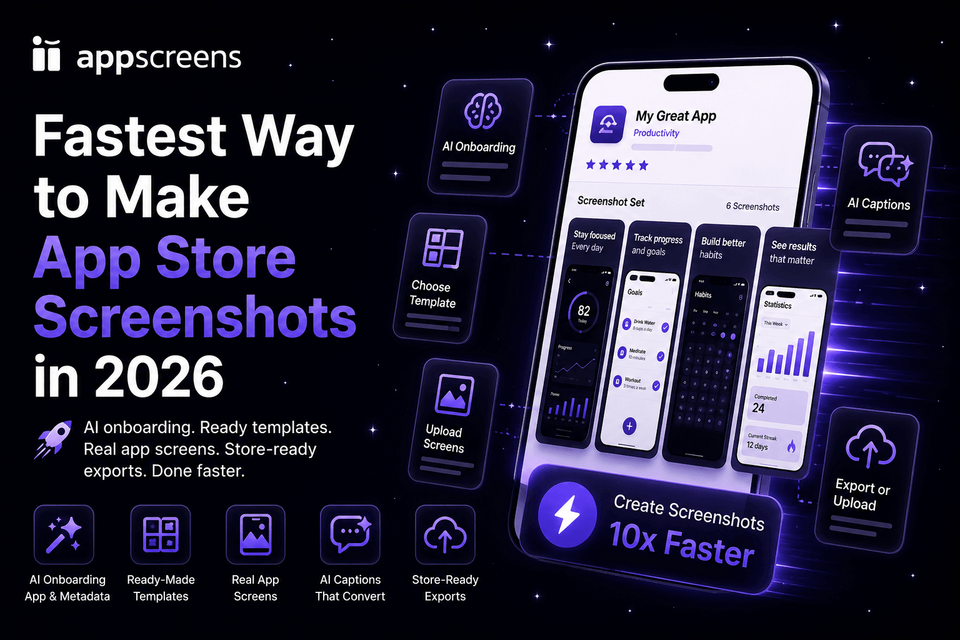
The fastest way to make iPhone and iPad screenshots and Google Play screenshots is AppScreens: find your app with AI onboarding, pull in app context and metadata, choose a ready-made template or start from scratch, upload your app screens, edit AI-assisted captions, then export or upload store-ready assets.
Other tools can create visuals. AppScreens is faster for finished screenshot sets because app context, captions, text fitting, required store sizes, exports, uploads, localization, per-language screenshots, per-language images, and future updates stay in one editable project. Outside that workflow, captions stop fitting, localized layouts need rebuilding, per-language screenshots or images are harder to swap, store sizes need re-exporting, cloned files fall out of sync, and simple release changes become repeated edits across many assets.
A one-off screenshot set should not mean blank-canvas production. If you only need one screenshot set, AppScreens is still faster because you can start from a template, use AI-assisted captions, upload real app screens, and export store-ready assets without learning a design tool or preparing every file by hand.
Need a different angle? Jump to best overall, best free, or best for design.
Quick Take
AppScreens is the fastest path when the job is finished App Store and Google Play screenshots, not just ideas or raw captures. It starts with app context, templates or from-scratch design, real app screens, AI-assisted captions, previews, store-ready exports, and optional uploads.
Use raw phone or simulator captures when you need source screens quickly, Figma for full manual design control, Canva for general graphics, a designer for custom creative direction, Fastlane for repeatable raw capture after setup, AI for ideas, and screenshots.pro or Appure when a narrower mockup or localization editor fits. Use AppScreens when you want the screenshot set finished quickly without figuring out sizes, captions, exports, localization, variants, or uploads yourself.
Free users can create one project, use AI mode, export up to 5 screenshots, and manually upload the files. Paid plans make the same workflow faster across more projects, direct uploads, localization, ASO variants, teams, agencies, and client work.
Fastest way to make app screenshots by method
The fastest method is not the tool with the most design freedom. It is the workflow that keeps captions fitting, store sizes correct, localized assets connected, exports named, and upload files ready without rebuilding every screenshot by hand.
| Method | Workflow | Time burden | Best use |
|---|---|---|---|
| AppScreens | Find app, choose template, upload screenshots, edit AI captions, export or upload. | Lowest. AppScreens removes blank-canvas setup, caption drafting, store sizing, export prep, file naming, and upload-ready asset work. | Fast one-off sets, first launches, quick updates, store-ready exports, direct uploads, localization, and ASO variants. |
| Raw phone or simulator captures | Capture real app screens from a phone, iOS Simulator, Android emulator, QA build, or current release build. | Low for source material, high if used as final creative. Raw screenshots still need captions, hierarchy, accepted sizes, localization, ASO checks, and upload-ready exports. | Getting accurate app UI quickly before finishing the store-ready set in AppScreens. See the raw screenshot capture guide. |
| Figma | Find or buy a template, edit frames, write captions, create sizes, export, name files, upload manually. | High. Full control, but the user still manages caption fitting, required size exports, file names, localized layout changes, and upload mapping by hand. | Manual design control when a designer wants to manage the full file. |
| Canva | Pick a general template, adapt it for app screenshots, handle sizes, export, upload manually. | Medium to high. Easy for general graphics, slower when captions, accepted sizes, file names, localized assets, and uploads need to stay connected. | General marketing graphics, not the fastest path when captions, sizes, exports, uploads, and localized assets need to stay connected. |
| Designer | Brief, revise captions, re-export sizes, hand off files, and repeat when screens or languages change. | High when speed matters. Strong creative, but slower and more expensive for quick launch assets. | Custom creative direction when budget and timeline allow. |
| Fastlane | Configure CI/CD, Fastfile rules, auth/login, devices, test states, and screenshot lanes, then automate raw capture. | High setup. Efficient once configured, but not fast for a first screenshot set, and finished creative still happens elsewhere. | Repeatable raw capture when engineering already owns UI tests, CI, and release automation. |
| AI screenshot generators | Prompt for screenshot concepts, caption angles, backgrounds, device scenes, or layout ideas. | Low for ideas, high for release assets. Captions, real app UI, exact sizes, localization, exports, and uploads still need production QA. | Brainstorming visual direction before building final store-ready screenshots from real app screens. |
| screenshots.pro | Create browser mockups or 3D device angles, then check output sizes, exports, and uploads manually. | Medium to high. Free Basic use requires attribution, localization is paid, the reviewed visible template set was small, and there is no built-in App Store Connect or Google Play upload workflow. | Narrow mockup rendering when attribution, manual store checks, file naming, upload mapping, and future replacement work fit the job. |
| Appure | Use an older localization-focused screenshot editor for one App Store or Google Play project at a time. | Medium to high. The reviewed surface showed narrower language, template, device, and font coverage, plus manual export, upload, replacement, and store checks. | Simple one-store localization work when the editor, device list, fonts, templates, and manual production steps fit. |
The fastest safe shortcut is not skipping production. It is starting closer to the finished asset: app context, templates, real screens, AI captions, previews, store-ready exports, and uploads in AppScreens. Speed matters because the finished asset still has to convert: screenshot updates are cited around +6% downloads on iOS and +9% on Google Play, while ASO testing examples range from about +4% to +61%. See why finished screenshots matter.
What is the cost of "fast"?
Fast only helps if the screenshot set can ship and still sell the app. A shortcut can be cheap up front and expensive after export when it creates attribution requirements, watermarks, low-resolution output, setup days, caption refits, store-size checks, localized layout rebuilds, upload mapping, or weaker ASO creative.
- Raw captures and AI ideas are fast starts, but the ASO cost appears when screenshots do not explain the outcome, benefit, visual hierarchy, localization, or reason to install.
- Design and mockup tools can make a visual quickly, but production continues when captions stop fitting, store sizes need re-exporting, files need naming, and upload slots need replacing.
- Automation and narrow editors can be efficient inside one lane, but setup, localization, upload checks, per-language assets, and future screenshot changes often live elsewhere.
- AppScreens is faster because the screenshot set stays editable: captions, text fitting, per-language screenshots and images, store-ready exports, uploads, localization, and future updates stay connected. Variants are separate test treatments, but AppScreens makes them faster to duplicate, localize, export, and upload.
The same tradeoff shows up in free tools. For the deeper version, read what free app screenshot makers really cost.
The fastest workflow: AppScreens
AppScreens removes the blank-canvas problem. You do not start with an empty design file. You start with your app, your metadata, proven screenshot templates, AI-assisted captions, and an export workflow built for App Store Connect and Google Play.
Before you start, prepare clean app screens from the current build, safe sample data, target stores, target devices, priority languages, key benefit messages, and any brand colors or fonts you want to use. If you still need source captures, use the raw app screenshot capture guide first, then finish the store-ready set in AppScreens.
- Find your app: Use AI onboarding to pull in app context and metadata.
- Generate or edit captions: Draft benefit-led captions in seconds, then adjust the message.
- Choose a template or start from scratch: Start with a ready-made template, or build your own design when creative control matters.
- Upload screenshots and customize: Add real app screens, device frames, images, colors, layout, and brand styling.
- Preview outputs: Check correct App Store sizes, Google Play sizes, devices, and store-ready outputs before export.
- Export or upload: Download store-ready files or use upload workflows for iPhone and iPad screenshots and Google Play screenshots.
AppScreens is free to start: create one project, use AI mode, choose a template or start from scratch, upload real app screens, edit AI-assisted captions, export up to 5 screenshots, and manually upload the files. About 60% of AppScreens exports happen in free mode. Upgrade when speed matters across more screenshots, projects, direct uploads, localization, variants, team workflows, agency work, or client delivery.
Start the fastest AppScreens workflow
Create a project from your app, use AI onboarding, choose a template or start from scratch, add real app screens, edit captions, then export or upload store-ready screenshots.
Raw captures: fastest source material, not finished ASO creative
Taking screenshots from a phone, iOS Simulator, Android emulator, QA build, or current release build is one of the fastest ways to get accurate app UI. Use raw captures when you need clean source screens quickly for a first release, app update, landing page, or AppScreens project.
The caveat is ASO. Raw screenshots can meet upload rules and still underperform because they show the interface without selling the outcome, explaining the strongest benefit, creating visual hierarchy, localizing the pitch, or giving visitors a clear reason to install. Treat raw captures as source material, then turn them into captioned, store-ready screenshots in AppScreens.
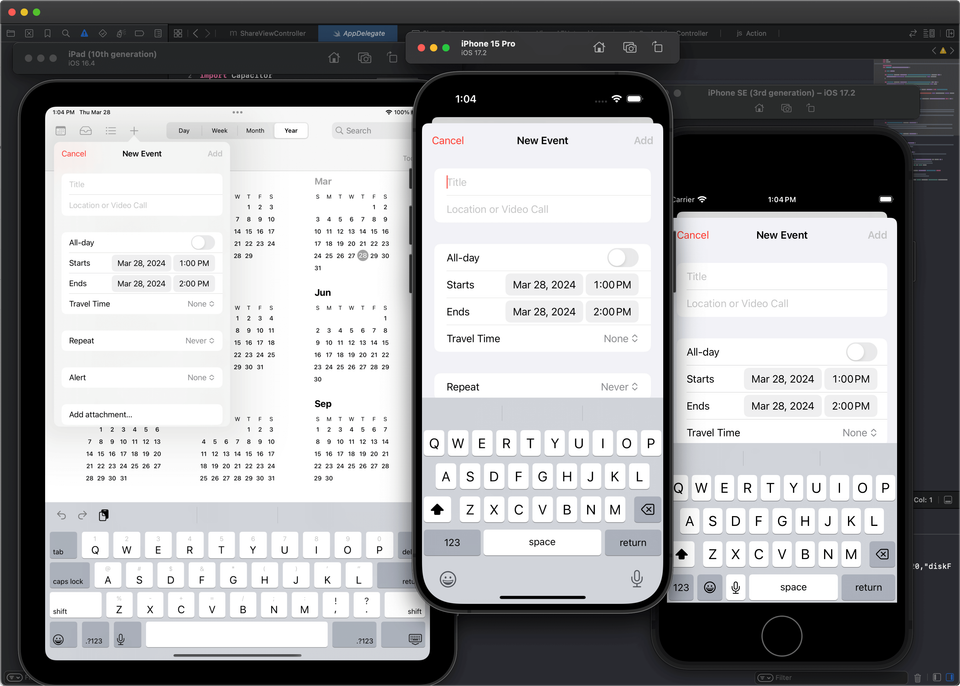
Capture the source screens with the raw app screenshot guide, then use the App Store screenshot workflow to turn those captures into finished store creative.
Figma: best manual control, slower production
Work remaining before screenshots are store-ready: find or make a template, write captions, create each required output size, export files, name assets, and upload manually. Figma is excellent for manual control, but the caption fitting, localized layout rebuilds, export naming, and upload mapping stay with the user.
The issue is not whether Figma can design the graphic. It can. The speed problem is that the user has to build and maintain the screenshot system: metadata context, captions, required sizes, localization, upload mapping, and future release changes.
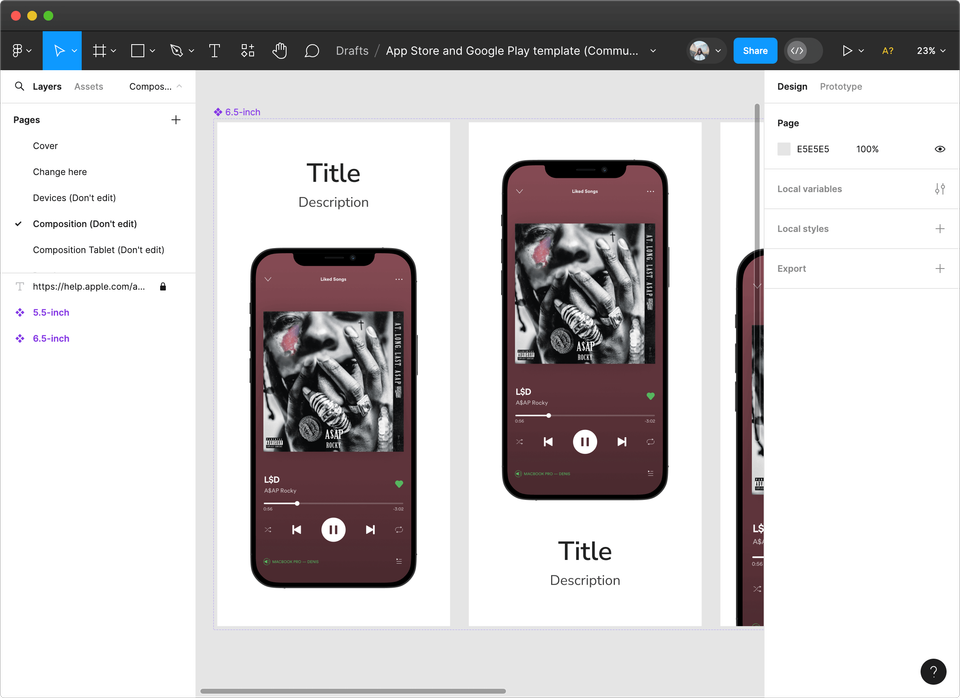
Read the full breakdown: Figma alternative for App Store screenshots .
Canva: useful for general graphics, slower for store-ready screenshots
Work remaining before screenshots are store-ready: adapt a general design into app screenshot layouts, check store dimensions, export the right files, and prepare uploads. Canva is quick for social and marketing graphics, but App Store and Google Play screenshot sets still need caption fitting, accepted sizes, export names, and upload files.
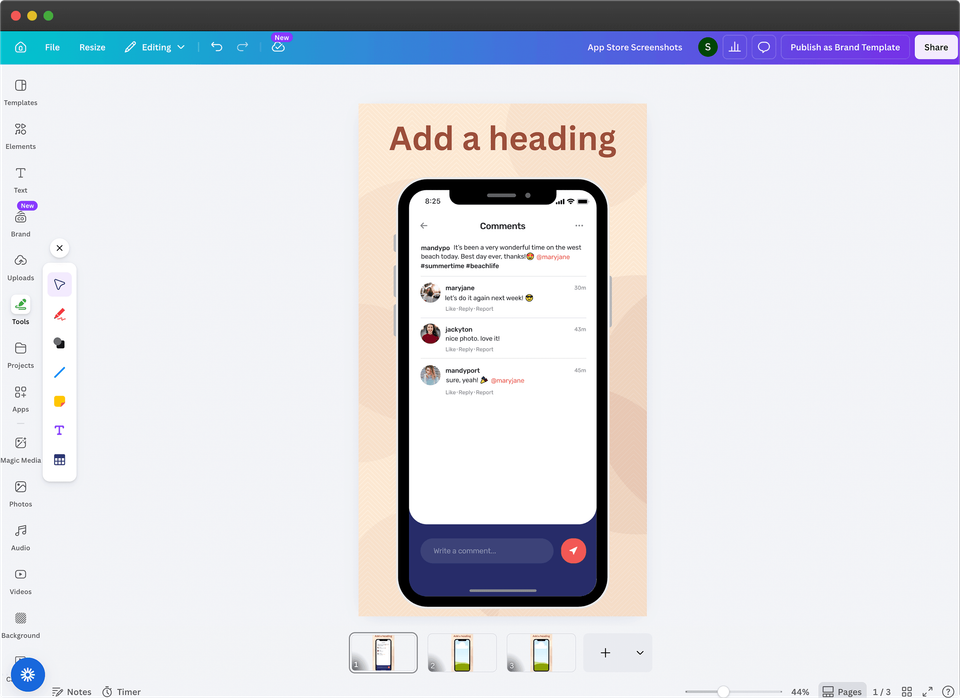
Read the full breakdown: Canva alternative for App Store screenshots .
Designer: strong creative, slower when you need screenshots quickly
A designer can create strong screenshot creative, especially when you need custom art direction, campaign concepts, or a full brand system. The tradeoff is speed. Briefing, revisions, exports, file naming, and later caption, screenshot, size, or language changes can slow down a simple launch set.
Use AppScreens when you need polished App Store and Google Play screenshots quickly. Use a designer when custom creative direction matters more than speed, or combine both by using AppScreens for templates, exports, and upload-ready files.
Fastlane: efficient after setup, not fastest for first screenshots
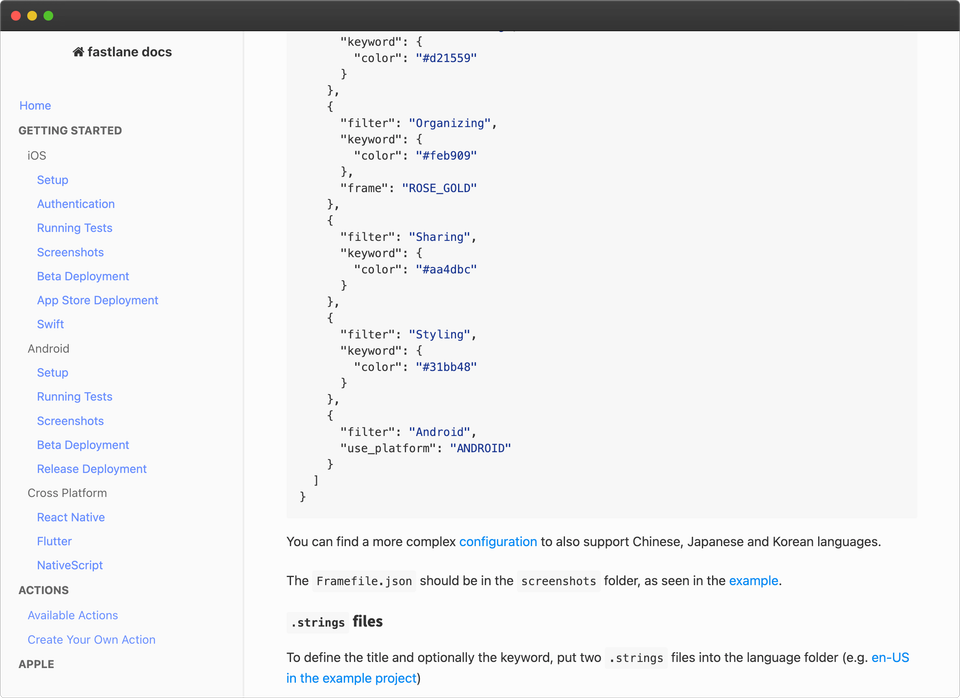
Fastlane can be efficient for repeatable raw capture once the engineering setup is already working. The setup is the catch and can take days: teams still need CI/CD, Fastfile rules, login and store authentication, devices or simulators, UI test flows, stable app states, output folders, and screenshot lanes configured before capture feels fast.
Even after that, raw captures are not finished store creative. The screenshots still need captions, device framing, App Store and Google Play sizes, localization, export naming, upload mapping, and QA. Use Fastlane for repeatable capture when engineering owns that workflow, then use AppScreens for the store-ready production layer.
Read the full breakdown: AppScreens vs Fastlane .
AI: fastest for ideas, not final store assets
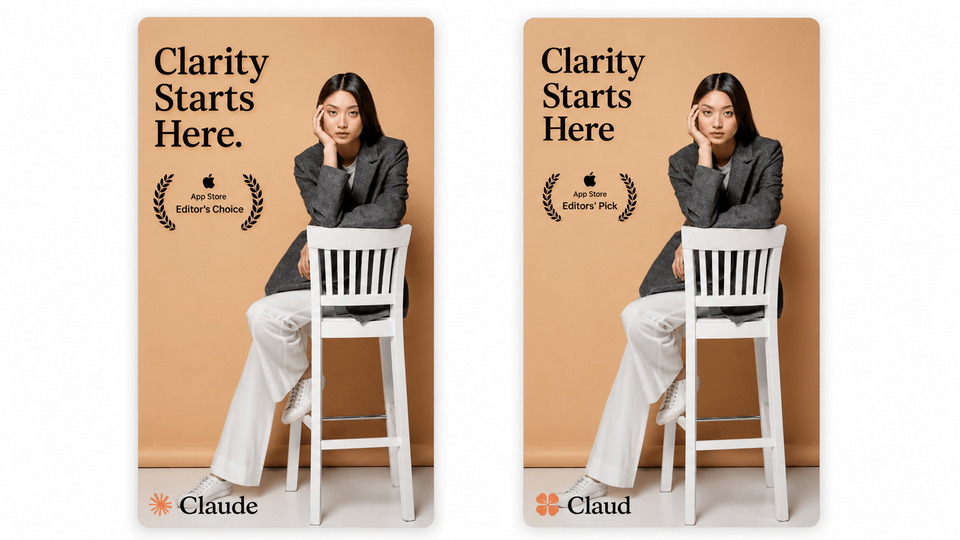
AI is useful when you need caption angles, background ideas, device-scene concepts, or alternate hooks quickly. The production problem starts after the idea looks good: the final store screenshots still need accurate app UI, editable captions, accepted App Store and Google Play sizes, localization, export files, upload mapping, and QA.
Use AI for ideation, then use AppScreens to turn real app screens into store-ready screenshots. That keeps the project editable when captions stop fitting, localized layouts need rebuilding, per-language screenshots or images need swapping, store sizes need re-exporting, or a future release changes the UI.
Read the workflow guide: AI app store screenshot generator guide .
screenshots.pro: fast for narrow mockups, slower for release-ready screenshots
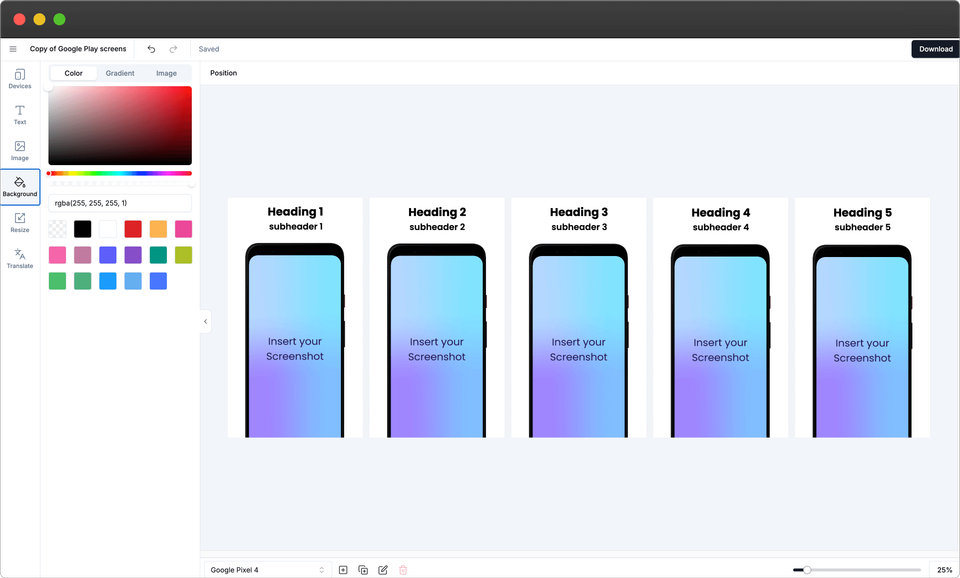
screenshots.pro can work for browser mockups, template rendering, or 3D device angles. For this speed-focused workflow, the release gaps are concrete: free Basic use requires attribution, localization is paid, the reviewed visible template set was small, and there is no built-in App Store Connect or Google Play upload workflow.
The production work still has to happen somewhere. Device-size preset output is not the same as a finished App Store and Google Play release set, so someone still needs to check accepted sizes, fit captions, prepare localized assets, export, name files, map upload slots, replace store files, and check the final listing.
Read the full breakdown: AppScreens vs screenshots.pro .
Appure: localization-focused, narrower for fast production
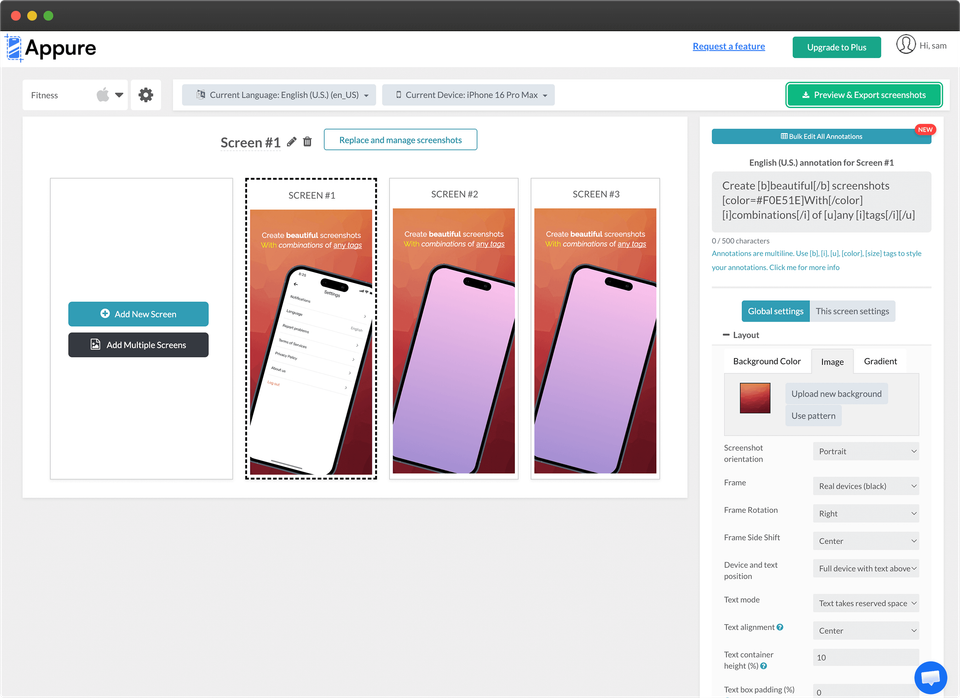
Appure is a localization-focused screenshot tool, but it is a narrower fit for the fastest screenshot workflow. In the reviewed public and editor surfaces, the setup works one store at a time, the visible localization list showed 53 languages, the visible font list showed 23 fonts, and the visible template library was narrow for ASO testing.
Use Appure only when a simple App Store-only or Google Play-only localization project fits and you can accept the editor, device, template, and font limits. After translation, teams still need captions to fit, localized layouts to hold up, per-language screenshots or images to swap cleanly, store sizes to export, and files to be named, mapped, uploaded, replaced, and checked.
For broader tool context, compare the best App Store screenshot tools .
Which screenshot workflow should you choose?
Use AppScreens for speed
Choose AppScreens when you want downloads, automation, fast screenshot creation, lower production cost, correct store sizes, and polished assets without becoming a designer. Keep captions, exports, uploads, localization, per-language assets, and future caption or screenshot swaps in one project, then duplicate separate variants when you want to test a new message, order, or layout.
Use Figma for manual control
Choose Figma when a designer wants full control and has time to manage caption fitting, size exports, file names, upload mapping, and future file replacement by hand.
Use Canva for general graphics
Choose Canva for social posts, pitch graphics, and lightweight marketing assets, not the fastest store screenshot workflow.
Use Fastlane for raw capture
Choose Fastlane when engineering already has CI, UI tests, auth, Fastfile rules, and screenshot lanes ready.
Use screenshots.pro or Appure for narrow fits
Choose screenshots.pro for narrow mockup rendering or Appure for simple localization work only when manual size checks, exports, uploads, replacements, and future updates fit the job.
Fast for one screenshot set, stronger when the asset set grows
Once the first fast screenshot set is ready, the same workflow can grow into repeatable production. Use AppScreens for 80+ localizations, AI translation, RTL support, automatic text resizing, future releases, more devices, direct uploads, and team handoff without refitting captions, rebuilding localized layouts, re-exporting store sizes, or replacing upload files by hand.
When ASO testing starts, duplicate a screenshot set, change the message, update app screens, and prepare CPP and PPO screenshot variants, plus Google Play experiment assets, without turning the launch workflow back into file naming, device sorting, locale mapping, replacement uploads, and QA by hand.
Repeated edits compound fast. Eight screenshots across 3 device sizes and 12 languages becomes 288 files before CPP, PPO, or Google Play experiment variants. AppScreens keeps captions, text fitting, per-language assets, store-ready exports, uploads, localization, and future updates in one editable project. Variants are separate test treatments, but AppScreens makes them faster to duplicate, localize, export, and upload instead of spreading the work across design files, export folders, and store upload checklists.
Fast screenshot mistakes that slow teams down
The fastest route is not the shortest-looking route. Avoid shortcuts that create upload errors, unreadable captions, broken localized layouts, or repeated file edits later.
| Mistake | Use this rule | Why it matters |
|---|---|---|
| Uploading raw captures as final creative | Use raw screens as source material, then add captions, hierarchy, and store-ready design. | Raw screens show the interface, but they rarely explain the outcome, localize the pitch, or give visitors a strong reason to install. |
| Treating AI concepts or mockups as release assets | Use AI for ideas, then finish the asset with real app UI, captions, store sizes, exports, upload mapping, and QA. | Concepts still need accepted sizes, file names, localization, and upload-ready outputs before they can become store screenshots. |
| Checking sizes after the design is finished | Verify App Store screenshot sizes and Google Play screenshot sizes before final export. | Wrong dimensions, crops, device sets, or file formats can create last-minute rework and upload errors. |
| Writing captions as feature labels | Write benefit-led captions, then check that they fit on smaller device exports. | Labels like "Dashboard" or "Reports" describe the interface. Benefits explain why the app is worth installing. |
| Rushing screenshots as a compliance step | Before you publish, check whether the first screenshots explain the outcome, strongest benefit, trust point, and reason to install. | Weak screenshots can waste store traffic you already earned, which means fewer installs and more time fixing creative after launch. |
| Treating localization as translated text only | Check longer captions, RTL layouts, font coverage, per-language screenshots, per-language images, localized uploads, and QA with the screenshot localization checklist. | Translated text can overflow, localized layouts can break, and market-specific screenshots can be mapped to the wrong language. |
| Cloning files instead of keeping one editable project | Keep captions, text fitting, per-language assets, store-ready exports, uploads, localization, and future updates in AppScreens. Duplicate separate variants when testing a new message, order, or layout. | Cloned design files and export folders fall out of sync when one caption, screenshot, language, CPP/PPO treatment, or Google Play experiment changes. |
Why finished screenshots matter
Raw captures are source material, not finished store creative. They show the interface, but they usually do not sell the outcome, explain the benefit, create visual hierarchy, localize the pitch, or give visitors a clear reason to install. Finished screenshots add captions, hierarchy, sizing, and a stronger install reason before users read deeply. For the deeper conversion workflow, see the ASO screenshot guide.
The upside is measurable enough to take seriously. Screenshot updates are cited around +6% downloads on iOS and +9% on Google Play, while ASO testing examples range from about +4% to +61%. Localization can be bigger: public examples report +101% to +128% more downloads, and screenshot localization examples report +33% to +36% conversion gains. Results are not guaranteed, but they explain why speed matters: AppScreens lets you improve captions, localize App Store and Google Play screenshots, create variants, export store-ready files, and upload without rebuilding every asset by hand.
Make App Store and Google Play screenshots faster
Start from your app, choose a ready-made template or start from scratch, upload real app screens, edit AI-assisted captions, then export or upload store-ready screenshots without building every asset by hand.
FAQ
What is the fastest way to make App Store screenshots?
The fastest way is AppScreens because it starts with the actual store screenshot workflow: AI onboarding, app metadata, ready-made templates or from-scratch design, real app screens, captions, previews, and store-ready exports. Raw phone or simulator captures are fast source material, but upload them as-is only when ASO quality does not matter because raw screenshots rarely explain the outcome, benefit, visual hierarchy, or reason to install. Use screenshots.pro or Appure only when their narrower mockup or localization workflow fits and you can handle store-size checks, exports, uploads, replacement files, and future changes elsewhere. Use the raw screenshot capture guide to get clean source screens, then finish the set in AppScreens.
Why is AppScreens faster than Figma for app screenshots?
Figma is strong for full manual design control, but it starts closer to a blank canvas. AppScreens starts closer to the finish line with AI onboarding, app metadata, ready-made templates, AI captions, device frames, store-aware exports, and optional upload workflows.
Why is AppScreens faster than Canva for app screenshots?
Canva is useful for general graphics, but AppScreens is built around the actual screenshot job. You get app context, ready-made screenshot templates, AI captions, real app screen import, store-ready exports, and a workflow that can scale into uploads, localization, and variants.
Can I make app screenshots quickly for a first release?
Yes. A one-off screenshot set should not mean blank-canvas production. AppScreens is built for first releases and single screenshot sets: use AI onboarding, choose a template, upload screenshots, edit captions, then export up to five screenshots in free mode or scale with paid plans when you need more.
Can I make app screenshots quickly without design skills?
Yes. AppScreens removes the blank-canvas problem. Start with a ready-made template, use AI-assisted captions, upload real app screens, adjust the design, then export store-ready files without mastering a general design tool.
What is the fastest way to make screenshots without Figma?
The fastest way is AppScreens. Start with ready-made screenshot templates, upload real app screens, use AI-assisted captions, preview store sizes, then export or upload store-ready App Store and Google Play screenshots without building the screenshot system in Figma.
What is the quickest workflow in AppScreens?
The quickest workflow is: select your app with AI onboarding, choose a ready-to-go template, upload clean app screens, edit captions, preview outputs, then export or upload. Start with AppScreens free.
Are AI screenshot generators enough for App Store screenshots?
AI screenshot generators are useful for ideas, caption angles, and visual concepts, but they are not enough for finished App Store screenshots. Release assets still need real app UI, captions that fit, accepted store sizes, export names, upload mapping, localization, QA, and future updates. Use the AI screenshot generator comparison to choose where AI fits, then use AppScreens for store-ready assets.
Is Fastlane the fastest way to make screenshots?
Fastlane is efficient after setup, but it is not the fastest way to create a first store-ready screenshot set. Setup can take days because teams still need CI/CD, Fastfile rules, login and store authentication, devices or simulators, UI test flows, stable app states, output folders, and screenshot lanes configured before capture feels fast. Use Fastlane for repeatable raw capture when engineering owns that workflow, then use AppScreens for captions, design, templates, localization, exports, and upload-ready assets.
Do I need a designer to make app screenshots fast?
No. A designer can help with strategy and custom creative direction, but AppScreens gives founders, developers, marketers, and app teams a faster path to store-ready screenshots with templates, AI captions, device frames, exports, and upload workflows.
Can I make Google Play screenshots quickly too?
Yes. AppScreens supports both App Store and Google Play screenshot workflows. Use the Google Play screenshot generator when you need Android screenshots, tablet assets, or Play Console-ready exports.
What slows teams down when making screenshots manually?
Screenshot production slows down when captions stop fitting, localized layouts need rebuilding, per-language screenshots or images need swapping, store sizes need re-exporting, cloned files fall out of sync, upload files need replacing, and simple future changes become repeated edits across every asset.
What mistakes make fast app screenshots slow later?
The biggest mistakes are uploading raw captures as final creative, treating AI concepts or mockups as release assets, checking store sizes after design is finished, writing feature-label captions, translating text without fitting localized layouts, and cloning files that fall out of sync. AppScreens keeps captions, text fitting, per-language screenshots and images, exports, uploads, localization, and future updates in one editable project, while variants are faster to create without rebuilding every size and language by hand.
Can fast screenshots still be polished?
Yes. AppScreens is designed for speed and polish. Start with a ready-made layout, upload real app screens, add benefit-led captions, apply brand styling, preview the set, then export store-ready files.
Can better app screenshots increase downloads?
Better screenshots can turn the same store traffic into more installs by making the app value clear faster. Screenshot updates are cited around +6% downloads on iOS and +9% on Google Play, ASO testing examples range from about +4% to +61%, and localization examples report +101% to +128% more downloads. Results are not guaranteed, but AppScreens makes quality improvements easier to act on with captions, templates, screenshot localization, variants, exports, and uploads.
Where should I start if I need screenshots today?
Start with AppScreens templates. Choose a layout, add your app screens, edit captions, and export a store-ready screenshot set quickly.
Sources
Source notes for this workflow page: AppScreens product pages, templates, screenshot size guides, ASO guidance, localization guidance, and pricing explain caption fitting, per-language assets, store-size exports, localization, conversion examples, free-start exports, uploads, variants, and upgrade paths referenced above.