
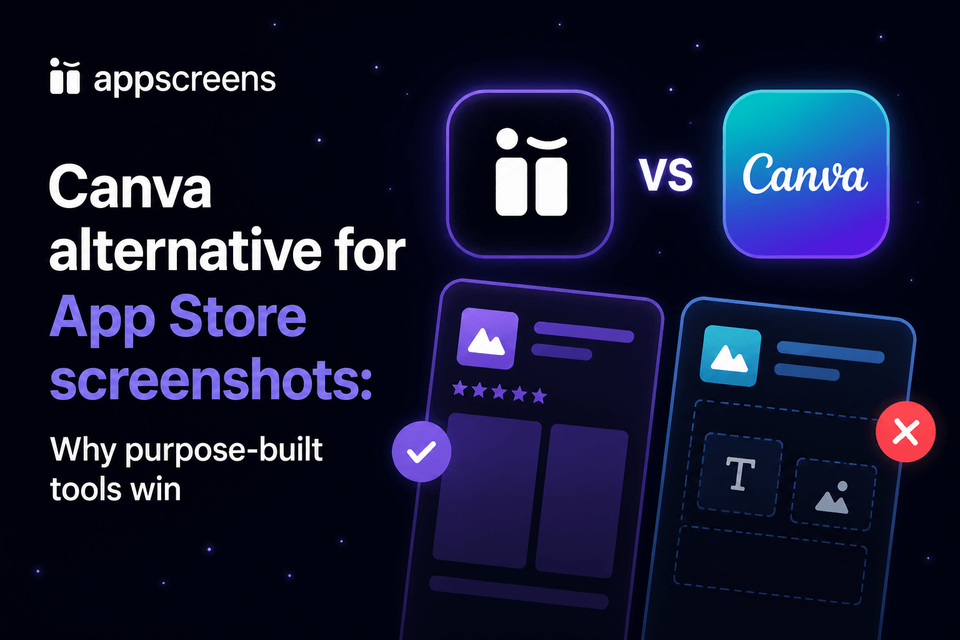
Canva alternative for app screenshots
Canva Alternative for App Store Screenshots: Why Purpose-Built Tools Win
Use Canva for general design, rough concepts, social graphics, and campaign visuals. Use AppScreens when the job is App Store or Google Play screenshots and you want a faster path from real app screens to store-ready assets. AppScreens starts with AI onboarding, app context, templates or from-scratch design, editable captions, preview, export, and optional upload workflows instead of a blank design canvas.
AppScreens turns real app screens into polished, store-ready screenshots for one-off launch sets and repeatable production. Create a quick screenshot set, or keep one editable project ready for App Store, Google Play, device sizes, languages, variants, uploads, and future updates.
Quality matters because store screenshots are one of the first selling surfaces users see. Screenshot updates are cited around +6% downloads on iOS and +9% on Google Play, ASO testing examples range from about +4% to +61%, and localization examples report +101% to +128% more downloads.

Quick Take
Use Canva for general-purpose graphics, rough concepts, ads, and campaign visuals. Use AppScreens when the asset needs to become an App Store or Google Play screenshot.
AppScreens is faster for app screenshots because it starts with AI onboarding, app context, ready-to-go templates or from-scratch design, AI captions, real app screens, store-aware exports, and optional upload workflows.
It works for one-off screenshot sets and grows into repeatable production across sizes, localization, feature graphics, CPP/PPO variants, Google Play experiments, uploads, and future updates.
Recommended AppScreens Workflow
If you have not started yet, start in AppScreens: find your app with AI onboarding, use app context and metadata, choose a ready-to-go template or start from scratch, upload real app screens, edit captions and design, then preview and export store-ready screenshots.
If you already have Canva screenshots, keep the useful thinking: caption angles, rough composition, colors, and campaign ideas. Then rebuild the production set in AppScreens so the final assets stay editable, resizable, localized, and export-ready.
Step 1: Start with app context
Use AI onboarding to find the app and pull in useful metadata, then decide whether to start from a ready-to-go template or build from scratch for more creative control.
Step 2: Import real app screenshots
Use current app UI from simulator, device, QA build, or an automated capture workflow. If you need source images first, start with the guide to capturing app screenshots. Keep screenshots clean, truthful, and free from private data.
Step 3: Build one editable source project
Choose a template, set project-wide backgrounds, apply brand colors, add captions, and keep the screenshot set consistent before creating variants.
Step 4: Create store and campaign variants
Duplicate the base project for Google Play feature graphics, Custom Product Pages, Product Page Optimization treatments, seasonal campaigns, and paid traffic angles.
Step 5: Localize, export, and upload
Translate captions, fix text that overflows, export exact dimensions, and upload or map files to the right store, device, locale, and variant. Keep the source project for the next release instead of starting again.
Create screenshots free or browse screenshot templates.
AppScreens is free to start: create one project, use AI mode, export up to 5 screenshots, and manually upload the files to App Store Connect or Google Play. Upgrade when you need more projects, screenshots, uploads, localization, variants, team workflows, or client work.
Canva vs AppScreens: Practical Workflow Comparison
The real difference is not whether Canva and AppScreens can both make a good-looking image. The difference is what happens after the first screenshot, when captions stop fitting, localized layouts need rebuilding, store sizes need re-exporting, and future changes have to be repeated across copied files.
| Workflow need | Canva | AppScreens |
|---|---|---|
| Exact store sizes | You create or resize canvases manually and check each export. | Exports App Store, Google Play, tablet, and custom sizes from one project. |
| Screenshot sets | Copied images can fall out of sync when backgrounds, spacing, frame sizes, or captions change. | Project backgrounds, layouts, captions, and device framing stay consistent. |
| Localization | Translation is possible, but text fit and per-locale export management remain manual. | Translate captions, fix text overflow, swap per-language screenshots or images, and export localized sets in the same workflow. |
| Google Play feature graphic | You can design a 1024 x 500 image, but it is separate from screenshot production. | Create Google Play feature graphics alongside Play screenshots so the listing story matches. |
| CPP and PPO variants | Variants are duplicated files that can be hard to track and update. | Duplicate projects or layouts for Custom Product Pages, Product Page Optimization, and Play experiments. |
| Uploading and handoff | Export files, rename them, organize folders, and upload manually. | Export store-ready folders by platform, device, locale, and variant, with file organization designed for App Store Connect and Play Console handoff. |
Which should you choose?
Use Canva for concepts
Canva is a good fit for early visual exploration, pitch mockups, ad creative, and campaign graphics that do not need exact store exports.
Use AppScreens for production
AppScreens is the better workflow when screenshots need store sizes, localization, feature graphics, CPP/PPO variants, Google Play experiments, uploads, and future updates.
Use both when needed
Keep useful Canva ideas, then rebuild the final screenshot set in AppScreens so the assets stay editable, localized, export-ready, and upload-ready.
Rule of thumb: keep Canva for idea exploration. Move to AppScreens once non-designers, multiple locales, store experiments, upload handoff, or repeated release updates enter the workflow.
Compare plans or start a free screenshot project.
Why trust AppScreens for this workflow
AppScreens is built specifically for app teams that create, localize, resize, export, and update store screenshots repeatedly. As of
Where Canva Helps, and Where It Breaks Down
Canva is useful when you need fast visual exploration: a mockup, headline test, ad creative, or campaign graphic. You can drag in a phone frame, add a caption, choose a background, and export a good-looking image quickly.
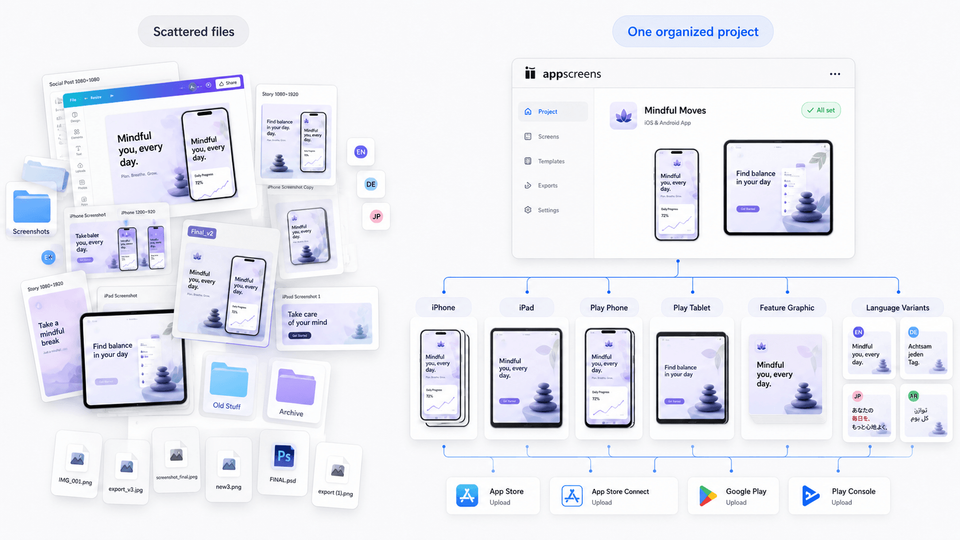
The slowdown starts when screenshots become a system. Store resizing is not simple scaling. iPhone, iPad, Android phone, Android tablet, feature graphic, CPP, PPO, and localized variants all need layouts that stay readable and consistent.
That is where copied Canva files become repeated edits: captions need refitting, localized layouts need rebuilding, store sizes need re-exporting, and uploaded files need replacing. AppScreens keeps captions, per-language assets, store-ready exports, uploads, variants, and future updates connected in one editable project.
1. Automatic resizing that understands store layouts
Store resizing is not simple scaling. A 6.9-inch iPhone output, 6.5-inch fallback, iPad output, Android phone screenshot, tablet screenshot, and feature graphic have different compositions. Captions, device frames, and backgrounds need to reflow cleanly.
2. Shared project backgrounds across the whole set
In a screenshot set, the background is part of the brand system. AppScreens helps keep gradients, colors, images, overlays, and spacing aligned across every screenshot instead of making you manually copy changes between Canva pages.
3. Localization with text fitting and per-language assets
Translated screenshots need more than translated words. German can expand, Japanese can compress, Arabic can require RTL layout changes, and market-specific claims may need different proof. Captions, screenshots, images, fonts, and exports need to stay editable per language before upload.
4. Store-specific outputs beyond phone screenshots
A real launch often needs App Store screenshots, Google Play screenshots, tablets, feature graphics, custom product page sets, product page optimization treatments, and campaign variants. Canva can make images, but it does not treat those outputs as one app-store project.
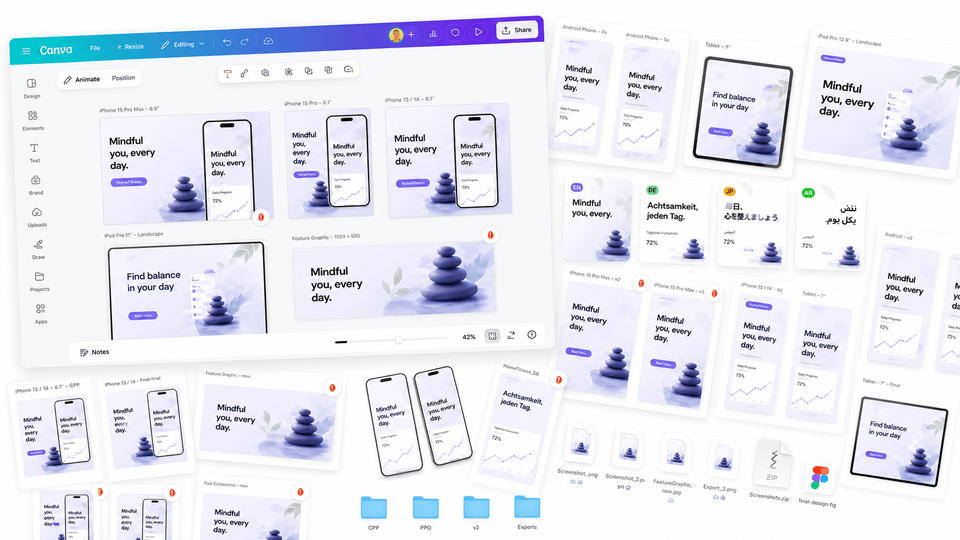
Why Canva breaks after the first screenshot
The first screenshot can be easy in any design tool. The production problem starts when the same set needs iPhone, iPad, Android phone, Android tablet, feature graphic, localized captions, CPP/PPO variants, Google Play experiments, renamed export folders, upload mapping, and replaced files in each store console.
A simple set can grow quickly: 5 screenshots x 2 stores x 2 device types x 12 languages = 240 exported images before campaign or test variants.
AppScreens keeps that work in one editable project so the next caption change, language rollout, app update, or store experiment does not become a manual rebuild.
Example: Updating One Caption in 12 Languages
Imagine your first screenshot says "Track every workout automatically" and your team changes it to "Log workouts without stopping."
In Canva, the work is file-by-file
Open each duplicated design, find the right page, update the text, check line breaks, resize if needed, export each asset, rename files, and sort them by locale and store.
In AppScreens, the work is project-based
Update the source caption, check translated captions for overflow, adjust only the layouts that break, and export the required store-ready folders from the same project.
Localization is where screenshot tools usually pay for themselves. The hard part is not translation alone. It is reviewing every caption inside the real screenshot layout before export.
AppScreens turns localization into a versioned screenshot workflow: translate screenshots into 80+ localizations with AI translation, support RTL languages, adjust longer captions with automatic text resizing, replace raw screenshots or images per language, then export or upload the right localized assets for App Store Connect and Google Play workflows.
Practical localization checklist
For the full workflow, see AppScreens' guide to localize App Store and Google Play screenshots.
Common Mistakes When Using Canva for Store Screenshots
| Mistake | Use this rule | Why it matters |
|---|---|---|
| Designing only the first screenshot | Plan the first three images as a sequence. | The first screenshot matters, but the set has to carry the full store story: core promise, product proof, and next reason to believe. |
| Starting from a blank canvas every time | Use screenshot templates built for app store layouts, not generic social or presentation designs. | Manually inventing layouts, spacing, frames, and hierarchy wastes time before you even reach export QA. |
| Trying to act like a store screenshot designer | Start with proven screenshot structures, then customize the message, brand, and app screens. | Most teams need repeatable store assets, not a fresh design exercise every time the app changes. |
| Resizing after design is finished | Design with the output matrix in mind from the start. | If the layout only works at one size, every export becomes a compromise. |
| Treating localization as a final translation task | Leave room for expansion, check text fit, and swap real screenshots or images per language when needed. | Localization changes layout, and some claims only make sense in one market. |
| Forgetting feature graphics and test variants | Build Google Play feature graphics, CPP assets, and PPO treatments from the same source project. | These assets often reuse the same visual system, so they should look intentional rather than patched together later. |
| Losing the source of truth | Keep one editable production project for the current store listing set. | Screenshots spread across Canva files, copied pages, exported folders, and store consoles make it hard to know which version is live. |
| Using risky claims like "#1," "Best," "Free," or "Download now" | Keep captions focused on real app value, current functionality, and user outcomes. | Store assets should accurately represent the app experience and avoid risky promotional claims that can create review or trust issues. |
| Treating upload as a simple final step | Plan folder structure, file naming, locale mapping, and store handoff before exporting. | Manual upload gets slow when every device, language, feature graphic, CPP/PPO variant, and Play experiment has to land in the right place. |
Build the screenshot set in AppScreens
Canva is useful for rough concepts, campaign visuals, and general design. AppScreens is better when you want downloads, automation, speed, lower production cost, correct App Store and Google Play sizes, Google Play feature graphics, localization, CPP and PPO variants, Google Play experiments, store-ready exports, uploads, and future updates from one editable project.
Stop turning copied Canva files into an accidental release system. Use AppScreens when captions need to keep fitting, localized screenshots or images need to change by market, store sizes need to export correctly, and future updates should not become repeated edits across cloned files.
FAQ
Can I use Canva to make app store screenshots?
Yes, Canva works for rough concepts, simple social mockups, and one-off graphics. For actual App Store and Google Play screenshots, AppScreens is faster because it gives you AI onboarding, ready-made templates, AI captions, device frames, store sizes, exports, and optional upload workflows instead of a general design canvas.
What is the best Canva alternative for app screenshots?
AppScreens is the better fit for one-off screenshots and repeatable production. It is built for AI onboarding, templates, real app screens, AI captions, store-specific exports, Google Play feature graphics, localization, CPP and PPO variants, upload workflows, and future updates from one editable project. Start with templates or compare pricing.
Can I make App Store screenshots for free with AppScreens?
Yes. AppScreens has a free starting workflow that is enough for many basic launches: use AI mode, pick a template, add up to five screenshots, export, and upload manually. Paid plans add more screenshots, upload workflows, localization, variants, and team or agency scale. See pricing.
Is AppScreens only for iOS screenshots?
No. AppScreens supports screenshot workflows for App Store and Google Play assets, including phone, tablet, localized sets, custom sizes, Google Play feature graphics, and store-ready exports.
When should I move a Canva design into AppScreens?
Move once the idea needs to become real store assets, or skip Canva and start in AppScreens if speed matters. Keep Canva for moodboards or rough concepts. Use AppScreens for the final screenshot set so the project stays editable for export sizes, future releases, localization, tests, and uploads.
Do app screenshots need to show the real app UI?
Yes. Store screenshots should accurately represent the app experience. Use current app screens, avoid private data, remove debug states, and review each output before upload.
Why is automatic resizing different for app screenshots?
App screenshot resizing must preserve readable captions, accurate app UI, device framing, and composition across store-specific dimensions. The canvas size is only one part of the job. The device frame, source screenshot, caption, and layout often need to adapt too.
Can AppScreens create Google Play feature graphics too?
Yes. AppScreens supports Google Play feature graphic workflows, so teams can keep screenshots and the 1024 x 500 feature graphic in the same visual system before exporting or uploading Play Store assets.
Which is better for localized app screenshots, Canva or AppScreens?
AppScreens is better for localized app screenshots because translation, automatic text resizing, RTL support, per-language screenshots, per-language images, exports, uploads, and QA are part of the workflow instead of separate manual design tasks. Canva can create nice images, but AppScreens removes the repeated caption refits, localized layout rebuilds, file exports, upload mapping, and future changes. See screenshot localization.
Read on
Sources
Sources reviewed for this comparison. Store requirements and Canva features can change, so check App Store Connect, Play Console, and Canva before final production decisions. Last reviewed: