
Finish the design. Send it to the store.
Upload Screenshots to App Store Connect and Google Play
Stop uploading every screenshot, device size and language by hand. AppScreens sends your finished sets straight to App Store Connect and Google Play with your own API access, ready for review without the file-by-file admin.
Start free. No card required. Use your AI agent



Less uploading. More time for your app.
One project. Both stores.
Every extra language and device size multiplies the files you need to deliver. AppScreens generates the complete set from one editable project, then sends your selected outputs to Apple and Google together.
- 8
- Screens
- 6
- Output sizes
- 88
- Languages
files generated. Upload the selected sets in one go.
iPhone, iPad and iPhone Duo for the App Store, plus phone, 7-inch and 10-inch tablet for Google Play, all from one design. Upload the sizes and languages you select together.


Agent Skills + AppScreens MCP
Let your AI Agent upload your screenshots
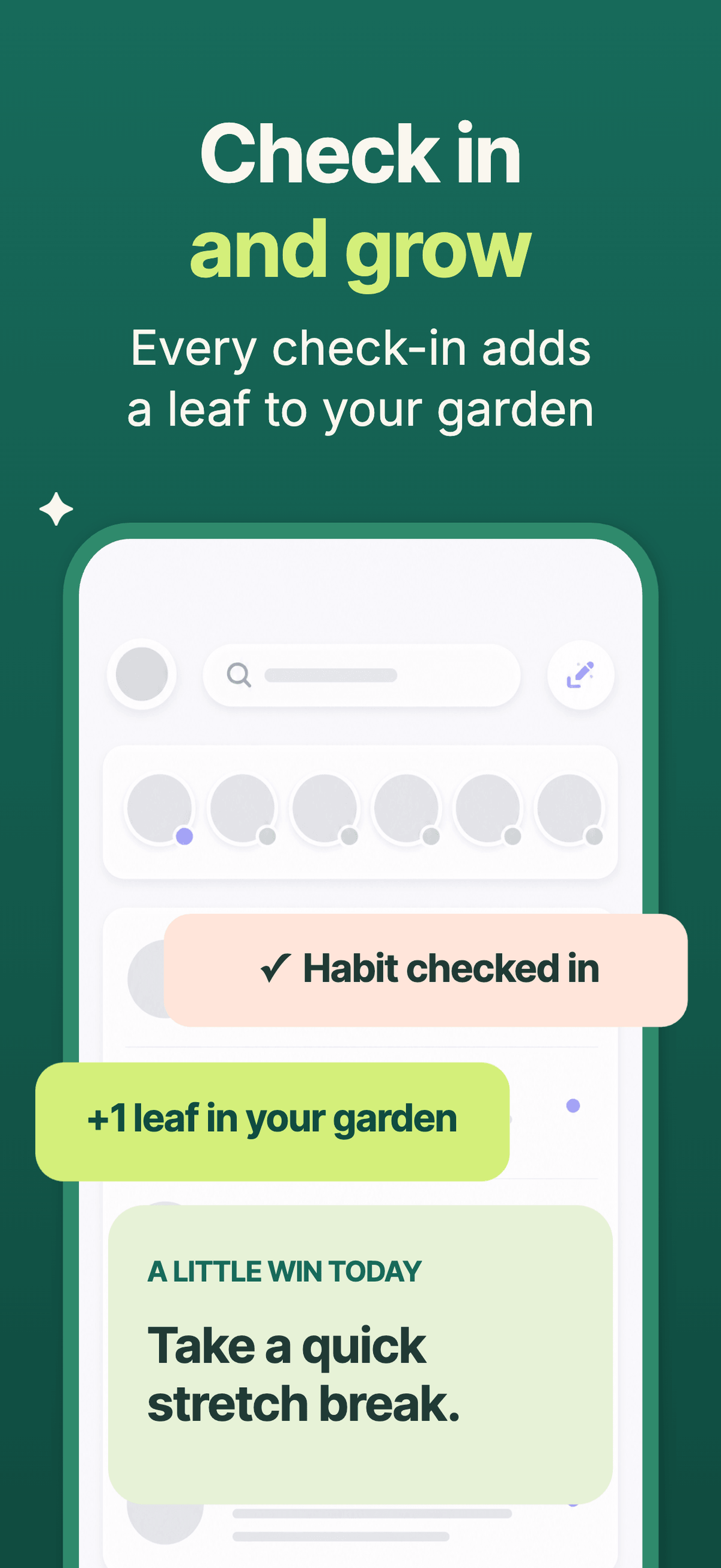
Tell your agent which connected app and store listing to update, and choose the screenshot sizes and languages. Review the previews and confirm whether to replace existing images before approving the upload.
Your agent can check progress and report accepted images or store errors. Uploading screenshots does not submit your app for review or publish a release.
- Choose listing
- Review
- Approve upload
- Check status
English
French
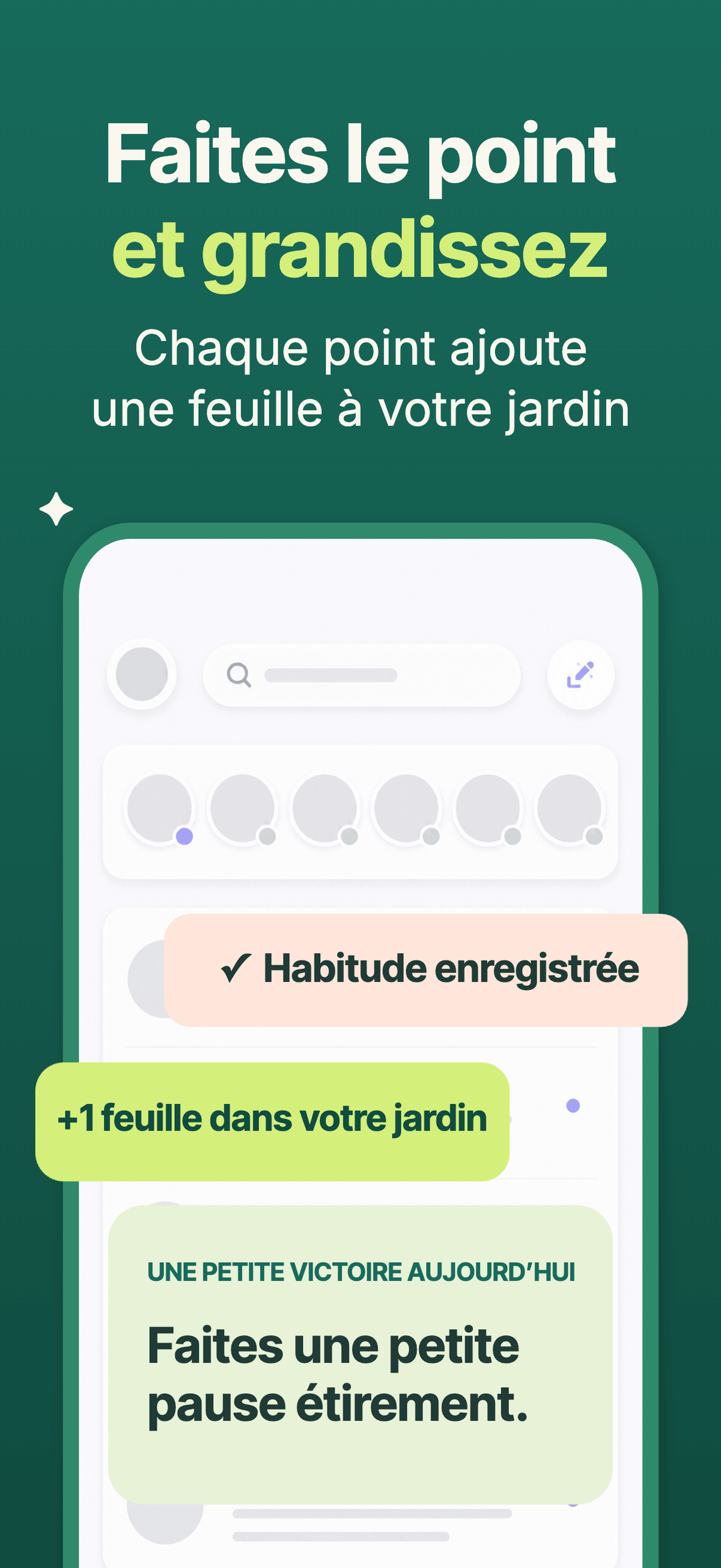
German
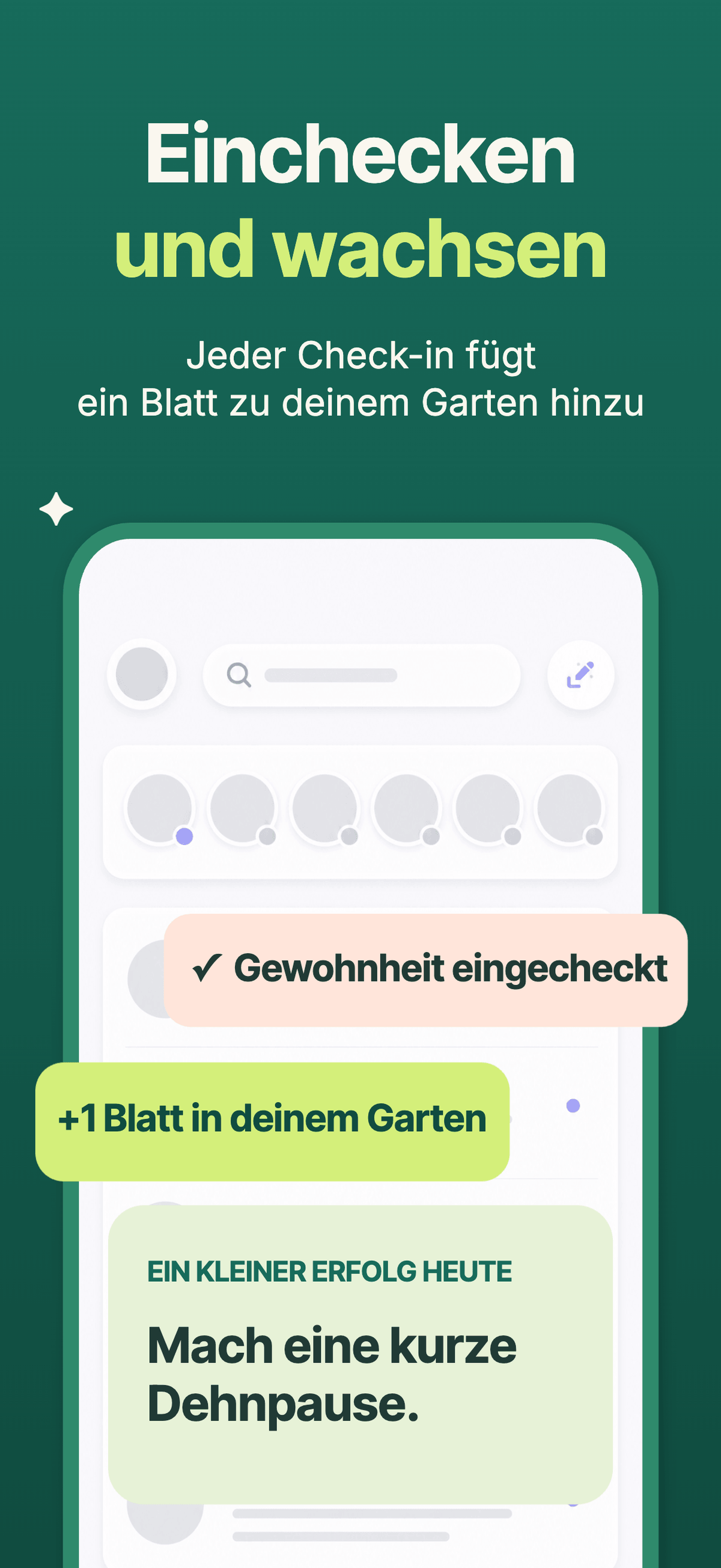
Polish
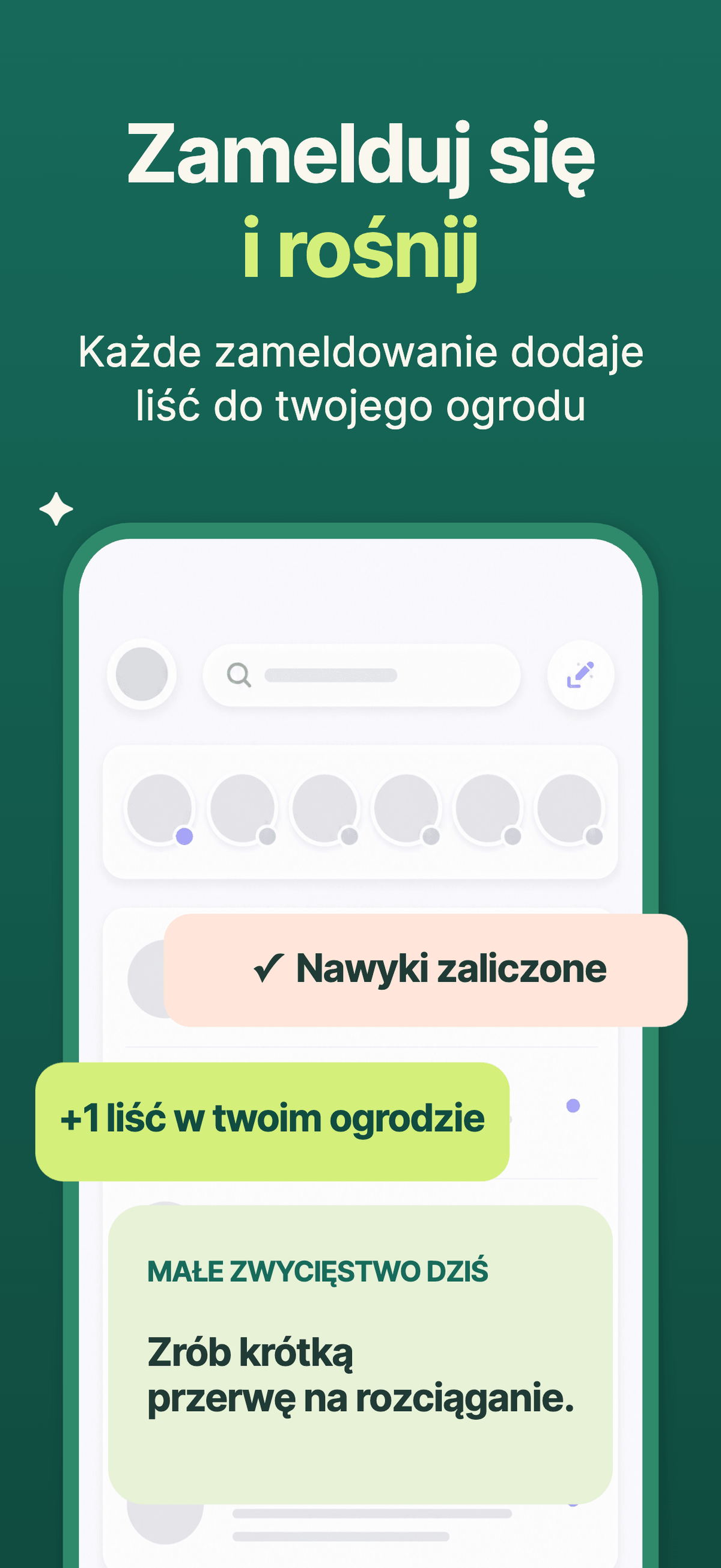
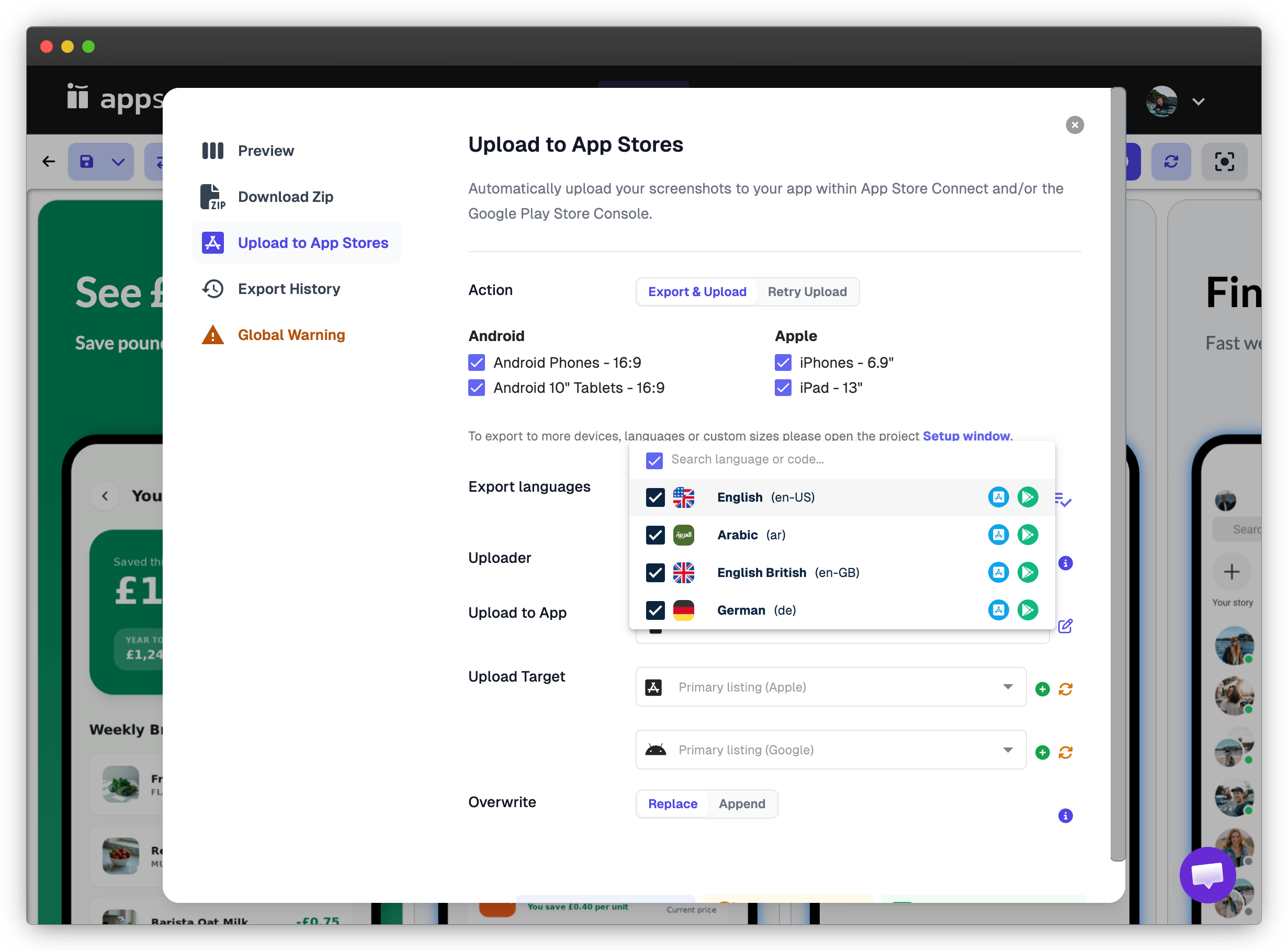
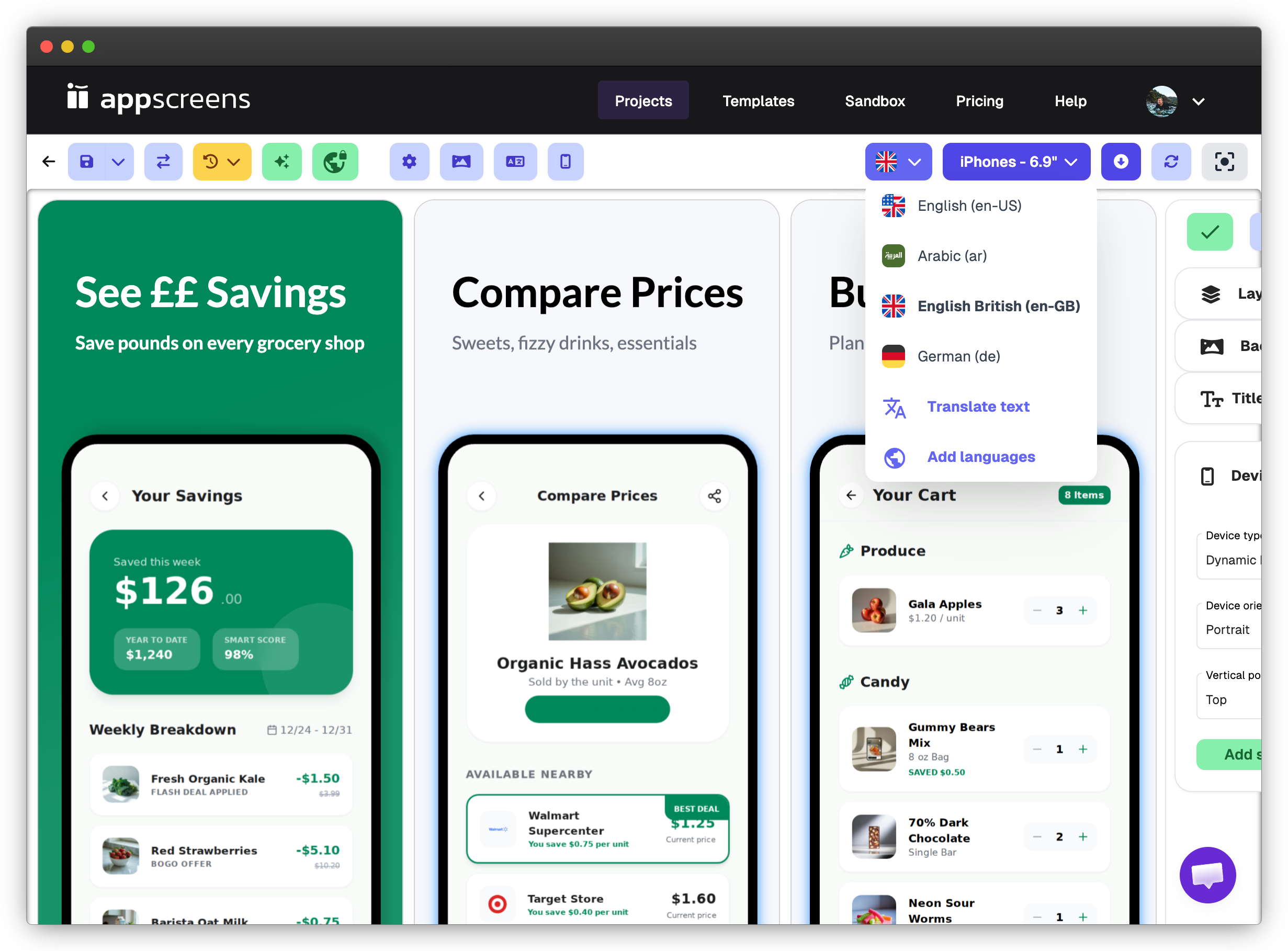
Bulk upload across devices and languages
Choose your apps, sizes and languages once. AppScreens keeps the screenshot order and locale mapping together, so there are no files to sort or drag in by hand.
Every size from one design
iPhone, iPhone Duo, iPad and Android sets all come from the same project.
Every language in its place
Each localized set goes to its matching store language.
Both stores together
Send the selected outputs to App Store Connect and Google Play in one go.
Screenshots shipped with AppScreens


25,601
store submission runs
200,000+
app professionals
13M+
screenshots exported
“AppScreens is the quickest and easiest way I have found to create a polished and professional looking store presence.”
 Matthew HCo-founder, Croppaco
Keep the project. Ship the next update.
Your next release starts here
Your design, translations and store connections stay ready. When the app changes, update the screenshots and the listing copy from the same workspace.
Update the screenshots
Change a caption or app capture in the saved project, generate the revised set and upload it again.
Open your saved projectsUpdate the listing copy too
App Store Manager uses the same Apple and Google connections to update app names, subtitles, descriptions, keywords and release notes across languages. Review every change before it’s saved.
Explore App Store Manager
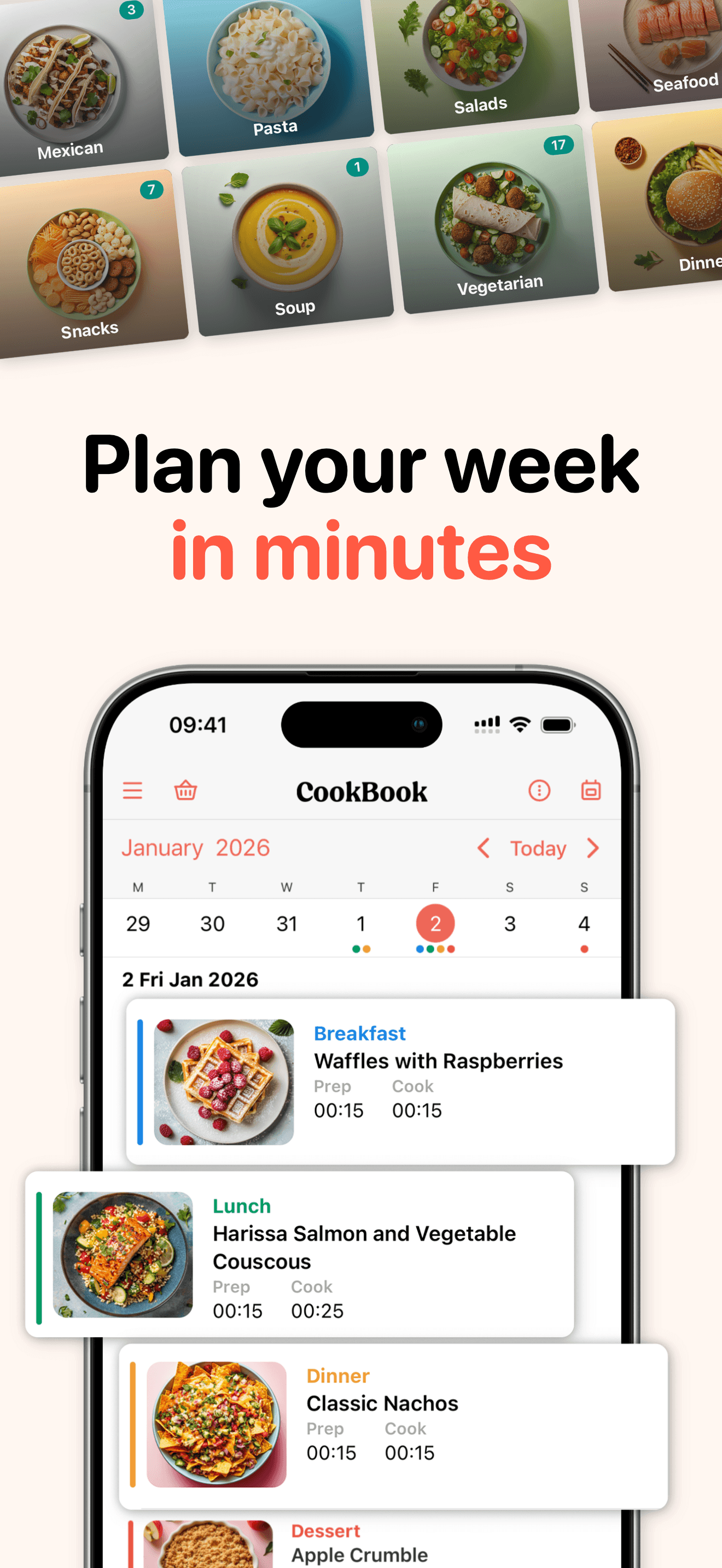
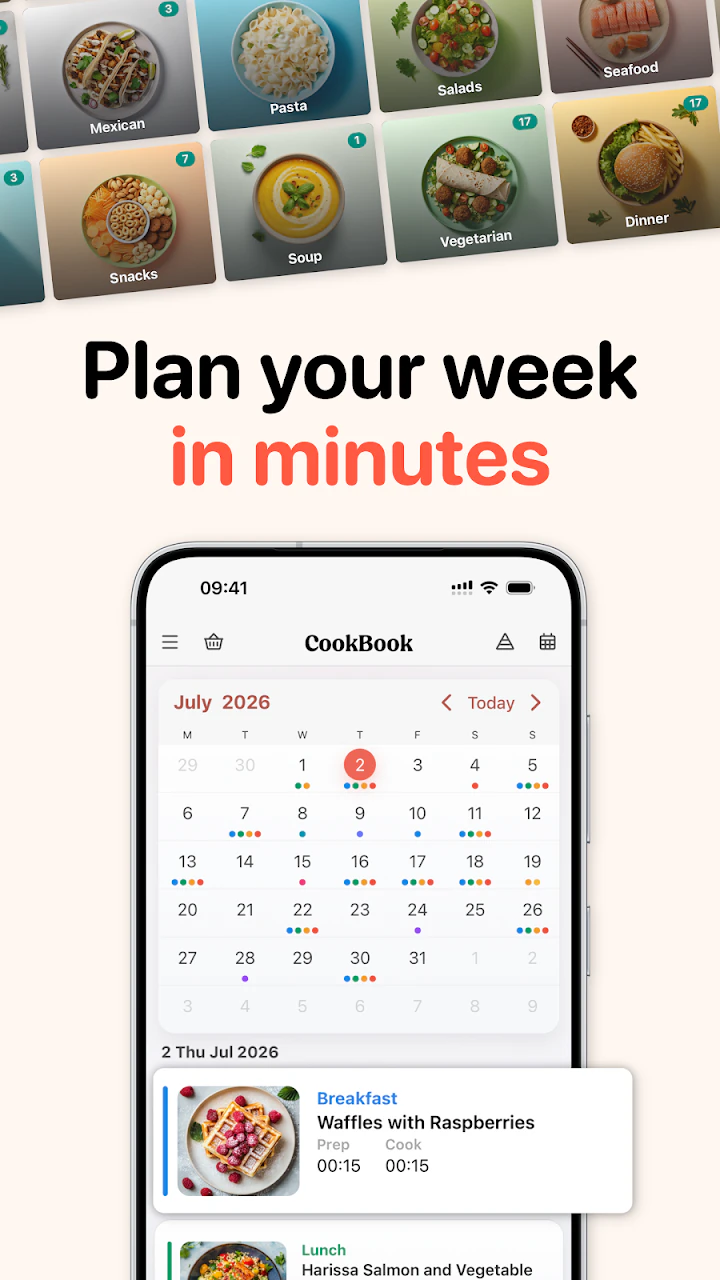
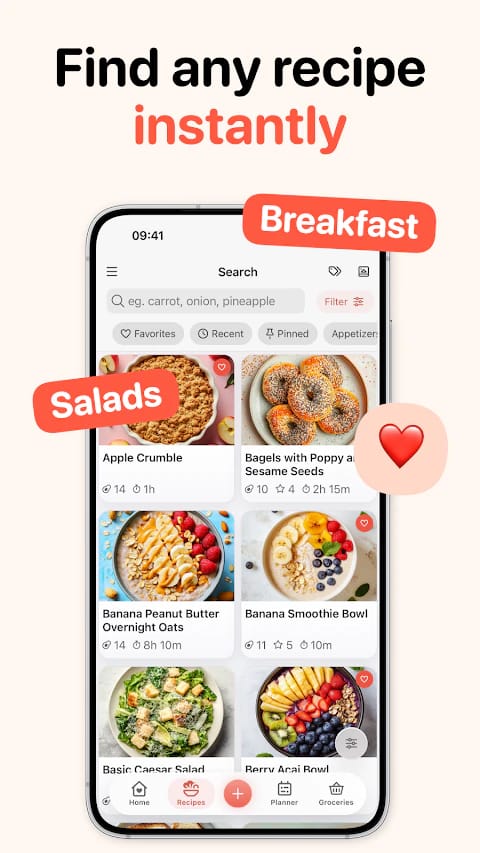
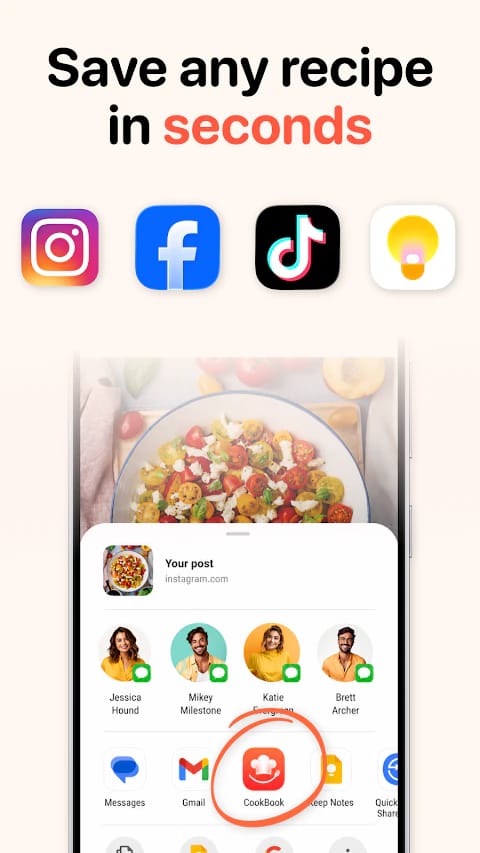
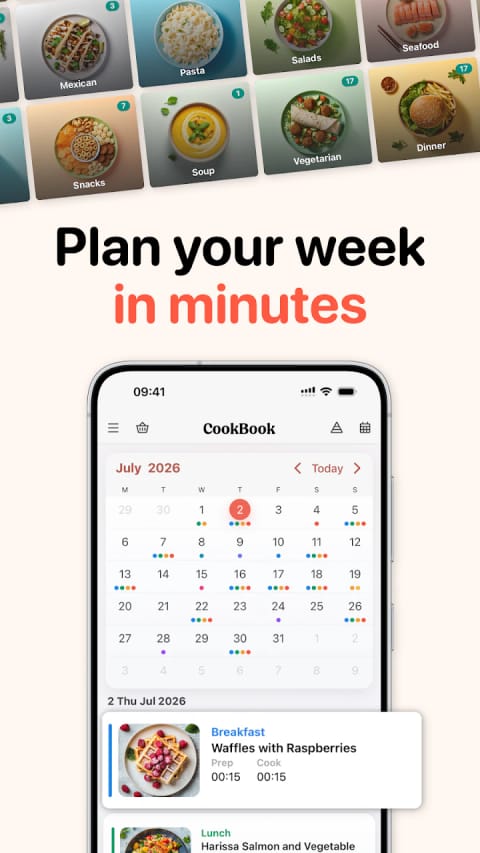
Illustrative next release for CookBook: updated screenshots are uploaded to App Store Connect and Google Play, then the What’s New text and Google Play release notes are saved with App Store Manager.
Apple App Store Connect
Upload screenshots to App Store Connect
Deliver your iPhone and iPad screenshots together, including localized sets, PPO treatments and Custom Product Pages. Keep the design and its Apple destinations in one workflow.
Send screenshots to your main listing, a Custom Product Page or a PPO treatment. Your existing store connection keeps each set tied to the right app and editable destination.
Prepare CPP and PPO variantsPreview your iPhone, iPhone Duo and iPad sets together before sending them. Check the sequence and translated captions in one place, then upload the selected sizes and languages as a batch.
Check Apple screenshot sizesAppScreens delivers the finished images and tracks upload progress. Your screenshots are ready in App Store Connect for the final check, Apple review and release.
Upload help and troubleshooting
Google Play Console
Upload screenshots to Google Play Console
Send your Android phone, tablet and localized screenshot sets to the main Google Play listing. Spend your time reviewing how the app looks, not moving files between folders and Console.
Use your saved Google connection to deliver to the main listing. Keep the Android screenshots and their language versions together instead of uploading each gallery separately.
Create an Android screenshot setGenerate and preview the phone and tablet sizes from one editable design. The selected galleries arrive in their device and language slots, with no manual file sorting.
Check Google Play screenshot sizesAppScreens uploads the selected screenshots to Play Console for review and publishing. Create a matching 1024 × 500 feature graphic in its own AppScreens project and upload it directly to Google Play too.
Make a matching feature graphic
The right set, in the right listing language
Localized screenshots, delivered together
Give each market a listing that speaks its language. Translate and preview your screenshots in AppScreens, then upload each localized set to its matching store language.
Keep your listing copy in step
App Store Manager brings supported app names, descriptions, keywords and release notes together across languages. Review and save those text changes separately, using the same connected Apple and Google apps.
Give the variant its own destination
Send each variant to its destination
Create the alternative set in AppScreens, then choose the store workflow that matches its purpose. Apple treatments and campaign pages have distinct jobs.
Apple PPO
Product Page Optimization
Change one clear idea, such as the first caption or screenshot order. Choose an existing PPO destination or create a named one in AppScreens, select the treatment and deliver the alternative creative. Manage the treatment review, test and results in App Store Connect.
Apple CPP
Custom Product Pages
Prepare screenshots for a particular audience or campaign. Choose an existing Custom Product Page or create a named one in AppScreens, then send its finished set. Complete Apple’s review and publishing steps in App Store Connect.
Google Play
Store Listing Experiments
Create and export the screenshot variants in AppScreens. Finish experiment setup and asset selection in Play Console, where the test runs.
Connect once.
Use every release.
Save your Apple and Google connections once. Reuse them for screenshot updates and new languages without setting up each upload again.
App Store Connect
Use your Key ID, Issuer ID and private key (.p8), with access to the app and its screenshots.
Apple setup guideGoogle Play Console
Use a service account JSON with permission to manage the selected app’s store listing.
Google Play setup guideOne workspace
Everything you need to ship your store listing
AppScreens is an App Store and Google Play screenshot designer with a visual editor, guided AI, MCP for AI agents and a REST API. Adapt one editable project across device sizes and 80+ languages, then preview your results and export files or upload to App Store Connect and Google Play Console.
Create
- App Store ScreenshotsCreate one set for iPhone and iPad.
- Google Play ScreenshotsDesign Android screenshots for every size.
- Google Play Feature GraphicsDesign an editable 1024 x 500 banner.
- Screenshot PreviewSee your screenshots as a store listing.
- AI Screenshot GeneratorAI caption help. Your app UI stays real.
Optimize
- Screenshot LocalizationTranslate captions and adapt each locale.
- PPO and Custom Product PagesPrepare variants for tests and audiences.
- Screenshot FeedbackGet a free ASO review of your app listing.
- App Store Screenshot SizesFind the right iPhone and iPad dimensions.
- Google Play Screenshot SizesCheck Android dimensions and requirements.
Screenshot Upload Questions
Can’t find the answer you’re looking for? Reach out to our customer support team.
Make Your Next Screenshot Update Easier to Ship
Design, localize and deliver from AppScreens. Keep the project ready for the next update.
© 2026 AppScreens, a registered business name of Salty Bytes Pty Ltd. All rights reserved | v1.2.3