
App screenshot localization
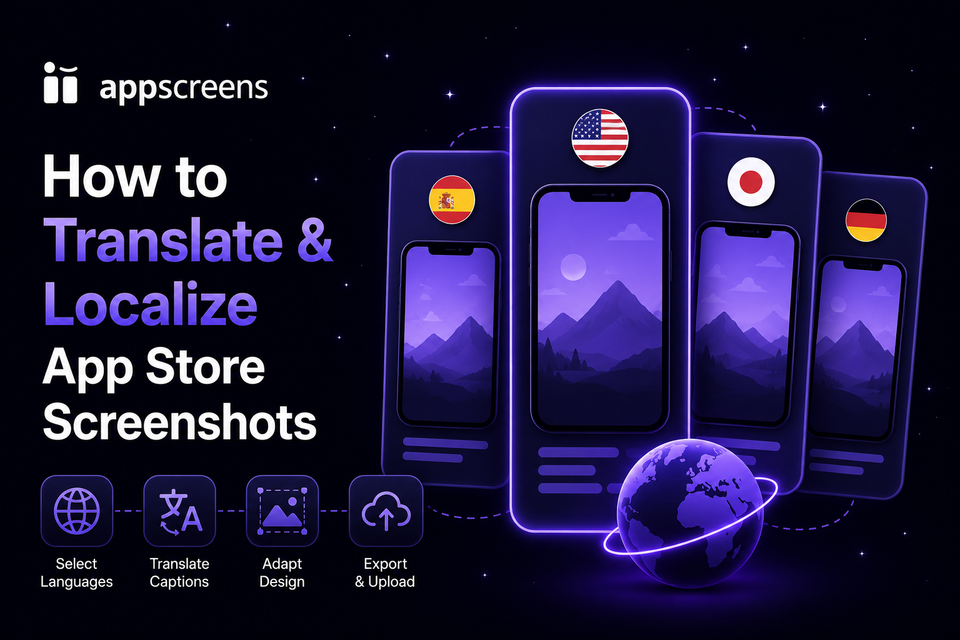
How to Translate and Localize App Store Screenshots with AppScreens
Translating App Store screenshots is not just changing the words in a caption. Strong localization makes the whole screenshot set feel native: the promise, product terms, visible app UI, examples, dates, currency, screenshots, image choices, reading direction, and final upload mapping all need to match the market.
Quality matters because localized screenshots are conversion assets, not decoration. In strong-fit markets, use +15% to +40% more downloads as a practical planning range; screenshot-localization examples report +33% to +36% conversion gains; broader app localization examples include +101% to +128% more downloads. The details and caveats are in the localization download lift guide.
This guide walks through the practical workflow: start from a strong base screenshot set, choose target locales, guide AI translation, check market-specific wording, fix captions before they stop fitting, adapt long text and RTL layouts, swap screenshots or images per language, then export or upload the right localized assets. Without a connected system, one small copy change can mean reopening cloned files, resizing captions, re-exporting every device size, renaming files, and uploading the same change across languages. AppScreens keeps captions, layouts, screenshots, images, store-ready exports, uploads, localization, variants, and future updates in one editable project so you can move quickly, save production time and money, avoid size guesswork, and ship polished screenshots without becoming a designer.
If you are still choosing which markets to localize first, start with the language selection guide.

Quick Take
AppScreens helps you localize screenshots without turning one release into dozens of rebuilt design files. Start with a strong base set, add languages, guide AI translation, fit longer captions, check RTL layouts, swap per-language screenshots or images, export store-ready sizes, and upload the right files from one editable project.
Why Screenshot Localization Matters
Screenshots are often the fastest part of the store listing to scan. If a visitor cannot understand the benefit, trust the example, or recognize local terminology in the first few screenshots, they may never reach the description. Localization helps the screenshot set answer, "Is this app made for me?"
The value is not only language comprehension. Localized screenshots can support search intent, paid traffic, Product Page Optimization, Custom Product Pages, Google Play experiments, and market-specific proof points. For the evidence and planning ranges, use the localization download lift guide.
The production cost is the part teams feel quickly. Each new market multiplies captions, raw app screenshots, device sizes, image overrides, export folders, and upload slots. AppScreens is useful when you want downloads, automation, speed, lower production cost, correct sizes without guesswork, and professional screenshots without hiring a designer for every language.
| Number | What it means |
|---|---|
| +6% on iOS and +9% on Google Play | Screenshot updates have been cited around these download gains, and broader ASO testing examples range from about +4% to +61%. See the ASO testing guide. |
| +15% to +40% more downloads | A practical planning range for strong-fit localization markets, based on public localization examples covered in the localization download lift guide. |
| +33% to +36% conversion gains | Reported screenshot-localization examples show why translated captions should be paired with strong visual proof and local context. |
| +101% to +128% more downloads | Broader app localization examples show the upside when the app, listing, metadata, and screenshot promise fit the market. |
| 80+ localizations | AppScreens supports localized screenshot production across current store languages. See the AppScreens localization workflow. |
Translation vs Localization
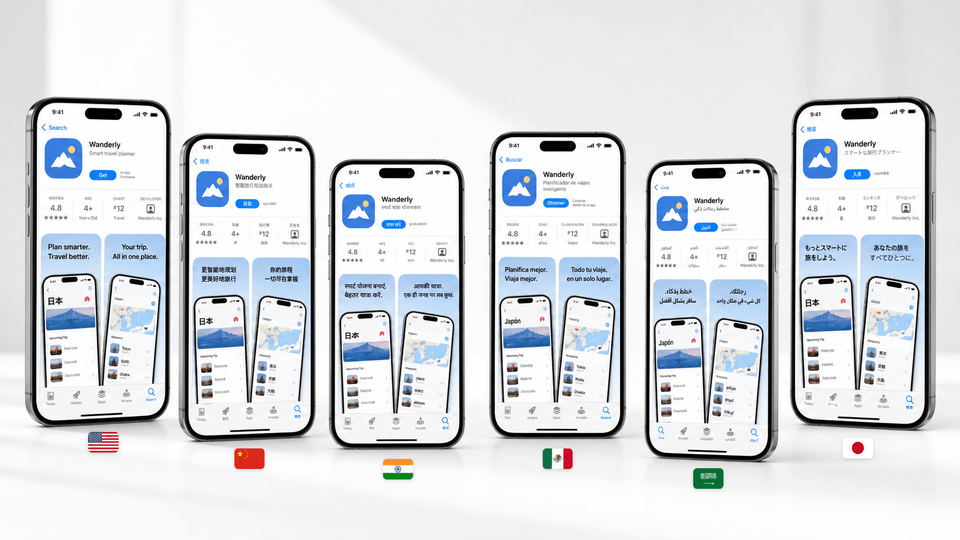
Translation converts text. Localization adapts the screenshot set for the market. A translated caption might be technically correct but still miss local phrasing, app terminology, reading direction, text length, currency, date format, sample data, image choice, or the actual UI shown inside the phone.
| Work | What changes | Example |
|---|---|---|
| Translation | Caption words and short phrases. | "Save on candy and drinks" becomes a Spanish, German, Japanese, or Arabic caption. |
| Localization | Message, UI, screenshots, examples, layout, visual assets, and upload target. | The same grocery screenshot may show local currency, local date format, translated UI, and different shopping language. |
AppScreens Micro-Steps: Where to Click
Here is the product path inside AppScreens. The detailed walkthrough below uses one example throughout: a grocery deals app called SnackCart with an en-US base set and target screenshots for en-AU, en-GB, de-DE, and ar-SA. The app promise stays the same, but the wording, examples, currency, UI captures, layout checks, and upload mapping change by market.
| Step | In AppScreens | What to check |
|---|---|---|
| 1. Open Project Setup | Open the project Setup window from the language or export workflow when you need language, translator, formatting, or output settings. | Confirm the project already has the right app screenshots, device targets, and base screenshot order. |
| 2. Set the base language | Choose the source language for the captions and screenshots you have already written. | Use the language the current screenshot set was actually created in, not the language you plan to translate into first. |
| 3. Add languages | Use Add languages to select the target App Store locales and Google Play languages for the release. | Start with markets that already have demand, support coverage, product fit, or paid traffic plans. |
| 4. Add translator guidance | Use AI Translations and add guidance for product terms, tone, regional wording, and words that should stay unchanged. | Include short caption rules, such as keeping headings concise and rewriting idioms instead of translating them literally. |
| 5. Run translation | Use Translate text to create the first localized caption pass across the selected languages. | Check high-value languages for claim accuracy, local wording, pricing, category terms, and captions that no longer fit. |
| 6. Preview each language | Switch through the language selector and check each localized screenshot set before export. | Catch text overflow, broken line breaks, missing fonts, RTL alignment issues, wrong app UI language, dates, currency, and screenshot order. |
| 7. Upload per-language screenshots and images | Use Upload raw app screenshots when a language needs its own app UI capture, background image, map, example, or proof point. | Do not pair localized captions with English-only UI when the visible app screen is part of the trust signal. |
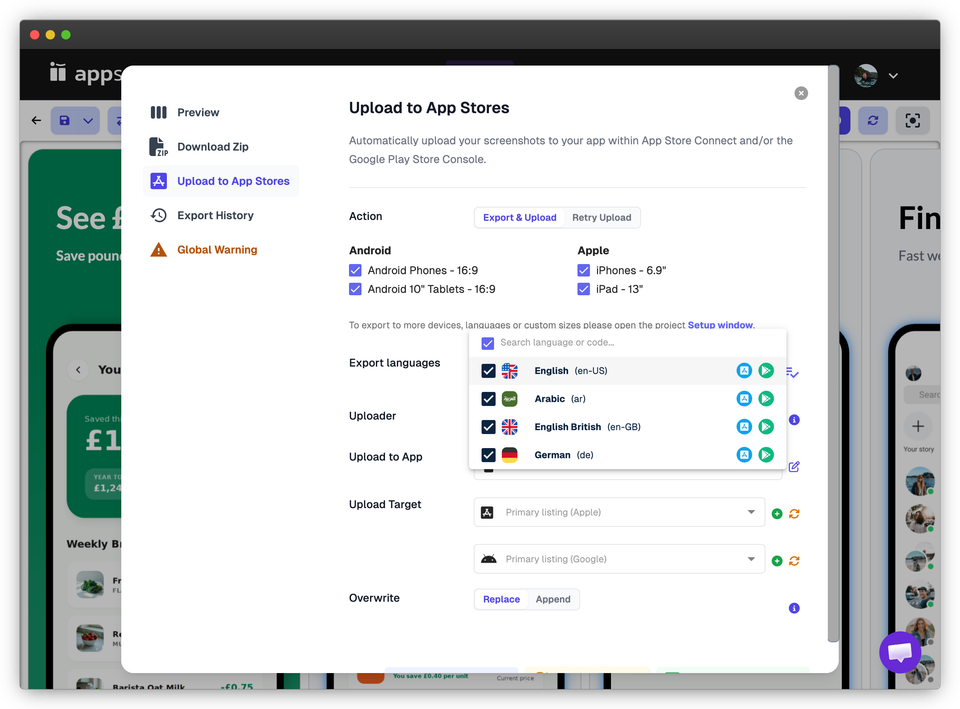
| 8. Export or upload to stores | Open Preview & Export, choose the export languages, then use Export & Upload or Upload to App Stores when the sets are ready. | Match each file to the right store, locale, device group, custom page or experiment, screenshot order, and upload slot. |
1. Start With One Strong Base Screenshot Project
Do the strategy work before translation. Your base screenshots should have a clear first-frame promise, short benefit-led captions, real app UI, correct device targets, and a logical order across the first three screenshots. Localization multiplies whatever story you start with, so make sure the default version is worth scaling.
If you need the full base workflow, use How to Make App Store Screenshots before adding languages.
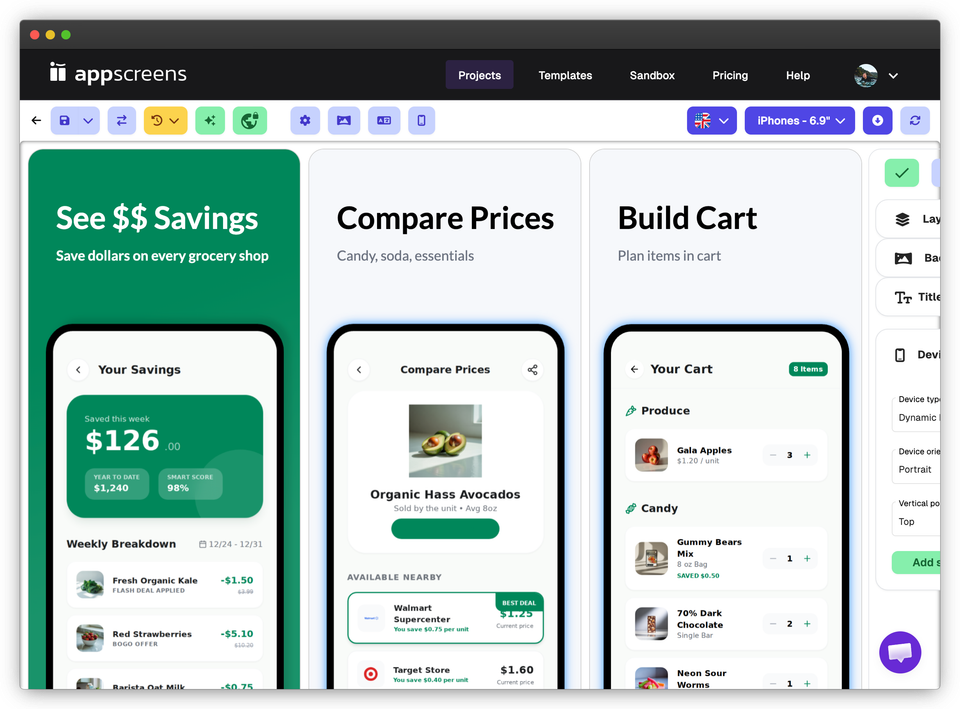
In the SnackCart example, the en-US source set leads with "Save $20 on groceries" and shows candy, soda, U.S. dollars, MM/DD dates, and a familiar grocery cart. That source set becomes the version AppScreens translates, adapts, previews, and maps to stores.
2. Add Languages to Your AppScreens Project
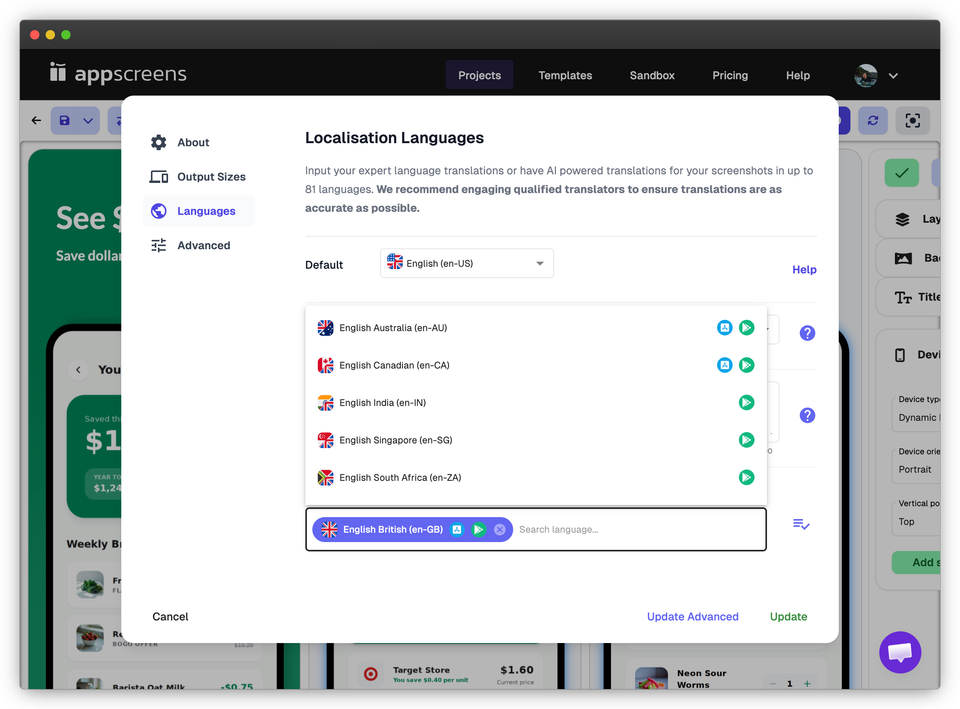
In AppScreens, open the project setup, choose the base language, then add the target languages you want to support. The base language is the source version of the screenshot set. Target languages are the localized versions you can translate, preview, adjust, export, or upload.
This matters because every disconnected localization becomes another place for production work to repeat. A small copy change, new screenshot, pricing update, or device-size adjustment should not mean manually hunting through cloned design files, resizing captions again, re-exporting store sizes, and re-uploading files one language at a time.
For SnackCart, the first pass might add en-AU, en-GB, de-DE, and ar-SA. The English variants may mostly need local wording such as candy, lollies, and sweets; de-DE needs text-length, EUR, and shopping-term checks; ar-SA needs RTL layout checks plus localized app UI if the product supports it.
Base language
The source project language, usually your strongest current store listing language.
Target languages
The App Store locales and Google Play languages you want to generate, fit, export, and upload.
Connected variants
One editable screenshot system for text fitting, per-language assets, exports, uploads, variants, and future edits.
3. Add Custom Translator Guidance for AI
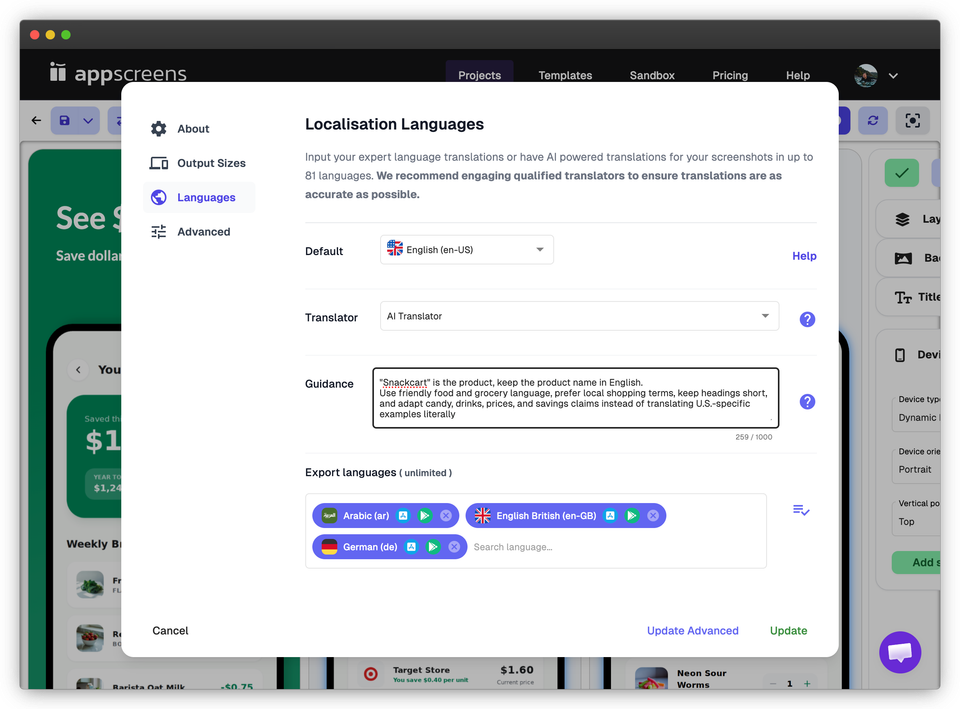
AI works best when it has context. AppScreens lets you guide translation so the output respects your product terms, brand voice, market wording, caption length, and tone. This is especially useful when screenshots contain short sales copy where a literal translation can feel flat or awkward.
For SnackCart, guidance could say: keep the product name in English, use friendly food and grocery language, prefer local shopping terms, keep headings short, and adapt candy, drinks, prices, and savings claims instead of translating U.S.-specific examples literally.
| Guidance type | Example instruction |
|---|---|
| Product terms | Keep "SnackCart", "Weekly Deals", and "Family Basket" unchanged. |
| Brand voice | Use friendly, practical grocery savings wording. Avoid dry coupon-directory language. |
| Locale preference | Use Australian English for en-AU and British English for en-GB. |
| Caption fit | Keep captions short enough for screenshot headings. Prefer two short lines over one long line. |
| Meaning over words | Rewrite candy, drink, grocery, and savings examples for the market instead of translating them literally. |
4. Let AI Handle Locale-Aware Translation
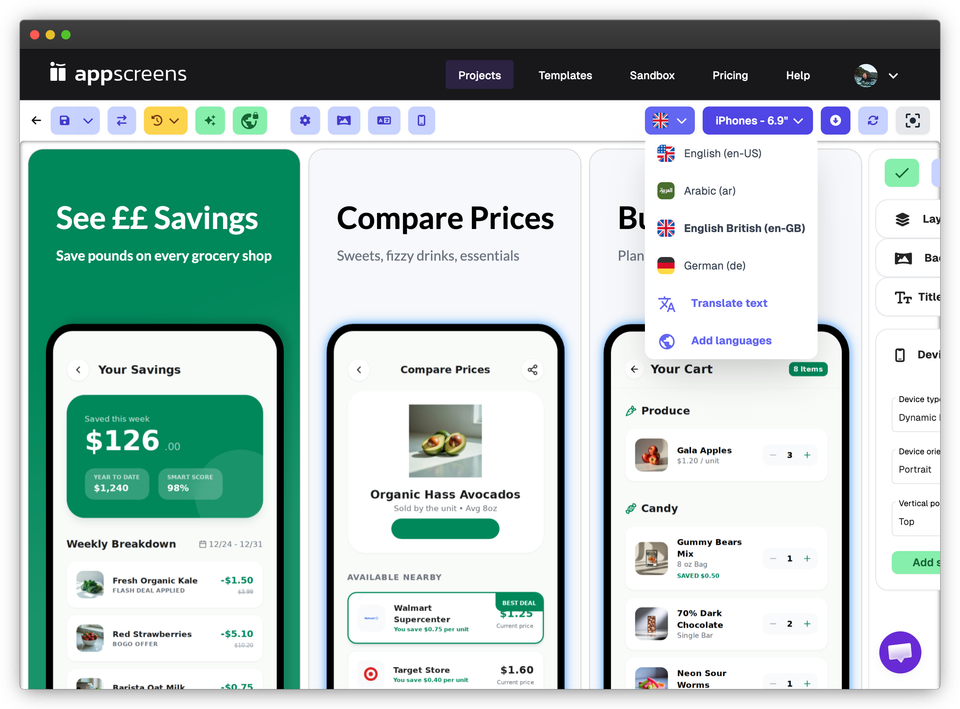
Good screenshot translation is not always a straight line from one language to another. Even English variants can need different wording. A grocery app might use "candy" in en-US, "lollies" in en-AU, and "sweets" in en-GB. The same screenshot might say "cart" for U.S. users, "trolley" for Australian users, and "basket" for U.K. users. Savings claims can also move from dollars to pounds.
That kind of nuance is why translator guidance and locale selection matter. AppScreens can produce the first localized pass, then a native speaker or local teammate can check the terms that affect trust before you publish the store assets.
In SnackCart, the same base idea might become "lollies" for en-AU, "sweets" and "basket" for en-GB, EUR pricing and German shopping language for de-DE, and Arabic wording plus right-to-left reading direction for ar-SA. The point is not to make every market sound like translated U.S. English.
| Source idea | en-US | en-AU | en-GB |
|---|---|---|---|
| Sweet treat aisle | Candy | Lollies | Sweets |
| Delivery address | Zip code | Postcode | Postcode |
| Checkout label | Cart | Trolley | Basket |
| Savings claim | Save $20 on groceries | Save $20 on your shop | Save 15 pounds on your weekly shop |
5. Preview Text Length, Fonts, and Layouts
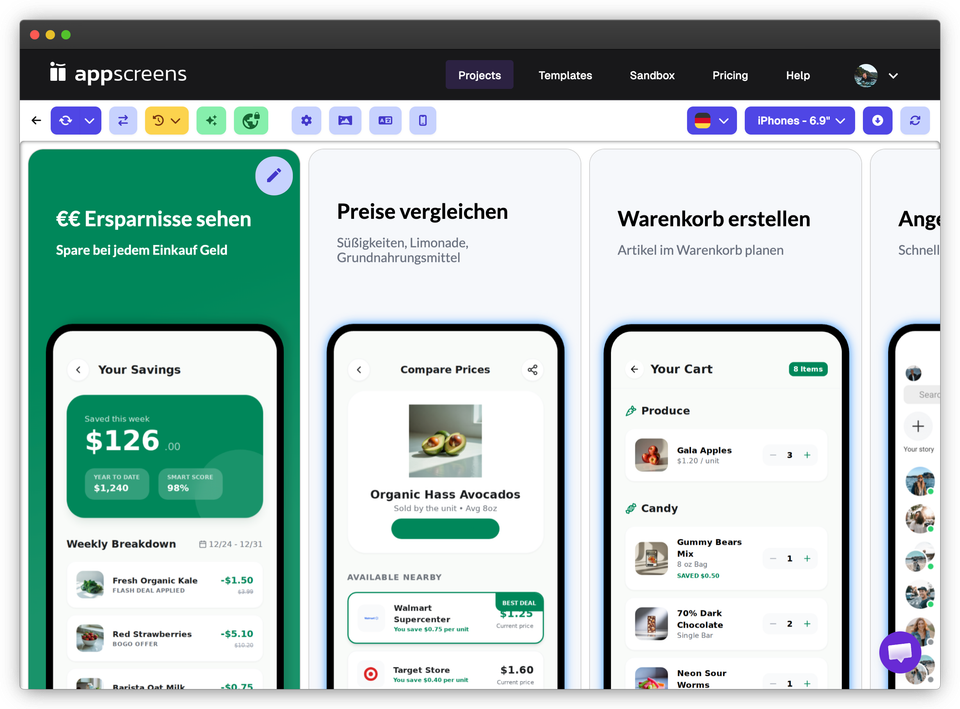
Some translated captions get long enough to collide with the device frame, cover product UI, or push a headline into awkward line breaks. Some scripts need different fonts. AppScreens helps with text fitting and responsive layouts so you are not resizing the same caption across every device size by hand, but every important locale should still be checked before upload.
Check whether captions overlap the device frame, whether small text is still readable, whether fonts support the script, and whether line breaks split phrases awkwardly. The screenshot localization checklist is the final QA pass before publishing.
For SnackCart, de-DE may need a shorter heading, a two-line caption, EUR examples, German date formatting, and different product names for snacks or drinks. The layout is not done until the localized version still looks intentional on the actual device sizes you plan to upload.
6. Handle Complex RTL Locales
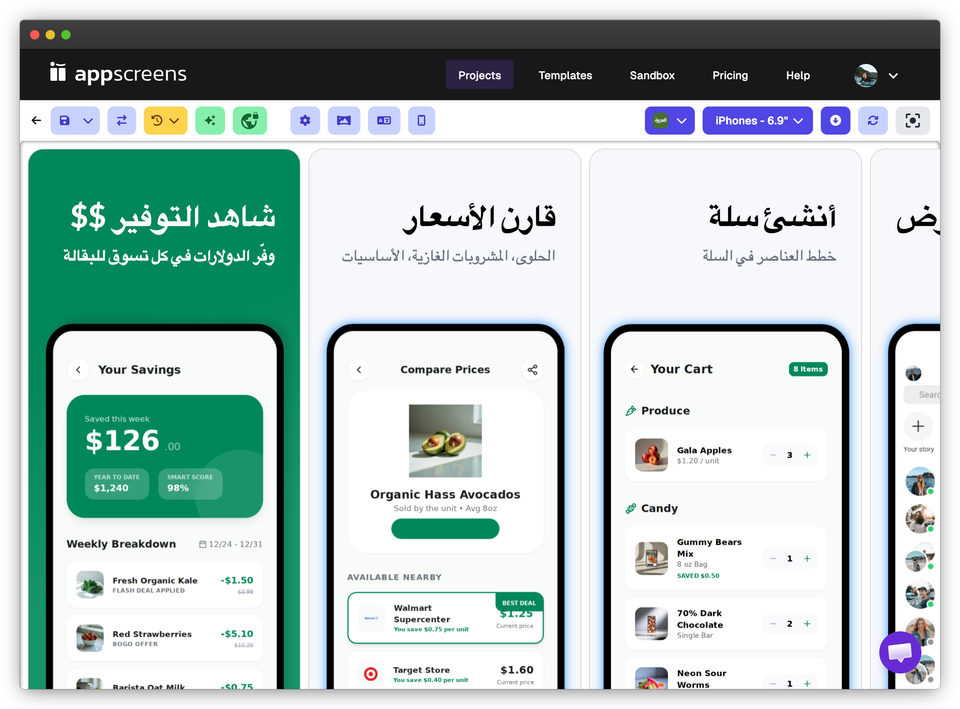
Right-to-left languages such as Arabic and Hebrew need more than translated captions. Check text direction, alignment, punctuation, number rendering, mirrored layouts where appropriate, and the visible app UI inside the device. If your app has an RTL interface, use raw app screenshots from that localized experience instead of pairing Arabic captions with English left-to-right UI.
For SnackCart, check Arabic caption direction, SAR pricing, Arabic grocery labels, number rendering, and whether the app screen inside the device should also be Arabic. This is where localization turns from copy replacement into market-ready creative.
7. Upload Screenshots and Images Per Language
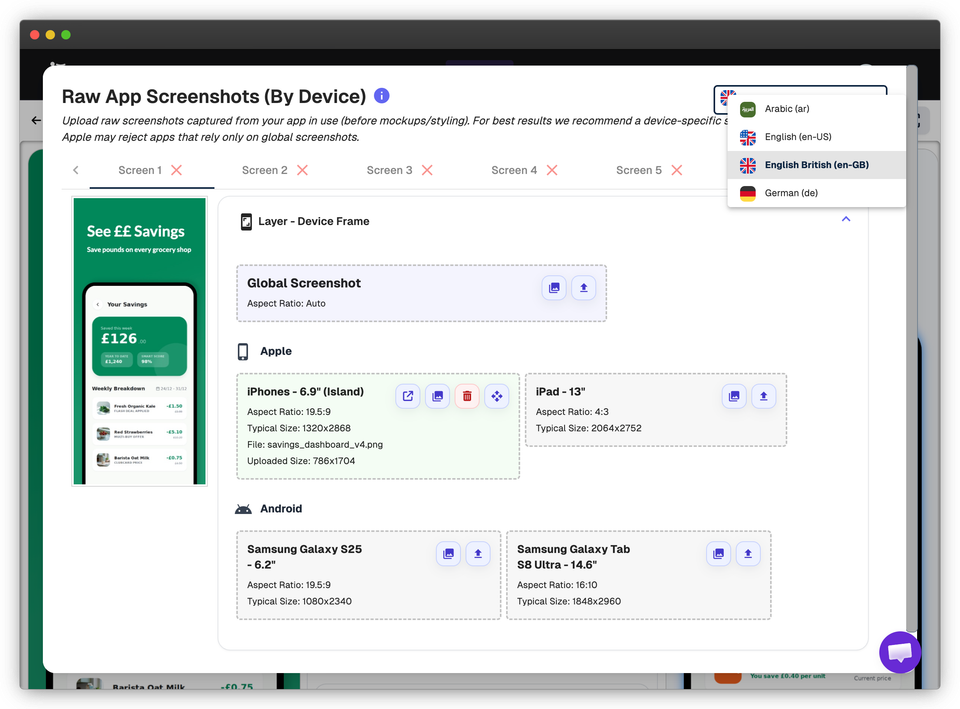
Captions are only one layer. Many localized screenshot sets also need different raw app screenshots, background images, maps, ratings, product examples, payment methods, charts, or feature graphics. AppScreens supports per-language screenshot and image changes, so one market can show local UI and another can keep the default asset.
This is useful when the app UI has been localized, when regional examples matter, or when a visual claim needs market-specific proof. A food and drink app may show different snacks, groceries, currencies, offers, payment methods, store names, or delivery examples. A productivity app may keep the same screenshot but use different captions and proof points.
SnackCart might share the same raw screen for en-US, en-AU, and en-GB, then use German UI captures for de-DE and Arabic UI captures for ar-SA. It might also swap the hero image from candy to lollies to sweets. Keep those overrides attached to one AppScreens project so future product updates do not splinter into separate files.
8. Export or Upload Every Locale in One Workflow
The slow manual path is familiar and expensive: duplicate design files, paste translations, resize every caption that stops fitting, swap localized app captures one file at a time, export each device size, rename files, switch App Store Connect locales, drag and drop screenshots one set at a time, then repeat the whole job when a price, feature, or caption changes next month.
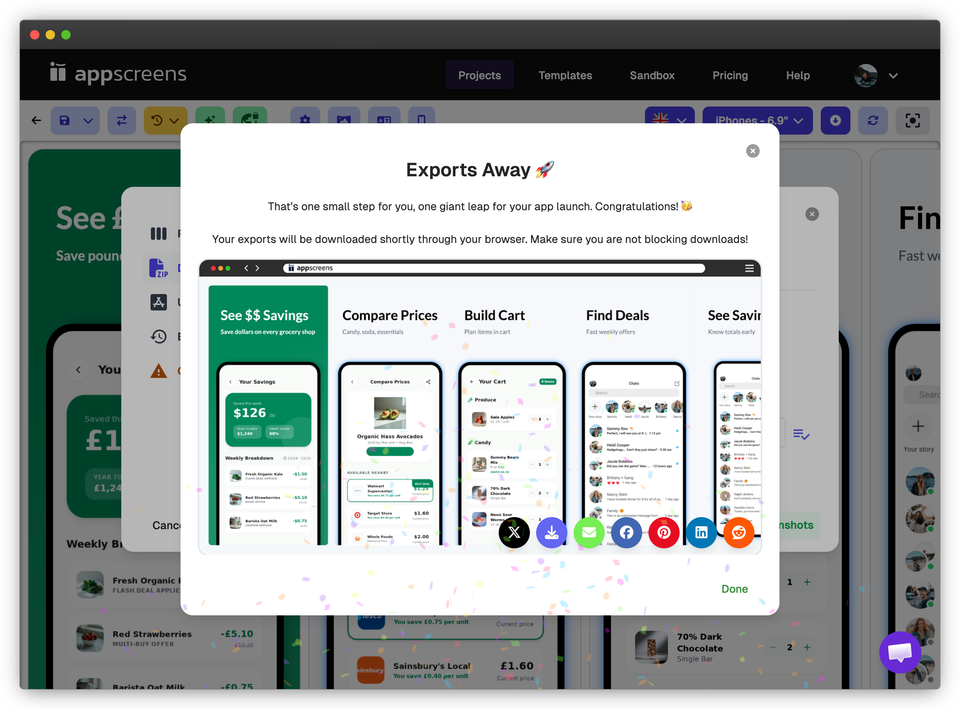
AppScreens is built to remove that production cost. One editable project handles text fitting, per-language assets, store-ready exports, upload mapping, localization, variants, and future updates. Once your localized screenshot sets are ready, you can export store-ready files or upload localized screenshots through App Store Connect and Google Play workflows from the same project. One base project becomes many localized store assets without you figuring out sizes or rebuilding every language like a designer.
Before the final release, use the App Store Connect release checklist and confirm that every locale has the right screenshot order, device target, caption language, and app UI.
For SnackCart, that means the en-US, en-AU, en-GB, de-DE, and ar-SA sets are mapped before upload. Each language, device group, screenshot order, custom page, experiment, and store target should be clear before the files move.
Store Mapping: What Goes Where
The final localization job is not only producing the images. It is mapping every screenshot set to the correct store, locale, device group, listing, experiment, and screenshot slot. App Store Connect and Google Play do not use exactly the same language and page structure, so one wrong mapping can put the German iPad file in the wrong market or send paid traffic to screenshots that do not match the campaign.
In AppScreens, use Export languages, Preview & Export, Export & Upload, and Upload to App Stores as the production path. Before the final upload, match each language to its store destination, device group, listing, experiment, and screenshot order.
| Destination | Map these assets | Gotcha to avoid |
|---|---|---|
| App Store Connect default product page | Locale, iPhone and iPad device groups, screenshot order, app preview poster frames, and any localized visible UI. | Uploading the right language to the wrong App Store localization, or keeping English UI inside translated screenshots. |
| Apple Product Page Optimization | Test treatment, selected localization, screenshot order, device group, and the hypothesis being tested. | Mixing a localization update with a separate creative test, which makes the result harder to read. |
| Apple Custom Product Pages | Custom page, campaign or audience, supported localization, screenshot set, and app preview assets. | Sending paid traffic to localized screenshots that do not match the ad promise, keyword group, or landing intent. |
| Google Play main store listing | Language, phone screenshots, tablet screenshots, feature graphic, short description context, and visible app UI. | Assuming Google Play languages and App Store locales are a one-to-one match. |
| Google Play custom store listings and experiments | Listing, country or audience targeting, experiment variant, screenshots, feature graphic, and localized copy angle. | Replacing the main listing assets when the localized set was meant for a custom listing or experiment variant. |
| Manual export folders | Language, platform, device size, screenshot number, custom page or experiment label, and upload-ready file names. | Letting similar file names hide a wrong locale, stale screenshot, or old device-size export. |
Common Mistakes to Avoid
The hardest localization mistakes are usually production mistakes, not translation mistakes. Captions stop fitting, localized layouts need rebuilding, per-language screenshots cannot be swapped, store sizes need re-exporting, cloned files fall out of sync, and simple future changes become repeated edits across many assets. For the broader production workflow, compare the App Store screenshot workflow.
| Mistake | What to do instead | Why it matters |
|---|---|---|
| Translating captions but leaving the app UI in English | Upload localized raw screenshots or per-language images when the visible UI needs to match the market. | A localized caption paired with mismatched app UI can reduce trust and make the store promise feel unfinished. |
| Treating App Store locales and Google Play languages as the same map | Check the target store, locale, device group, custom page, experiment, and upload destination before export. | The right language in the wrong App Store Connect or Play Console slot can still create a broken release. |
| Duplicating design files for every device and language | Keep captions, layouts, screenshots, images, exports, and uploads in one editable AppScreens project. | Cloned files fall out of sync when one caption, screenshot, price, feature, device size, or future release changes. |
| Skipping text-fit and font checks | Preview long languages, compact devices, font support, line breaks, and RTL layouts before publishing. | German, Finnish, Arabic, Japanese, and other scripts can break a layout that looked clean in English. |
| Using one generic English screenshot set for every country | Localize examples, currency, measurements, maps, proof points, screenshots, and feature order where the market needs it. | Users scan screenshots for relevance. Generic assets can pass store checks but still miss the install decision. |
| Translating screenshots separately from metadata and support language | Keep caption terms aligned with app UI, App Store metadata, Google Play listing copy, glossary, support docs, and paid traffic. | Mixed terminology makes the app feel less trustworthy and can weaken search intent alignment. |
The Upload Payoff: Hundreds of Files in One Pass
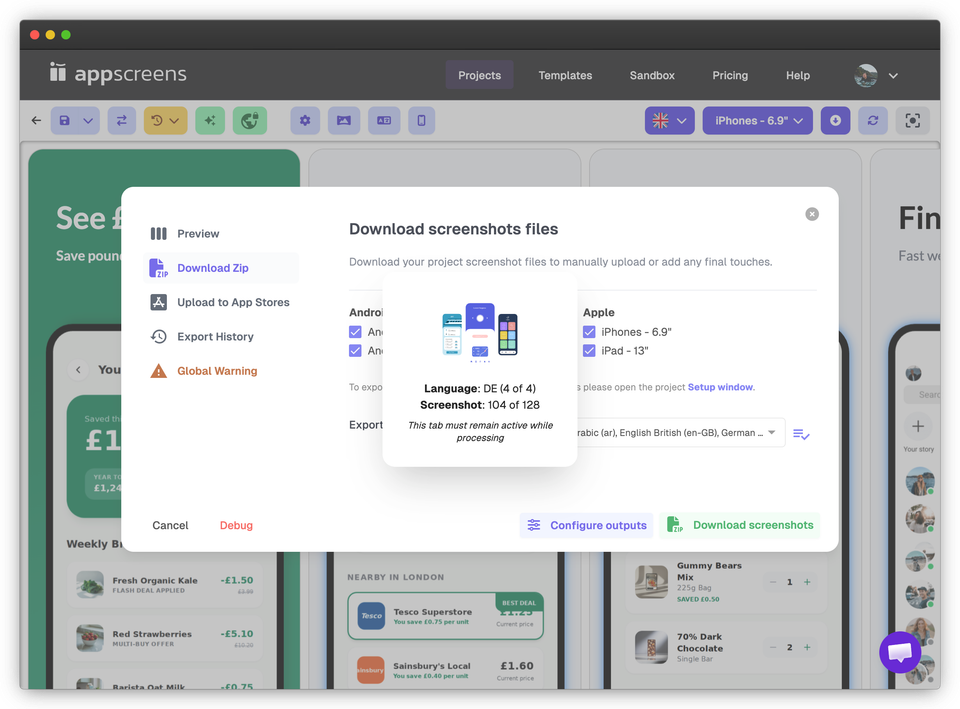
Localization gets big quickly. A modest release with 8 screenshots, 4 device groups, and 8 languages is already 256 localized screenshot files before you add Google Play feature graphics, app preview poster frames, Product Page Optimization treatments, Custom Product Pages, custom store listings, or experiments. Manually producing that can take hours; for a serious launch with revisions, it can swallow days.
That is the kaboom moment: once translations, text fitting, per-language screenshots, and store mapping are checked, AppScreens can move the right localized files into the right App Store Connect and Google Play destinations in one production workflow. You are not dragging hundreds of near-identical images by hand, renaming every export folder, and hoping the German iPad screenshot did not land in the en-AU iPhone slot.
| Release shape | File count | Why automation matters |
|---|---|---|
| 8 screenshots x 4 device groups x 8 languages | 256 screenshot files | Every file needs the correct language, device group, order, and upload destination. |
| Add feature graphics, tablets, CPP, PPO, or experiments | Hundreds more assets can appear | Manual naming, size checks, re-exporting, and uploading become the release risk, not the screenshot design. |
Localize screenshots in AppScreens
Turn one strong screenshot project into localized App Store and Google Play assets. Add languages, guide AI translation, fit longer captions, swap screenshots or images per language, export the right store sizes, and upload localized files across 80+ localizations from one editable project. Use AppScreens when you want downloads, automation, speed, lower production cost, correct sizes without guesswork, and polished screenshots without becoming a designer.
FAQ
How do I translate App Store screenshots?
Start with a clean base screenshot set, add target languages, translate captions with app and market context, check text fit, replace app screenshots or images where needed, then export or upload localized files for each App Store locale. AppScreens handles this inside one editable project with AI translation, text fitting, per-language assets, store-ready exports, uploads, localization, variants, and future updates.
What is the difference between translating and localizing App Store screenshots?
Translation changes the words. Localization adapts the screenshot set for the market, including captions, visible app UI, examples, currency, dates, image choices, layout, RTL direction, and upload mapping.
Can AI translate App Store screenshots?
Yes. AI can create a strong first translation pass when it has product context, locale choices, and translator guidance. For important markets, have a native speaker or local teammate check the terms that affect trust before upload.
Can AppScreens handle regional English variants?
Yes. Locale-aware translation helps with regional terms such as candy in en-US, lollies in en-AU, sweets in en-GB, cart, trolley, and basket differences, delivery postcode wording, and savings claims such as dollars versus pounds.
How should I localize RTL screenshots?
For right-to-left languages such as Arabic or Hebrew, check text direction, alignment, punctuation, number rendering, font support, and whether the app UI inside the device is also localized. Use raw RTL app screenshots when the app supports an RTL interface.
Do I need different screenshots for every language?
Not always. Some languages only need translated captions and text fitting. Others need localized app UI, maps, currencies, ratings, images, feature graphics, or market-specific examples. AppScreens supports per-language screenshot and image overrides for those cases.
Do localized screenshots need to show localized app UI?
Not always, but they should when the UI is part of the promise. A translated caption above English-only app screens can feel unfinished in markets where users expect the product experience, examples, currency, dates, or support language to match their locale.
Can I localize screenshots before the whole app is translated?
Sometimes. Screenshot localization can be useful for testing market demand, paid traffic, or a planned launch, but do not promise a fully localized product if onboarding, support, pricing, screenshots, or the in-app experience are not ready.
Can I upload localized screenshots directly to App Store Connect?
Yes. AppScreens supports workflows for exporting or uploading localized screenshots to App Store Connect and Google Play, so teams can avoid manually rebuilding cloned files, checking sizes, renaming folders, and uploading each language set one by one.
Should App Store and Google Play use the same localized screenshots?
They can share the same message, but they should be checked separately. App Store Connect and Google Play have different asset types, device groups, Google Play feature graphic needs, custom listing options, experiments, and language mapping.
How do I map localized screenshots to App Store Connect and Google Play?
Map each localized screenshot set by store, locale or language, device group, screenshot order, and destination page. For Apple, separate the default product page, Product Page Optimization treatments, and Custom Product Pages. For Google Play, separate the main store listing, custom store listings, experiments, screenshots, and feature graphics. AppScreens keeps export languages, per-language assets, and upload targets connected so the right files go to the right store slots.
How many files can localized app screenshots create?
Localized screenshots can create hundreds of files quickly. For example, 8 screenshots across 4 device groups and 8 languages is already 256 screenshot files before Google Play feature graphics, app preview poster frames, Product Page Optimization, Custom Product Pages, custom store listings, or experiments. Making and uploading those manually can take hours or days because every file needs the right caption, size, language, device group, store page, and upload destination. AppScreens keeps those localized files mapped from one editable project.
Which languages should I localize screenshots into first?
Start with markets that already show demand, revenue, paid traffic potential, support readiness, or strong product fit. Use the language selection guide before scaling localization broadly.
What should I check before uploading localized screenshots?
Check caption meaning, text fit, font support, visible app UI, RTL layout, local examples, screenshot order, device group, locale mapping, custom page or experiment target, and whether metadata uses the same terminology.
What mistakes should I avoid when localizing screenshots?
Avoid translating captions without localizing visible app UI, treating App Store locales and Google Play languages as the same upload map, cloning design files for every language, skipping long-text and RTL checks, using one generic English screenshot set globally, and translating screenshots separately from metadata, glossary, support language, and paid traffic copy. These mistakes cause captions to stop fitting, localized layouts to need rebuilding, per-language screenshots to be missing, store sizes to need re-exporting, and cloned files to fall out of sync.