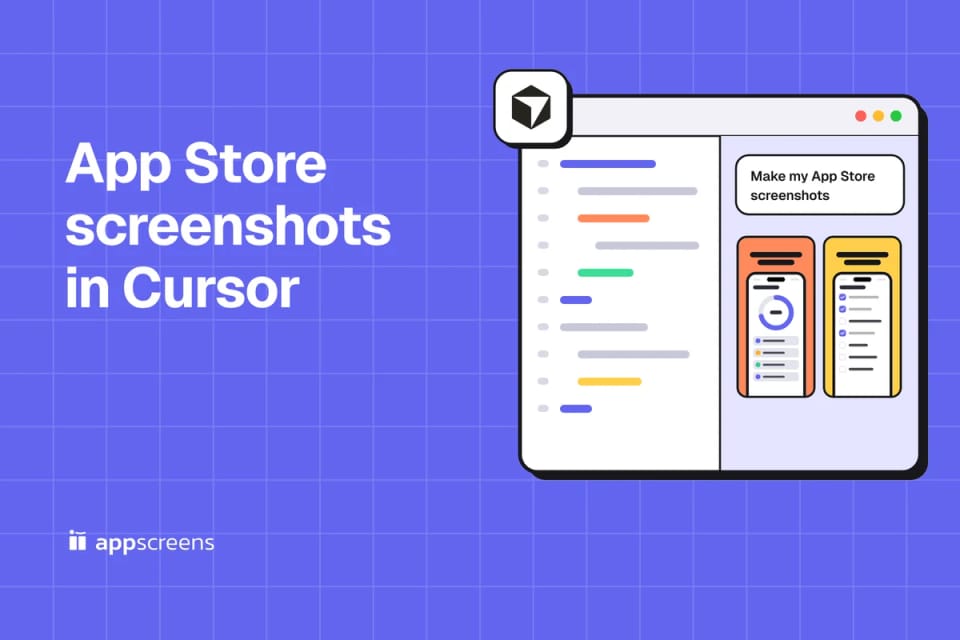
 Cursor
 AppScreens
Connect AppScreens to Cursor and give it one brief plus your app captures. AI handles ideas, design, caption fitting, store sizes, translation and previews, then exports and uploads after approval.
Everything stays in one editable AppScreens project. Change a headline or replace a French app capture without rebuilding every size. You don't need to learn a design tool or look up screenshot dimensions. The copyable prompts below are examples adapted from our AppScreens MCP demonstrations.
Start here · One-time setupConnect AppScreens to CursorGive your AI the tools to create, preview, export and upload your screenshots.Show connection steps ↓Hide connection steps ↑
Open your app folder in Cursor. Add AppScreens to your project or global MCP settings, sign in, then open an Agent chat.
Connect Cursor
Add to Cursor- 1Choose Add to Cursor and approve the install in the Cursor desktop app.
- 2Open Customize → MCPs, find appscreens and choose Connect if sign-in does not start automatically.
- 3Sign in to AppScreens in your browser and approve access, then open a new Agent chat in Cursor.
Set up manually
Merge the appscreens entry into mcpServers in ~/.cursor/mcp.json for all projects, or .cursor/mcp.json in one project. Save, then open Customize → MCPs.
mcp.json
{
  "mcpServers": {
    "appscreens": {
      "url": "https://api.appscreens.com/mcp"
    }
  }
}Check the connection
Check that appscreens is enabled under Customize → MCPs, then send the first prompt in Agent.
Check my AppScreens connection: show my account capabilities and usage, then list my projects. Don’t change anything yet.
Localization, cloud exports and direct store uploads require a paid AppScreens plan. Connect your store app before uploading. Read the connection guide.
1. "I need to create screenshots for my app"
Open your app folder or share your app captures and icon with Cursor. Have a direction in mind, or need AI to come up with one? Either way, start with one brief:
You ask
I need to create App Store and Google Play screenshots for my basketball app. Use NBA: Live Games & Scores as inspiration and my app captures. Come up with the design and captions, make the iPhone, Duo and Android sizes, and add French and German versions. Show me how they look in the stores.
Cursor + AppScreens
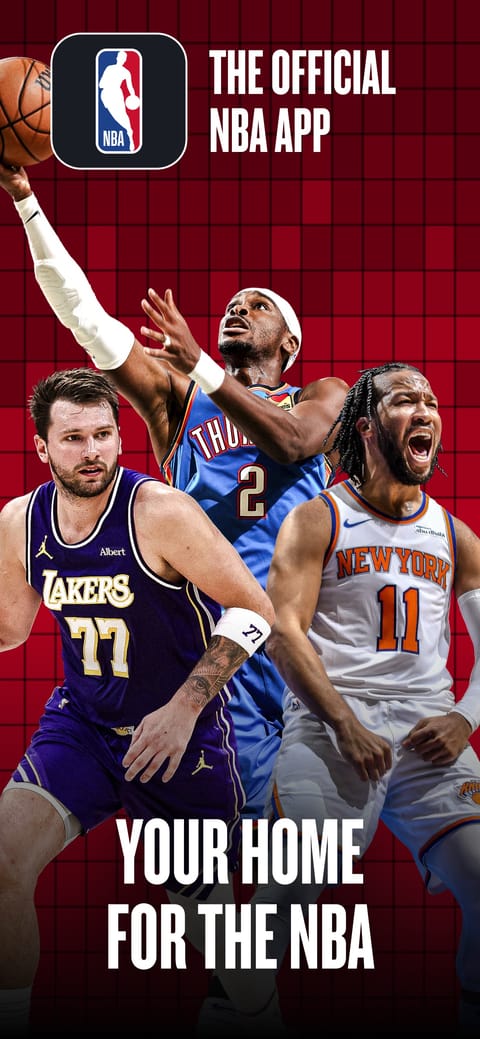
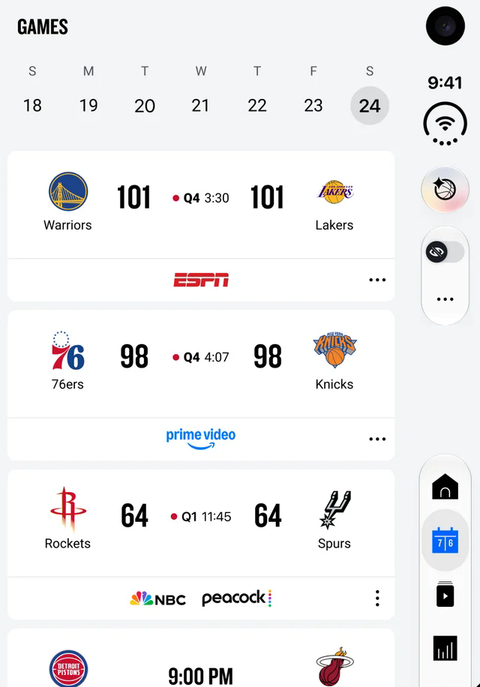
AI uses your reference for the visual direction and your captures to show the actual app. It writes the captions, builds the editable design and prepares the sizes and languages you asked for. Here is the input-to-output example:
You share: inspiration
You share: app screens
AI creates: your new design
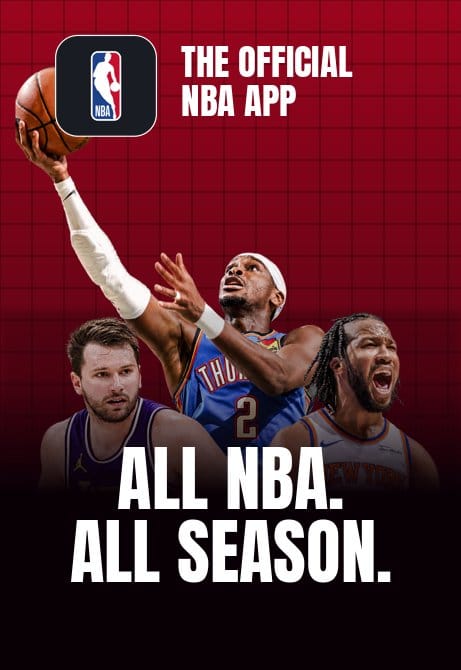
You get the screenshot previews and a link to the editable AppScreens project. You can give AI a reference, ask it to find ideas, or start from an AppScreens template.
AppScreens supports 80+ localizations, with text fitting and per-language app captures. Tell AI your target markets in the brief; it can prepare them from the same design. See screenshot localization.
From a reference screenshot to an editable AI design
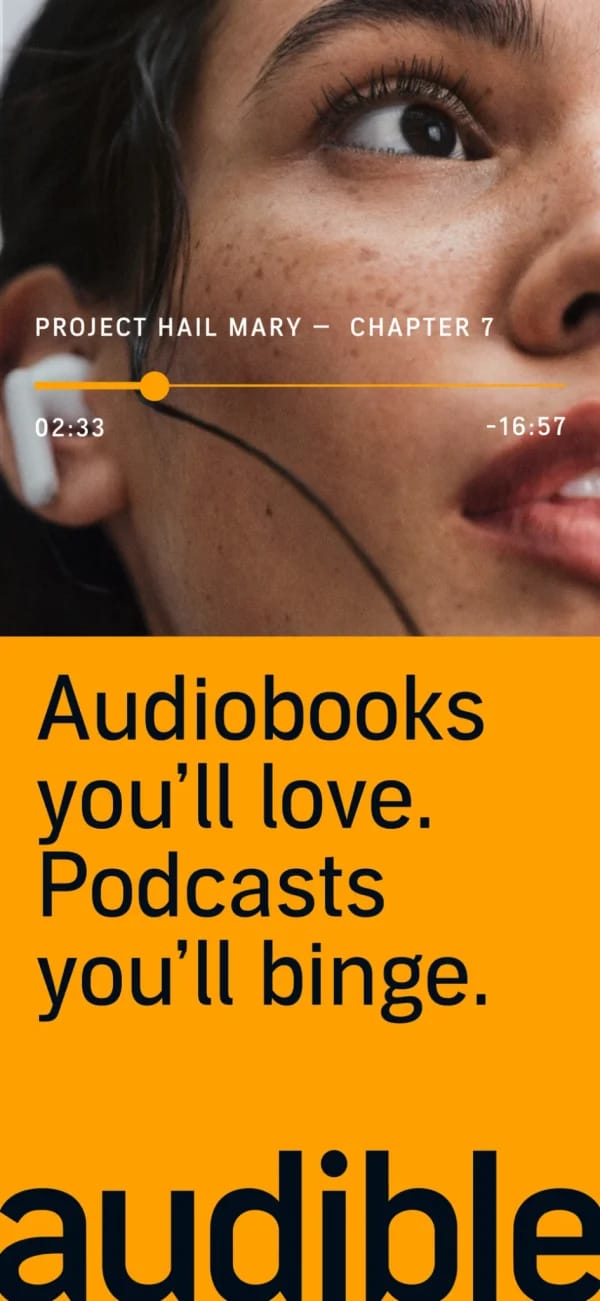
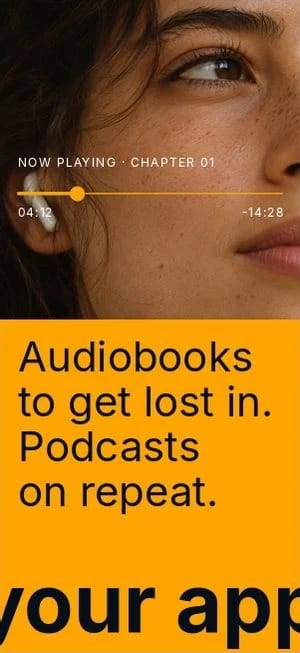
Codex used Audible’s App Store screenshot as a reference and recreated the layout in AppScreens with editable text and artwork. Below, the original is on the left and the AI-created demo draft is on the right. The same project became a ten-page screenshot set.
Original reference
Created with AI
Want a fuller prompt for your own app? Build it here, then paste it into Cursor.
2. Want a change? Just say it
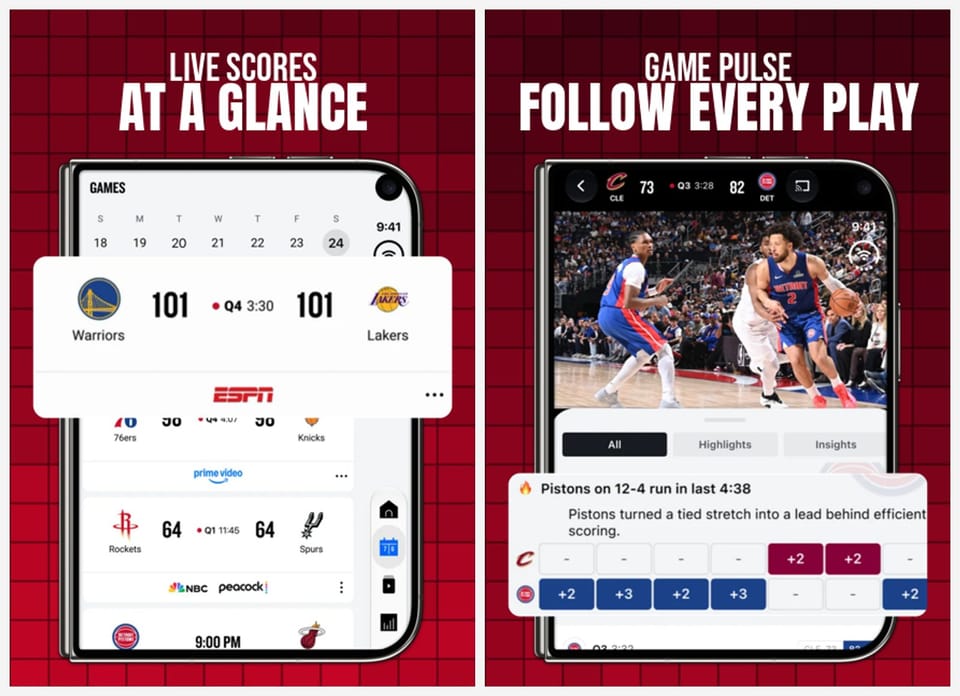
Look at the store previews. If you want a different headline, colour or image, ask in the same chat. Let's follow the NBA example through the remaining steps. The next request was a red panoramic background and details pulled out from the app screens:
You ask
Can you add a panoramic background with light and dark red tiles, and pull-out features on each device where they help show the app?
Cursor + AppScreens
AI updates the design and shows the result. Here, the red background continues across the set, while enlarged scores and game details draw attention to the features.
Already happy with the first version? Move straight to the next step. The project stays editable, so future caption or capture changes can be applied to the selected sizes and languages without rebuilding them.
Compare a type change at screenshot size
In another Codex session, the agent used Uber Eats as inspiration for the MegaEats demo. A follow-up asked for a heavier typeface. The agent changed the display font in the editable project, then rendered the updated screenshots to check the fit.

3. "Now create my feature graphic and creative asset"
Keep going in the same conversation. AI already has the visual direction:
You ask
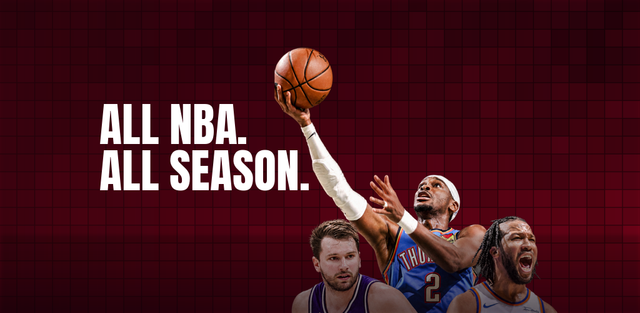
Now create a matching Google Play feature graphic and Apple Universal Creative Asset. Show me both in the store previews with my screenshots.
Cursor + AppScreens
AI carries the colours, imagery and message into the other store assets. Our NBA-inspired project produced these two matching designs:
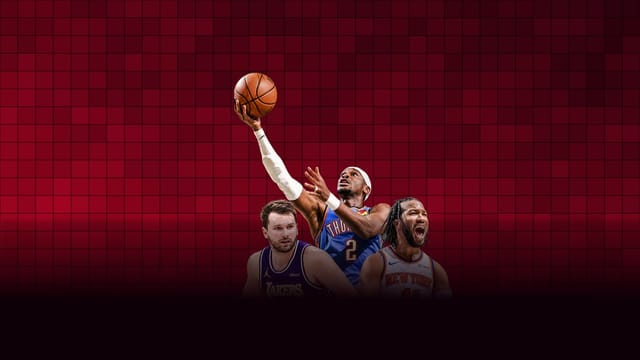
See the whole listing before you upload
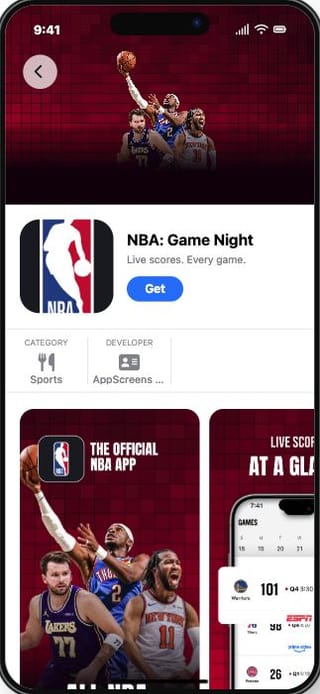
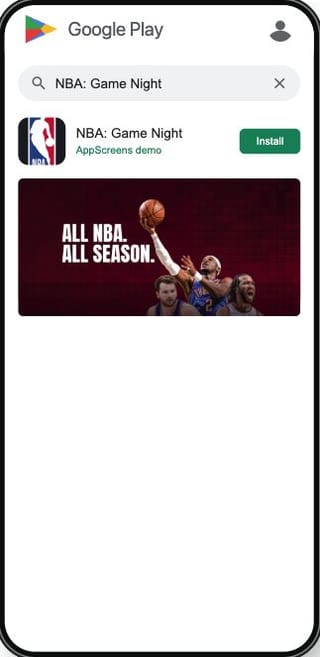
The screenshots and artwork come together in the AppScreens listing preview. These are actual previews using the exported NBA demo assets:
App Store product page
Google Play search
Google Play listing
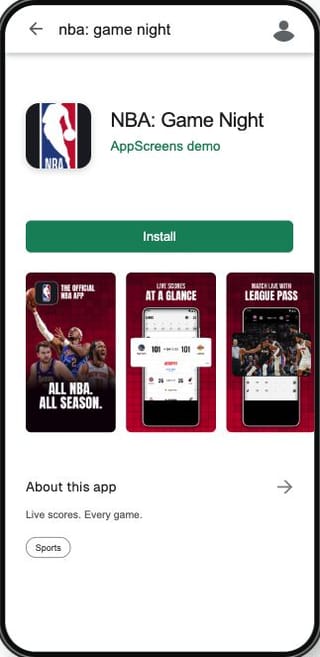
Preview images from the AppScreens tool, not published NBA listings. Check that the opening screenshots explain the app and that captions and artwork remain readable at this size.
4. "Looks good. Export and upload it"
Once you like the previews, tell Cursor where the assets should go:
You ask
Looks good! Can you export these and upload them to my app's main App Store and Google Play listings?
Cursor + AppScreens
AI prepares the files and shows the connected app, languages and listing it will update. Confirm that destination, then AppScreens handles the store upload and returns the result. You also get the exported files. App review and publication happen in the store console.
Recorded demo result · US English
26 screenshots. 2 matching assets. 4 completed uploads.
Export archives created. All four store uploads completed on 8 November 2026.
- ✓ Apple screenshots uploaded
- 9 iPhone + 9 Duo screenshots delivered to an Apple Custom Product Page.
- ✓ Android screenshots uploaded
- 8 screenshots delivered to the Google Play main listing.
- ✓ Google Play feature graphic uploaded
- 1024 × 500 artwork delivered to the main listing.
- ✓ Apple creative asset uploaded
- 5244 × 2950 artwork delivered as the main iOS listing's product page header.
These are the destinations used in the recorded demonstration. Your request can target your main listing or a selected test page. Uploading assets does not publish the app.
Your app is next. Connect AppScreens, copy the brief and add your captures.
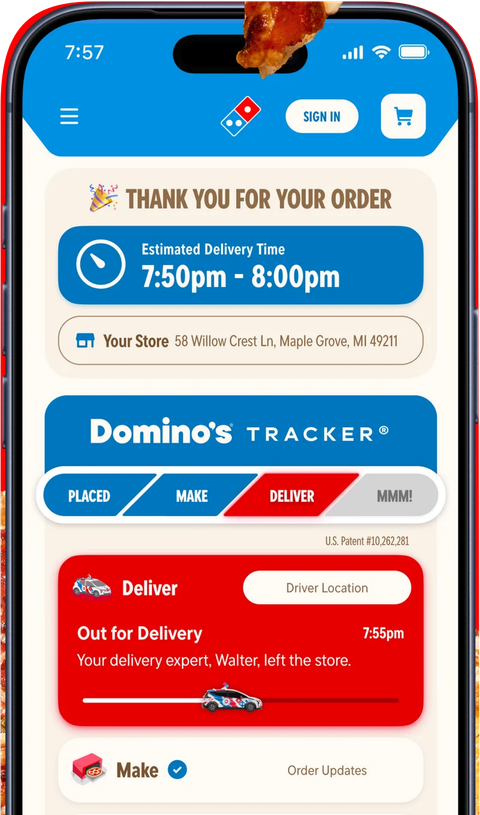
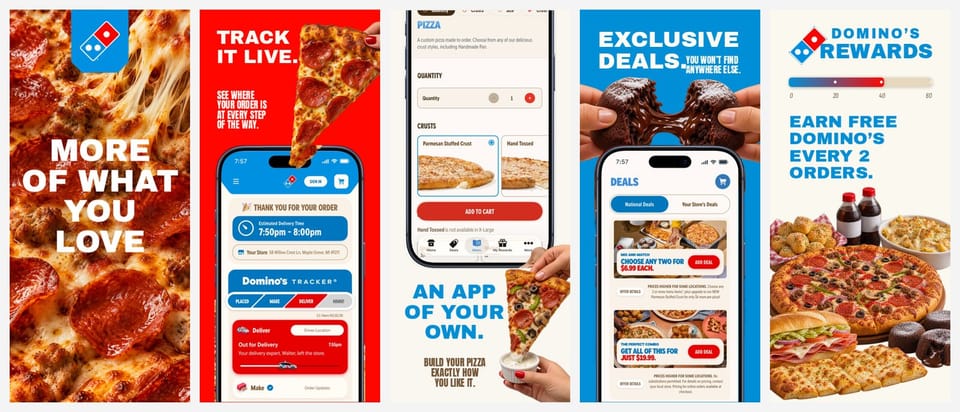
Another example: a Domino's screenshot set
The same approach works for a completely different look. This demonstration combines app captures with generated food artwork, editable captions and device layouts:
Input: an app capture
Output: five designed screenshots
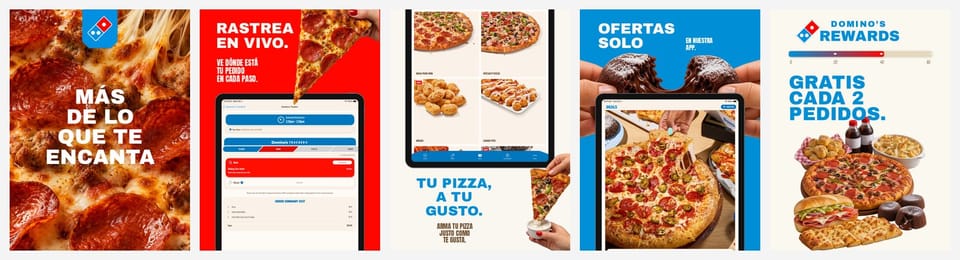
Then: "Make an iPad version and translate the captions into Spanish"
Why not just ask Cursor for PNGs?
Cursor can draw an image on its own. With AppScreens it finishes the whole job in one editable project:
- Editable layers, not flat images. Ask for a new font, caption or capture, or open the visual editor and change it yourself.
- Every required size, without the research. App Store and Google Play sizes that match Apple's and Google's specifications, from one responsive design.
- Every language in the same project. 80+ languages, with text fitted to each size and right-to-left support.
- The whole listing. Screenshots for iPhone, iPad and Android, a matching feature graphic and Apple creative assets, store previews, then upload after you approve.
- Ready for the next release. Saved versions to return to. Replace a capture or add a language, then regenerate every size.
Spend your time on what makes people download
OLBG reported 61% higher conversion after optimizing its screenshots. ZiMAD reported 36% higher conversion after adapting screenshots for Japan. See the screenshot testing guide and localization case studies for those individual results.
AppScreens saves the design work for your next release too. Ask Cursor to change a caption, swap a capture or make a test variant. One editable project keeps that from becoming repeated edits across every size and language.
FAQ
Can Cursor create App Store screenshots with AppScreens?
Yes. Connect the AppScreens MCP server in Cursor, give the agent your app context and captures, and ask for an editable screenshot set. You can preview and edit the project in AppScreens.
Should I use project or global MCP configuration in Cursor?
Use .cursor/mcp.json for the current project, or ~/.cursor/mcp.json for all projects. Merge the AppScreens entry into the existing mcpServers configuration using the shared setup guide.
Can I make a matching Google Play feature graphic and Apple creative artwork?
Yes, with the required AppScreens capabilities. Reuse the screenshot project's visual direction to create matching assets and preview the feature graphic and Apple artwork in their store placements.
Can the same project support another language or release?
Yes. Keep the source project, update the captions or captures that changed and preview the selected device and language outputs. AppScreens keeps text fitting and per-language assets editable for those updates.
 Claude Code
 Codex