

From April 2027, you'll need to include iPhone Duo screenshots when you submit a new app, game or update built with the iOS 27.1 SDK or later in App Store Connect. Apple already accepts Duo screenshots, and adding them gives your product page an iPhone Duo badge. Apple's screenshot requirements
Apple introduced its first foldable iPhone on 9 September 2026, and iPhone Duo went on sale on 23 October. It has a 5.4-inch outer display when folded and a 7.6-inch inner display when open. Each has its own screenshot dimensions in App Store Connect. Apple's iPhone Duo announcement
You can create yours today, even if you don't have the phone. Capture your app on the iPhone Duo simulator in Xcode, then start with a Duo template or add a Duo output size to your existing AppScreens project. You can keep your captions and background and swap in a capture from the display you want to show. Export the set when you're ready for your next submission.


Quick Take
Use the outer size for your app on the folded phone and the inner size for your app on the open display.
- Outer display (folded): 1398 × 2034 px portrait or 2034 × 1398 px landscape
- Inner display (open): 2007 × 2853 px portrait or 2853 × 2007 px landscape
Exact iPhone Duo screenshot sizes
These are the finished image sizes Apple accepts in App Store Connect. For each display you prepare, use the dimensions that match its orientation.
| Display | Portrait | Landscape |
|---|---|---|
| Outer (folded) | 1398 × 2034 px | 2034 × 1398 px |
| Inner (open) | 2007 × 2853 px | 2853 × 2007 px |
Apple accepts 1 to 10 screenshots per device size in JPEG, JPG or PNG, with no alpha channel. The 5.4-inch outer display uses the same dimensions as the outer export. The 7.6-inch inner display has a hardware resolution of 1878 × 2670 px, so check the finished file against the export dimensions in the table. See Apple's screenshot specifications and iPhone Duo technical specifications.
What changes in April 2027?
Check the SDK you build with when planning your next submission. Even if your app still runs on older iPhones, the Duo screenshot requirement applies once you submit with the iOS 27.1 SDK or later from April 2027. Your deployment target only controls the oldest iOS version your app can run on.
Do I need screenshots for both iPhone Duo displays?
Apple lists sizes for both Duo displays. Its published specifications do not say whether each display needs its own set, so check the requirements shown for your version in App Store Connect before submitting. Keep your regular iPhone set and the 13-inch iPad set if your app supports iPadOS. See Apple's iPhone Duo announcement and App Store Connect requirements.
How to make and upload iPhone Duo screenshots
- Capture the app on the display you want to show. Run your release build or a matching test build in the iPhone Duo simulator in Xcode 27.1 or later. In Device Hub, close the simulator for the outer display or open it for the inner display. Rotate to the orientation you need, check that the app lays out correctly, and click the Screenshot button below the device. Device Hub saves the capture to your Mac's Desktop. See Apple's Device Hub capture instructions and Apple's iPhone Duo preparation guide.
- Add the Duo output to your design. Open your existing project in the App Store screenshot maker or start with an iPhone Duo template. Open Project settings with the gear button, labelled Setup when toolbar labels are visible. Choose Output Sizes, then Add sizes. Select iPhone Duo (outer display), iPhone Duo (inner display), or both. Confirm the selection, click Update, and add the matching app captures. To change the frame on a specific output, select the device element and use Change device. The selected output size still controls the exported canvas. AppScreens Duo setup help
- Preview each output and locale. Check the caption wraps cleanly, the interface is readable, and the frame fits. Keep most images focused on your app in use, as Apple requires. Export your chosen set at the exact dimensions above. Apple's screenshot review guideline
- Put the images in the Duo section. In App Store Connect, open the version you're editing, select the localization, and find App Previews and Screenshots. Use View All Sizes to find iPhone Duo if needed. Upload the set, arrange the screenshots in order, and preview the product page. If your connected app offers Duo upload in AppScreens, you can send one set per upload from Preview & Export, choosing inner or outer. Otherwise, download the set and upload it in App Store Connect. Apple's asset upload instructions
If the upload control is unavailable, check that the version is editable and that you have the Account Holder, Admin, App Manager or Marketing role. You can also add files to Asset Library and select them for the version's screenshot placement. Uploading a file to the library leaves placement as a separate step. Apple's asset and permission guide
Before sending your build to review, run through the App Store Connect release checklist for the rest of your listing and submission.
Inner and outer screenshots side by side
Here are two CookBook exports for the same meal-planning screen. The caption and recipe card stay in the same order, while the frame changes from the folded phone to the open display. That makes it easier to compare the two layouts without changing what the screenshot is trying to say.
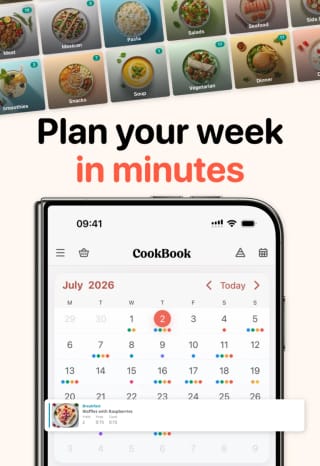
Web preview of a 1398 × 2034 px export
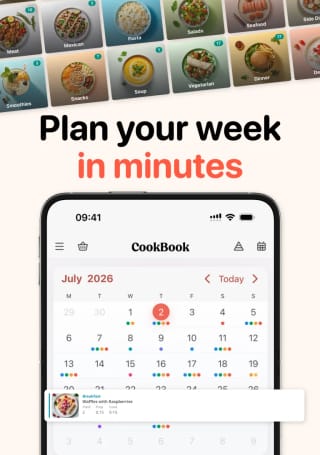
Web preview of a 2007 × 2853 px export
For your outer set, pick a task that reads well in the compact interface, like saving a recipe or checking today's plan. If your app shows a sidebar, a larger canvas, or two panes on the inner display, capture that view and give it room in the design. For a landscape app, capture it running in landscape and lay the caption out around the wider screen. Browse the iPhone Duo screenshot gallery for more layouts.
Troubleshooting iPhone Duo screenshot uploads
Why does App Store Connect say my Duo screenshot is the wrong size?
Check the actual width and height of the exported file and the placement you chose. An inner display file can have the right dimensions for Duo and still fail in the regular iPhone slot. If the size and placement match, check the format and export an opaque PNG or JPEG. A PNG can contain an alpha channel even when the image looks opaque. Troubleshoot App Store Connect screenshot size errors
Can I reuse my existing iPhone screenshots for Duo?
Reuse your editable design, including its captions, colours and background. Add a Duo output size and replace the app image with a real capture for that display. A stretched iPhone screenshot will distort the interface and miss layout changes specific to Duo. Resize App Store screenshots without stretching