
Screenshot automation comparison
AppScreens vs Fastlane in 2026: Which Screenshot Workflow Should You Use?
Use Fastlane when you need release automation, build or upload lanes, or automated raw screenshot capture. Use AppScreens when you need finished store creative: templates, captions, localization, variants, exports, uploads, and future updates. If Fastlane already produces your screenshot folder, the best workflow is both: let Fastlane handle the build or capture lane, then finish the App Store and Google Play screenshot set in AppScreens.
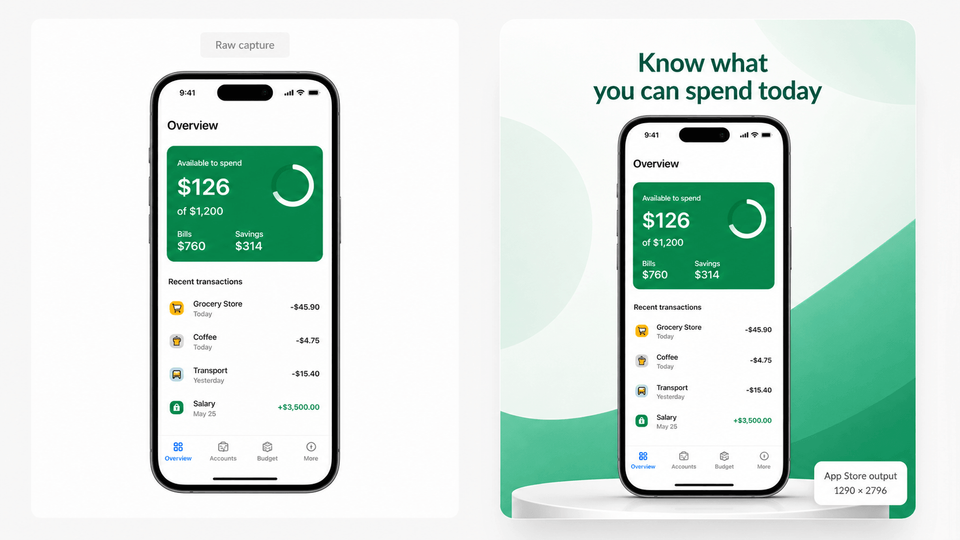
Raw Fastlane captures are valuable source material, but uploading them as-is can cost conversions. They show the interface, but they do not sell the outcome, explain the benefit, localize the pitch, or give visitors a clear reason to install.
Better screenshot creative is not just polish. Screenshot updates are cited around +6% downloads on iOS and +9% on Google Play. ASO testing examples range from about +4% to +61%. Localization can also change the ceiling: localization examples report +101% to +128% more downloads. Screenshot localization examples report +33% to +36% conversion gains.
Use AppScreens when you want downloads, automation, quick screenshot creation, correct store sizes, lower repeated screenshot work, and polished screenshots without becoming a designer.

Quick Take
- Best for raw capture:
- Fastlane
- Best for store-ready creative:
- AppScreens
- Best workflow when Fastlane already captures screenshots:
- Fastlane + AppScreens
Best hybrid workflow: Fastlane build/capture lane -> AppScreens import -> captions and templates -> localization checks -> CPP/PPO or Play variants -> export or upload.
Use Fastlane to run repeatable screenshot capture through snapshot, screengrab, simulator/device runs, or CI lanes. Use AppScreens to turn those captures, or any clean app screenshots, into the screenshots users actually see: templates, captions, device frames, localization, CPP/PPO variants, Google Play experiment assets, exports, and upload-ready files.
If you already have Fastlane screenshots, import the folder into AppScreens and finish the store creative there. If you do not have a Fastlane screenshot lane, start in AppScreens with uploaded captures instead of building screenshot automation first.
Fastlane vs AppScreens: What Each Does Best
Fastlane answers the question: "Can we automatically capture this app state?" AppScreens answers the next question: "Will this screenshot set persuade a store visitor to install?"
| Workflow job | Fastlane | AppScreens |
|---|---|---|
| Raw app capture | Excellent through snapshot, screengrab, simulator/device runs, or CI lanes. | Import screenshots from device, simulator, or a folder. |
| Store screenshot design | Limited to framing, backgrounds, and text through configuration. | Templates, captions, responsive layouts, rich text, images, and device frames. |
| Localized layout QA | Automated capture can help, but translated layout checks remain technical. | Review and adjust language-specific screenshots before export or upload. |
| Non-developer review | Requires technical workflow access or exported files. | Designed for marketers, founders, translators, and ASO teams to check captions, screenshot order, localized layouts, and store outputs. |
| CPP/PPO variants | Can upload default listing screenshots, but not CPP/PPO screenshot variants. Basic framing and text is not creative test management. | Built to create, review, export, and upload CPP/PPO screenshot variants from one editable project. |
| Release risk | Screenshot automation can fail inside a release lane. | Can sit as a small extra step after capture, before upload, but can be done before, during, or after bundle upload. |
If you do not already have a Fastlane screenshot lane, AppScreens is the faster starting point. Upload clean device or simulator captures, choose a template or start from scratch, add captions and brand styling, preview the store outputs, then export or upload store-ready screenshots without building a Fastlane screenshot lane first.
- Captions stop fitting after translation, device resizing, or a new screenshot order.
- Localized screenshots or images need to change per market, but raw capture tools do not manage those store assets.
- Store sizes need re-exporting after one caption, layout, screenshot, or device change.
- CPP, PPO, and Google Play experiment files need naming, device mapping, locale mapping, upload, replacement, and QA.
- Cloned files fall out of sync after future app updates, localization changes, or ASO test winners.
Fastest Hybrid Workflow: Fastlane Capture + AppScreens Store Creative
For teams with Fastlane screenshot lanes, the fastest repeatable workflow is Fastlane for build/capture automation and AppScreens for store-ready creative. Engineering controls the lane and raw app states. AppScreens turns those captures into polished screenshots with AppScreens templates, captions, device frames, localization, variants, exports, and upload workflows.
Fastlane build/capture lane -> screenshots folder -> AppScreens import -> templates and captions -> localization review -> export or upload -> CPP, PPO, and Play variants
Use the same editable project to localize App Store and Google Play screenshots, then duplicate the best set for PPO and CPP screenshot variants without rebuilding every screenshot size by hand.
Step 1: Capture clean raw screens with Fastlane
Use
snapshotorscreengrabin a dedicated screenshot lane for deterministic screens: logged-in state, seeded test data, fixed locale, stable status bar, no loading spinners.Step 2: Import the screenshot folder into AppScreens
AppScreens can import screenshots directly from a folder, so Fastlane output can feed the AppScreens design workflow without rebuilding the creative set by hand.
Use a predictable folder structure, such as
/fastlane/screenshots/en-US/iPhone 6.9/, so AppScreens can map assets cleanly by locale and device class.Step 3: Build the store story in AppScreens
Add captions, templates, backgrounds, device frames, rich text, matching assets from the Google Play feature graphic generator, and alternate screenshot sets for ASO tests, Custom Product Pages, and Product Page Optimization.
Step 4: Review localization before publishing
Check translated captions, line breaks, font sizes, screenshots, and market-specific messaging across every current App Store and Google Play language before assets reach App Store Connect or Google Play Console.
Step 5: Upload from AppScreens or export to your release process
AppScreens can push screenshots to the stores automatically, or you can keep final exported assets in your existing release checklist.
| Step | Owner |
|---|---|
| Build/capture lane and raw screenshots | Engineering |
| Caption and value proposition | Marketing, founder, ASO |
| Localized layout and asset checks | Translator or local market reviewer |
| Final upload or export | Release owner |
Where AppScreens does not replace Fastlane
AppScreens does not compile apps, run release lanes, seed product data, drive simulator/device capture, or replace Fastlane build/upload automation. If your team needs repeatable screenshots generated from app flows, Fastlane is still useful. AppScreens is the creative, localization, export, and publishing layer that turns those captures into store-ready assets.
Who Should Choose Each Workflow?
Choose Fastlane only
Use Fastlane only when build automation, upload lanes, raw evidence screenshots, CI automation, or scripted screenshot capture matter more than finished store creative. Expect engineering setup, maintenance, and manual creative work outside the lane.
Choose AppScreens only
Use AppScreens when you do not have a Fastlane screenshot lane or when marketers, founders, designers, translators, or ASO teams need to create polished screenshots from uploaded app captures. For plans and scale, See pricing for projects, localization, uploads, team workflows, and client work.
Choose Fastlane + AppScreens
Use both when your team wants repeatable capture and repeatable store creative: clean app states from Fastlane, then AppScreens templates, localization, variants, exports, uploads, and future updates.
Example: when AppScreens is the better layer
Your Fastlane lane captures five raw product screens in English and German. In AppScreens, your ASO or marketing team turns those captures into a store-ready set: one template, benefit-led captions, device frames, localized text checks, Google Play feature graphic, CPP/PPO variants, and final export or upload. Engineering owns capture. AppScreens owns the creative and publishing layer.
A team with 6 screenshots, 4 device sizes, and 10 locales is managing 240 screenshot outputs before variants. AppScreens reduces the creative work by letting the team design once, localize, resize, export, and upload from one project.
Where Fastlane-Only Workflows Need a Creative Layer
The tradeoff is not that Fastlane is bad. It is that Fastlane is code-first release infrastructure. Store screenshots are part engineering artifact, part marketing page, part localization project, and part compliance checklist. When all of that lives inside a release lane, small screenshot problems can become release problems.
1. Uploads can still fail or slow releases
We used Fastlane for years, and the pattern was familiar: it worked well until the stores changed something. New device sizes, new languages, metadata rules, screenshot slots, upload validation, or API changes could turn a screenshot update into a release-lane problem. Because Fastlane is community-maintained, fixes can depend on community updates, local patches, or workarounds.
That is exactly why AppScreens belongs after raw capture. Fastlane can generate real app states. AppScreens turns those captures into store-ready screenshots with templates, captions, device frames, localization, variants, exports, upload workflows, and one editable project for future releases.
For current Fastlane maintenance activity, see the Fastlane GitHub issue tracker.
2. Store requirements and languages change
On March 31, 2026, Apple added 11 App Store Connect localization languages, bringing supported localizations to 50. Apple says localized metadata can include app name, description, screenshots, and more. For screenshot teams, that means localization is no longer just a copy task. Longer captions need fitting, RTL screens need checking, per-language screenshots or images may need swaps, and every accepted store size needs export and upload.
AppScreens goes further as a screenshot production workflow: translate screenshots into 80+ localizations, support RTL, resize text automatically across sizes and languages, change raw screenshots or images per language, then export or upload localized App Store and Google Play assets from one editable project.
3. CI-coupled screenshots can block urgent releases
If screenshots are embedded in the same CI lane as an urgent bug fix, a simulator problem, Xcode mismatch, language issue, or App Store Connect upload hiccup can block the release even when screenshots are not the thing you urgently need to ship.
4. Scripted capture records real states, not always the best sales story
Fastlane captures what your configured app flow can reach. That is perfect for deterministic states, but weaker for aspirational store visuals: empty states with perfect data, premium features, before/after workflows, onboarding concepts, feature graphics, seasonal variants, or CPP/PPO creative experiments.
Common Mistakes
| Mistake | Use this rule | Why it matters |
|---|---|---|
| Treating scripted raw captures as final store screenshots | Add benefit captions, hierarchy, device context, and localized copy. | Raw screens show the app, but store screenshots need to sell the app. |
| Coupling screenshots to every production deploy | Run screenshot automation on demand, on a schedule, or in a separate pre-release lane. | Automation is valuable, but it should not make an urgent release fragile. |
| Assuming localization is just a language list | Review actual localized visual output before upload. | New locales can change text length, font behavior, reading direction, screenshots, and product positioning. |
| Stopping at technically valid screenshots | Treat screenshots as ASO assets: test the first promise, caption angle, order, localization, and variants. | Fastlane can create uploadable screenshots, but optimized store creative can materially lift downloads. Use A/B testing instead of guessing which screenshot story wins. |
| Ignoring CPP and PPO creative variants | Plan alternate visuals for custom audiences, seasonal positioning, product pages, and A/B tests. | Standard screenshots are only one asset set for teams running campaigns. |
Example Fastlane Snapshot or Screengrab Setup
A practical team setup keeps screenshot capture separate from release submission. That way a visual asset issue does not stop an urgent binary release.
This is an illustrative lane. Teams should adapt device lists, locales, test data, and output folders to their app. For iOS, this might use Fastlane snapshot; for Android, Fastlane screengrab follows the same capture-to-import idea.
lane :capture_store_screenshots do
  capture_screenshots(
    scheme: "StoreScreenshots",
    output_directory: "./fastlane/screenshots",
    clear_previous_screenshots: true,
    stop_after_first_error: true,
    override_status_bar: true
  )
end

# Then import ./fastlane/screenshots into AppScreens,
# design the store listing visuals, localize, export, and upload.
fastlane/screenshots/
en-US/
iPhone_6_9/
iPad_13/
de-DE/
iPhone_6_9/
iPad_13/Release safety tip
Keep screenshot refreshes as a separate lane or manual checkpoint. Your emergency crash fix should not fail because one simulator could not capture a marketing screenshot.
Turn Fastlane captures into store-ready screenshots
Do not treat screenshots as a release chore. Use Fastlane to capture clean app states, then use AppScreens to turn those captures into polished screenshots with the App Store screenshot generator and Google Play screenshot generator, plus captions, localization, variants, exports, and upload-ready assets from one editable project.
FAQ
Is AppScreens better than Fastlane for screenshots?
They solve different screenshot jobs. Fastlane is better for build/release automation and repeatable raw capture through snapshot, screengrab, simulator/device runs, and CI lanes. AppScreens is faster for finished store screenshots, especially when you want AI onboarding, templates, AI captions, device frames, localization, feature graphics, variants, release-ready exports, and upload workflows. Use Fastlane for capture and AppScreens for production.
Why not upload raw Fastlane screenshots directly?
Raw Fastlane screenshots are useful source material, but they usually do not sell the outcome, explain the benefit, localize the pitch, or create visual hierarchy. AppScreens turns those captures into store-ready screenshots with templates, captions, device frames, text fitting, per-language assets, variants, exports, and upload workflows.
What breaks when Fastlane screenshots are finished manually?
Captions stop fitting after translation or device resizing, localized screenshots or images need market-specific swaps, store sizes need re-exporting, CPP/PPO and Google Play experiment files need upload mapping, and cloned files fall out of sync after future app updates. AppScreens keeps those pieces editable in one project after Fastlane captures the raw app states.
Should I stop using Fastlane if I use AppScreens?
No. Keep Fastlane where it handles build/release automation or captures stable app screens through a repeatable screenshot lane. Then import the output folder into AppScreens for AI captions, templates, text fitting, localization, feature graphics, creative variants, store-ready exports, upload mapping, and future screenshot changes. For one-off screenshots, you can skip Fastlane and start with clean device or simulator captures in templates.
Does Fastlane support Custom Product Page screenshots or Product Page Optimization screenshots?
Fastlane can support screenshot capture and upload automation, but CPP and PPO work need audience-specific screenshot sets, message variants, localized layout checks, per-language screenshots or images where needed, store-size exports, and upload mapping. AppScreens is built for duplicating projects, adjusting variants, checking captions and layouts, and exporting or uploading alternate sets from one editable project.
Can AppScreens upload screenshots automatically?
Yes. AppScreens supports upload workflows for App Store Connect and Google Play, and it can export organized release assets when a team prefers a manual release checklist. For screenshot assets, AppScreens can replace the screenshot-upload part of a Fastlane deliver or supply workflow while Fastlane handles binaries, metadata, and other release automation. Compare upload and project needs at pricing.
Can Fastlane generate App Store screenshots?
Yes. Fastlane can generate iOS App Store screenshots through snapshot and configured app flows, including localized screenshot sets across devices and languages. That is useful for repeatable real app screen capture. Teams then bring those screens into AppScreens to add store captions, templates, device context, localized visual checks, and final exports.
Can Fastlane upload screenshots to App Store Connect?
Yes. Fastlane deliver, also exposed through upload_to_app_store, can upload screenshots and other App Store Connect assets when the lane is configured and authenticated correctly. Many teams keep Fastlane available for automation while reviewing final listing assets in AppScreens before publishing.
How do I import Fastlane screenshots into AppScreens?
Run the Fastlane screenshot lane with a stable output directory, such as a folder under fastlane/screenshots. Create or open an AppScreens project and import the generated images from that folder. Then choose a screenshot template, order the screens, add captions and device frames, review localized variants, and export or upload the finished App Store and Google Play assets.
What is the best workflow for localized app screenshots?
Separate capture from store production. Use Fastlane when you need locale-specific app UI captured from configured app flows or release automation. Use AppScreens to translate and review captions, handle longer text, check right-to-left layouts, adjust market-specific messaging, and export or upload the final localized visuals. See screenshot localization.
Do I need Fastlane automation to use AppScreens?
No. AppScreens can start from device screenshots, simulator exports, design exports, or a folder created by Fastlane. For a one-off launch set, use AI onboarding, choose a template, upload real app screens, generate captions, and export. Fastlane automation is useful for repeatable capture, but not required for templates, captions, localization, feature graphics, variants, exports, or upload workflows.
Is AppScreens a Fastlane alternative for screenshots?
Yes, when the job is creating store creative from existing app screens. AppScreens is a practical Fastlane alternative for one-off screenshot production when you do not need Ruby lanes, build/release automation, or CI-driven raw exports. Start with the App Store screenshot generator or compare plans for upload and scale.
Where is AppScreens not trying to replace Fastlane?
AppScreens does not compile apps, run release lanes, drive simulator/device capture, or create deterministic in-app states. If you need repeatable product screenshots from seeded data or Fastlane-managed release automation, Fastlane remains useful. AppScreens is the next layer: turning those captures into persuasive, localized, release-ready assets.
Read on
Sources Reviewed
- Fastlane capture_ios_screenshots documentation, reviewed
. - Fastlane frame_screenshots / frameit documentation, reviewed
. - Fastlane upload_to_app_store / deliver documentation, reviewed
. - Apple Developer: App Store expands support to 11 new languages, reviewed
. - Fastlane GitHub issue tracker, reviewed
.