
App review rejection fixes
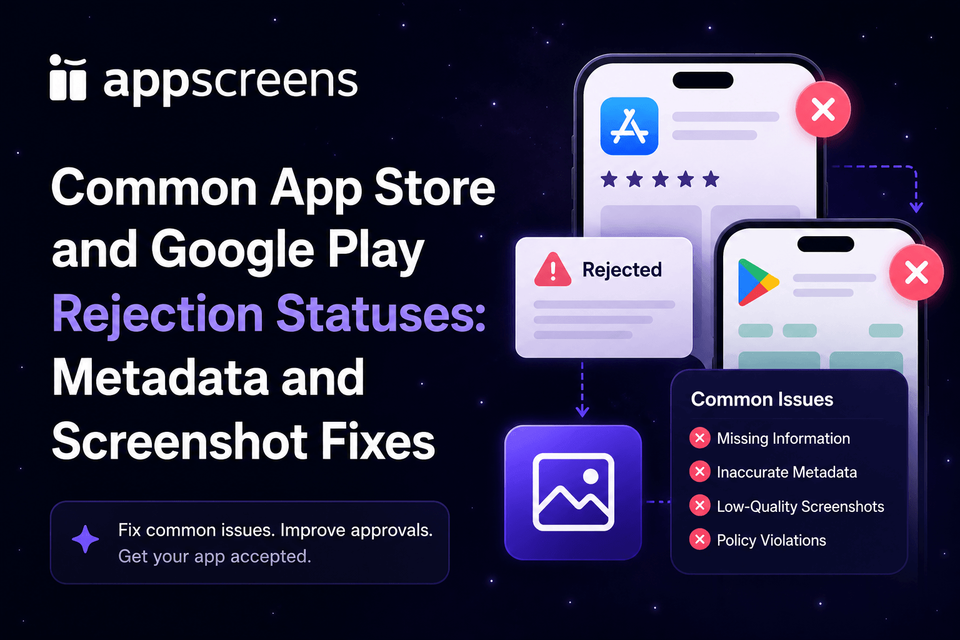
Common App Store and Google Play Rejection Statuses: Metadata and Screenshot Fixes
If App Store Review or Google Play rejects your app for metadata, screenshots, icons, paid features, or store-listing assets, fix the exact asset behind the status before resubmitting. Use this guide to map the wording to the likely cause, correct the field in App Store Connect or Play Console, and avoid sending the same problem back through captions, localized screenshots, feature graphics, upload slots, or variant assets.
If screenshots are part of the rejection, AppScreens is the fast fix: use AI onboarding, choose a template or start from scratch, upload clean app screens, label paid features where needed, preview device sizes and languages, then export or upload corrected store-ready assets.
Quick Take
Fix the exact asset named by the rejection before resubmitting: app name, description, paid-feature labels, screenshots, icon, feature graphic, device-specific assets, localized listings, or upload slots.
For Google Play, check the title, short description, full description, icon, screenshots, feature graphic, formatting, badges, rank or price claims, and whether assets match the current app.
For Apple, check Guideline 2.3 issues around paid labels, screenshots that do not show the app in use, keyword stuffing, and unrelated platform references. If screenshots are involved, rebuild the corrected set in AppScreens from real app screens, then export or upload.
Last verified:
Common rejection statuses and what to fix first
Do not rewrite the whole store listing first. Fix the field named by the rejection, then check the connected assets that repeat the same claim. A screenshot rejection often also needs a caption fix. A metadata rejection often also needs an icon, feature graphic, or screenshot pass.
| Status or message | Likely cause | Fix first |
|---|---|---|
| Apple Guideline 2.3.3 | Screenshots show splash screens, title art, login-only screens, generic mockups, iPhone UI inside iPad screenshot slots, or states that do not show the app in use. | Replace them with real app screens for the right device class, then use AppScreens to add clear captions, device frames, sizing, and store-ready exports. |
| Apple Guideline 2.3.2 | The description, screenshots, or previews show subscriptions, paid content, locked levels, or premium features without saying purchase is required. | Label paid features clearly in the app, screenshots, captions, preview text, and review notes before resubmitting. |
| Apple Guideline 2.3.7 | The app name, subtitle, keywords, screenshots, or preview metadata use irrelevant terms, prices, unverifiable claims, competitor names, or trademarked phrases. | Rewrite the title and subtitle around the actual app, move relevant search terms to the keyword field, and remove claim stuffing from screenshots. |
| Apple Guideline 2.3.10 | The listing references unrelated platforms, alternative marketplaces, Android imagery, other mobile platforms, or irrelevant marketplace language. | Remove unrelated platform names, device imagery, icons, badges, and copy from metadata, screenshots, and preview assets. |
| Google Play Metadata policy violation | The title, description, developer name, icon, screenshots, or promotional images are misleading, badly formatted, repetitive, irrelevant, or promotional. | Check every listing asset for rank claims, price claims, excessive keywords, emojis, ALL CAPS, store badges, and mismatch with the app. |
| Google: metadata does not accurately represent the user experience | The listing promises features, visuals, icons, screenshots, or functionality that users do not see in the real app experience. | Make the icon, screenshots, descriptions, and feature graphic match the current app. Replace placeholder or default assets. |
| Wrong screenshot dimensions or upload errors | The file was exported at the wrong size, uploaded to the wrong device slot, or rebuilt as separate locale and variant files that no longer match. | Check the exact pixel size, use the right App Store or Google Play section, then re-export the corrected set from AppScreens. |
Apple rejection statuses: fast fixes
Apple puts many listing problems under Accurate Metadata. The practical test is simple: does the product page describe the app users can actually download, and do the screenshots show the app experience instead of a placeholder, splash screen, future feature, or unsupported claim?
Guideline 2.3.3: screenshots do not show the app in use
Replace logo-only, onboarding-only, title art, empty login, and generic marketing screens with real product screens. Raw screenshots are source material, not finished store creative. Use AppScreens to turn them into polished screenshots with captions, layout, device frames, and correct export sizes.
Very common: do not paste an iPhone screen into an iPad screenshot slot. If the app supports iPad, the iPad screenshots should show the real iPad app experience, not a scaled phone UI, phone-only frame, or stretched phone capture. Capture the correct device UI, then export the iPad and iPhone assets separately.
Next step: capture clean app screens, then build the corrected set with the App Store screenshot generator.
Guideline 2.3.2: paid content is not clearly identified
If a screenshot, preview, or description shows premium features, locked content, levels, subscriptions, credits, trials, or paid add-ons, label the purchase requirement in plain language. The user and reviewer should not need to discover the paywall to understand what costs extra.
In AppScreens, update the screenshot caption or visible UI context so paid features are clear before export. Keep the wording factual: "Premium feature", "Subscription required", or "Unlock with Pro" where accurate.
Guideline 2.3.7: keyword stuffing, pricing, or unverifiable claims
Remove stuffed keywords, price terms, "best" claims, competitor names, platform references, and unsupported superlatives from the app name, subtitle, screenshots, previews, and promotional text. Put relevant Apple search terms in the keyword field instead of forcing them into every visible asset.
Rebuild screenshot captions around benefits the app actually delivers. Benefit-led captions convert better than keyword blocks and are less likely to be flagged as stuffed metadata.
Guideline 2.3.10: unrelated platforms or marketplace references
Remove Android devices, non-Apple marketplace badges, unrelated platform logos, competitor platform names, and irrelevant technical references from Apple metadata and screenshots unless the app has a specific approved interactive reason to show them.
If you ship both iOS and Android, keep Apple and Google Play screenshot exports separate. AppScreens lets you keep one editable project while exporting the right store assets for each destination.
Google Play metadata rejections: what to check
Google Play metadata policy covers more than text. It includes the app description, developer name, title, icon, screenshots, and promotional images. When Play Console flags metadata, check the whole listing before resubmitting.
Start with the assets users see first: title, icon, short description, screenshots, and feature graphic. The fix is not to add more keywords. The fix is to make every asset clear, accurate, correctly formatted, and tied to the real app experience.
For Google Play, the rejection wording often points to one of three places: metadata text, preview assets, or device-specific screenshots. Check the exact field in Play Console before editing the whole listing.
| Google Play issue | Check first | Fix before resubmitting |
|---|---|---|
| Metadata policy violation | Title, developer name, short description, full description, icon, screenshots, and promotional images. | Remove misleading claims, keyword blocks, repeated punctuation, emojis, ALL CAPS, rank claims, price claims, and unsupported feature promises. |
| Screenshot or preview asset issue | Phone, tablet, Chromebook, Wear OS, TV, Automotive, Android XR, and feature graphic upload slots. | Use current in-app screens, correct formats, accepted dimensions, and assets that show the real app experience. |
| Feature graphic issue | 1024 x 500 feature graphic, focal point, text, badges, ranking claims, price claims, and outdated device imagery. | Export a clean feature graphic that matches the app, avoids store badges and promotional claims, and stays readable in Google Play placements. |
| Large-screen or device-specific asset issue | Tablet, Chromebook, Wear OS, TV, Automotive, and Android XR screenshot sections. | Upload screenshots for the correct device type and avoid frames, overlays, or layouts that Google restricts for that device class. |
Before resubmitting, check Google's Google Play metadata policy and Google Play preview asset requirements against the exact fields named in Play Console.
Keep
- A title under the current Google Play limit.
- A short description that explains the app's core purpose.
- Screenshots that demonstrate the actual app experience.
- A feature graphic that communicates the product without store badges or rank claims.
- Localized screenshot text when the listing is translated.
Remove
- "Best", "#1", "top", "new", "free", "sale", and similar promo claims where policy forbids them.
- ALL CAPS, emojis, repeated punctuation, and keyword blocks.
- Google Play badges, other store badges, outdated device imagery, and misleading overlays.
- Default launcher icons, placeholder screenshots, blurry assets, and stretched images.
- Screenshots or feature graphics that show features missing from the current app.
If the rejection involves Android screenshots or feature graphics, use the Google Play screenshot generator and Google Play feature graphic generator to rebuild the assets around the current app experience.
Gotchas that cause a second rejection
Repeat rejections usually happen when the team fixes the visible field but leaves the same problem somewhere else. Check the real production pieces: captions can stop fitting, localized layouts can need rebuilding, per-language screenshots or images may need swapping, store sizes may need re-exporting, cloned files can fall out of sync, and a simple future caption change can become repeated edits across many assets.
| Gotcha | Why it fails | Fix before resubmitting |
|---|---|---|
| Fixing only the default listing | The rejected claim can still appear in localized screenshots, Custom Product Pages, Product Page Optimization variants, or Google Play experiment assets. | Update every affected locale and variant, then export or upload the corrected set from the same AppScreens project. |
| Showing a feature the reviewer cannot reach | Screenshots may be accurate for a logged-in, paid, regional, hardware-connected, or seeded account state, but the reviewer cannot verify it. | Add demo access, sample data, hardware notes, paid-feature labels, and review notes, or remove the screenshot until the feature is visible in the submitted build. |
| Using polished mockups that hide the real app | A beautiful mockup can still fail if it looks like title art, a splash screen, a future concept, or a generic marketing image instead of the app in use. | Start from real app UI, then add captions, hierarchy, device frames, and store-ready exports without obscuring the product screen. |
| Putting iPhone UI in iPad screenshots | A scaled phone screen inside an iPad slot can make the screenshot look like a mockup instead of the actual iPad app experience. | Use real iPad captures for iPad slots and real iPhone captures for iPhone slots, then preview and export each device class from AppScreens. |
| Translating captions without localization QA | Longer text, RTL languages, different fonts, local examples, and per-language screenshots can break a layout that worked in English. | Preview localized screenshots, check text fit, swap per-language screenshots or images where needed, and use the screenshot localization checklist. |
| Treating export as the final check | Correct-looking files can still be uploaded to the wrong device slot, locale, CPP/PPO page, Google Play experiment, or store listing section. | Verify file size, device type, locale mapping, upload destination, replacement order, and final store preview before resubmitting. |
| Adding stronger claims while fixing the rejection | Replacing weak screenshots with louder copy can introduce new keyword stuffing, price claims, rank claims, competitor names, or unsupported promises. | Use benefit-led captions that describe what the app actually does. Remove "#1", "best", "free", sale language, unverifiable numbers, and unrelated platform references unless they are accurate and allowed. |
If you are comparing screenshot tools, use the best App Store screenshot tools guide to check which workflows keep captions, sizes, localization, variants, exports, uploads, and future updates connected after the design looks finished.
Screenshot rejections need a screenshot workflow, not a patch
A rejection is a good time to fix the whole screenshot set. Raw screenshots show the interface, but they do not always sell the outcome, explain the benefit, label paid features, localize the pitch, or create visual hierarchy. Uploading raw screenshots as-is can cost conversions and make reviewers question whether the screenshots match the submitted app.
Better screenshots are a conversion asset, not just a compliance asset. If the screenshot set is being rebuilt anyway, use the fix to make the first screenshots clearer, more benefit-led, easier to scan, and ready for ASO screenshot testing. On 10,000 monthly downloads, a +15% ASO win is roughly 1,500 extra downloads without buying more traffic.
The fastest workflow is AppScreens: use AI onboarding to find your app and metadata, choose a ready-to-go screenshot template or start from scratch, upload real app screens, generate or edit captions, label paid features, preview device sizes and languages, then export or upload store-ready assets.
| Step | What to do | Why it prevents another rejection |
|---|---|---|
| Select the app | Use AI onboarding to pull in app context and metadata. | The screenshot story starts from the actual app instead of a blank design canvas. |
| Choose a layout | Start with a template for speed or start from scratch for creative control. | The assets look polished without hiding the real app screen. |
| Add real app screens | Upload final UI screens that match the submitted build. | This directly addresses inaccurate metadata and screenshot mismatch issues. |
| Edit captions | Write benefit-led captions and label paid features where needed. | Reviewers and users can understand what is included, what is paid, and what the app does. |
| Preview and export | Check device sizes, languages, RTL layouts, and variants before upload. | Store-size exports, localized caption fitting, per-language assets, and upload mapping are checked before resubmission. |
AppScreens is trusted by 150,000+ app professionals, users have exported 12M+ screenshots, and about 60% of exports happen in free mode. That matters for rejection fixes because many developers need corrected screenshots quickly without learning size rules, becoming a designer, or rebuilding captions, exports, and upload files across cloned assets.
Before you resubmit
Resubmitting too quickly can create a second rejection. Fix the named problem, then run one final pass across the build, metadata, screenshots, icon, feature graphic, paid-feature labels, review notes, and store-specific size requirements.
When localization or variants are involved
Rejections get slower when the same issue appears across sizes, languages, and experiment variants. Eight screenshots across 3 device sizes and 12 languages becomes 288 files before Apple Product Page Optimization, Custom Product Page, or Google Play experiment variants, and one caption fix can mean repeated text fitting, exports, upload mapping, and final store checks.
Localization is also a growth lever when the product is ready for the market. Public examples show +101% to +128% more downloads from localization, and screenshot localization examples report +33% to +36% conversion gains. Use AppScreens when corrected screenshots need translated captions, longer-text checks, RTL support, per-language screenshots, export QA, and localized upload-ready files.
AppScreens keeps that work inside one editable project. You can localize App Store and Google Play screenshots across 80+ localizations, use AI translation, adjust RTL layouts, change raw screenshots per language, export corrected files, and prepare PPO and CPP screenshot variants without rebuilding captions, localized layouts, per-language images, store-size exports, upload files, and future updates by hand.
If the rejection is only one English screenshot, fix it once. If the same caption, paid-feature claim, screenshot size, or platform reference appears across locales, fix the master project and re-export every affected language and variant.
Fix the rejection, then keep the screenshot set ready
Create App Store and Google Play screenshots when you want downloads, automation, speed, lower production cost, correct sizes without guesswork, and polished assets without becoming a designer. Use AI onboarding, choose a ready-to-go template or start from scratch, upload real app screens, edit captions and design, label paid features clearly, then keep text fitting, per-language assets, store-ready exports, uploads, localization, variants, and future updates in one editable project.
FAQ
What does an App Store metadata rejection mean?
An App Store metadata rejection means Apple found a mismatch or problem in the app name, subtitle, description, screenshots, previews, keywords, paid-feature labeling, platform references, or other listing information. Start with Guideline 2.3 and fix the exact field named by the reviewer.
What does Google Play metadata policy rejection mean?
A Google Play metadata policy rejection means the listing has misleading, badly formatted, irrelevant, excessive, promotional, or inappropriate metadata. Check the title, description, developer name, icon, screenshots, feature graphic, badges, rank claims, price claims, emojis, ALL CAPS, and whether the assets match the real app experience.
How do I fix Apple Guideline 2.3.3 screenshots?
Replace screenshots that show only title art, splash screens, login screens, generic mockups, unsupported states, or iPhone UI inside iPad screenshot slots with real app UI for the right device class. Use AppScreens to upload real app screens, add benefit-led captions, preview sizes, and export corrected App Store screenshots.
How do I fix a paid content or subscription metadata rejection?
Clearly label paid features, locked content, subscriptions, premium levels, credits, or trials in the app description, screenshots, previews, captions, and review notes. The user and reviewer should understand what requires purchase before they hit the paywall.
Can screenshots cause a Google Play metadata rejection?
Yes. Google Play metadata policy covers screenshots and promotional images, not only text. Replace screenshots that are misleading, low quality, outdated, badly formatted, overly promotional, or disconnected from the actual app experience.
Can better screenshots improve downloads after a rejection fix?
Yes, better screenshots can improve conversion when they explain the app faster. Screenshot updates are cited around +6% downloads on iOS and +9% on Google Play, and ASO testing examples range from about +4% to +61%. Results are not guaranteed, but corrected screenshots should sell the value, not only pass review.
Can localized screenshots improve conversion?
Yes, when the app is ready for the market. Public examples show +101% to +128% more downloads from localization, and screenshot localization examples report +33% to +36% conversion gains. AppScreens helps teams translate, adapt, QA, export, and upload localized screenshots from one editable project.
What mistakes cause repeat App Store or Google Play rejections?
Repeat rejections often happen when teams fix one visible field but leave the same issue in another asset. Check whether captions still fit, localized layouts need rebuilding, per-language screenshots or images need swapping, iPhone UI is sitting in an iPad screenshot slot, store sizes need re-exporting, cloned files have fallen out of sync, upload slots are wrong, or a claim appears in captions but not in the submitted build.
Can an iPhone screen in an iPad screenshot cause rejection?
Yes. If the app supports iPad, Apple expects the iPad screenshots to reflect the real iPad app experience. A scaled iPhone screen, phone-only frame, or stretched phone capture inside an iPad screenshot slot can look like an inaccurate screenshot or generic mockup. Capture the correct iPad UI, then use AppScreens to export the iPad and iPhone assets separately.
What should I say after fixing an App Store or Google Play rejection?
Reply with the exact changes made: the rejected screenshots or metadata were updated, paid features were labeled, unsupported claims were removed, affected sizes or locales were re-exported, and review notes or demo access were added where needed. Keep the response factual so the reviewer can verify the corrected asset quickly.
Can I use AppScreens just to fix one rejection?
Yes. AppScreens works for one-off rejection fixes and first releases. Use it when you want corrected screenshots quickly, do not want to figure out store sizes, and do not want to become a designer. Free users can create one project, use AI mode, export up to 5 screenshots, and manually upload the corrected files. Paid plans add more automation for uploads, localization, variants, teams, and client work.
Should I argue with the reviewer or resubmit new assets?
Fix the asset first, then reply with a specific summary of what changed. A clear response works better than a broad argument because reviewers need to verify the corrected metadata, screenshots, paid-feature labels, or upload sizes.
Do I need to check localized screenshots after a rejection?
Yes. If the same caption, paid-feature claim, screenshot size, platform reference, or preview asset appears in localized listings, update every affected language and variant before resubmitting. AppScreens keeps localized screenshots in one editable project so translated captions can fit, per-language screenshots or images can be swapped, store sizes can be re-exported, and upload-ready localized files can be corrected without rebuilding each language by hand.
Read on
Sources
- Apple Developer: App Review Guidelines
- Apple Developer: App Store screenshot specifications
- Google Play Help: Metadata policy
- Google Play Help: Preview asset requirements
Platform requirements and review wording change. Check the official Apple and Google guidance before resubmitting a release.