Free app store screenshot makers
Best Free App Store Screenshot Makers in 2026
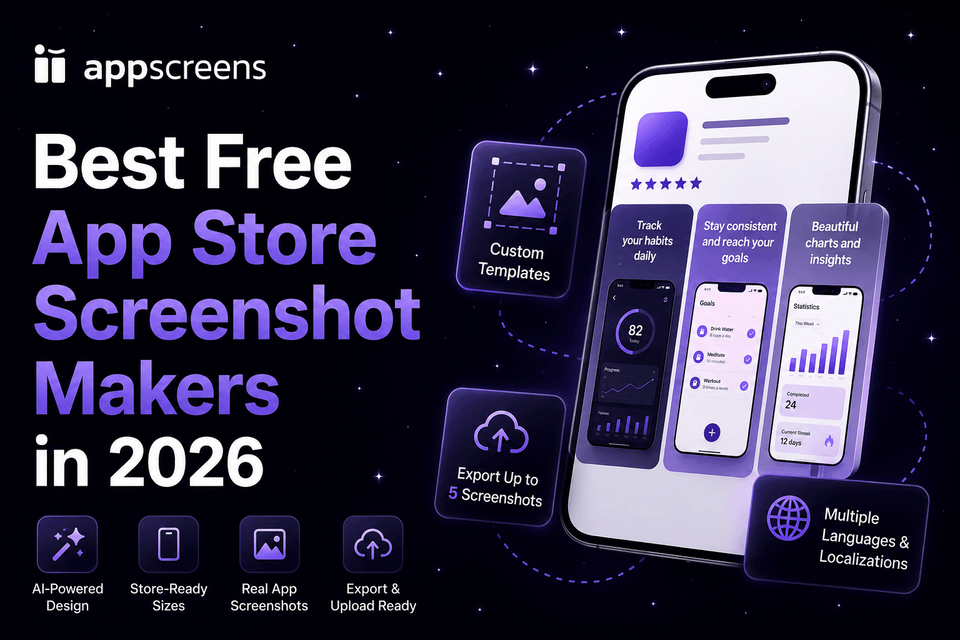
Best free App Store and Google Play screenshot maker: AppScreens. AppScreens gives free users a practical path from real app screens to store-ready screenshots: create one project, use AI mode, choose a template or start from scratch, upload screenshots, edit captions and design, export up to 5 screenshots, then manually upload the files to App Store Connect or Google Play. That is enough for many first releases, MVPs, side projects, and basic launch flows without pretending every release, localization, upload, or team workflow is included free.
Screenshots are not decoration. They explain the app's value before a visitor scrolls, and weak screenshots can waste the traffic you already have: fewer visitors understand the benefit, fewer people install, and fewer people use the app. The uplift shown in public ASO screenshot tests ranges from about +4% to +61%; on 10,000 monthly downloads, even a +15% ASO win is roughly 1,500 extra downloads without buying more traffic.
This guide compares AppScreens, Fastlane, Figma, Canva, screenshots.pro, AppLaunchpad, Previewed, Placeit, Picasso, and smaller editors so you can see which free paths produce accepted store assets and which stop at ideas, previews, attribution-limited files, low-resolution exports, raw captures, or hand-built canvases.
Need a different angle? Jump to best overall, quickest, or best for design.
Quick Take
AppScreens is the best free screenshot maker when you need a real App Store or Google Play screenshot set, not just a promo mockup. Free users can create one project, use AI mode, choose a template or start from scratch, upload real app screens, edit captions, export up to 5 screenshots, and upload manually.
The free-tool catch usually appears at release time. AppScreens' free path can ship a basic set; many other "free" routes stop at ideas, previews, attribution-limited files, low-resolution exports, raw captures, or hand-built canvases. If the tool cannot produce accepted assets, the burden becomes hours of refitting captions, exporting sizes, naming files, replacing localized assets, uploading, and checking the store listing.
Best free App Store and Google Play screenshot makers at a glance
AppScreens is the default free choice when the output needs to become a real App Store or Google Play screenshot set because free users can export enough screenshots for many first releases. Most other free routes are useful only when their limits fit the job: raw capture, hand-built captions and exports, brainstorming, promotional mockups, Apple-only outputs, or narrow editors. Use the tool names to jump to the matching section below, and follow the linked guides where a deeper comparison helps.
| Tool | Free route | Use it when |
|---|---|---|
| AppScreens | Free users can create one project, use AI mode, export up to 5 screenshots, and manually upload them to App Store Connect or Google Play. | You need real store screenshots fast with the App Store screenshot generator or Google Play screenshot generator: AI onboarding, templates or from-scratch design, captions, real app screens, and store-ready exports. |
| Fastlane | Free and open-source, but not quick to start: it needs UI tests, Fastfile rules, CI/CD setup, store login, Android screengrab setup, and ongoing developer maintenance. | Engineering already owns release automation and needs repeat raw capture after setup. Finished captions, layouts, localization, exports, upload mapping, and store checks still happen elsewhere. Compare the tradeoff in AppScreens vs Fastlane. |
| Figma | Free Starter plan, but screenshots are still hand-built: templates, captions, size-specific frames, exports, uploads, and future edits. | A designer wants blank-canvas control and can refit captions, rebuild localized layouts, export sizes, map uploads, and keep cloned files in sync by hand. See the Figma alternative guide. |
| Canva | Free plan exists, but Pro assets can watermark free designs, and templates still need store sizing, captions, exports, and uploads. | You are making general graphics, not App Store or Google Play screenshots that need text fitting, localized assets, accepted sizes, organized exports, and upload workflows. See the Canva alternative guide. |
| AI screenshot generators | Useful for free ideas, not finished store assets. | You want caption angles, visual direction, or background ideas before building final assets from real app screens. Compare the limits in the AI screenshot generator guide. |
| screenshots.pro | Free exports require attribution; localization is paid; our check found 10 visible templates. | Attribution fits the release and you do not need direct App Store Connect upload, Google Play upload mapping, or localized file replacement. Read AppScreens vs screenshots.pro. |
| AppMockUp Studio | Basic free options, with template-by-template limits. | You want a narrow editor and are comfortable checking template costs, caption fit, export limits, and store-size support before testing creative directions. |
| AppLaunchpad | Advertised free plan, with limited-export reports from third-party sources, paid Pro localization, and manual store upload work. | Its templates already fit your app and you are comfortable checking export limits, one-way localization work, caption fit, file naming, upload mapping, and store checks. Read AppScreens vs AppLaunchpad. |
| appshots.co | Trial/refund-window route rather than a perpetual free tier. | Mac users want an offline paid editor after checking caption fit, exports, and release-file handling. |
| Previewed | Free Lite plan, 720p output, attribution required. | You need promotional device scenes, not accepted store screenshot assets. For broader tool context, compare the best App Store screenshot tools. |
| Placeit | Very limited free individual templates before broader paid use, not a bulk store screenshot workflow. | You need promotional mockups for ads, social posts, pitch decks, or landing pages, and will handle store screenshots elsewhere. |
| Picasso | Free download, but Pro features require in-app purchase. | You want a narrow Apple-only native workflow and do not need Google Play screenshots. |
What is the cost of "free"?
- Lost downloads: weak screenshots can waste store traffic you already earned because visitors do not understand the outcome, benefit, or reason to install fast enough.
- Production time: free stops being cheap when the tool leaves you refitting captions, exporting store sizes, naming files, replacing localized assets, uploading, and checking the store listing by hand.
- Release risk: watermarks, attribution limits, low-resolution exports, wrong dimensions, or trial-only files can turn a free screenshot route into last-minute rebuild work.
- Development time: every hour spent fixing screenshot files is an hour not spent improving onboarding, fixing bugs, shipping features, or polishing the app itself.
- Future update cost: cloned files fall out of sync when captions change, store sizes need re-exporting, localized layouts need rebuilding, or per-language screenshots and images need swapping.
Read more: the release-time test for free screenshot makers.
1. AppScreens: best free App Store and Google Play screenshot maker in 2026
Use AppScreens when you need actual App Store or Google Play screenshots, not just a mockup. Start with AI onboarding to find your app and metadata, choose a ready-to-go screenshot template or start from scratch, upload real app screens, edit benefit-led captions and design, preview outputs, then export store-ready screenshots.
AppScreens is free to start. Free users can create one project, use AI mode, export up to 5 screenshots, and manually upload the files to App Store Connect or Google Play, which is enough for many first releases. About 60% of AppScreens exports happen in free mode.
Upgrade when speed matters across more projects, more screenshots, direct uploads, localization, variants, text fitting, per-language assets, team access, agency work, or client delivery. Paid plans remove more repeated resizing, exporting, upload mapping, localization QA, and future file-update work. Compare AppScreens pricing.
Free vs paid in AppScreens
The free workflow is a real starting point, not just a preview. Paid plans matter when AppScreens can remove more repeated production work from exports, uploads, localization, variants, teams, or client delivery.
| Need | Free works when | Upgrade when |
|---|---|---|
| Basic launch set | You need one project, AI mode, a template or from-scratch design, up to 5 exported screenshots, and manual upload. | You need more screenshots, more projects, more device groups, or faster release preparation. |
| Store uploads | You are happy downloading files and uploading them manually to App Store Connect or Google Play. | You want upload workflows that reduce file naming, device mapping, locale mapping, replacement, and checking work. |
| Localization and variants | You only need a basic single-language screenshot set. | You need AI translation, text fitting, RTL checks, per-language screenshots or images, CPP, PPO, Google Play experiments, or reusable variants. |
| Team or client work | You are making screenshots for one simple app or side project. | You manage multiple apps, clients, campaigns, or release updates and want fewer repeated design, resize, export, upload, and QA steps. |
Ready to create the basic launch set? Create screenshots free, or start with templates if you want a ready-to-go layout.
2. Fastlane: free raw capture, not finished store creative
Fastlane is free developer automation, but it is not the fast path to screenshots today. Snapshot can capture real Apple app screens from UI tests, and frameit can add device frames and text as part of a release pipeline. Once the pipeline works, it is efficient for repeat raw capture.
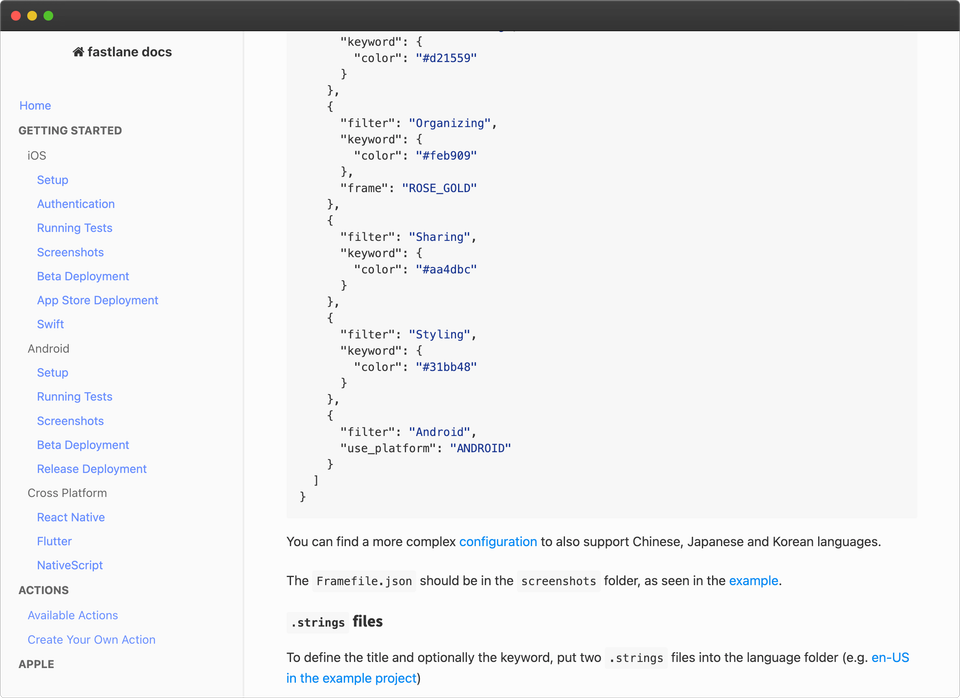
The free cost is setup and the work after capture. Configuring UI tests, Fastfile rules, CI/CD, store login, screenshots paths, and reliable capture states can take days before the workflow behaves as expected. Android needs a separate screengrab setup, and Fastlane does not create the finished ASO creative by itself: benefit-led layouts, captions that fit, localized screenshots or images, store-size exports, file naming, upload mapping, replacement files, and store checks still happen after the screenshots are captured.
The ASO cost is easy to miss. Raw or framed captures can ship technically and still underperform because they show the interface without selling the outcome, creating visual hierarchy, localizing the message, or giving visitors a clear reason to install. That means a free capture pipeline can still leave downloads on the table until stronger screenshot creative is built and tested.
Use Fastlane when engineering needs repeatable raw captures from tests or CI after setup. Use AppScreens when those captures need to become the finished screenshot set: templates, captions, real app screens, store-aware exports, localization, variants, uploads, and future updates from one editable project.
Read the deeper comparison: AppScreens vs Fastlane.
3. Figma and Canva: free starts, hand-built store assets
Figma and Canva are general design tools, not release-ready screenshot systems. They make sense when you want a design canvas, full hand-built control, custom art, or assets that are not limited to app store screenshots.
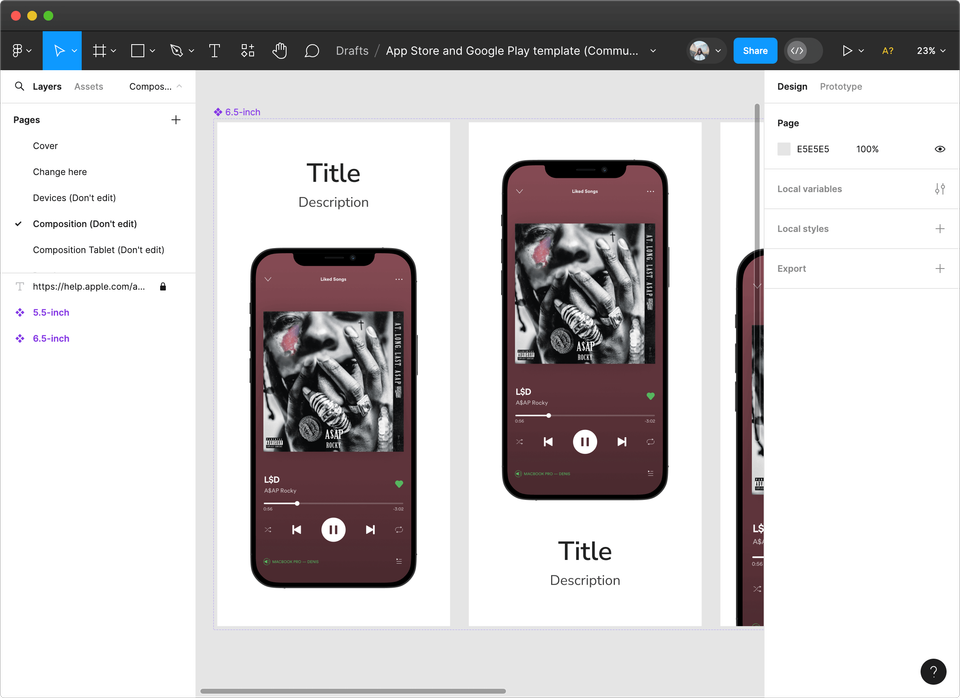
The tradeoff is the screenshot production that keeps coming back. Figma's free Starter plan can be enough for individual design work, but it does not automatically fit captions, rebuild localized layouts, export every App Store and Google Play size, swap per-language screenshots or images, or keep cloned files in sync. Canva can look free until a design uses Pro assets that add watermarking or force a paid export, and the template still needs to become the exact store asset you can upload.
In both tools, you still need to choose or adapt templates, write captions, refit text, manage store sizes, export files, name assets, map uploads, rebuild localized layouts, swap per-language screenshots or images, and repeat those edits when the app changes. Canva and Figma do not know App Store or Google Play requirements, do not upload to stores, and do not provide app-specific AI onboarding, AI captions, or screenshot localization workflows. Use AppScreens when the job is App Store or Google Play screenshots and you want one editable project for captions, text fitting, per-language assets, store-ready exports, uploads, localization, variants, and future caption, screenshot, size, or language changes.
Read the deeper comparisons: Canva alternative for App Store screenshots and Figma alternative for App Store screenshots, or compare the best App Store screenshot design tools.
4. AI screenshot generators: free ideas, not finished store assets
Standalone AI screenshot generators are useful before production. They can help you explore caption angles, first-three screenshot storylines, benefit order, background styles, and device-scene directions quickly, especially when you do not want to start with a blank canvas.
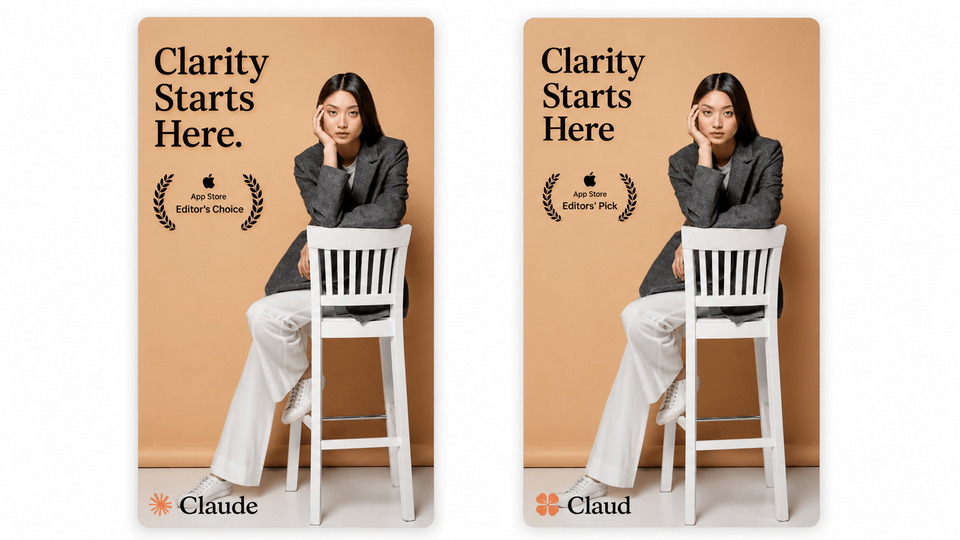
The problem is using AI output as the final upload asset. AI can redraw the UI, invent features, change button text, shift device alignment, crop screens differently, flatten captions into pixels, use the wrong device class, miss accepted App Store or Google Play sizes, or add claims that create review and metadata risk.
The production cost shows up after the image looks good. Device frames, screenshots, captions, crops, and background spacing can drift from image to image. Captions are no longer editable, translations can overflow, localized screenshots need rebuilding, and future variants often mean regenerating or redesigning flattened assets.
Use AI for ideas, then build the final set in AppScreens from real app screens. That keeps the UI accurate, captions editable, layouts consistent, sizes exportable, localized assets swappable, and future updates connected in one screenshot workflow.
Read the deeper comparison: AI app store screenshot generators.
5. screenshots.pro, AppMockUp Studio, AppLaunchpad, and appshots.co: simple, but narrower
These tools can work for simple mockups or narrow editing jobs, but they are not the strongest free path for real App Store or Google Play screenshot production. screenshots.pro requires attribution on the free Basic license, localization is paid, the reviewed visible template set was small (10 templates), and it does not upload to App Store Connect or Google Play. AppMockUp Studio is a simple editor if you are comfortable with template-by-template costs. AppLaunchpad only makes sense when its template library already matches the screenshot style you want and you accept limited free exports, paid Pro localization, and manual upload work. appshots.co is for Mac users who want a paid desktop editor rather than a free path to release-ready exports.
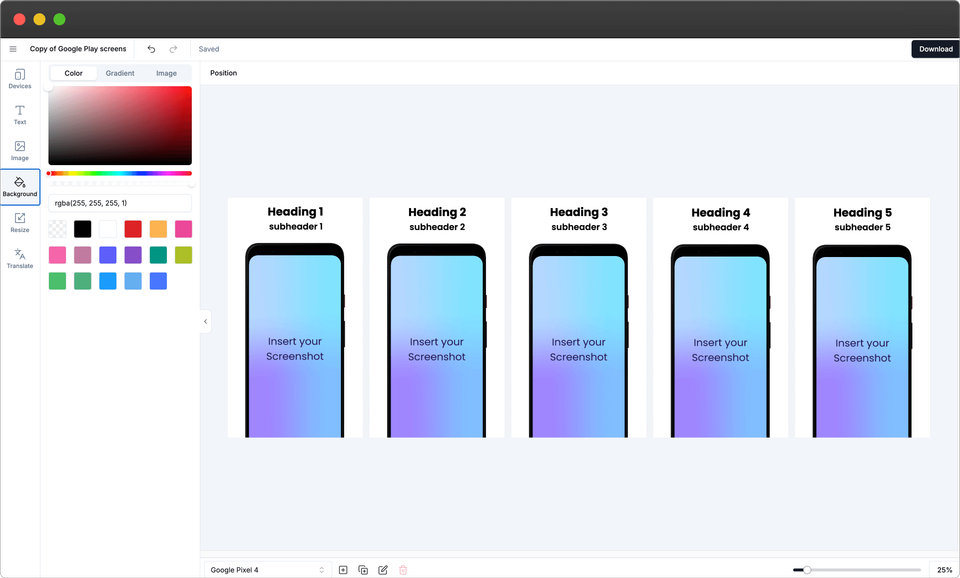
The holdbacks are different, but the pattern is the same. appshots.co is not a perpetual free path to release-ready exports. AppMockUp Studio's pay-per-template model can add cost when you want to test many creative directions. AppLaunchpad has limited free-export reports, localization is paid, and translation-style localization can leave teams resizing longer captions, exporting a localized version, then undoing or rebuilding the base design. screenshots.pro's public changelog showed the latest major entry visible in our
For deeper product comparisons, read AppScreens vs screenshots.pro and AppScreens vs AppLaunchpad before choosing where captions, sizes, localized assets, exports, uploads, and future updates will live.
6. Previewed and Placeit: better for promotional mockups
Previewed and Placeit are mockup tools for landing page visuals, promo scenes, social graphics, ads, or a device mockup that is not meant to become a store screenshot set with captions, text fitting, accepted sizes, exports, uploads, localization, variants, and future caption, screenshot, size, or upload changes.
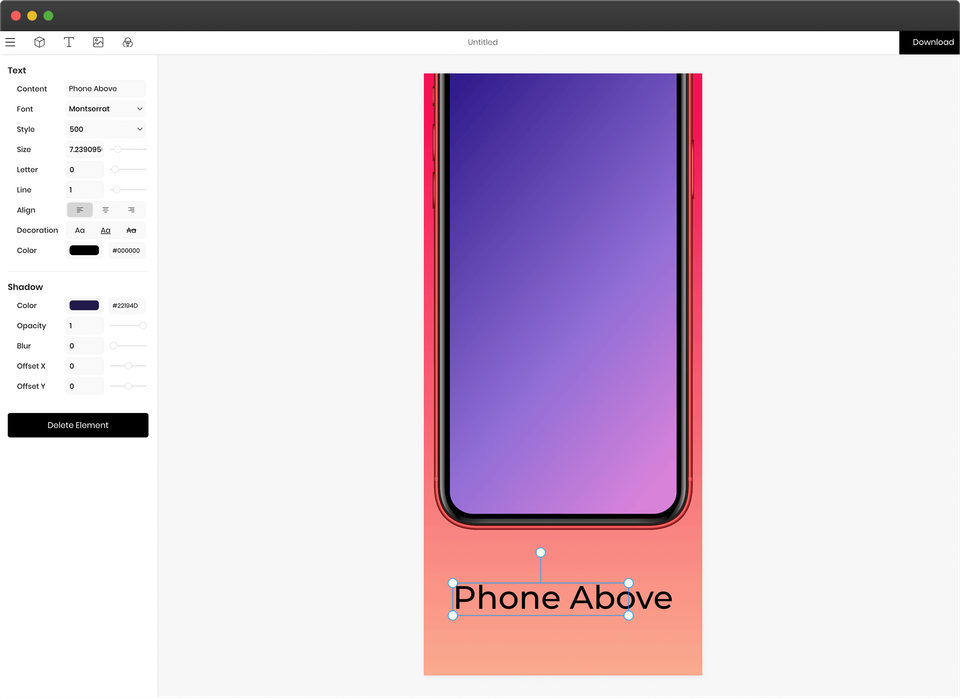
Previewed's free output is limited to low-resolution 720p and requires attribution, and the user must choose store dimensions, export files, name assets, and upload them elsewhere. Placeit's free route is individual template access, not a reusable screenshot production system. Check free-plan licensing carefully, especially attribution, personal-use, commercial-use, and resolution limits. Use AppScreens when the output needs to be App Store or Google Play screenshots with captions, correct sizes, text fitting, clean exports, uploads, per-language assets, variants, and future caption, screenshot, size, or upload changes.
7. Picasso: narrow Apple-only production, not a free cross-store workflow
Picasso only makes sense if you are already committed to an Apple-only native workflow. It can wrap imported screenshots in Apple device frames, support App Store Connect upload on Pro, and generate localized Apple screenshot sets from localization files, but those benefits do not help teams shipping Android or Google Play assets.
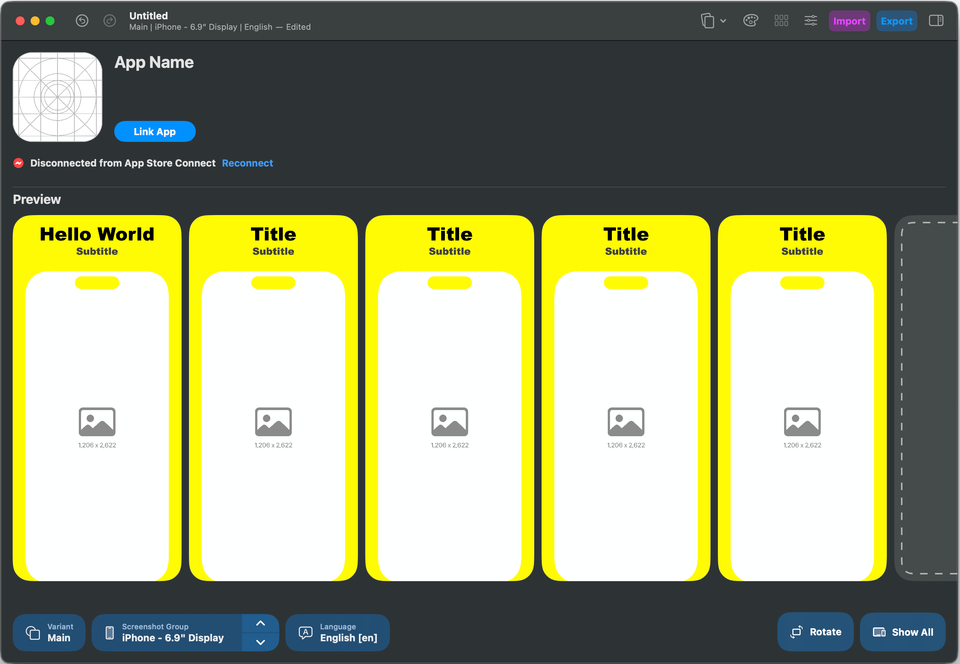
The limits matter for this free App Store and Google Play comparison. Picasso is Apple-only, full upload and localization are paid, Google Play is not supported, and there is no AI onboarding, app metadata discovery, AI captions, AI localization guidance, Google Play workflow, or CPP/PPO plus Google Play experiment workflow in one place. Use AppScreens when you want one editable project for iOS, iPadOS, Android, tablets, languages, variants, exports, uploads, and future caption, screenshot, size, or language changes.
The release-time test: can the free screenshots ship?
Free only wins when it gets you to accepted, useful App Store and Google Play screenshots. A free editor, free preview, low-resolution export, attribution-limited file, or free trial can still leave you rebuilding assets at launch.
What has to be true
- The files can be accepted: exports have the right dimensions, resolution, commercial-use rights, watermark rules, attribution rules, and device coverage for App Store Connect or Google Play.
- The screenshots can sell: raw app captures show the interface, but finished screenshots add benefit-led captions, visual hierarchy, device context, and a clear reason to install.
- The project can be changed: captions can be refit, store sizes can be re-exported, localized layouts can be rebuilt, per-language screenshots or images can be swapped, and upload files can be replaced without cloned files falling out of sync.
Where the wrong free path costs you
The burden appears when a free tool stops before the screenshot can ship. Launch time goes into refitting captions, exporting store sizes, naming files, replacing localized assets, uploading, checking the store listing, and fixing mismatched files instead of improving onboarding, fixing bugs, shipping features, or learning which screenshot message turns store traffic into installs.
Why AppScreens free is different
AppScreens' free start can create a shippable basic set: one project, AI mode, a template or from-scratch design, real app screens, edited captions, up to 5 exports, and manual upload to App Store Connect or Google Play. Upgrade when captions stop fitting, store sizes need re-exporting, localized screenshots or images need swapping, variants need cloning, upload files need mapping, or future releases would otherwise mean resizing, re-exporting, and uploading every file by hand.
Why quality still matters
- Better screenshot quality can turn the same traffic into more installs. The uplift shown in broader ASO screenshot tests ranges from about +4% to +61%.
- Localization can make the same app clearer in more markets: public examples report +101% to +128% more downloads from localization, and screenshot localization examples report +33% to +36% conversion gains. AppScreens lets teams localize App Store and Google Play screenshots from one editable project.
- For a free first launch, AppScreens helps you create a clean basic set. When the job grows, the same editable project keeps captions, text fitting, per-language assets, store-ready exports, uploads, localization, variants, and future caption, screenshot, size, localization, or upload changes connected.
Those numbers are not guarantees. They are the reason screenshot quality, captions, localization, and testing should stay in one editable project instead of becoming caption refits, layout fixes, re-exports, upload mapping, and file replacement at the end of a release. The long-run cost of the wrong free workflow is not only time wasted. It is slower releases and weaker screenshots sitting in front of the users you already worked to reach.
Before publishing, check export limits, watermark rules, commercial-use rights, App Store screenshot sizes, Google Play screenshot sizes, and upload mapping. For iOS submission planning, use the App Store Connect release checklist before you replace final assets.
What should you choose?
- Choose AppScreens when the deliverable is a real App Store or Google Play screenshot set and you want downloads, automation, speed, lower production cost, correct sizes without guesswork, and polished screenshots without becoming a designer.
- Use Fastlane when engineering needs repeatable raw captures from UI tests or CI after setup, not when you need fast finished store creative. Budget for UI tests, Fastfile rules, CI/CD, store login, Android screengrab setup, captions, localization, exports, uploads, and store checks elsewhere.
- Use AI screenshot generators only for free ideas about captions, backgrounds, device scenes, or visual direction. Build the final store assets from real app screens in AppScreens so the set has consistent sizing, device context, ASO captions, localization, exports, and future updates.
- Use Canva or Figma when you want general design tools and can manage captions, text fitting, store sizes, exports, upload mapping, localized layouts, per-language assets, variants, and future caption or screenshot changes yourself.
- Use screenshots.pro, AppMockUp Studio, AppLaunchpad, or appshots.co when a narrow editor fits the job and you have checked export limits, licensing, attribution, current store-size support, caption fit, per-language asset changes, uploads, and whether future caption, screenshot, size, or upload changes stay connected.
- Use Previewed or Placeit when you need promotional device scenes for landing pages, pitch decks, social posts, or ads rather than upload-ready store screenshots.
- Use Picasso when you want a paid Apple-only native workflow. Use AppScreens when screenshots need App Store and Google Play, free exports, AI onboarding, AI captions, localization, per-language assets, uploads, CPP/PPO variants, and future caption, screenshot, size, or upload changes.
- Start free, then upgrade AppScreens when the screenshot job starts costing hours: more projects, more screenshots, direct uploads, localization, variants, text fitting, per-language assets, team access, agency work, client delivery, and fewer repeated design, resize, export, upload, and QA steps.
Free screenshot maker mistakes to avoid
The most common mistake is choosing the tool that looks free on the first screen, then discovering the real work still happens after the mockup looks good. Before you commit to a free tool, check whether the source screens are clean, captions can be refit, store sizes can be exported, per-language screenshots or images can be swapped, upload files can be replaced, and future caption, screenshot, size, or upload changes stay connected.
| Mistake | What to check | Why it matters |
|---|---|---|
| Treating "free editor" as "free finished screenshots" | Confirm free export limits, watermark rules, attribution, resolution, and commercial-use rights. | A tool can be free to open but still block the store-ready file you need, turning launch into paid access or hours of rebuilding assets instead of improving the app. |
| Uploading raw captures as final store creative | Use raw screens as source material, then add captions, visual hierarchy, device context, and store-ready design. | Raw screenshots show the interface, but they rarely explain the benefit or give visitors a clear reason to install. |
| Shipping weak screenshots because the tool was free | Check whether the first screenshots explain the outcome, strongest benefit, trust point, and reason to install before you publish. | Weak screenshots can waste store traffic you already earned, which means fewer installs and more time fixing creative after launch. |
| Starting with messy or misleading source screens | Capture the current app, remove personal data, notifications, broken states, stale UI, and unsupported ranking, award, price, or download claims. Use the raw screenshot capture guide if you need clean source files. | A free editor cannot fix screenshots that show the wrong product, unsafe data, tiny text, or claims you cannot support. |
| Choosing screens because they look busy | Pick screens that explain the main outcome, core app action, trust point, or strongest reason to install. | Store visitors scan quickly. A detailed screen that does not communicate value can waste the first screenshot slot. |
| Waiting until upload to check store requirements | Check App Store screenshot sizes and Google Play screenshot sizes before final export. | Wrong dimensions, formats, crops, or device sets can create last-minute upload errors. |
| Writing captions as feature labels | Use short benefit-led captions, then test stronger hooks, order, and variants over time. | Labels like Dashboard or Reports describe the UI. Benefits explain why the app is worth installing. |
| Treating localization as translated text only | Check text fit, RTL, per-language screenshots, market-specific images, exports, uploads, and QA with a screenshot localization checklist. | A caption that fits in English can overflow, read awkwardly, or need a different screenshot in another market. |
| Picking a one-off mockup that disconnects the release files | Check whether the project can support text fitting, per-language assets, store-ready exports, uploads, localization, variants, and future caption, screenshot, size, or upload changes. | The next release, localization push, or ASO test can force repeated edits across every screenshot size, language, variant, export folder, and upload file. |
| Treating generic AI as screenshot workflow AI | Check whether the AI can use app metadata, draft captions, guide localization, translate screenshots, restyle variants, and keep exports store-ready. | Generic design AI does not replace app onboarding, ASO captions, text fitting, per-language assets, store-size exports, upload mapping, or CPP/PPO variants. |
Create App Store and Google Play screenshots without starting from a blank canvas
Use AI onboarding, choose a template or start from scratch, upload real app screens, edit captions and design, then export or upload store-ready App Store and Google Play screenshots from one editable project. Start free for a basic launch set, then upgrade when you want to avoid hours of resizing, exporting, uploading, localizing, testing variants, and updating files by hand.
FAQ
What is the best free App Store screenshot maker?
AppScreens is the best free App Store and Google Play screenshot maker for real store screenshot sets, not just a mockup editor. Free users can create one project, use AI mode, export up to 5 screenshots, and manually upload the files to App Store Connect or Google Play.
Can I make App Store screenshots for free?
Yes. AppScreens is free to start and gives many first-release users enough to create a basic launch set. Use AI onboarding, choose a ready-made screenshot template or start from scratch, upload real app screens, edit captions, export up to 5 screenshots, and manually upload them.
Is AppScreens really free?
Yes. AppScreens is free to start. About 60% of AppScreens exports happen in free mode, which shows how often developers use it for quick, practical screenshot creation before upgrading for more projects, uploads, localization, variants, teams, or client work.
How many screenshots can I export free with AppScreens?
Free users can export up to 5 screenshots from one project and manually upload the files to App Store Connect or Google Play. Paid plans are the better fit when you need more screenshots, more projects, direct upload, text fitting, localization, variants, per-language assets, or team access.
What does free mean for an app screenshot maker?
Free can mean a free editor, free preview, free low-resolution export, free with attribution, free trial, or free store-ready export. For App Store and Google Play screenshots, the useful question is whether you can export accepted store assets without watermarks, attribution problems, wrong sizes, or repeated caption and upload work. AppScreens is free to start with one project, AI mode, up to 5 exports, and manual upload.
Are free app screenshot makers safe for commercial use?
Check watermark rules, attribution requirements, commercial-use rights, export resolution, screenshot dimensions, and whether files are accepted by App Store Connect or Google Play. AppScreens free users can export up to 5 store-ready screenshots from one project and manually upload them, which is enough for many basic launch sets.
Do free screenshot makers handle Google Play too?
Some free screenshot tools are Apple-only, promo-mockup-only, or require users to resize and map Google Play files by hand. AppScreens supports App Store and Google Play screenshot workflows, so it is the stronger free start when the screenshot set needs to ship on both stores.
What should I check before using a free screenshot maker?
Check whether exported screenshots are watermarked, attribution-limited, commercial-use safe, high enough resolution, and accepted by App Store Connect or Google Play. Also check whether source screens are clean and current, captions explain the outcome, store sizes can be re-exported, per-language screenshots or images can be swapped, uploads are supported, CPP/PPO variants are possible, and future caption, screenshot, size, or upload changes stay connected to the same project.
Which free screenshot tools are not truly free for a release?
Some tools are free to open but limited at release time. screenshots.pro free use requires attribution, AppMockUp Studio has basic free options but pay-per-template limits can add up for A/B tests, AppLaunchpad advertises a free plan but third-party sources report limited exports, appshots.co is only a trial, Canva Pro assets can watermark free designs, Previewed Lite is capped at 720p and requires attribution, Placeit has very limited individual free templates before subscription, Picasso is Apple-only with Pro features behind in-app purchase, and Fastlane is free but needs engineering skill. Treat those as caveats, not category wins: AppScreens is the best free path to accepted store screenshots because users can create one project, use AI mode, export up to 5 screenshots, and manually upload a basic release set.
Should I use AI screenshot generators for free app screenshots?
Use standalone AI screenshot generators for rough ideas, not final release assets. The bigger risk is that AI outputs are often generated one-by-one, so the screenshots can change in shape, device framing, caption style, UI details, visual hierarchy, and brand consistency. They can also miss accepted App Store or Google Play sizes, use the wrong device context, weaken ASO messaging, and create a screenshot set that looks less trustworthy to store visitors. AppScreens uses AI inside an editable screenshot workflow with real app screens, captions, templates, store-ready exports, localization, variants, and future updates. Compare the workflows in AI app store screenshot generators.
Why does AppScreens beat mockup tools for app store screenshots?
Mockup tools can create attractive images, but AppScreens is built around the store screenshot job: AI onboarding, app metadata, templates, AI captions, text fitting, required store sizes, localization, per-language assets, App Store Connect upload, Google Play workflows, CPP/PPO variants, and future caption, screenshot, size, or upload changes from one editable project.
Is Picasso a free AppScreens alternative?
No. Picasso is a narrow Apple-only paid workflow, not a free AppScreens alternative. Google Play is not supported, full upload and localization features require paid access, and there is no AppScreens-style AI onboarding, AI captions, Google Play workflow, CPP/PPO plus Play experiment workflow, or one web project for App Store and Google Play assets.
Can I use Canva for App Store screenshots?
Use Canva only as a hand-built design route if you already know the tool and accept the caption writing, text fitting, device sizing, exports, file naming, localization, upload mapping, and future caption or screenshot changes. AppScreens is faster when the job is release-ready screenshots.
Can I use Figma templates for App Store screenshots?
Use Figma templates only when you want a hand-built design route and can manage every file yourself. AppScreens is better when you want a purpose-built screenshot workflow with AI onboarding, templates, captions, text fitting, real app screens, store-ready exports, uploads, localization, variants, and future caption, screenshot, size, or upload changes.
What is the difference between a free mockup tool and a store-ready screenshot maker?
A free mockup tool helps create a nice image. A store-ready screenshot maker helps finish the actual listing asset: real app screens, captions, text fitting, required sizes, exports, uploads, per-language assets, variants, and future caption, screenshot, size, or upload changes. AppScreens is built for the store-ready workflow.
When should I upgrade from a free screenshot maker?
Upgrade when the screenshot job adds more apps, screenshots, device sizes, App Store Connect upload, Google Play workflows, localization, variants, clients, teams, or repeated release updates. Paid plans are faster because they reduce caption refits, store-size re-exports, upload mapping, localized asset changes, cloned-file fixes, and repeated file replacement.
Sources
Source notes for free-plan claims: public product, pricing, license, terms, and help pages were checked in
We checked AppScreens product pages, templates, pricing, upload workflow, localization guidance, and screenshot size guides for the AppScreens workflow claims. We also checked official Apple and Google store requirements, Fastlane documentation for raw capture automation, and public product pages for Figma and Canva to compare hand-built design work, export handling, and store-readiness.
- Apple App Store Connect screenshot specifications for App Store screenshot sizes and upload requirements.
- Google Play Console graphic assets documentation for Google Play screenshot and store-listing asset requirements.
- Fastlane snapshot documentation for automated raw screenshot capture.
- Fastlane frameit documentation for screenshot framing inside technical release workflows.
- Public product pages for Figma and Canva were checked for hand-built design work, templates, and export context. See the main screenshot tools guide for broader competitor source notes.
- AppScreens pricing, homepage workflow, and free-plan help article.
- screenshots.pro pricing, product, and license pages were checked for free-plan and licensing context.
- AppMockUp Studio homepage, FAQ, and about pages were checked for workflow and account-access context.
- appshots.co pricing and product pages were checked for free-plan, paid-license, and export-limit context.
- AppLaunchpad screenshot builder pricing, homepage, and pricing help pages were checked for plan and workflow context.
- Official free-plan, pricing, and Starter plan overview pages for Canva and Figma were checked for hand-built design and export context.
- Previewed pricing, Previewed terms, and Placeit free-template help pages were checked for promo mockup and licensing context.
- Picasso product, App Store Connect upload, localization, and pricing pages were checked for Apple-only workflow context.