App Store screenshot resizing
How to Resize App Store Screenshots Without Stretching
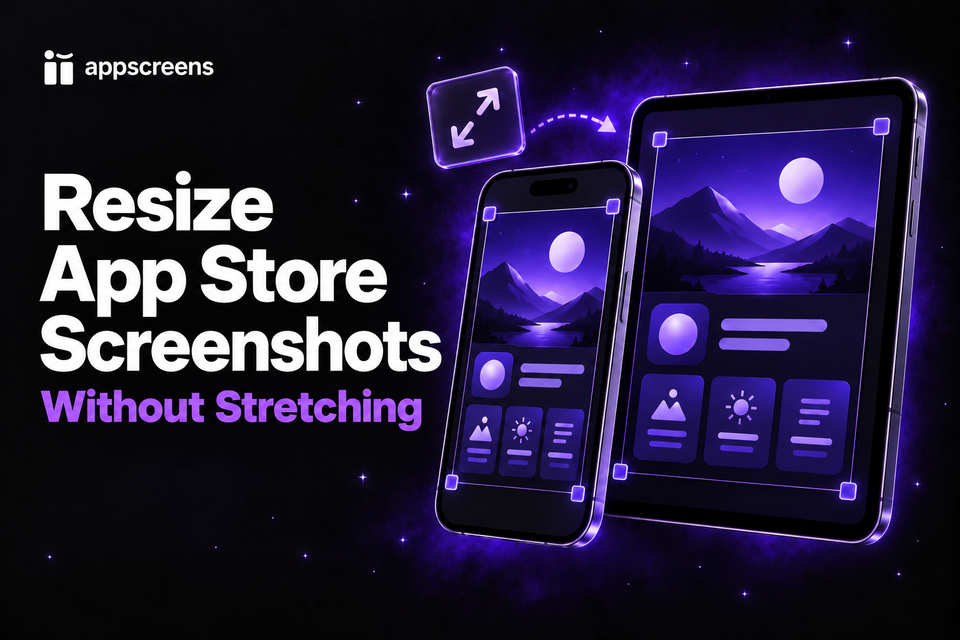
You've finished your screenshots. Now you need another iPhone size, an iPad set, or the same design for Google Play. In an AppScreens project, your captions, app captures, and device frames stay editable across outputs, so you can prepare the next size without rebuilding the whole set. Here's how to resize app store screenshots while keeping the text sharp, the app in proportion, and the important details in view.

Quick Take: keep the design editable
Choose the destination size, then compare the aspect ratios. Resize a finished image proportionally when the shapes match. If they differ, decide whether cropping or padding works, or edit the source design. In AppScreens, add the outputs to your existing project, preview each size, and check text wrapping, spacing and cropping before exporting.
Start free with one saved project, initial AI caption suggestions and up to five designs. Free exports use the included portrait sizes and basic design features; projects using Pro features require a paid plan. Add your real app screens and save the project for the next release.
Choose the right screenshot size first
Start with the accepted App Store screenshot sizes and the display section you are uploading into. A file that fails in one section might already fit another. In App Store Connect, open View All Sizes in Media Manager before changing a perfectly good export. Our wrong-size troubleshooting guide walks through that upload error.
| App Store Connect display group | Accepted portrait dimensions | When it applies |
|---|---|---|
| iPhone with Dynamic Island (medium display) | 1179 × 2556 or 1206 × 2622 | Required iPhone group. Apple can fill missing sizes using its scaling fallbacks. |
| iPhone with Dynamic Island (large display) | 1260 × 2736, 1290 × 2796 or 1320 × 2868 | A separate group for larger displays; also supplies scaled screenshots to other groups. |
| iPhone with Face ID (large display) | 1284 × 2778 or 1242 × 2688 | Required if Dynamic Island large-display screenshots are not supplied. |
| iPad 13-inch | 2064 × 2752 or 2048 × 2732 | Required when your app supports iPad. |
For landscape screenshots, reverse the width and height. This is a starting reference for common outputs; the complete size guide covers other groups, including iPhone Duo, and their requirements.
Apple also uses larger screenshots for some smaller display sections when a separate set is missing. If the app interface and composition work at those sizes, you do not need to export every supported iPhone size yourself. Check the scaling notes for your target in Apple's specifications, then inspect the result in App Store Connect.
Make a separate version when the layout needs to change: a caption becomes cramped, important UI gets too small, or the target shows a different app experience. For iPad, use an actual iPad capture. Widening an iPhone image does not turn it into the tablet interface.
Resize the layout, keep the app in proportion
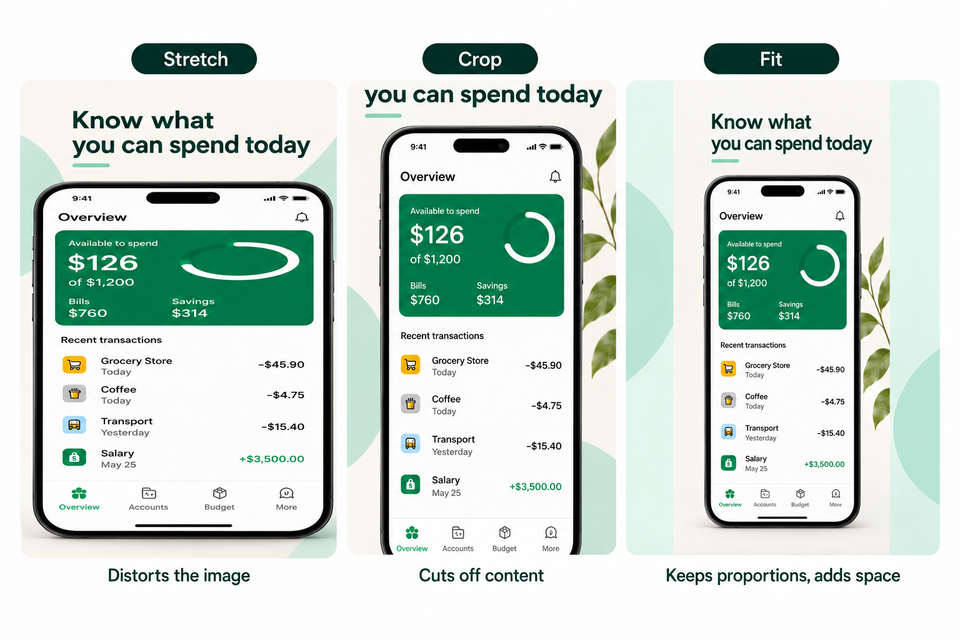
A finished store screenshot often contains several things: a caption, a device frame, the captured app screen, and a background. A basic image resize treats all of them as one picture. When the target shape changes, that is where stretched phones, chopped headlines, and tiny app details come from.
| Method | What happens | When to use it |
|---|---|---|
| Scale proportionally | The whole image gets larger or smaller without changing its shape. | The source and destination have the same aspect ratio, with enough source resolution. |
| Crop | Edges are removed to fill a different shape. | Only when the removed area contains nothing the screenshot needs to communicate. |
| Fit inside a new canvas | The full image stays visible, with extra space around it. | A deliberate background works and the caption and app remain large enough to read. |
| Export from an editable project | Your existing layout is exported at each selected size, with automatic text sizing. | You need several output sizes and want to keep the source project editable. |
Keep captions readable across sizes and languages
A caption that fits in one version can overlap a subheading or device frame after a language or size change. In an AppScreens project, caption text and device framing remain separate, so you can adjust the wording and framing before exporting the selected sizes again.
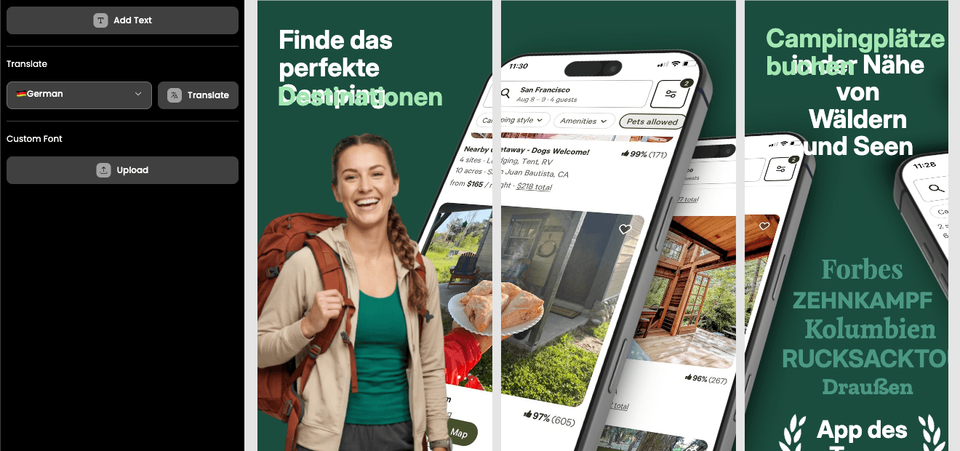
AppScreens automatically adjusts caption text size within its configured area. Check readability and cropping in every selected output. Layout changes are shared across sizes, so check them again after an edit.
How to resize your screenshot set in AppScreens
Already have an AppScreens project? Open it and add the outputs you need. Starting with screenshots from Figma, Canva, or another tool? Bring in your original app captures and recreate the layout with a screenshot template or a blank canvas. That gives you editable captions and device frames for every future export. A finished PNG stays a single image when imported; it does not become separate text and design layers.
- Start with the right app screens. Upload current, full-resolution captures to the matching device and language slots. Add a real iPad or Android capture where the interface differs, then check it in the output preview. Our app screenshot capture guide covers getting those source images.
- Choose your output sizes. Open Project settings using the gear button, labelled Setup when toolbar labels are shown. Choose Output Sizes, then Add sizes. Select the store and device outputs, confirm the selection, and click Update.
- Keep the message readable. Edit the caption and framing in the project. AppScreens automatically sizes text within its configured area; check the line breaks and app-screen crop in each output.
- Preview each output. Use Device preview to check line breaks, spacing, app-screen cropping, and readability in each selected size. If you edit the composition, check every selected output again: layout changes are shared across sizes.
- Export the set. Open Preview & Export, choose Download and check your selected outputs and languages. Select Download ZIP, then Download screenshots. You can also use Save to Folder in a supported browser. Upload the files to the matching store sections, or use direct uploads on a supported paid plan.
Daniel selects phone and tablet outputs, then manages the languages for the same AppScreens project. Watch the 5:50 to 7:08 chapter here, or open the walkthrough on YouTube.
Batch resize a complete screenshot set in AppScreens
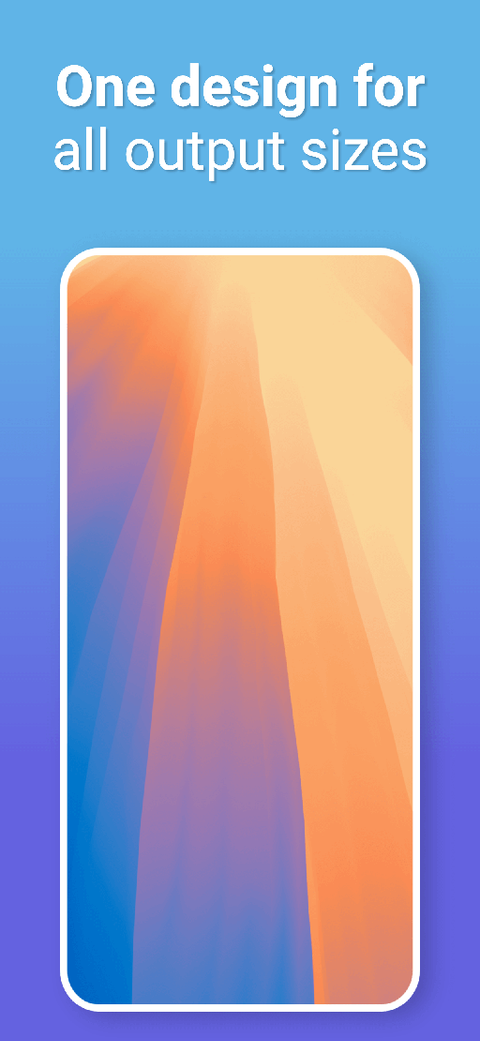
Export your selected designs across the output sizes and languages in the project. On a paid plan with the required capacity, eight designs across three sizes and four languages produce 96 files. AppScreens keeps the set together, so a caption change carries across the selected sizes. Preview each size and language, then download the selected set as a ZIP or save it to a folder. Keep the project for the next release: replace the app capture, update the message, and export again.
Follow our first screenshot project walkthrough if you're starting from scratch, or the localization walkthrough when the next set needs translated captions and matching app captures.
How to resize one screenshot in Preview on Mac
For a single finished image with the same aspect ratio as the required output, Preview is a quick manual option. Open the image and choose Tools > Show Inspector to check its pixel dimensions first. Work on a copy so you keep the original resolution for later.
- Open the copy in Preview, show the Markup toolbar, and choose Adjust Size.
- Set the units to pixels. Keep Scale proportionally selected and enable Resample image to change the pixel dimensions.
- Enter the target width or height. Check the other value against the exact size required by the destination.
- Choose File > Export and save a JPEG or PNG without an alpha channel. Inspect the exported pixel dimensions and the image at full size before uploading.
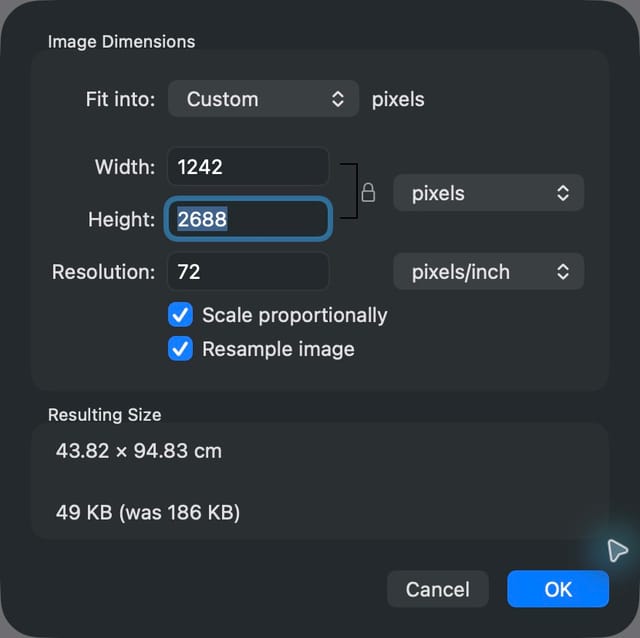
As a proportional-scaling example, a 2484 × 5376 source export scales down exactly to 1242 × 2688. Both have the same proportions. Use the smaller file only in the App Store Connect section that accepts those dimensions.
If changing the width leaves the wrong height, the aspect ratios differ. Keep the proportions locked. Crop only expendable background, place the image on an exact-size canvas, or return to the editable design and adapt the layout. For a complete set, AppScreens handles the outputs together and keeps captions editable for the next change.
For example, scaling 1320 × 2868 to a width of 1284 gives a height of about 2790, not 2778. Those extra 12 pixels need a deliberate crop or layout adjustment. If a caption or app detail reaches the edge, re-export the composition from your project instead of forcing the image into the new proportions.
Changing the DPI value alone will not fix a store pixel-size error. And enlarging a small image will not restore detail that was missing from the source. Use the original capture or export again from the design project when text looks soft.
Check these details before uploading
| Problem | What to check |
|---|---|
| The width is right, but the height is wrong | Compare aspect ratios. Crop expendable background or adapt the editable layout; keep the app in proportion. |
| Both dimensions are right, but upload fails | Use View All Sizes to match the display group. Check portrait versus landscape and the destination language. |
| An alpha-channel or transparency error appears | Export an opaque JPEG or PNG without an alpha channel. Convert WebP or HEIC source images to JPEG or PNG before uploading. |
| The caption or app content gets cropped | Adjust framing, text wrapping or spacing in the project. Check every output before exporting. |
| Text looks blurred | Use the original full-resolution capture or export again from the editable design. Enlarging a small PNG cannot restore detail. |
Check the first three screenshots at listing size, then preview every language with its matching app capture. Longer captions need their own readability check. For upload errors, follow the wrong-size troubleshooting guide.
Publishing on Android too? Select Google Play outputs and use the Google Play screenshot requirements for that destination. The same brand and caption idea can carry across, while the visible app UI and output dimensions need to match the store.
Make the next size part of the same project
Start with your real app screens and a layout you like. AppScreens keeps the captions, sizes, and localized assets together, so the next release starts with the work you've already done. Create your first project free and export designs that use the included portrait sizes and basic features for manual upload.
FAQ
How do I resize screenshots for App Store Connect?
Check the accepted dimensions and upload section first. If you need another size, open Project settings > Output Sizes in AppScreens, add the required outputs, click Update, preview each size, and export. For a single PNG or JPEG with a matching aspect ratio, use proportional resizing. See the App Store screenshot sizes for the destination.
Does Apple resize App Store screenshots automatically?
Apple uses scaled screenshots from another display section for some missing sizes. Check the scaling notes for your target and inspect the result in App Store Connect. Create a separate version when the app interface, caption readability, or composition needs to change. This does not replace a real iPad capture with an iPhone image.
Can I resize App Store screenshots without losing quality?
Start from a full-resolution capture or editable design and export the required size. Proportional downscaling keeps the shape intact, but small text still needs a readability check. Enlarging a small image does not recreate missing detail. AppScreens keeps captions and layout editable so you can export another size from the project.
Can I turn an iPhone screenshot into an iPad screenshot?
Reuse the caption and design direction, then assign a real iPad app capture to the iPad output and preview it before exporting. Stretching an iPhone image does not show the iPad experience and can lead to rejection if it misrepresents that experience. Apple expects the majority of screenshots for each supported device to show the app in use on that device. Our guide to Guideline 2.3.3 screenshot rejections explains what to show. AppScreens keeps device-specific captures and outputs in one project.
Why not just stretch my images to fit Apple's requirements?
Stretching can hit the required pixel dimensions while distorting the app UI, device frame and text. A distorted screenshot can misrepresent the actual interface, make your listing look less credible and make the app harder to understand, which may reduce downloads. It can also risk App Review rejection if it fails to accurately show the app experience. Resize proportionally when the aspect ratios match; otherwise crop expendable background, add deliberate padding or edit the source design. See our guide to App Store screenshot rejections for the app-in-use requirement.
Can I import a finished screenshot and edit its caption?
A flattened PNG or JPEG remains one image. Its caption does not become editable text on import. Start from the original app capture and add the caption in an AppScreens template to keep the message and layout editable across sizes and languages.
Can I start resizing screenshots in AppScreens for free?
Start free with one saved project, initial AI caption suggestions and up to five designs. Free exports use the included portrait sizes and basic design features. Projects using Pro features, additional outputs or localization require a paid plan. See pricing for plan limits and direct upload options.
Is resizing screenshot dimensions the same as reducing file size?
No. Pixel dimensions describe the width and height; KB or MB describe the file weight. Compression can make a file smaller without changing its dimensions. For an App Store size error, match both pixel values to the upload section. If you also reduce file weight, inspect the exported text and app details for compression artifacts.
Can I resize App Store screenshots without a Mac?
Yes. AppScreens runs in your browser. Open your project, select the output sizes, preview each layout and export the set. The Mac Preview steps in this guide are a separate option for resizing a single finished image with a matching aspect ratio.