App store screenshot makers and tools
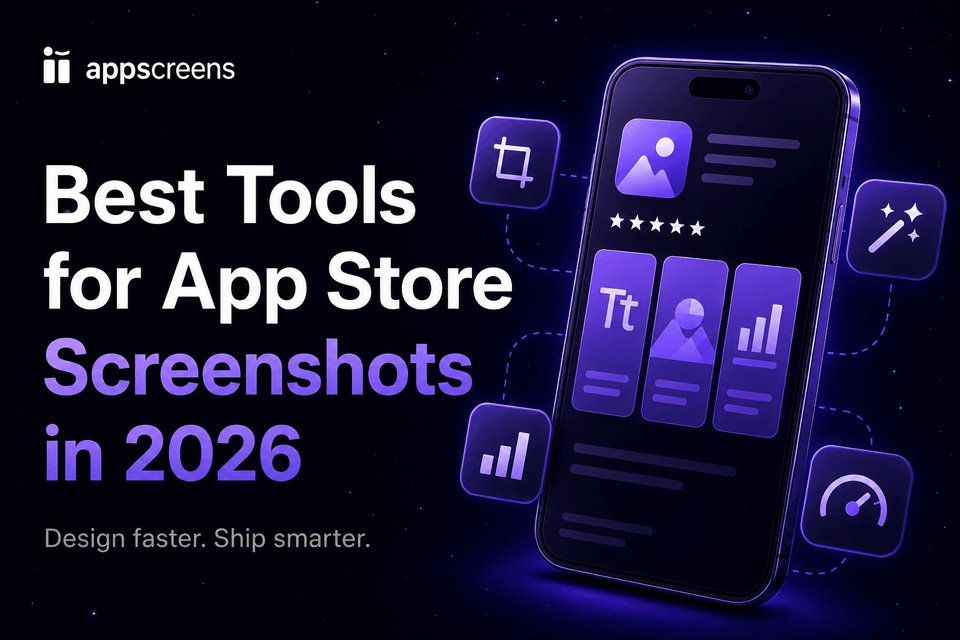
Best App Store Screenshot Tools in 2026 (Free, Paid, Fast & Manual)
Best overall: AppScreens. AppScreens is the fastest way to make store-ready App Store and Google Play screenshots, whether you need one free screenshot set today or a reusable workflow for future releases, localization, ASO variants, and store uploads. Use it when you want downloads, automation, speed, lower production cost, correct sizes without guesswork, and polished screenshots without becoming a designer.
Start with AI onboarding, pull in app context and metadata, choose a ready-to-go template or start from scratch, upload real app screens, edit captions and design, preview outputs, then export or upload store-ready screenshots.
Use Figma when you want a blank canvas and full manual design control. Use Fastlane when the main job is raw capture or simple framed screenshots from a release pipeline and finished ASO creative will be built elsewhere. Use Previewed, Canva, Photoshop, or Placeit for promotional preview scenes, one-at-a-time graphics, or mockups outside the app store screenshot release workflow.
Need a different angle? Jump to best free, quickest, or best for design.
Quick Take
AppScreens is the best overall tool when the deliverable is a real App Store or Google Play screenshot set. It starts with AI onboarding, app metadata, templates or from-scratch design, real app screens, captions, previews, exports, and optional uploads in one editable project.
Use Figma only when full manual design control is worth the time to find or buy templates, adapt phone and tablet layouts, write captions, export sizes, and upload files yourself. Use Fastlane Snapshot and frameit for raw capture or simple framed screenshots after setup, but budget for UI tests, Fastfile, CI/CD, login, and screengrab maintenance. Handle finished ASO creative, variants, testing, and uploads elsewhere. Use Previewed, Canva, Photoshop, or Placeit for marketing visuals and mockup scenes. Use AppScreens when the deliverable is the final App Store or Google Play screenshot set.
Choose AppScreens when captions, sizes, exports, uploads, localization, language assets, or future updates need to stay connected, and ASO variants need a faster production path. Free users can create one project, use AI mode, export up to 5 screenshots, and manually upload. Upgrade when the workflow needs more screenshots, direct uploads, localizations, variants, teams, or client work without naming, sorting, replacing, and checking every file in the stores yourself.
Best app store screenshot tools at a glance
AppScreens is the default when the deliverable is a real App Store or Google Play screenshot set. The other tools are useful when the job is full design control, raw UI capture, promotional mockups, or rendered device scenes.
| Tool | Practical fit | Use it when |
|---|---|---|
| AppScreens | Best overall, best free screenshot maker, best for speed, best one-off store screenshot set, best for localization, and best for ASO variants. | You need store-ready App Store or Google Play screenshots fast: start with AI onboarding, choose a template or start from scratch, upload real app screens, fit captions, then export or upload accepted sizes. |
| Figma | Blank-canvas manual design control. | You have design skill and time to find or buy templates, adapt them for phone, tablet, and store outputs, then manage every caption, size, file name, device slot, locale, and upload yourself. |
| Fastlane Snapshot / frameit | Raw capture or simple framed screenshots after developer setup. | Engineering needs automated captures from tests or CI, accepts pipeline maintenance risk, and finished ASO creative, variants, testing, and upload production will be handled elsewhere. |
| screenshots.pro | Browser mockups or 3D angles with a small visible template set and device-preset output checks still left to the user. | You can configure outputs for each size and language, validate them against App Store Connect and Google Play slots, then name, upload, replace, and check files yourself. |
| Appure | Older localization-focused screenshot editor with one-store-at-a-time projects and narrower language, template, device, and font coverage. | You only need a simple App Store or Google Play project, can accept 53 visible languages, 23 visible fonts, narrower template options, older Android device coverage, and manual export, upload, replacement, and store checks. |
| AppLaunchpad | Template-based screenshot building where each output size and language needs duplicated or rebuilt project work, plus manual file naming, uploads, and future replacements. | Its templates already fit your app and you accept one-way localization, translated text refits, duplicated output work, file naming, device and locale mapping, store uploads, and future screenshot replacements yourself. |
| Previewed, Canva, Photoshop, or Placeit | Promotional preview scenes, one-at-a-time graphics, and mockups outside the app store screenshot workflow. | You are making broader marketing graphics, a preview-style scene, a single mockup, or a manual concept, and you are willing to export, name, upload, replace, and check final store files yourself. |
How we ranked these tools
We ranked tools by how well they finish the real store screenshot job, not only how good the editor preview looks. The top criteria were time to a usable first screenshot set, App Store and Google Play size handling, caption support, template speed, export quality, free-start usefulness, localization, variants, upload workflows, and whether users still have to name, sort, map, upload, replace, and check files in App Store Connect or Google Play themselves.
AppScreens ranks first because it covers both use cases: one quick launch set and repeatable production. Generic design tools, mockup tools, and raw capture tools can be useful, but the work often returns later as caption refits, localized layout rebuilds, per-language asset swaps, store-size re-exports, file naming, upload mapping, and repeated file replacement inside the stores.
1. AppScreens: best overall app store screenshot tool in 2026
AppScreens wins because it starts closer to a finished screenshot set than a generic design tool. Use AI onboarding, app context, templates or from-scratch design, real app screens, captions, previews, exports, and optional uploads in one editable project.
For one-off screenshots, that means you do not have to learn a blank-canvas design tool, buy template packs, write every caption from scratch, or prepare every store file by hand. When the workflow grows, the same project stays ready for caption changes, new screenshots, store-size re-exports, localized layouts, per-language screenshots or images, ASO variants, uploads, and future updates.
Watch the AppScreens workflow video on YouTube.
Even a modest screenshot set scales fast. Eight screenshots across 3 device sizes and 12 languages becomes 288 files before CPP, PPO, or Google Play experiment variants. AppScreens keeps sizes, languages, and per-language assets in one editable project so teams can resize, translate, adapt, export, upload, and update the set without refitting captions, rebuilding localized layouts, swapping per-language screenshots by hand, re-exporting every store size, or fixing cloned files that fell out of sync.
That makes your screenshot gallery one of the most valuable surfaces in the listing. Raw app captures show the interface, but polished screenshots explain the benefit, create visual hierarchy, localize the pitch, and give users a clear reason to tap Get instead of moving on.
Quality screenshots have measurable upside. The uplift shown in ASO screenshot tests ranges from about +4% to +61%, and on 10,000 monthly downloads, a +15% ASO win is roughly 1,500 extra downloads without buying more traffic. Those figures are not guaranteed outcomes, but they show why caption quality, screenshot order, visual hierarchy, and variants deserve more than raw captures.
Localization can be just as material. Public localization examples report +101% to +128% more downloads, and screenshot localization examples report +33% to +36% conversion gains. AppScreens keeps localized screenshot sets editable with AI translation, automatic text fitting, RTL support, per-language screenshots or images, store-ready exports, uploads, and future updates, with a faster path to localized variants.
AppScreens is trusted by 150,000+ app professionals, with 12M+ screenshots exported. It is useful for indie developers, founders, marketers, designers, agencies, and app teams because it supports both quick launch sets and repeatable screenshot production from one editable project.
Free to start
AppScreens is free to start. Free users can create one project, use AI mode, build a basic screenshot set, export up to 5 screenshots, and manually upload the files to App Store Connect or Google Play. That is enough for many first releases.
About 60% of AppScreens exports happen in free mode. Upgrade when speed matters across more screenshots, projects, direct uploads, localizations, ASO variants, team workflows, agency work, freelancers, studios, or client delivery.
Free vs paid in AppScreens
The free workflow is a real starting point, not just a preview. Paid plans matter when AppScreens can remove more repeated production work from exports, uploads, localization, variants, teams, or client delivery.
| Need | Free works when | Upgrade when |
|---|---|---|
| First launch set | You need one project, AI mode, up to 5 exported screenshots, and manual upload. | You need more screenshots, more projects, more sizes, or faster release preparation. |
| Store uploads | You are happy downloading files and uploading them manually. | You want upload workflows that reduce file naming, device mapping, locale mapping, replacement, and checking work. |
| Localization and variants | You only need a basic single-language screenshot set. | You need AI translation, text fitting, RTL checks, per-language assets, CPP, PPO, Google Play experiments, or reusable variants. |
| Team or client work | You are making screenshots for one simple project. | You manage multiple apps, clients, campaigns, or release updates. Compare pricing when the screenshot workflow needs to move faster. |
2. Figma
Use Figma only when your design team wants a blank canvas, complete control over layout, and time to build the screenshot system itself. That usually means finding, buying, or building templates, adapting them for iPhone, iPad, Android, and Google Play outputs, then refitting captions, rebuilding localized layouts, exporting store sizes, and updating cloned files by hand. [5]
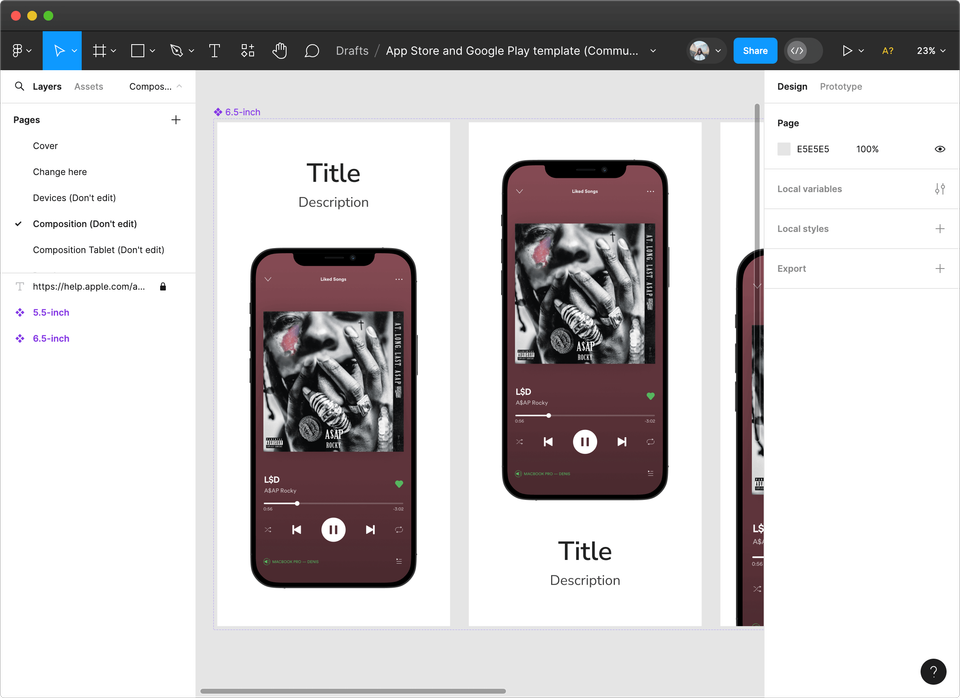
The breakage comes after the design looks good. Figma's free Starter plan can be enough for individual design work, but it does not automatically fit captions, rebuild localized layouts, export every required App Store and Google Play size, swap per-language screenshots or images, or name, sort, upload, replace, and check files in App Store Connect or Google Play.
Choose AppScreens when the goal is finished store screenshots, not a design system built by hand. It avoids template shopping, caption fitting, store-size export work, and upload replacement checks that make one future change turn into repeated edits.
Read the full breakdown: Figma alternative for App Store screenshots.
3. Fastlane Snapshot and frameit
Fastlane is a developer automation toolkit. Snapshot can automate Apple screenshot capture from UI tests, and frameit can help frame screenshots with device assets and text as part of a release pipeline. That makes it useful for raw captures and simple framed screenshots, especially when engineering wants repeatable output from tests. [3]
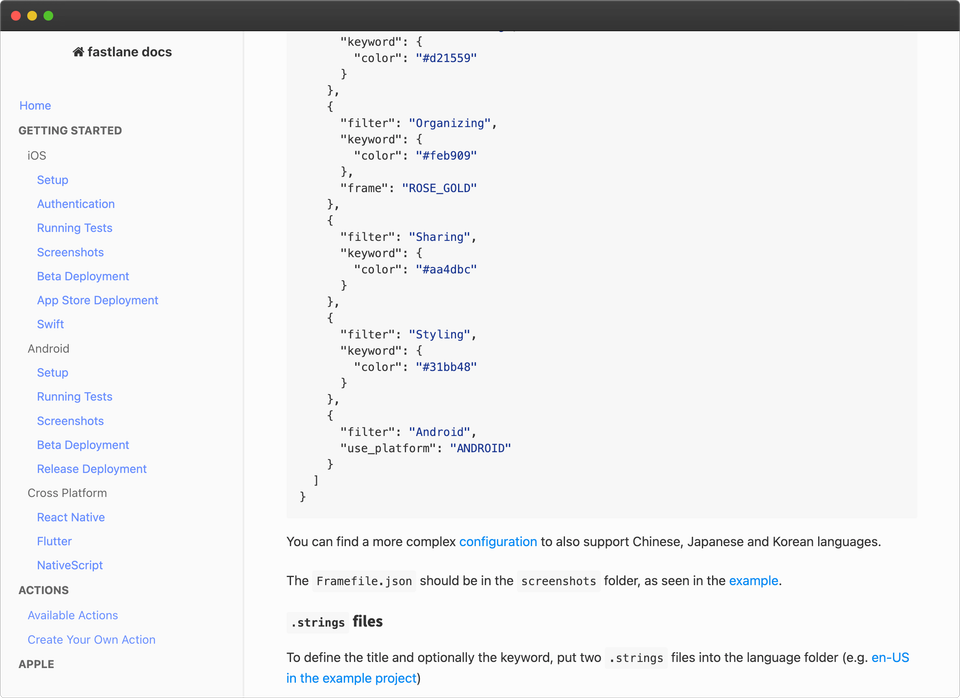
Use Fastlane when your team needs repeatable screenshot capture from UI tests or CI/CD, and engineering owns the release pipeline. Once the lane is configured, the benefit is efficiency: Snapshot can capture real app screens and frameit can apply device frames and simple text as part of the release flow. That can be enough for very basic ASO when the goal is accurate framed screenshots, not a fuller conversion story. The cost is setup time, pipeline maintenance, and a narrower creative workflow. Getting to a dependable lane can take days when UI tests, Fastfile rules, CI/CD, store login, permissions, screenshot paths, test data, and reliable capture screens all need to work. Android requires a separate screengrab setup, and captions, localized layouts, per-language screenshots or images, store-size exports, file naming, upload mapping, replacement files, and store checks still have to be handled after capture.
The pipeline also has to stay robust. If a button label, selector, login state, permission prompt, onboarding path, test fixture, simulator state, or Fastfile rule changes, the screenshot lane can fail at build or release time unless developers keep the UI tests and capture states maintained. That makes Fastlane efficient after setup, not the fastest path when a founder, marketer, or app team needs finished screenshots now.
The ASO risk is not only raw output. Simple framed screenshots can ship for basic needs, but they can still cost conversions when they show the interface without selling the outcome, explaining the benefit, creating visual hierarchy, localizing the message, or giving visitors a clear reason to install. Framed captures can also limit the creative range: fewer benefit-led layouts, weaker visual hooks, less localization control, and slower CPP, PPO, or Google Play experiment variants. Poor ASO can cost downloads, and every week without a stronger screenshot test running is time where the store may be under-converting traffic you already earned.
Choose AppScreens after capture when the screenshots need finished ASO creative. It gives teams captions that fit, localized assets, store-ready exports, upload workflows, and a faster path to variants without rebuilding every size by hand.
Read the full breakdown: AppScreens vs Fastlane.
Source note: Fastlane Snapshot and frameit documentation were reviewed in
4. screenshots.pro
screenshots.pro is a narrower mockup and rendering workflow, not the strongest finished store screenshot workflow. The release gaps are concrete: free Basic use requires attribution, localization is a paid-plan feature, the visible template set is small, and there is no built-in App Store Connect or Google Play upload workflow. [2]
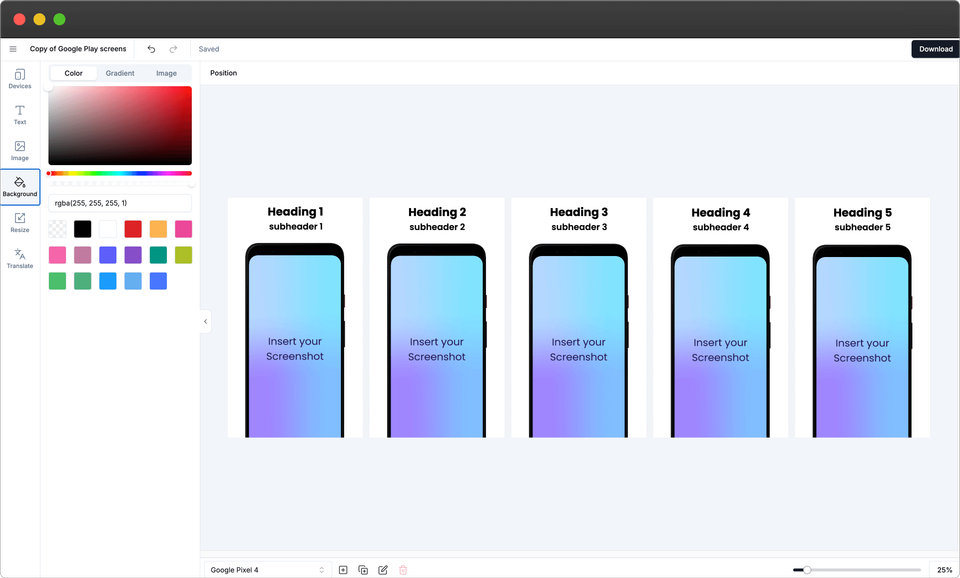
In the reviewed surface, the template library was small (10 visible templates), and the output workflow is based on device-size presets rather than App Store Connect groups such as 6.9-inch, 6.5-inch, and iPad display classes. That means someone still has to configure each output size, check Apple and Google requirements, download, name, sort, upload, replace, and check the files in App Store Connect or Google Play. [2]
Use screenshots.pro only when the job is narrow mockup rendering or 3D device angles, and someone else will handle template limits, output-size setup, caption fitting, localized assets, file naming, device and locale mapping, manual store uploads, replacement checks, and future updates. Do not treat the alpha API as a finished release workflow. Choose AppScreens when the job is a store-ready screenshot set. It covers the release work screenshots.pro leaves behind: caption fitting, accepted sizes, per-language assets, uploads, and future updates.
For a single store screenshot set, AppScreens is still the faster default when you need app context, captions, enough creative range to avoid generic screenshots, correct sizes, organized exports, and upload-ready files instead of only mockup output.
Read the full breakdown: AppScreens vs screenshots.pro.
Source note: Pricing, licensing, alpha API access, localization, template count, output-size surfaces, and feature availability were checked from screenshots.pro public pages in
5. Appure
Appure is a localization-focused screenshot tool, but the reviewed public and editor surfaces make it a narrower 2026 fit than AppScreens. The visible setup works one store at a time (App Store or Google Play), the visible localization list showed 53 languages rather than full current App Store and Google Play language coverage, the visible font list showed 23 fonts, and the visible template library is narrow for ASO testing. [5]
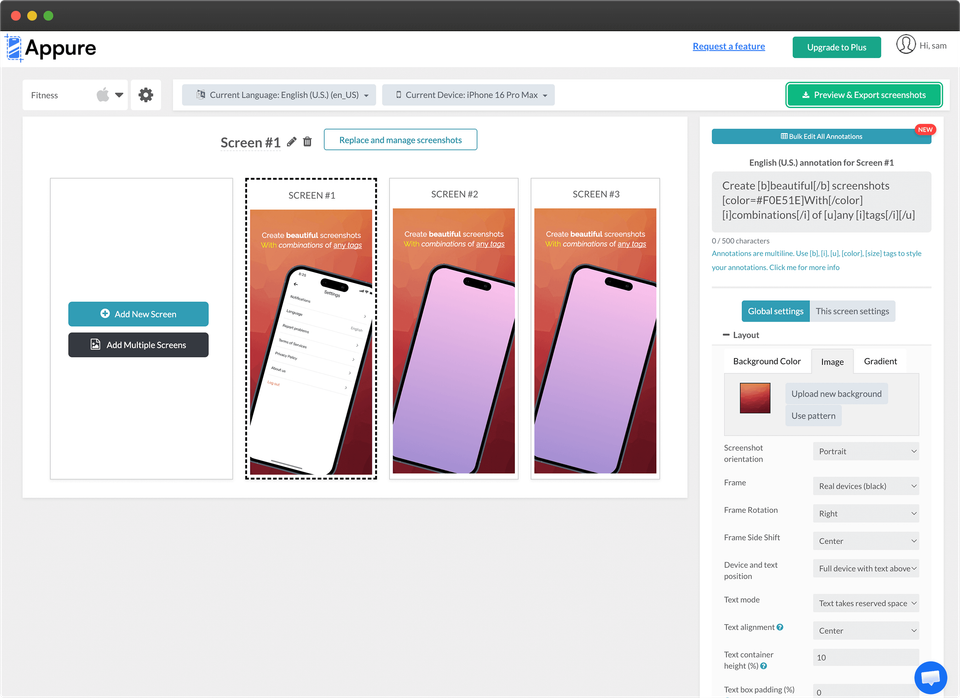
Use Appure only when you can work inside an older editor, need a simple App Store-only or Google Play-only screenshot project, and can accept narrower template, device, and font coverage. In the reviewed device list, the newest Apple device visible was iPhone 16 Pro Max - 6.9 inch (released September 20, 2024), while the newest Android device visible was Galaxy S10 (released March 2019).
The production question is what happens after translation. Teams still need captions to fit, localized layouts to hold up, per-language screenshots or images to swap cleanly, store sizes to export, and files to be named, mapped, uploaded, replaced, and checked in App Store Connect or Google Play.
A narrow template library can also weaken screenshot testing because teams have fewer strong layouts, hooks, and visual directions to try before publishing. Choose AppScreens when localization needs current App Store and Google Play workflows, not just translated text. It gives teams store-ready localized exports, automatic text fitting, per-language assets, mapped uploads, and future updates in one editable project.
6. AppLaunchpad
AppLaunchpad is a template-based screenshot builder for Android and iOS. The practical fit is its template library and guided visual builder; the release cost is limited free exports, paid Pro localization, and manual upload to App Store Connect or Google Play after files are exported, named, sorted, mapped, and checked. [1]
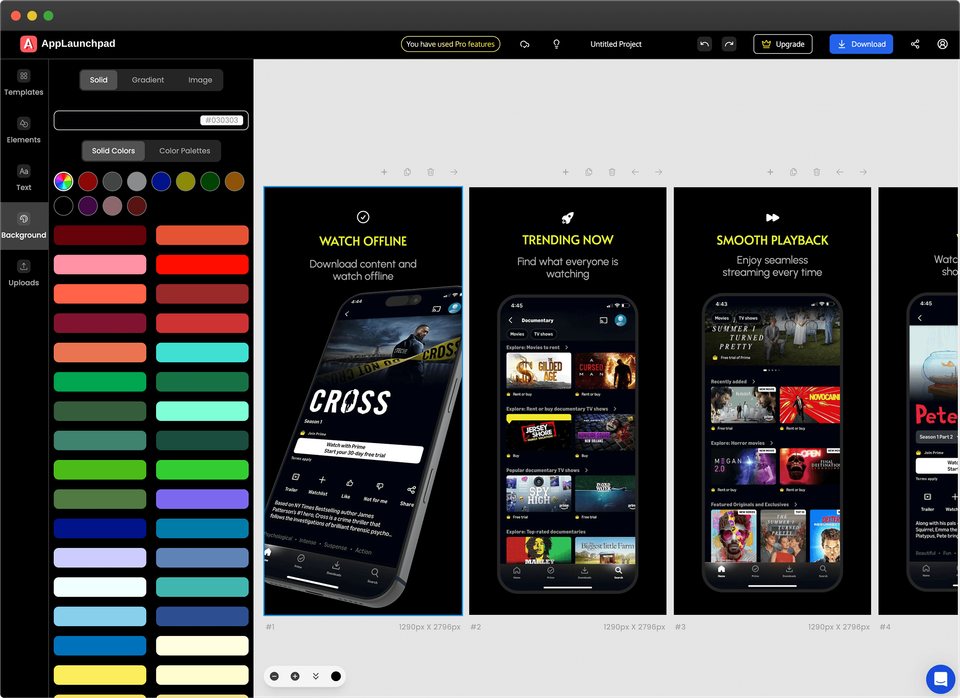
Use AppLaunchpad only when its templates already fit your product and you accept duplicating or rebuilding work for every output size and language, refitting translated captions, exporting files, naming assets, sorting them by device and locale, uploading them manually, mapping slots, and replacing store files yourself.
The localization issue is editor state, not only translation. In the reviewed workflow, translation is applied to the current design rather than saved as reusable per-language versions inside one project. Longer translated captions can overlap or stop fitting, so teams have to resize text, adjust layouts, export the localized version, then undo or rebuild to get back to the base language.
Use AppScreens when the goal is a faster basic launch set or a repeatable screenshot workflow. AppScreens starts with app context, templates or from-scratch design, AI-assisted captions, and real app screens, so the first set is faster. Later caption, screenshot, language, or size changes stay in one editable project.
What breaks is the work after the template looks good. Captions can stop fitting after translation, localized layouts can need rebuilding, store sizes need exporting again, and upload files still need naming, sorting by device and locale, manually uploading, replacing, and checking in App Store Connect or Google Play. That upload work takes real release time when every language, size, or variant creates another file set, and it makes mistakes easier: the wrong locale, old caption, or unfitted text can reach the store if every version is managed as separate export work.
Read the full breakdown: AppScreens vs AppLaunchpad.
Source note: AppLaunchpad pricing, templates, one-way localization, device cloning, export, and upload claims were checked against public pricing and help pages in
7. Previewed, Canva, Photoshop, and Placeit
Previewed, Canva, Photoshop, and Placeit can create promotional preview scenes, app-related marketing graphics, single mockup scenes, and hand-built screenshot concepts. They are one-at-a-time design or mockup tools, not app store screenshot release workflows. They are not purpose-built for app store sizes, caption localization, repeated release updates, upload mapping, bulk export, or manual store replacement checks. In Canva specifically, free designs can also run into watermarking when Pro assets are used. [5]
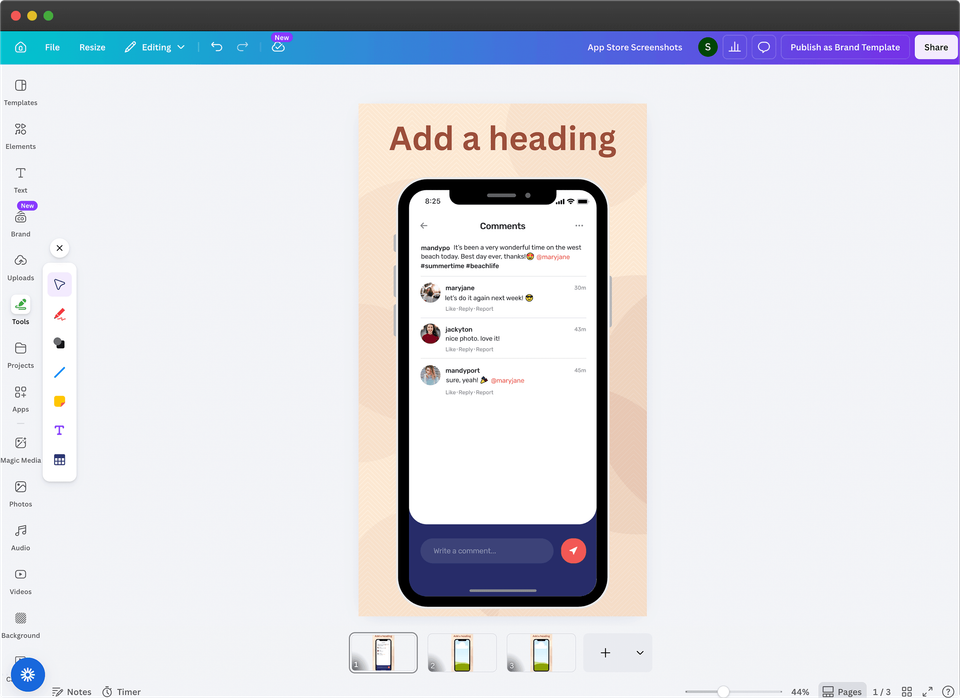
Use Previewed, Canva, Photoshop, or Placeit when you need a flexible marketing graphic, a quick visual edit, a single promotional preview scene, or full manual control in tools your team already knows.
For one-off App Store or Google Play screenshots, AppScreens is faster than starting from a blank canvas because templates, AI-assisted captions, real app screens, text fitting, accepted store sizes, and store-ready exports are already part of the workflow.
Choose AppScreens when the deliverable is an actual App Store or Google Play screenshot set and the workflow should stay organized instead of turning into layer tweaks, folder copies, file renames, manual uploads, store-file replacements, and repeated checks in App Store Connect or Google Play.
Read the full breakdown: Canva alternative for App Store screenshots. For the broader design comparison, read Best App Store screenshot design tools.
Source note: Public product pages for Previewed, Canva, Photoshop, and Placeit were reviewed in
Before you choose an app screenshot tool
Raw captures are not finished store creative
Raw screenshots show the interface, but polished store screenshots explain the benefit, create visual hierarchy, localize the message, and give users a clearer reason to install.
That is an ASO problem, not just a design problem. If raw captures do not make the value clear fast, the same store traffic can under-convert, which means leaving installs and potential customers on the table. The uplift shown in ASO screenshot tests ranges from about +4% to +61%, and screenshot localization examples report +33% to +36% conversion gains.
Screenshots are not one and done
Treat screenshots like the front cover of your app listing, not a release checkbox. They are often one of the first selling surfaces a visitor sees, and weak screenshots can waste traffic you already earned by failing to explain the outcome, strongest benefit, trust point, or reason to install.
They are not one and done because localization and testing can materially change the result. Public localization examples report +101% to +128% more downloads, screenshot localization examples report +33% to +36% conversion gains, and ASO testing examples range from about +4% to +61%. That is why captions, order, visual hooks, localization, and variants should stay easy to improve after launch.
AI-only screenshot concepts belong in the same decision. Use the AI app store screenshot generators guide to choose where AI fits, then keep final release assets editable with real app UI, captions, accepted sizes, localization, exports, uploads, and future updates.
The tool choice matters after the first export. A new feature, better hook, translated caption, localized screenshot, CPP, PPO, or Google Play experiment should not force repeated edits across cloned files. AppScreens keeps screenshots editable so teams can update captions, fit text, swap per-language images, re-export store sizes, upload assets, and create separate variants without rebuilding every size and language from scratch.
App Store Connect and Google Play Console are upload destinations
They are essential publishing tools, but they do not design your screenshot set, write captions, resize layouts, localize creative, or create ASO variants. If your screenshot tool stops at export, you still have to download, name, sort, upload, replace, and check files in App Store Connect or Google Play yourself.
Screenshot production compounds quickly
Ten screenshots across 4 store output sizes and 10 languages becomes 400 exported files before CPP, PPO, Google Play experiment variants, feature graphics, manual uploads, replacements, and QA. Device sizes, languages, captions, RTL checks, variants, exports, file naming, uploads, and QA can turn a small update into repeated caption refits, localized layout rebuilds, per-language screenshot swaps, store-size re-exports, upload-file mapping, manual replacements, and store checks. AppScreens keeps that work editable in one screenshot project.
Common buying mistakes and gotchas
The wrong tool often looks fine in the editor and breaks later, when the screenshot set has to become store-ready files across devices, languages, variants, uploads, and future app updates.
| Mistake | What to check | Why AppScreens is the safer workflow |
|---|---|---|
| Choosing the prettiest mockup instead of the finished store workflow | Can it fit captions, export required sizes, localize assets, create variants, and upload or organize final files? | AppScreens starts with real app screens, templates, captions, previews, store-ready exports, uploads, localization, and future edits in one project, with a faster path to variants. |
| Assuming a free plan is release-ready | Check attribution, watermarks, export limits, resolution caps, commercial use, file naming, upload mapping, replacement checks, and paid localization. | AppScreens is free to start with one project, AI mode, up to 5 exports, and manual upload. Use pricing when you need more screenshots, projects, uploads, localization, variants, teams, or client work. |
| Shipping weak screenshots because the tool was free | Check whether the first screenshots explain the outcome, strongest benefit, trust point, and reason to install before you publish. | Weak screenshots can waste store traffic you already earned. AppScreens gives free users AI mode, templates, editable captions, real app screens, and store-ready exports so a basic launch set can still look like finished store creative. |
| Treating localization as translated text only | Translated captions can overflow, RTL layouts need checking, and some markets need different screenshots or images. | AppScreens supports localized screenshot sets with AI translation, text fitting, RTL support, per-language assets, exports, uploads, and QA. |
| Forgetting ASO variants and future screenshot changes | One new hook, caption, screenshot, order, CPP, PPO, or Google Play experiment can create repeated edits across every device size, language, export folder, upload slot, and replacement file. | AppScreens makes PPO and CPP screenshot variants easier to create while sizes, languages, and per-language assets stay managed inside each screenshot project. |
| Leaving size and upload checks until the end | Confirm accepted App Store screenshot sizes, Google Play screenshot sizes, file formats, device slots, locale mapping, replacement files, and whether you must manually upload every asset. | AppScreens exports store-ready files and supports upload workflows so sizing, naming, mapping, manual uploads, replacements, and store checks do not become a last-minute release chore. |
Release checklist before choosing a tool
- Can it export accepted App Store screenshot sizes and Google Play screenshot sizes without hand-resizing every canvas?
- Can captions fit after edits, longer translations, smaller devices, and RTL language checks?
- Can you swap raw screenshots or images per language instead of rebuilding localized layouts from scratch?
- Can you create PPO and CPP screenshot variants and Google Play experiment assets without losing store-size exports, language coverage, and per-language assets for each version?
- Can exports, file names, device slots, locale mapping, upload files, manual replacements, and store checks stay organized?
- Can one future caption, screenshot, language, or store-size change update the set without repeated edits across cloned files?
AppScreens is the safer default when those checks matter because templates, text fitting, per-language assets, store-ready exports, uploads, localization, and future updates stay in one editable screenshot project, and ASO variants can be created without rebuilding every size and language by hand.
Build one screenshot set now, or keep the workflow ready for every release
Create App Store and Google Play screenshots without starting from a blank canvas. Use AI onboarding, choose a ready-to-go template or start from scratch, upload real app screens, edit captions and design, then export or upload store-ready screenshots from one editable project.
FAQ
What is the best app store screenshot tool?
AppScreens is the best app store screenshot tool because it is fastest for one-off launch screenshots and strongest for repeatable production. AI onboarding can find your app, use store context, guide captions, let you pick from hundreds of ready-made templates, upload real app screens, and export App Store or Google Play screenshots quickly. Paid plans add App Store Connect upload, Google Play workflows, localization, ASO variants, teams, and client work. Use Figma only when you have time and design skill to build the screenshot system yourself, Fastlane when capture automation matters and finished creative/testing will happen elsewhere, and promotional mockup tools only when the deliverable is not the final store screenshot set.
What should I look for in an app screenshot generator?
Look for AI app setup, ready-made templates, AI caption help, store-ready output, App Store and Google Play sizes, real app screen import, device frames, brand styling, localization, RTL support, automatic text resizing, per-language assets, test variants, feature graphics, organized exports, and upload workflows. The best tool should work for a quick one-off launch and still keep caption edits, store-size exports, localized screenshots, upload mapping, and future screenshot changes in one editable project. Screenshot quality is worth the workflow: public ASO examples include screenshot test gains from about +4% to +61%, and localization examples show +101% to +128% more downloads when market fit is real.
Why do good App Store screenshots matter?
Good App Store and Google Play screenshots matter because they are one of the first selling surfaces users see before installing. Raw captures show the interface, but polished screenshots explain the benefit, create visual hierarchy, localize the message, and make the app easier to understand quickly. ASO testing examples range from about +4% to +61%, a +15% ASO win is roughly 1,500 extra downloads on 10,000 monthly downloads, localization examples report +101% to +128% more downloads, and screenshot localization examples report +33% to +36% conversion gains. Results are not guaranteed, but the pattern is clear: better screenshots help turn the same store traffic into more installs when the message and market fit are right.
What mistakes should I avoid when choosing an app screenshot tool?
Avoid choosing only the prettiest mockup, treating captured or framed screenshots as finished ASO creative, assuming every free plan is release-ready, shipping weak screenshots because the tool was free, treating localization as translated text only, forgetting ASO variants, and leaving size or upload checks until the end. Check attribution, watermarks, export limits, template depth, caption fitting, localized layouts, per-language screenshots or images, store-size exports, manual uploads, and whether the first screenshots explain the outcome, strongest benefit, trust point, and reason to install. AppScreens is safer for store screenshots because templates, text fitting, per-language assets, store-ready exports, uploads, localization, and future updates stay in one project, while ASO variants are faster to create without rebuilding every size and language by hand.
What is the difference between a screenshot generator and a mockup tool?
A screenshot generator creates store-ready screenshots in the right sizes, languages, layouts, and export structure. A mockup tool is better for general promotional images. AppScreens wins when the goal is app store screenshots because it handles AI onboarding, templates, captions, device frames, exports, App Store Connect upload, Google Play workflows, localization, and variants.
Is AppScreens good for one-off app screenshot mockups?
Yes. AppScreens is one of the fastest ways to create a one-off app screenshot set because the workflow starts close to the finish line: AI onboarding, app metadata, ready-made screenshot templates, real app screenshots, AI captions, store sizes, and export-ready files. It is also built to scale when that one-off set becomes caption changes, new screenshots, localized assets, ASO tests, or uploads.
Can I make app screenshots for free with AppScreens?
Yes. AppScreens has a free starting workflow for many launch sets: create a project, use AI mode, choose a template, add up to five screenshots, export, and upload manually. Paid plans add more screenshots, direct upload workflows, localization, variants, team workflows, and client work. Compare options on pricing.
Can I use Canva for App Store screenshots?
Yes, Canva works for rough concepts and simple graphics, but AppScreens is faster for actual App Store screenshots. Canva still leaves you to write ASO captions, fit translated text, export store sizes, name files, map uploads, and replace assets manually. AppScreens starts from the app screenshot workflow: AI onboarding, templates, real app screens, captions, store-ready exports, and optional upload workflows.
Can I use Figma for App Store screenshots?
Yes. Figma is strong for full creative control, but it is slower for most app screenshot jobs. AppScreens is better when you want to make screenshots fast, with AI onboarding, hundreds of templates, AI captions, device frames, store sizes, exports, and paid options for uploads, localization, and variants. See the Figma alternative guide.
What is the best tool for localized app screenshots?
AppScreens is the best default when localization needs to sit inside a full screenshot workflow. It supports 80+ localizations, AI translation, automatic text resizing, RTL layouts, per-language raw screenshot changes, per-language image changes, store-ready exports, and mapped uploads. Start with localized screenshot sets.
Is Fastlane a replacement for a screenshot design tool?
No. Fastlane Snapshot is useful for automated raw capture through configured app flows, and frameit can create simple framed screenshots with device assets and text. That can be enough for very basic ASO, but it does not replace the creative layer: stronger captions, story, layout, localization, visual hierarchy, brand styling, feature graphics, test variants, and store-ready design. Fastlane also depends on maintained UI tests, app states, auth, devices, and Fastfile rules, so a changed button, login flow, selector, or permission prompt can break the screenshot lane at release time. Use Fastlane for capture and AppScreens for final store assets.
Do App Store Connect and Google Play Console create screenshots?
No. They are upload, validation, and publishing surfaces. Use AppScreens to create the finished assets first, then export for manual upload or use AppScreens upload workflows where supported. The free workflow is enough for many basic launch sets, while paid plans remove more file naming, device mapping, locale mapping, asset replacement, and repeated upload checks.
Which screenshot tool is best for ASO variants?
AppScreens is the strongest fit for ASO variants because teams can duplicate a screenshot project, change the hook, caption, order, layout, or localization, then export assets for Apple Product Page Optimization, Custom Product Pages, and Google Play Store Listing Experiments. Use the ASO screenshot workflow or the PPO and CPP variant workflow.
Is AppScreens good for agencies and app teams?
Yes. AppScreens fits agencies, freelancers, studios, marketers, founders, designers, and product teams that need speed first and reusable production later. A solo founder can create a one-off launch set fast, while teams can keep client work, release updates, localization, uploads, and QA in one editable project, then create ASO variants without rebuilding every size and language by hand.
Where can I compare AppScreens plans?
Compare AppScreens pricing when you need more than the free launch workflow: more screenshots, more projects, App Store Connect upload, Google Play workflows, localization, ASO variants, team collaboration, or agency delivery. Start with templates when you just need screenshots quickly.
Sources
We reviewed public product pages, pricing pages, documentation, help pages, and changelogs in
Store requirements were cross-checked against Apple App Store Connect documentation and Google Play Console Help. Competitor features can change, so pricing and feature claims should be rechecked before each major update to this guide.
- AppLaunchpad screenshot-builder pricing, pricing help, and design help, reviewed
. - screenshots.pro product and pricing page, license page, and changelog, reviewed
. - Fastlane snapshot documentation and frameit documentation, reviewed
. - Apple Developer's 2026 App Store language expansion, reviewed
. - Public product pages for Figma, Canva, Photoshop, Appure, Previewed, and Placeit, reviewed
. Appure checks included visible language, store, device, font, and editor surfaces; competitor features can change. - AppScreens: Why ASO Matters and A/B Testing Downloads, reviewed
. - AppScreens: App Localization Download Lift and AppScreens: Screenshot Localization Checklist, reviewed
.