App Store Screenshot Conversion
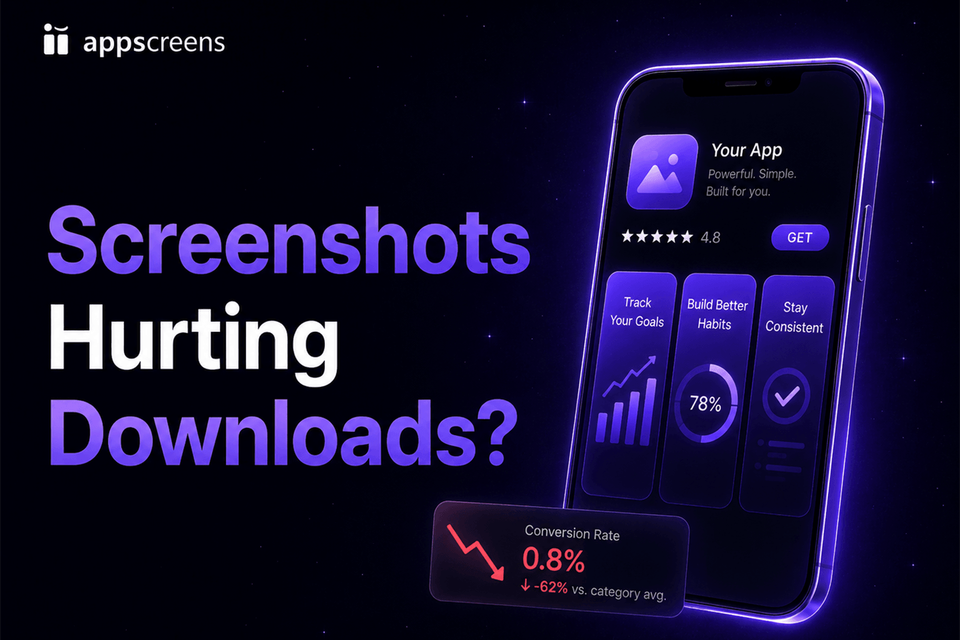
Your App Store Screenshots Are Probably Hurting Your Downloads More Than You Think
Good App Store screenshots give visitors a reason to install: a clear benefit, readable real app UI, and a story that makes sense in seconds. OLBG reported a 45% conversion improvement from one screenshot test and 61% across its screenshot optimization work. The opportunity is to make the app easier to understand, not just make the images prettier.
If you launched with AI-made screenshots, start with the message people see first. AppScreens gets you from real app screens to a stronger store pitch quickly, with templates, editable captions, store-size exports, and a free starting point. Use this guide to fix the opening story, build a useful alternative, and test which version earns more installs.
Make the install reason clear, then test it
Lead with the strongest benefit, show the real app delivering it, and make the first three screenshots work together. Apple can show the first one to three screenshots in search results when there is no app preview. A clearer caption, a larger product moment, or a stronger opening order gives visitors a reason to choose your app.
Build the alternative in AppScreens: find your app with AI onboarding, choose a template, upload real app screens, edit the captions, and preview store sizes without calculating every canvas by hand. Start free with one project and up to five exported screenshots for manual upload. Keep the project editable for your next caption, language, or app update.
Need a starting hypothesis? Run the free ASO Review for feedback on clarity, readability, and the opening story. A review suggests what to test; it does not measure conversion.
Why Good Screenshots Earn More Downloads
Your first screenshots have seconds to explain the app. A 2017 AppAgent study of more than 25,000 visitors reported an average store-page visit of seven seconds. Apple's current product-page guidance says the first one to three screenshots can appear in search results when no app preview is available, depending on orientation. Put the clearest benefit first and use the next two frames to prove it.
In OLBG's SplitMetrics case study, one screenshot experiment improved conversion by 45%, and the broader screenshot design and order work delivered a 61% conversion increase. Its plain-background variant performed 10-13% worse than the themed version. Bringing two popular features into the first three screenshots produced the biggest improvement. Good screenshot design makes the right benefits prominent; a simpler background alone does not guarantee a better result.
The ASO performance guide connects those results to the download opportunity. As an illustration, a 15% conversion lift on traffic currently producing 10,000 monthly downloads would add about 1,500 downloads at the same traffic volume. Build the alternative in AppScreens, then use the store's experiment to measure your result.
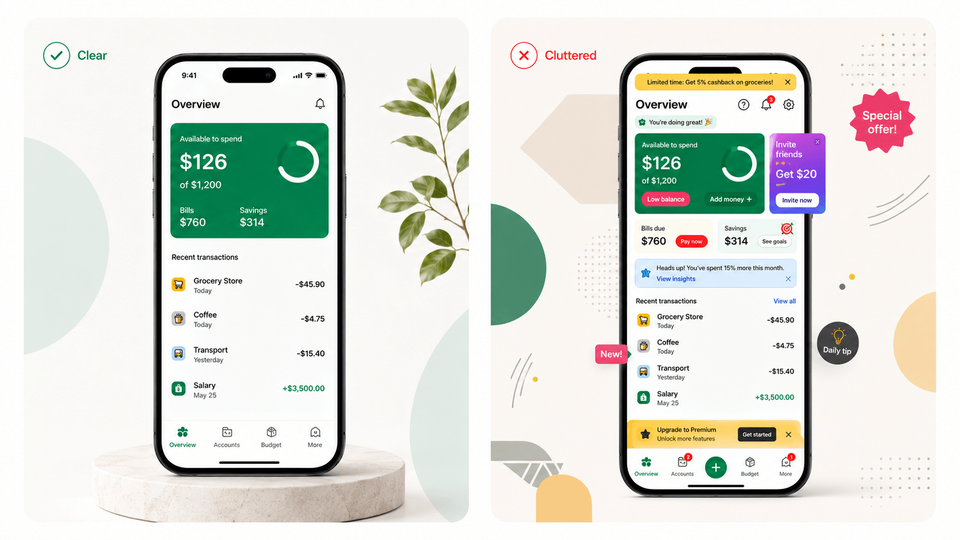
Use the screenshot playbook's caption and story script to give each frame one job: state a useful outcome, show the app delivering it, and add another reason to install.
Signs Your Screenshots Are Leaking Installs
Screenshots can leak installs while still looking acceptable. The listing may pass review, the app may be good, and the screenshots may look polished in isolation. The warning signs show up when visitors do not understand the value quickly enough to keep moving toward install.
| Warning sign | What users may see | What to fix first |
|---|---|---|
| Raw UI with no caption | A screen capture, not a reason to install. | Add one benefit-led caption and enough UI proof to make the outcome obvious. |
| Generic feature labels | "Dashboard", "Analytics", or "Tasks" without a user payoff. | Rewrite feature labels into outcomes: what changes for the user after opening the app? |
| Tiny app UI | A polished mockup that cannot be read at store size. | Enlarge the product moment and remove anything that competes with the main screen. |
| Weak first screenshot | A splash screen, menu, settings page, or vague brand statement. | Lead with the strongest install reason, then make screenshots 2 and 3 support that promise. |
| English-only creative in priority markets | The app feels less relevant before users read deeper copy. | Localize the first screenshots, visible examples, currencies, names, proof, and captions where demand exists. |
| No testable hypothesis | The team argues about style instead of learning what changes conversion. | Test one clear variable: first-frame promise, order, caption angle, proof point, localization, or visual style. |
If several of these are true, your listing may not need a full redesign first. It may need a clearer first-three screenshot story: one strong promise, one clear product proof, and one reason to trust the app before the visitor leaves.
Run a free screenshot review
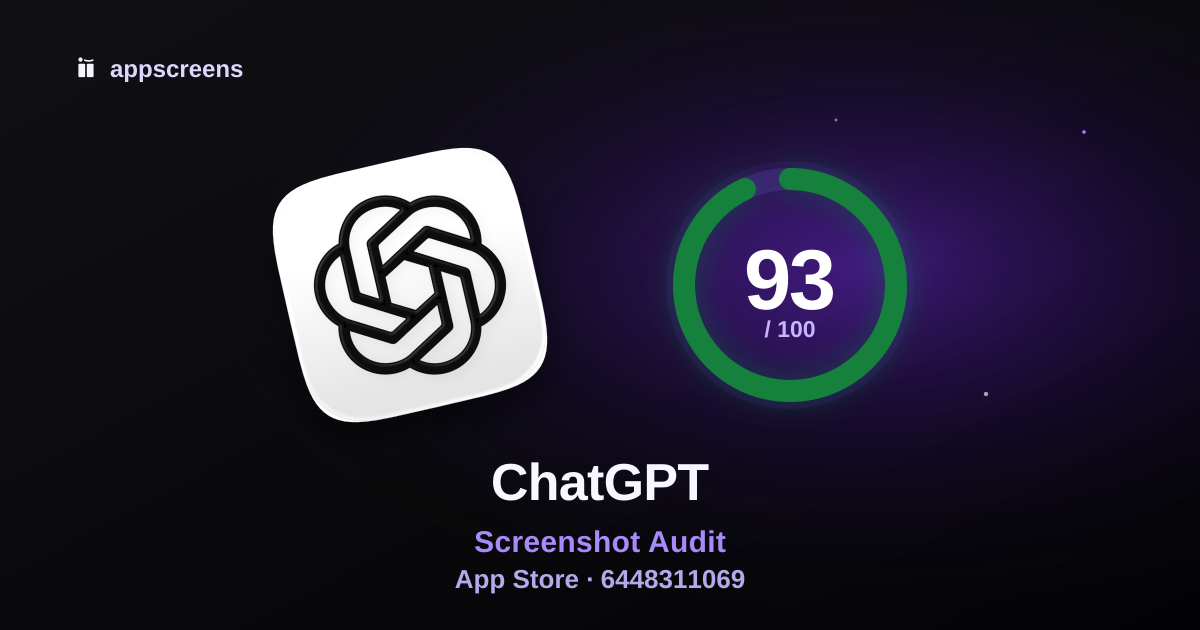
Paste your App Store or Google Play URL and get a scorecard for what to fix first. Use it to tighten the opening screenshot, rewrite weak captions, or build a cleaner test variant in AppScreens.
Make The Screenshot Message Work In Each Market
The right local presentation can turn more of your existing traffic into installs. ZiMAD reported a 36% conversion-rate increase in Japan after adapting its App Store screenshots to that audience. The work changed imagery and presentation as well as language. Test the local promise and examples, not just a word-for-word translation.
AppScreens keeps captions, captured app UI, and supporting images editable for each language. Translate the benefit, swap in the local app capture or example image, and preview text fit and RTL layouts before exporting. Automatic text resizing reduces repeated caption fitting, while per-language overrides let you show the right currency, names, and product examples.
Use the localization performance guide to choose the opportunity, then follow how to localize app screenshots to prepare the next market's assets without rebuilding every file.
Where AI Screenshot Tools Can Make The Problem Worse
AI can get a launch set moving quickly with caption ideas, backgrounds, and visual directions. After launch, check whether the finished set sells the app's actual value. A polished image still needs readable text, real product proof, and a benefit that fits the visitor's reason for searching.
The same questions apply whether the set came from AI, a designer, or a template. Can someone recognize the app's purpose? Are the captions readable? Does the real interface support the promise? The production method alone does not tell you which version will convert.
A flattened image also makes the next change harder: rewriting a caption, enlarging the app screen, or replacing a Japanese example can mean regenerating or manually rebuilding the asset. AppScreens uses real app captures with editable captions and layouts, so you can try a stronger promise, restyle the project, and re-export the sizes without recreating every screenshot.
Use the AI app store screenshot generators guide for the deeper workflow: use AI for ideas, then build final App Store and Google Play screenshots from real app screens, editable captions, templates, localization, accepted sizes, previews, exports, and upload-ready files.
Quick Workflow: Turn The Same App Screens Into A Stronger Store Pitch
AppScreens gives you a quick way to turn the app screens you already have into a stronger screenshot set. You do not need to hire a designer, calculate every store size, or rebuild captions on separate canvases. Start with app context and a ready-to-go template, then keep the message, layout, sizes, and exports in one editable project.
- Find the app and bring in context. Use AI onboarding to start from the real app and its metadata instead of a blank design file.
- Choose a template or start from scratch. Use a ready-to-go screenshot template for speed, or build your own layout when you want full creative control.
- Upload real app screens. Show a current product moment that proves the benefit. Keep captured screens and supporting images editable, including per-language versions.
- Rewrite captions around outcomes. Generate or edit a specific user benefit for each frame. Automatic text resizing helps the caption fit different sizes and translations; preview the result before export.
- Preview sizes and languages. Produce the required store sizes without manual size math, then check readability, cropping, text fit, local examples, and RTL layouts.
- Export or upload store-ready assets. Supported paid plans upload directly to App Store Connect, including Product Page Optimization treatments and Custom Product Pages, and Google Play's main listing. For Google Play experiments, export the variants and attach them in Play Console.
Start free with AI mode, one project, and up to five exported screenshots for manual store upload. Follow how to make app store screenshots for the full first-set workflow. Paid plans remove more repeated work with supported direct uploads, more projects, screenshots, localization, and variants.
The production burden grows quickly: eight screenshots across three sizes and twelve languages means 288 files before a second test variant. When the app changes, replace the affected captures, edit the captions, preview, and re-export from the saved project. You avoid rebuilding the whole set and fitting the same text by hand on every canvas.
Why did downloads drop after I changed my screenshots?
First separate lost exposure from a weaker response. Compare equal-length periods with matching weekdays, traffic sources, and markets. If fewer people see the listing while its response rate stays steady, investigate discovery or campaign changes first. If comparable traffic responds less often, check the screenshot message alongside price, ratings, and icon changes.
In App Store Connect, inspect unique impressions, product-page views, downloads, and conversion rate together. Apple's headline conversion rate divides downloads and pre-orders by unique device impressions, not product-page views. In Google Play's listing reports, compare visitors and install clicks; check completed acquisitions separately. A click is not a completed install, and neither report alone proves screenshots caused the decline.
If the redesign is already live, keep the current listing as the original/control and add the saved, still-accurate old screenshots as an Apple Product Page Optimization treatment or Google Play experiment variant. Keep the icon, price, and other listing elements fixed so the comparison isolates the screenshot set. Use the store's experiment result and reported uncertainty to decide what to keep; an inconclusive result does not establish a winner. Correct inaccurate or unreadable screenshots immediately, but record that as a fix rather than a measured conversion gain.
A Practical Screenshot Audit Checklist
Use this checklist to choose what to test before making a new set. It keeps the review focused on clarity instead of subjective design taste.
- Screenshot 1: Can a new visitor understand the main outcome without reading the description?
- Screenshot 2: Does it prove the first promise with real UI or a clear product moment?
- Screenshot 3: Does it add a second reason to believe, such as automation, proof, privacy, speed, content depth, or a key workflow?
- Captions: Are they specific benefits, or are they feature labels dressed up as marketing?
- Readability: Can captions and important UI be read at store-listing size on mobile?
- Order: Would the app still make sense if users only saw the first three screenshots?
- Localization: Do priority markets get native captions, examples, screenshots, currencies, and proof?
- Testing: Is there one clear hypothesis to compare with Product Page Optimization or Google Play Store Listing Experiments? If you use Custom Product Pages for different campaigns, account for audience differences before comparing their results.
If you want another set of eyes before rebuilding assets, use the free ASO Screenshot Review to spot the first-impression issues worth fixing first.
What To Test First When Screenshots Are Leaking Downloads
Start with the variable closest to the install decision and the biggest possible leak. Small visual polish can wait if the core message is unclear.
| Test idea | Use it when | Best next guide |
|---|---|---|
| First screenshot promise | Users may not understand the main outcome quickly. | Screenshot optimization playbook |
| First-three order | The app has several good benefits, but the story feels scattered. | Why ASO matters |
| Caption angle | Screens are accurate, but the benefit feels too generic. | ASO screenshot workflow |
| Localized screenshots | Priority markets get impressions or paid traffic but underperform. | Localization download lift guide |
| Google Play feature graphic | Android traffic needs a clearer visual promise before screenshots. | Feature graphic examples |
| PPO, CPP, or Play experiment variant | You have enough traffic to learn and one clear hypothesis. | PPO guide, CPP guide, or Play experiments |
Give each variant a clear question to answer, such as whether a benefit-led caption earns more installs than a feature name. Keep the control and change the element you want to learn about. The screenshot testing walkthrough shows how captions, order, and creative variants fit into the workflow.
If traffic is low, the comparison may remain inconclusive. First show the opening screenshots to people who fit the audience and ask what they think the app does. Use that feedback to improve comprehension, then check the store's estimated test duration. A small sample or a short before-and-after comparison does not establish a winner.
Build your next screenshot variant
Give visitors a clearer reason to install. Create your next screenshot set in AppScreens with real app screens, a ready-to-go template, benefit captions, and store-size exports. Keep the project editable so the next test or app update starts with the work you have already done.
Start free with one project and up to five exported screenshots for manual upload. Paid plans add supported direct uploads, more screenshots, localization, variants, and team workflows. Prepare the creative in AppScreens and run the experiment in the store console.
FAQ
Why did downloads drop after I changed my screenshots?
Downloads can fall because exposure, audience mix, or listing performance changed. Compare exposure and response within the same source and market, and check pricing, ratings, and icon changes. If the redesign is already live, test saved, still-accurate old screenshots as a PPO treatment or Google Play experiment variant against the current listing. Keep other listing elements fixed and use the native experiment result; a before-and-after drop does not isolate screenshots.
Do I need enough traffic before improving my screenshots?
You can fix inaccurate UI, unreadable text, or confusing captions immediately. With little traffic, a store experiment may remain inconclusive. Target-user feedback can help improve comprehension, but it is not evidence of a conversion lift.
Can bad App Store screenshots reduce downloads?
Yes. Tiny captions, an unclear first-three story and app screens that do not prove the benefit can waste visitors who already found your listing. OLBG reported a 45% conversion improvement from one screenshot test and 61% across its screenshot optimization work. Build a clearer alternative in AppScreens and compare it with the current set. See the ASO performance case studies.
Can AppScreens review my App Store screenshots?
Yes. The free ASO Review checks messaging, gallery story, readability, visual presentation, and listing context. Use its feedback to choose a hypothesis. A review does not measure conversion or prove which screenshot will win.
What makes app screenshots hurt conversion?
The main mistakes are vague feature labels, text that is too small at store size, a first-three sequence that hides the main benefit, outdated app UI and English-only visuals for a different language market. AppScreens helps you replace app captures, write benefit-led captions, fit text across sizes and create localized variants from an editable project.
Are AI-generated app screenshots a problem?
AI-generated screenshots are a problem when they make the process easier but ship the wrong store message. They can look polished while changing the real app UI, flattening captions into an image, missing store sizes, or focusing on visual style instead of user intent, keyword context, product proof, and ASO messaging. Use AI for ideas, then build final assets from real app screens, editable captions, templates, localization, previews, exports, and upload-ready files. See the AI app store screenshot generators guide.
How many installs can weak screenshots cost?
The cost depends on your traffic and the conversion difference you measure. For illustration, a 15% relative conversion improvement at stable traffic would turn 10,000 monthly downloads into 11,500, adding 1,500 without buying more visitors. Use the ASO performance guide and calculator to model your own baseline, then test the alternative.
What should I fix first in my App Store screenshots?
Fix the story across the first three screenshots. Screenshot 1 should state the strongest user benefit, screenshot 2 should show the real app delivering it, and screenshot 3 should add another reason to install. Use readable captions and app captures that prove each claim. The ASO playbook shows how to plan the sequence.
Are raw app screenshots enough for App Store Connect?
A correctly sized raw capture can meet store requirements, but a settings screen or dashboard alone may not explain why someone should install. Add a short benefit-led caption, show the useful app moment at a readable size and give the first three images a clear story. AppScreens templates let you create that presentation quickly without a designer or calculating each store size yourself.
Can I fix app screenshots without a designer?
Yes. Find your app with AppScreens AI onboarding, choose a screenshot template, upload real app captures and edit the captions and style. Automatic text fitting and store-ready exports handle repeated size adjustments. Start free with one project, AI mode and up to five screenshot exports for manual upload; supported paid plans add more capacity, localization and direct uploads.
Should I localize screenshots if downloads are flat?
Start with markets already showing demand or receiving relevant traffic. ZiMAD reported a 36% conversion increase after adapting its screenshots for Japan. Translate the benefit, replace app captures and images for that language, and check currencies, text fit and right-to-left layouts where needed. AppScreens keeps text and per-language assets editable. See the localization download lift guide.
What should I test first if screenshots are leaking installs?
Test a clearer story across the first three screenshots: the main promise, real app proof and a second compelling benefit. Choose the change closest to the problem, such as a more useful app screen, readable caption or stronger order. Keep other listing elements fixed. Use AppScreens to create one meaningful alternative, then measure it with Product Page Optimization or Google Play Store Listing Experiments.
Sources and Further Reading
- ASO testing evidence and download math
- AI app store screenshot generators and prompts
- App localization download lift examples
- App Store screenshot optimization playbook
- SplitMetrics OLBG screenshot testing case study
- ZiMAD screenshot localization for Japan
- AppAgent's 2017 store-visitor study
- Apple product-page and screenshot guidance
- Apple Product Page Optimization
- Google Play Store Listing Experiments