

Xcode storage collects in a few places: simulator runtimes and devices, iOS DeviceSupport, Archives, DerivedData and old Xcode installs. Measure them before you delete anything. DerivedData and DeviceSupport come back by themselves when needed, unused simulators and runtimes can go, and the archive of every build you shipped should stay, because its dSYM files turn crash reports back into readable stack traces.


Quick Take
Run the read-only storage report, then work down the table below. Remove simulator runtimes in Xcode Settings or with xcrun simctl runtime delete, clear devices with xcrun simctl delete, quit Xcode before deleting DerivedData, and keep the archives of builds you distributed.
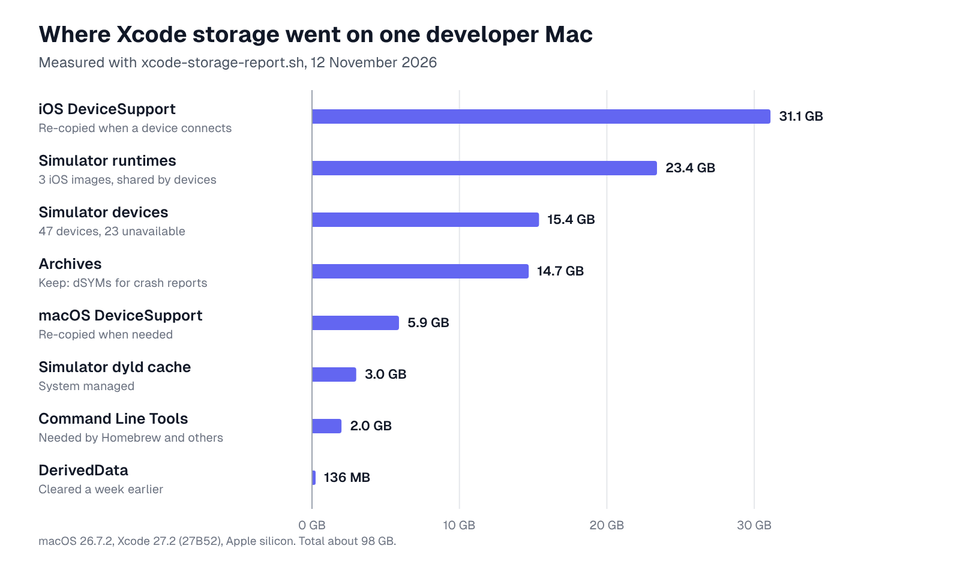
On our test Mac, Xcode-related folders held about 98 GB, led by 31.1 GB of iOS DeviceSupport, 23.4 GB of simulator runtimes, 15.4 GB of simulator devices and 14.7 GB of archives.
1. Measure what Xcode is storing
The storage report script at the end of this section measures each Xcode folder, lists the largest DerivedData folders and simulators, counts devices whose runtime is gone and prints the runtime list. It only reads. Copy it, type pbpaste > xcode-storage-report.sh in Terminal to save it, then run it:
bash xcode-storage-report.shPart of the output from our test Mac:
$ bash xcode-storage-report.sh

Xcode in use
  xcode-select:  /Applications/Xcode.app/Contents/Developer
  version:       Xcode 27.2 Build version 27B52
  installed:     /Applications/Xcode.app (Xcode 27.2)

Build data (safe to delete; Xcode rebuilds it)
  DerivedData                     136 MB  ~/Library/Developer/Xcode/DerivedData
        41 MB  App-edrbspgpfmpozvazwkbxkwomifoh                 project exists
        15 MB  SDKStatCaches.noindex                            no project recorded
        ...

Simulator devices (each device's apps, data and settings)
  CoreSimulator/Devices          15.4 GB  ~/Library/Developer/CoreSimulator/Devices
  47 devices, 23 unavailable (their runtime is no longer installed)
       5.2 GB  iPhone Duo                         iOS-27-2-iPhone19-4
       4.8 GB  iPhone 17                          iOS-26-5
        17 MB  iPhone SE (3rd generation)         iOS-15-5
        ...

Simulator runtimes (shared OS images; one runtime serves many devices)
  == Disk Images ==
  -- iOS --
  iOS 27.2 (24B8117) - 23020FB2-8430-4AB0-A15A-E02571E6232C (Ready)
  iOS 26.5 (23F77) - CB70EF3E-1E69-40E6-8F8A-6E2CB38E2F2E (Ready)
  iOS 27.2 (24B91016s) - A4302DCA-2BE0-4B84-9738-935DEC4B6F2D (Ready)

  Total Disk Images: 3 (23.4G)

Archives (keep the builds you shipped: they hold the dSYMs for crash reports)
  Archives                       14.7 GB  ~/Library/Developer/Xcode/Archives
  30 archives, dated 2021-05-16 to 2026-08-22

Device support (debug symbols copied from your physical devices)
  iOS DeviceSupport              31.1 GB  ~/Library/Developer/Xcode/iOS DeviceSupport
         0 KB  15.3.1 (19D50) arm64e
       6.4 GB  16.6.1 (20G81) arm64e
       5.7 GB  iPhone18,1 26.7 (23H24)
       ...

Totals
  ~/Library/Developer            70.1 GB  ~/Library/Developer
  Free space on this volume: 57Gi of 926Gi

Nothing was deleted. What each category is, and how to remove it safely:
https://appscreens.com/blog/clean-up-xcode-mac
Prefer two commands? This lists each folder in ~/Library/Developer/Xcode and the simulator devices total, smallest first, then the installed runtimes and their total size:
du -sh ~/Library/Developer/Xcode/* ~/Library/Developer/CoreSimulator/Devices 2>/dev/null | sort -h
xcrun simctl runtime list
The full storage report script:
#!/bin/bash
# xcode-storage-report.sh
# Shows what Xcode and Simulator are storing on this Mac, grouped by what each
# category is for. Read-only: it measures folders and lists simulators, but it
# never deletes, moves or changes anything.
#
# Usage:  bash xcode-storage-report.sh
# Guide:  https://appscreens.com/blog/clean-up-xcode-mac
# Tested: macOS 26.7, Xcode 27.2 (bash 3.2, the version macOS ships).
# SPDX-License-Identifier: MIT
# Copyright (c) 2026 AppScreens. Free to use, copy and change; please keep
# this header, including the guide link.

set -u

kb() { if [ -e "$1" ]; then du -skx "$1" 2>/dev/null | awk '{print $1}'; else echo 0; fi; }
human() { awk -v k="$1" 'BEGIN { if (k >= 1048576) printf "%.1f GB", k / 1048576; else if (k >= 1024) printf "%.0f MB", k / 1024; else printf "%d KB", k }'; }
short() { case "$1" in "$HOME"*) printf '~%s' "${1#"$HOME"}" ;; *) printf '%s' "$1" ;; esac; }
row() { local k; k=$(kb "$2"); printf "  %-28s %9s  %s\n" "$1" "$(human "$k")" "$(short "$2")"; }
title() { printf "\n%s\n" "$1"; }

DEV="$HOME/Library/Developer"
DD=$(defaults read com.apple.dt.Xcode IDECustomDerivedDataLocation 2>/dev/null || true)
[ -z "$DD" ] && DD="$DEV/Xcode/DerivedData"

title "Xcode in use"
printf "  xcode-select:  %s\n" "$(xcode-select -p 2>&1)"
printf "  version:       %s\n" "$(xcodebuild -version 2>&1 | tr '\n' ' ')"
mdfind "kMDItemCFBundleIdentifier == 'com.apple.dt.Xcode'" 2>/dev/null | while read -r app; do
  v=$(defaults read "$app/Contents/Info" CFBundleShortVersionString 2>/dev/null)
  printf "  installed:     %s (Xcode %s)\n" "$app" "$v"
done

title "Build data (safe to delete; Xcode rebuilds it)"
row "DerivedData" "$DD"
if [ -d "$DD" ]; then
  for d in "$DD"/*/; do
    d=${d%/}
    wp=""; [ -f "$d/info.plist" ] && wp=$(/usr/libexec/PlistBuddy -c 'Print :WorkspacePath' "$d/info.plist" 2>/dev/null)
    if [ -z "$wp" ]; then state="no project recorded"; elif [ -e "$wp" ] || [ -e "/private$wp" ]; then state="project exists"; else state="PROJECT MISSING"; fi
    printf "%s\t%s\t%s\n" "$(kb "$d")" "$(basename "$d")" "$state"
  done | sort -rn | head -12 | while IFS=$'\t' read -r k name state; do
    printf "    %9s  %-48s %s\n" "$(human "$k")" "$name" "$state"
  done
fi

title "Simulator devices (each device's apps, data and settings)"
row "CoreSimulator/Devices" "$DEV/CoreSimulator/Devices"
total=$(xcrun simctl list devices 2>/dev/null | grep -cE '\([0-9A-F-]{36}\)')
unavail=$(xcrun simctl list devices unavailable 2>/dev/null | grep -cE '\([0-9A-F-]{36}\)')
printf "  %s devices, %s unavailable (their runtime is no longer installed)\n" "$total" "$unavail"
for d in "$DEV"/CoreSimulator/Devices/*/; do
  d=${d%/}
  [ -f "$d/device.plist" ] || continue
  n=$(/usr/libexec/PlistBuddy -c 'Print :name' "$d/device.plist" 2>/dev/null)
  r=$(/usr/libexec/PlistBuddy -c 'Print :runtime' "$d/device.plist" 2>/dev/null)
  printf "%s\t%s\t%s\n" "$(kb "$d")" "$n" "${r##*.}"
done | sort -rn | head -8 | while IFS=$'\t' read -r k n r; do
  printf "    %9s  %-34s %s\n" "$(human "$k")" "$n" "$r"
done

title "Simulator runtimes (shared OS images; one runtime serves many devices)"
xcrun simctl runtime list 2>/dev/null | sed 's/^/  /'

title "Archives (keep the builds you shipped: they hold the dSYMs for crash reports)"
row "Archives" "$DEV/Xcode/Archives"
n=$(find "$DEV/Xcode/Archives" -maxdepth 2 -name '*.xcarchive' 2>/dev/null | wc -l | tr -d ' ')
first=$(ls "$DEV/Xcode/Archives" 2>/dev/null | head -1)
last=$(ls "$DEV/Xcode/Archives" 2>/dev/null | tail -1)
printf "  %s archives, dated %s to %s\n" "$n" "${first:-none}" "${last:-none}"

title "Device support (debug symbols copied from your physical devices)"
for d in "$DEV"/Xcode/*DeviceSupport; do
  [ -d "$d" ] || continue
  row "$(basename "$d")" "$d"
  for v in "$d"/*/; do
    v=${v%/}; printf "    %9s  %s\n" "$(human "$(kb "$v")")" "$(basename "$v")"
  done
done

title "Caches and other files"
row "Xcode cache" "$HOME/Library/Caches/com.apple.dt.Xcode"
row "SwiftPM cache" "$HOME/Library/Caches/org.swift.swiftpm"
row "SwiftPM shared data" "$HOME/Library/org.swift.swiftpm"
row "SwiftUI previews" "$DEV/Xcode/UserData/Previews"
row "Documentation cache" "$DEV/Xcode/DocumentationCache"
row "Device logs" "$DEV/Xcode/iOS Device Logs"
row "XCTest devices" "$DEV/XCTestDevices"
row "Simulator caches (user)" "$DEV/CoreSimulator/Caches"
row "Simulator caches (system)" "/Library/Developer/CoreSimulator/Caches"
row "Command Line Tools" "/Library/Developer/CommandLineTools"

title "Totals"
row "~/Library/Developer" "$DEV"
df -h "$HOME" | awk 'NR == 2 { printf "  Free space on this volume: %s of %s\n", $4, $2 }'
printf "\nNothing was deleted. What each category is, and how to remove it safely:\n"
printf "https://appscreens.com/blog/clean-up-xcode-mac\n"
2. What to delete and what to keep
Each row links to its procedure. "What comes back" is what Xcode or the system recreates by itself; anything not listed there is gone until you download or rebuild it.
| What it is | What disappears | What comes back | Keep or delete |
|---|---|---|---|
| DerivedData Build products, indexes, logs and module caches for each project | Incremental build state, the code index, build logs | Everything, on the next build and index pass | Delete when Xcode is closed. Expect one slow build. |
| Simulator devices One folder per simulator: its apps, data, photos and settings | The device, its installed apps and their data | Nothing. A new device starts empty. | Delete unavailable and unused devices. Keep the ones you test on. |
| Simulator runtimes The iOS, watchOS, tvOS or visionOS image that devices boot | That OS version. Devices using it become unavailable but stay on disk. | Nothing until you download it again (about 8 GB per iOS runtime) | Remove versions you no longer test against. |
| iOS DeviceSupport Symbols copied from each physical device and OS version you connected | Local symbols for that OS version | Copied again the next time you connect a device on that version | Delete versions you no longer debug on. |
| Archives Each archived build: the app plus its dSYM debug symbols | The ability to symbolicate crash reports for that build and export it again | Nothing. A rebuild produces different build UUIDs. | Keep every build you distributed, or back it up first. |
| Package caches Downloaded Swift packages and CocoaPods | Cached package checkouts | Everything, on the next package resolve (needs network) | Delete when you are online and a resolve is acceptable. |
| Old Xcode versions Extra Xcode apps, often beta or CI versions | That Xcode and its bundled SDKs | Nothing until you reinstall it | Keep only versions you build with. Never delete the selected one first. |
3. Simulator devices and simulator runtimes are separate
A runtime is the operating system image. Apple describes it as "an OS package that Simulator loads when booting a device", and one runtime serves every device of that OS version. A device is a configuration plus its own data folder in ~/Library/Developer/CoreSimulator/Devices/<UDID>. Apple documents removing a runtime and removing a device as two different operations, and the difference matters:
- Removing a runtime does not remove its devices. They stay on disk and are marked unavailable. Our test Mac still had 23 of its 47 simulators left behind by the iOS 15.5 and 26.2 runtimes.
- Removing devices does not free runtime space. The three installed iOS runtimes took 23.4 GB. The devices took 15.4 GB, almost all of it in three simulators that had been used for testing.
- Most unused devices are small. A simulator that was never booted was 17 MB; the iPhone Duo simulator we used for screenshots was 5.2 GB.
This is how devices from a removed runtime look in xcrun simctl list devices:
$ xcrun simctl list devices
...
-- Unavailable: com.apple.CoreSimulator.SimRuntime.iOS-15-5 --
    iPhone SE (3rd generation) (5A33C62B-84F3-4364-A0F3-64D0AFE53113) (Shutdown) (unavailable, runtime profile not found using “System” match policy)
    iPhone 13 Pro (4E043BB2-758E-46E4-AEAA-3C6BA8708A28) (Shutdown) (unavailable, runtime profile not found using “System” match policy)
    ...
-- Unavailable: com.apple.CoreSimulator.SimRuntime.iOS-26-2 --
    iPhone 17 Pro (A8344FE4-B5BD-460F-8881-731CB8781DD4) (Shutdown) (unavailable, runtime profile not found using “System” match policy)
    ...
So the order is: remove the runtimes you no longer need, then delete the devices that became unavailable, then delete any other simulators you do not use.
4. Remove each category safely
Delete DerivedData
In Xcode 27, choose Product > Delete Derived Data…. In any version you can quit Xcode and remove the folder from Terminal. These commands respect a custom location set in Xcode Settings > Locations:
DD=$(defaults read com.apple.dt.Xcode IDECustomDerivedDataLocation 2>/dev/null || echo "$HOME/Library/Developer/Xcode/DerivedData")
echo "$DD"
du -sh "$DD"
Check that the printed path is the DerivedData folder shown in Xcode Settings > Locations, quit Xcode, then empty it in the same Terminal window:
rm -rf "${DD:?}"/*Nothing in DerivedData is source code. The next build compiles everything again and Xcode re-indexes the project, so autocomplete and jump-to-definition are slower for a few minutes. Product > Clean Build Folder is narrower: it removes build products for the open project but leaves its index and every other project alone.
In the WWDC26 Xcode Tips and Tricks group lab, Apple's engineers described deleting DerivedData as a workaround rather than a fix. If you need it for the same build failure again and again, the project probably has a build problem worth finding, such as a missing target dependency. To clear one project, or folders left behind by Git worktrees, use the DerivedData report.
Delete simulator devices
List the devices whose runtime is gone, and check that the runtimes you still use show as Ready:
xcrun simctl list devices unavailable
xcrun simctl runtime list
If simulators you still use appear in that list, for example right after an Xcode or macOS update, reinstall their runtime in Settings > Components instead. Otherwise delete them, then any other simulator by UDID:
xcrun simctl delete unavailable
xcrun simctl delete 5A33C62B-84F3-4364-A0F3-64D0AFE53113
delete unavailable removes devices "not supported by the current Xcode SDK", in the words of xcrun simctl help delete. If you only want to empty a device, erase it instead. It has to be shut down first, otherwise simctl refuses:
$ xcrun simctl erase F88646D9-C65A-4399-BC17-89EFC2B986EB
An error was encountered processing the command (domain=com.apple.CoreSimulator.SimError, code=405):
Unable to erase contents and settings in current state: Booted

$ xcrun simctl shutdown F88646D9-C65A-4399-BC17-89EFC2B986EB
$ xcrun simctl erase F88646D9-C65A-4399-BC17-89EFC2B986EB
In Xcode 26 and earlier, the same controls are in Window > Devices and Simulators: Control-click a simulator and choose Delete. Xcode 27 replaces the Simulator app with Device Hub (Xcode > Open Developer Tool > Device Hub), and simctl works as before. Avoid deleting folders inside CoreSimulator/Devices by hand while a simulator is running.
Remove simulator runtimes
In Xcode, open Settings > Components, select the runtime and click the minus button or the info button, then Delete. Xcode shows how much space each removal frees. From Terminal, the verbose list shows when each runtime was last used and how big it is:
xcrun simctl runtime list -v
xcrun simctl runtime delete --notUsedSinceDays 90 --dry-run
Then delete a runtime by its identifier, and remove the devices it leaves unavailable:
xcrun simctl runtime delete 23020FB2-8430-4AB0-A15A-E02571E6232C
xcrun simctl delete unavailable
One entry from our verbose list:
$ xcrun simctl runtime list -v
== Disk Images ==
-- iOS --
...
iOS 26.5 (23F77) - CB70EF3E-1E69-40E6-8F8A-6E2CB38E2F2E
    State: Ready
    Image Kind: Patchable Cryptex Disk Image
    Signature State: Verified
    Deletable: YES
    Last Used At: 2026-11-06 05:47:16 +0000
    ...
    Mount Path: /Library/Developer/CoreSimulator/Volumes/iOS_23F77
    ...
    Size: 7.9G
    ...

$ xcrun simctl runtime delete --notUsedSinceDays 30 --dry-run
No matching images found to delete
runtime delete also accepts --outdated (an older build of a runtime you have a newer copy of) and --unusable. Run them with --dry-run first; when nothing qualifies it prints "No matching images found to delete". Runtime images live in a protected system location, so remove them only through Xcode or simctl.
If a runtime comes back after a restart, update Xcode. Apple listed "Some simulator runtimes are not completely deleted when removed, reappearing after a reboot" as a known issue in Xcode 27 and fixed it in Xcode 27.2. To download a runtime again, use Settings > Components or xcodebuild -downloadPlatform iOS.
Remove old iOS DeviceSupport versions
Xcode copies symbols from each physical device the first time you connect it on a new OS version. Each folder on our test Mac was 3.8 to 6.4 GB, and two were empty. Delete the versions you no longer debug on; Xcode copies them again if you reconnect a device running that version.
du -sh ~/Library/Developer/Xcode/"iOS DeviceSupport"/*Then delete a version by its folder name, for example:
rm -rf ~/Library/Developer/Xcode/"iOS DeviceSupport"/"16.6.1 (20G81) arm64e"The same applies to the watchOS and macOS DeviceSupport folders next to it.
Keep the archives you shipped
An archive holds the app binary and the dSYM files for every framework in it. Apple's debugging information guide is direct about it: "You must retain the Xcode archive for each build of your app you distribute." A binary and a dSYM only match when their build UUIDs match, and a rebuild almost never reproduces the same binary and UUIDs, so treat a deleted archive as gone.
Archives you uploaded record it in the Distributions entry of their Info.plist. Check before deleting, and move old shipped archives to another drive instead:
ls ~/Library/Developer/Xcode/Archives
plutil -p ~/Library/Developer/Xcode/Archives/2025-07-24/*.xcarchive/Info.plist | grep -A3 Distributions
ditto ~/Library/Developer/Xcode/Archives/2021-05-16 /Volumes/Backup/Xcode-Archives/2021-05-16
Delete the original only after the copy opens. Test archives that were never distributed are safe to delete. Our test Mac had 30 archives using 14.7 GB; one app archive was 473 MB, most of it dSYMs.
Clear package caches
In Xcode choose File > Packages > Reset Package Caches. The global Swift Package Manager cache and CocoaPods' cache can be cleared from Terminal; both are downloaded again on the next resolve or pod install:
rm -rf ~/Library/Caches/org.swift.swiftpm
pod cache clean --all
On our test Mac the CocoaPods spec repos in ~/.cocoapods/repos were larger than both caches combined, at 5.1 GB. The developer disk space guide covers those, along with Node, Docker and Android.
Remove old Xcode versions
Find every Xcode on the Mac and check which one Terminal uses before removing any of them:
mdfind "kMDItemCFBundleIdentifier == 'com.apple.dt.Xcode'"
xcode-select -p
Drag unused copies to the Trash. If you remove the selected one, switch first with sudo xcode-select --switch /Applications/Xcode.app, or command-line tools will fail with a developer path error. The command-line tools guide covers those errors. Deleting the app leaves ~/Library/Developer and the simulator runtimes in place, so clean those up with the steps above.
5. Leave these alone
- Archives of distributed builds, unless you have a tested copy elsewhere.
- ~/Library/Developer/Xcode/UserData: your themes, key bindings, code snippets and, in recent Xcode versions, provisioning profiles.
- /Library/Developer/CoreSimulator/Caches: a system-managed simulator cache (3.0 GB on our Mac) that is rebuilt as needed.
- Runtime files in system folders: remove runtimes with Xcode or simctl, never by deleting their files.
- Command Line Tools (2.0 GB), if Homebrew or other tools on your Mac rely on them.
Keeping simulators for App Store screenshots?
Keep one simulator for each App Store screenshot size you capture, such as a current Pro iPhone, an iPhone Duo (required from April 2027 for apps built with the iOS 27.1 SDK or later) and a 13-inch iPad, and delete the rest. Our capture guide and 9:41 status bar guide cover clean captures, and AppScreens turns them into App Store and Google Play screenshot sets at every required size.
FAQ
Is it safe to delete Xcode DerivedData?
Yes. DerivedData holds build products, indexes, logs and caches, not source code. Quit Xcode, delete it, and Xcode rebuilds it on the next build. The first build and index pass take longer. In Xcode 27 you can use Product > Delete Derived Data.
What is the difference between deleting a simulator and deleting a simulator runtime?
A runtime is the shared OS image, about 8 GB for iOS. A simulator device is one configuration with its own apps and data. Deleting a runtime leaves its devices on disk as unavailable, so run xcrun simctl delete unavailable afterwards. Deleting devices does not free runtime space.
Can I delete Xcode Archives?
Delete only archives you never distributed, or ones you have copied elsewhere. Apple says to retain the archive for each build you distribute, because its dSYM files are needed to symbolicate crash reports and cannot be recreated by rebuilding.
Can I delete iOS DeviceSupport folders?
Yes, for OS versions you no longer debug on. Each folder holds symbols copied from a connected device and was 3.8 to 6.4 GB on our test Mac. Xcode copies them again when you next connect a device running that version.
How do I delete old simulator runtimes from Terminal?
Run xcrun simctl runtime list -v to see each runtime, its size and when it was last used, then xcrun simctl runtime delete with its identifier. Options such as --notUsedSinceDays 90, --outdated and --unusable select runtimes for you; add --dry-run to preview.
Why did a deleted simulator runtime come back?
Apple listed runtimes reappearing after a reboot as a known issue in Xcode 27 and fixed it in Xcode 27.2. Update Xcode, delete the runtime again and check xcrun simctl runtime list after a restart.
Does uninstalling Xcode remove simulators and DerivedData?
No. Deleting Xcode.app leaves ~/Library/Developer, including DerivedData, Archives, DeviceSupport and simulator devices, and the simulator runtimes stay installed. Remove those separately.
Quote this guide
You can quote sections, tables, commands and charts from this guide in your own posts, documentation or answers, as long as you link to this page. Please do not republish the whole guide. The scripts are MIT licensed, so you can copy and change them freely.
AppScreens.com, "Clean Up Xcode on Your Mac: What to Delete and What to Keep", 29 September 2026. https://appscreens.com/blog/clean-up-xcode-macSources
- Apple: Adding additional simulators (runtimes and devices)
- Apple: Downloading and installing additional Xcode components
- Apple: Building your app to include debugging information (archives and dSYMs)
- Apple: Xcode 27.2 release notes (runtime deletion fix)
- Apple: WWDC26 Xcode Tips and Tricks group lab (Delete Derived Data)
xcrun simctl help runtime,xcrun simctl help deleteandxcrun simctl help erasein Xcode 27.2
Tested on macOS 26.7.2 with Xcode 27.2 (27B52), Apple silicon. Sizes will differ on your Mac.